

The art of storytelling might have started long before homo sapiens can speak. It evolves with us and adapts to the available tools. The stories that used to be told and passed down from one generation to another orally embraced literal evolution from handwritten books, to mass printing, to digital word processing, and recently the Internet. From the human evolution point of view it feels like we haven’t tapped the full potential of all the available technologies that we have today. While videos have already started their virtual world domination campaigns, the majority of the web’s content is still in text.
Modern web content should be interactive and incorporate various media along with good ol’ plain text. Some tools can help us bump our storytelling up a few notches. And if you are a WordPress user, you can use the Animate It! plugin to add cool CSS3 animations to your content.
What Are the Possibilities?
Along with HTML5, CSS3 is the acronym related to modern web design. In a nutshell, CSS is the web component that enables users to control the appearance of the web page such as the layout, position, font, color, etc. Its latest incarnation, CSS3, is smart enough to let users create images and animations using codes.

Luckily, you don’t have to be a coder to utilize CSS3 on your WordPress site. The Animate It! plugin allows you to apply CSS3 animations to Posts, Widgets, and Pages with the click of a button in the editor. Besides, users can control the triggers. For example, they can apply animation on scroll, click, and hover, and add different scroll offset on individual animation blocks. The plugin also comes with tons of features, such as:
- 50+ Entry, Exit, and Attention Seeker Animations
- Provides delay feature and duration control in animation to create a nice animation sequence
- Allow users to apply animation infinitely or any fixed number of times
- Option to add custom CSS classes to individual animation block
- Options to enable or disable animations on Smartphones and Tablets
What can you do with the Animate It! plugin? You can add simple interactivities to your articles, create enticing sales pages, deepen the emotions of your fictions, or even create a powerful business presentation if you want to. Just remember not to go overboard as bombarding your visitor with unlimited animation is not the best way to get loyal readers.
Getting Started with Animate It!
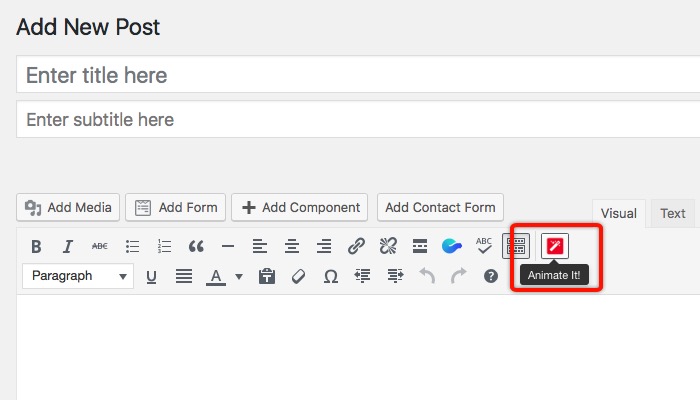
After installing and activating the plugin, you can find the button to add animation in “WordPress’ Editor.” This button will only show up in the visual mode, but if you’ve learned the commands, it’s possible to insert the codes from the plain text mode (more on this later).
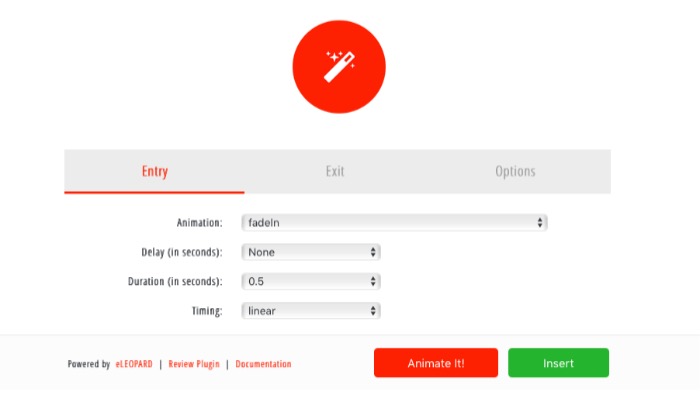
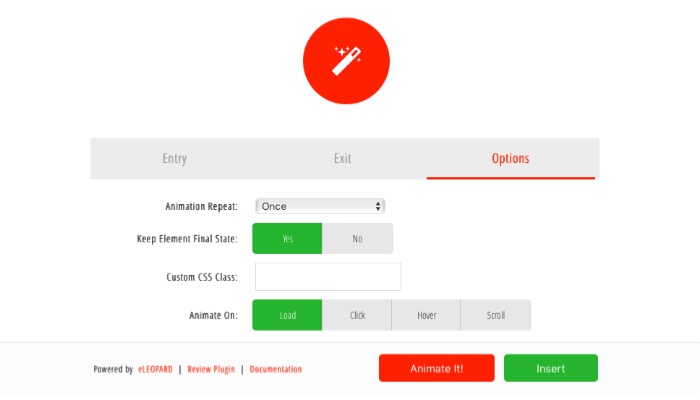
After pressing the button, you will get an options window. There are three tabs there allowing you to customize the animation. The first tab is “Entry.” This is the place to add the animation that will enter the screen on certain conditions. Four drop-down options will help you adjust the animation effects.
- Animation is the place to choose what kind of animation you want.
- Delay will help you adjust the time before the animation starts.
- Duration is about how long the animation will be played from start to finish. The greater the number, the slower the animation will be.
- Timing is the proportion of the animation to play at a time. For example, the “easeIn” effect will play the animation slower at the beginning and faster toward the end.
You can check out the effect combinations by playing it using the “Animate It!” button. If the result is to your liking, you can press the “Insert” button to use it in your content.
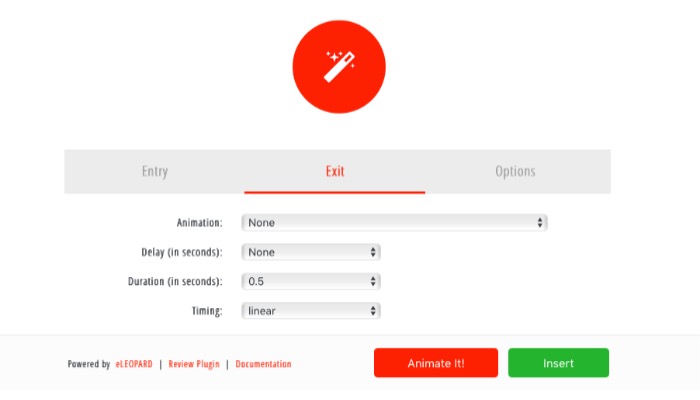
The “Exit” tab is more or less similar to the Entry, but to add an animation that will leave the screen. By combining the two, you can add an object that will appear on the screen and then disappear.
The “Options” tab is where you control the general settings of the animation. Here you can set the animation to play on a loop or one time only, keep the element final state, add custom CSS code, and set the trigger that will start the animation. Specifically about the trigger – the “Animate On” setting – you can choose Scroll, for example, and the animation will only start if the area is already visible on the screen.
Adding Your Content
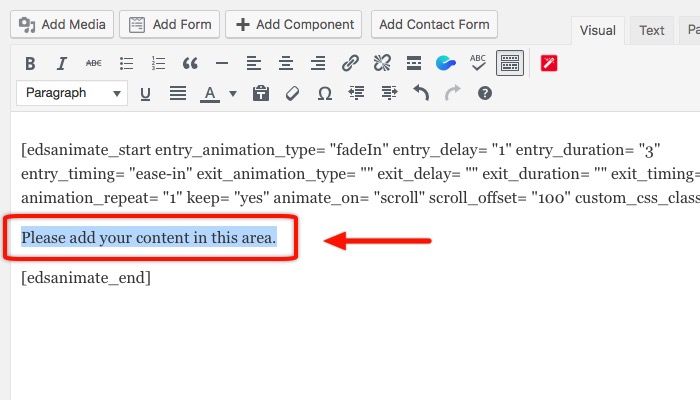
After pressing the “Insert” button, you will see few lines of shortcodes added to your content area. These shortcodes are the ones that will control the animation. And since they are just codes with values, you could add the codes manually if you are good with codes and want to. However, other people should just stick with the Animate It! button.
You will also see a line of text that says, “Please add your content in this area.” Here is the where you can add the items that you want to animate. It could be text, images, icon, logos, audios, videos, or even other shortcodes. I tried adding a typed-effect shortcode generated using Typed Js plugin, and the result is great.
If there’s one thing that I could say about using the Animate It! plugin, it would be “Experiment!” Play with it and try different combinations to get the result that you want. It’s fun. And here’s the result that I came up within less than one minute. I combined the Animate It! plugin with Typed Js plugin.

Do you think it’s about time to add interactive elements to your web content? Are you planning to try the plugin? Do you use different plugins for animation? Please share using the comments below.