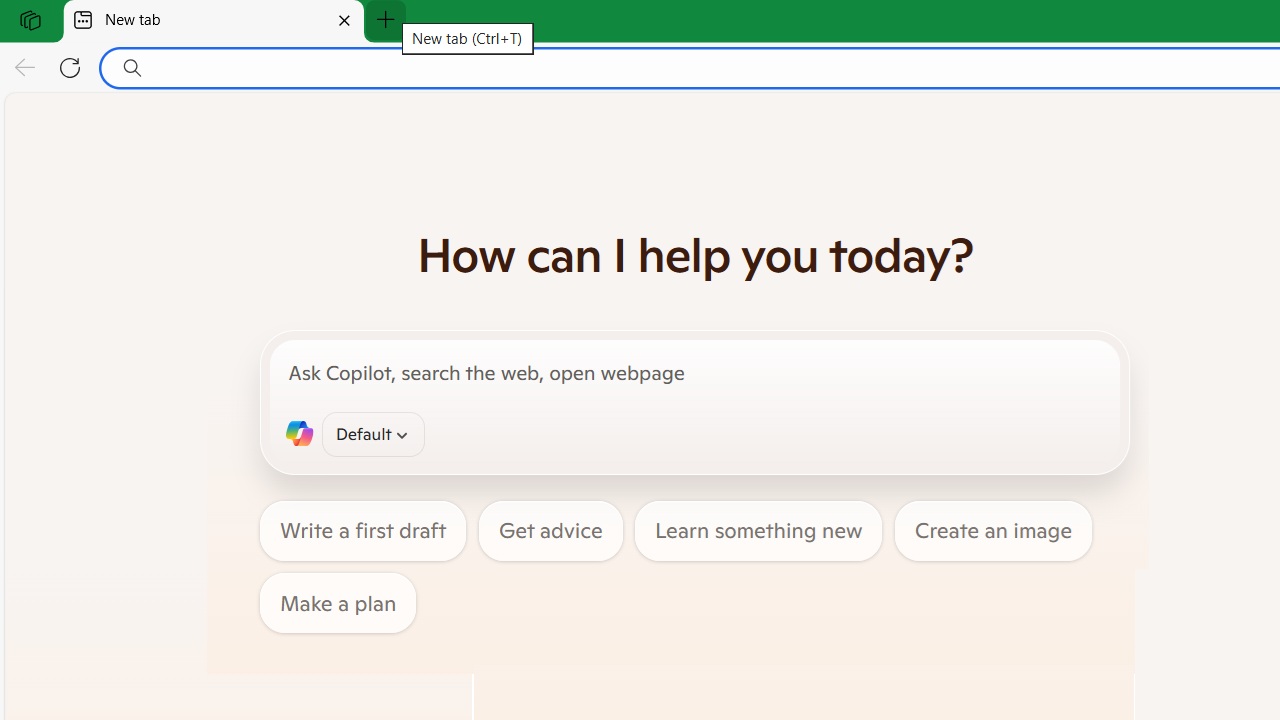
In the Edge browser on Windows, you can set Copilot as the default experience for new tabs. This feature is disabled by default and many Edge users would prefer it that way. However, if you’re a regular Copilot user, it enhances your browsing beyond the traditional address bar. Find out how to enable this hidden feature of Copilot for new tabs in Microsoft Edge.
Adding Copilot as New Tab in Edge Browser
Microsoft has added the Copilot chat interface to new tabs in Edge browser (Edge Canary version). Since normal Edge users may find it disruptive, Microsoft is keeping it disabled by default, requiring manual activation as shown below.
You have to download the Canary Channel from the official Edge website. While downloading, click Agree and download to a license page.
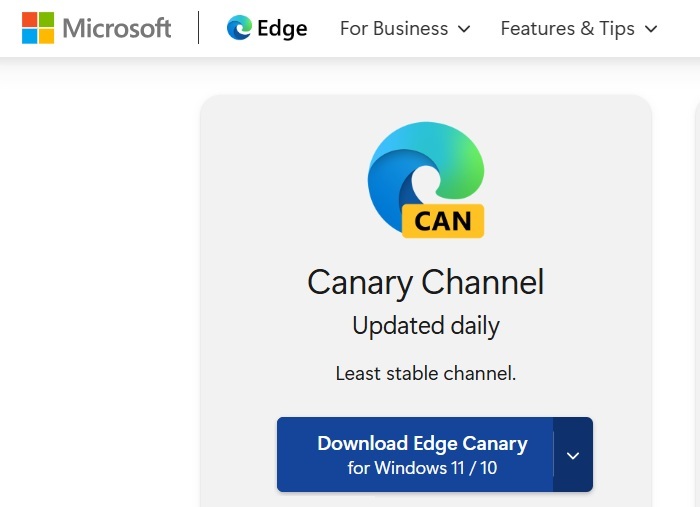
After you install the advanced browser version, Edge Canary opens on the taskbar just like any other Edge icons. It will not disrupt your normal browsing experience, unlike the Beta or Dev versions.

Next, go to the Edge flags page by typing edge://flags. Here, search for “NTP Composer.”
For the first flag, NTP Composer, the setting is at Default. Change it to Enabled with experimental features. You will find more related flags prefaced by “NTP” such as Chat Ranking, Composer Focus, and Copilot Search. Apply Enable to all.
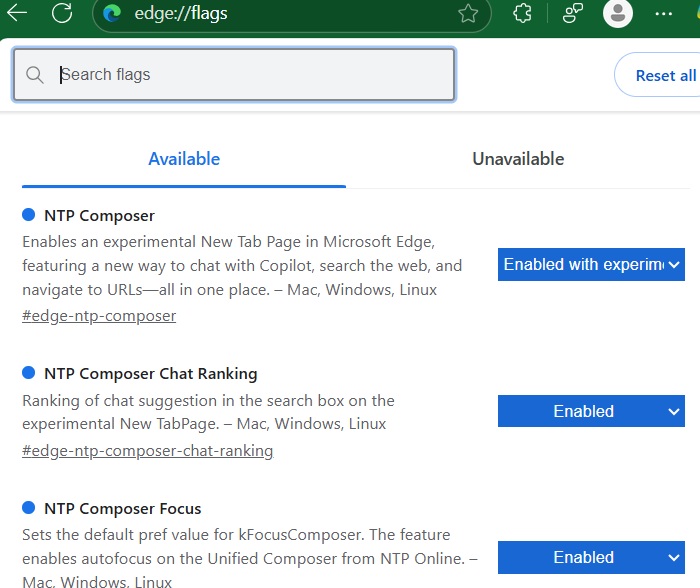
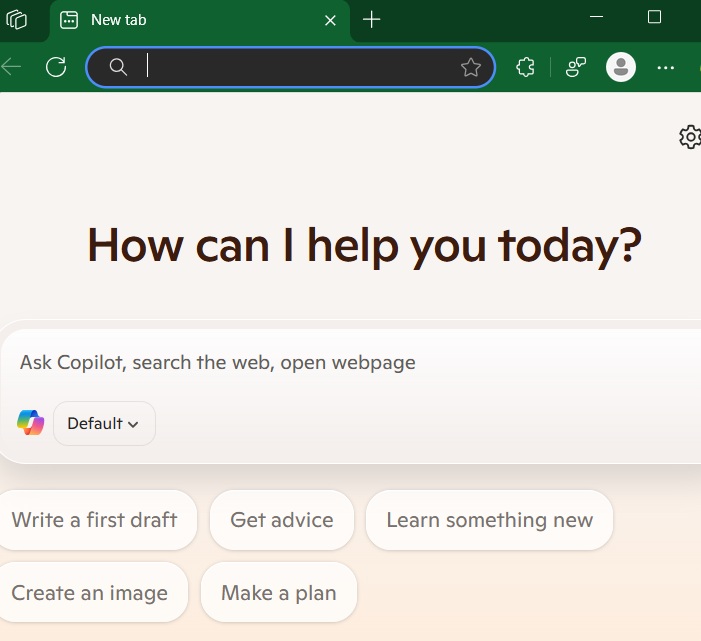
After enabling the flags, restart the browser. You will now find the Copilot chat window front and center. If you don’t want it in the future, just disable the flags, or reset the Flags page to default.
Related: the Copilot feature in Edge and desktop is very different from Microsoft 365 Copilot, a separate Office application.
Benefits of Copilot in Edge’s New Tab Page
Initially, you might think the familiar Edge address bar is missing, but it is right there on top. You can also access it from Copilot itself in Default mode. This means there are two ways to open any URL directly, instead of one. You also get the drop-down suggestions on similar topics like before.
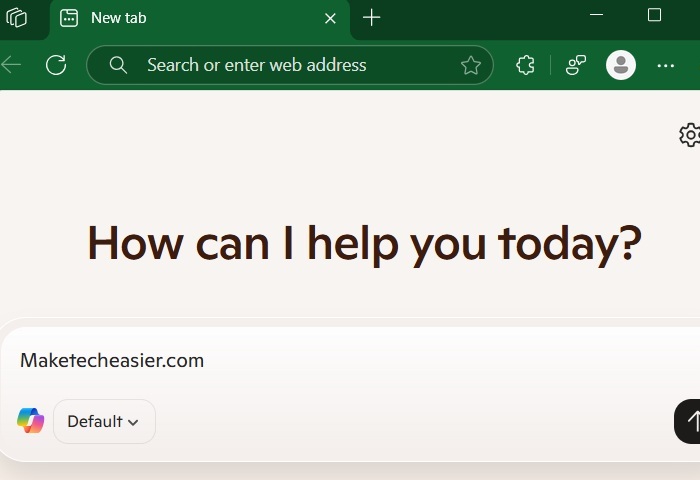
There are two extra benefits. Having Copilot on every New Tab gives a more natural web browsing experience than typical browsers.
- Search and Navigate uses Copilot to dive deeper into your searches. Previously a secondary feature in Bing search engines, you can now make it front and center on every New Tab page in Edge. There are many reasons why Bing Copilot search works better than Google AI overviews.
- Chat lets you use natural language for queries. Instead of using keywords, you can fully explain what you need on the New Tab page in human conversational tone. This surpasses anything you get with search engine results.
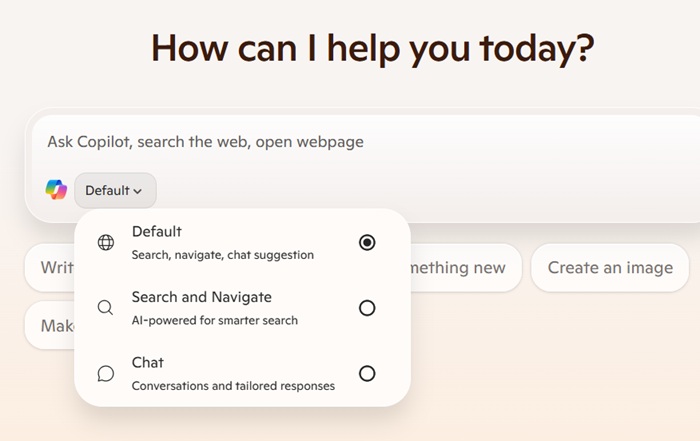
Since the early days of the Internet, the address bar has remained a constant in web browsers. Microsoft making Copilot more prominent instead of the default address bar on top feels strange, but if you look closely, it’s a very useful change, at least for regular users of Copilot.
The potential of AI tools like Copilot is growing, in many areas. For example, you can use it to effortlessly control Android from your desktop. However, there are many of us not very keen on using these AI tools, and you can easily remove Copilot from your Microsoft experiences.








