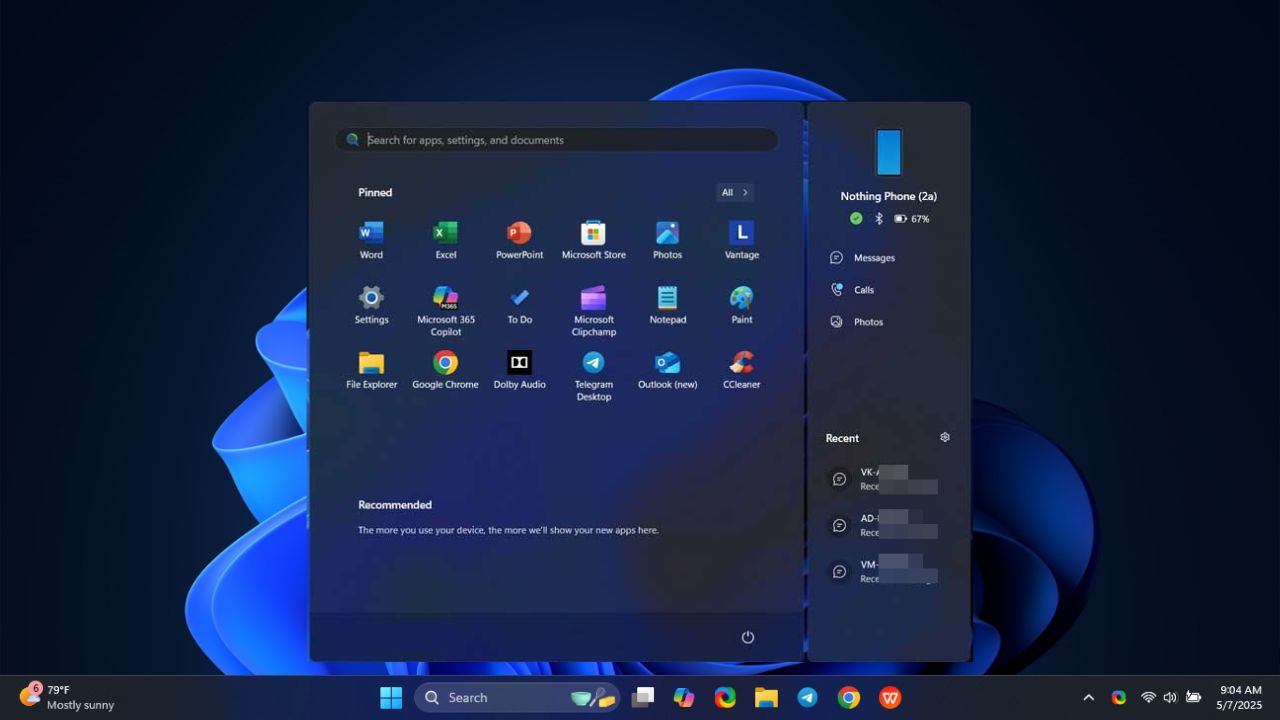
Imagine peeking into your Android phone’s notifications or transferring files in your PC’s Start menu. This is what the new phone link panel does – it lets you access your phone from the Windows 11 Start menu. Thanks to the new update, this floating panel lets you view messages, calls, or send files without touching your phone.
Requirements to Access Phone from Windows 11 Start Menu
Before anything, these essentials must be available to ease your setup:
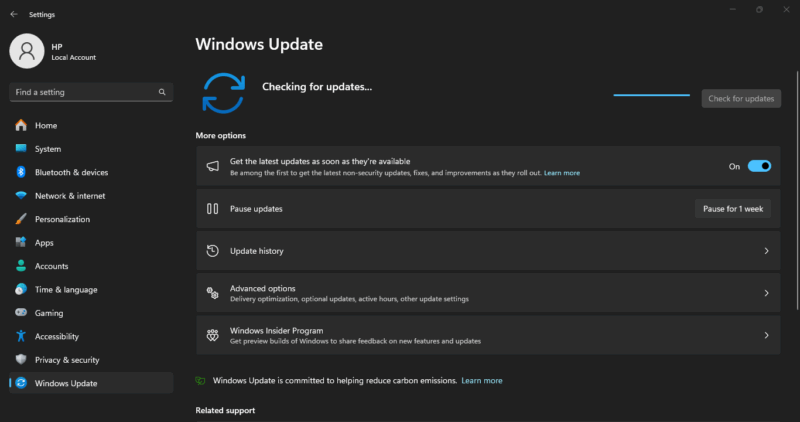
Firstly, you need Windows 11 24H2 updated. Navigate to Settings -> Windows Update to ensure you have the latest patch (KB5055627). Although optional at the moment, it’s essential to get the feature working.
Secondly, you need Android 11 or newer with the Link to Windows app (version 1.24071 or later). Likewise, ensure your iPhone works with the Phone Link app. If you’re unsure, see how to connect your iPhone to Windows.
It’s also important to have a stable Wi-Fi connection for smooth access to your phone from the Windows 11 Start menu.
Set Up to Access the Phone from the Start Menu
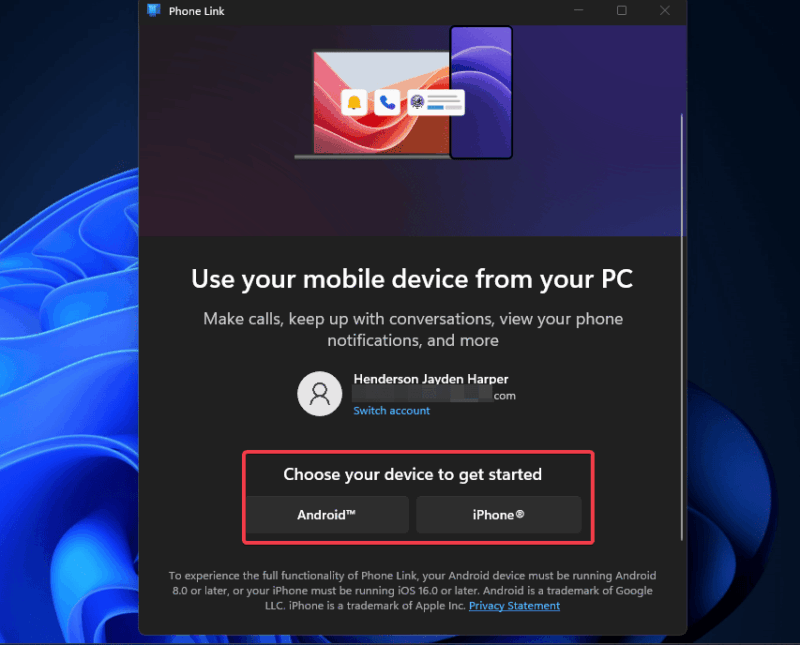
To access your phone from the Windows 11 Start menu, you need to use the Phone Link app. Grab the Phone Link launch if it’s not pre-installed on your PC. Run it and sign in with your Microsoft account. Then, choose either Android or iPhone as your device.
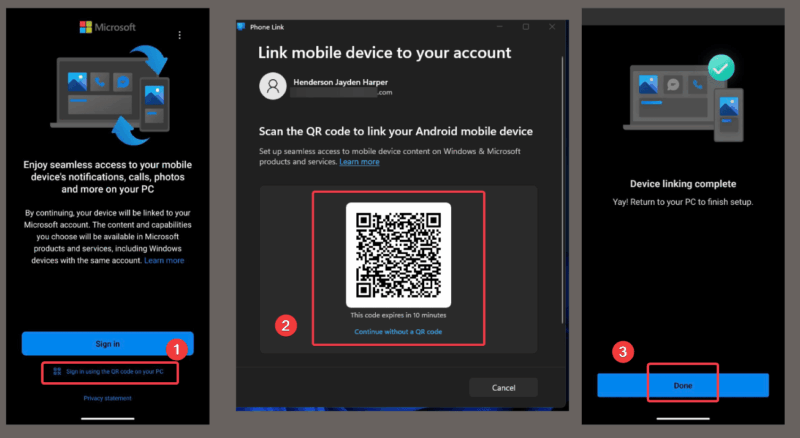
On your Android phone, open the Link to Windows app, scan the QR code displayed on your PC, and follow the prompts to connect. Similarly, on your iPhone, follow the on-screen instructions in the Phone Link app.
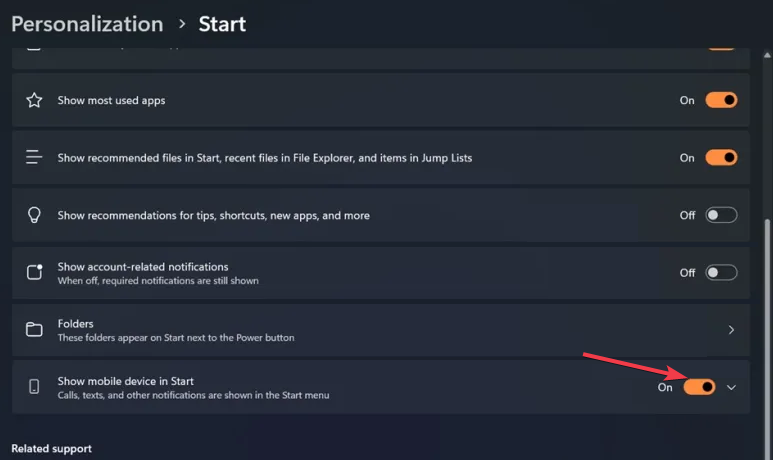
Now, click Settings and turn on Show mobile device in Start to enable the Start menu panel.
Click the Start menu on your PC and you should see a Phone Link panel on your right with your phone battery or Bluetooth status.
If you can’t find the panel, double-check the above requirements. You can just use these tips to make Android calls from Windows if that’s your immediate need.
How to Access Phone Features and Transfer Files from the Start Menu
Here’s a breakdown of how to use the features after the setup:
Open the Start menu and you’ll see your phone’s notifications, messages, calls, photos, battery level, or file explorer.
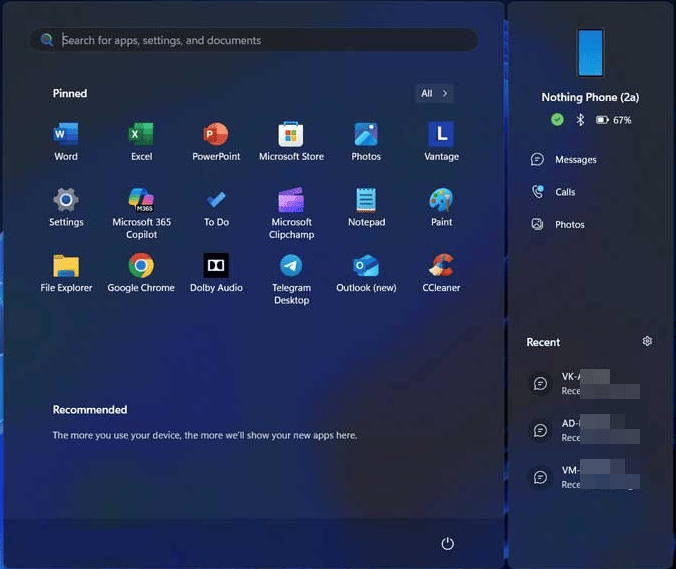
Click a notification to reply to texts or click to view your recent photos. It’s similar to having your phone on your PC.
You can transfer files by clicking Select files in the panel. Drag and drop files from your PC with ease.
Further, Android users can open File Explorer on their phones. However, this feature isn’t available yet for the iPhone.
In addition, you can pair this feature with Copilot to manage your Android with ease.
Troubleshoot Issues with this Feature
Try these fixes if you ever run into these issues trying to access your phone from the Windows Start menu:
- No panel: Update Phone Link, update Windows to KB5055627, and ensure your phone is linked.
- Slow transfers: Ensure the Wi-Fi connection is steady.
- Panel disturbance: Toggle off Show mobile device in Start under Phone Link settings.
- iOS limitations: Wait for updates to ensure access to all Android-related features.
Enabling this feature in Phone Link makes accessing your phone from the Windows 11 Start menu super easy. Answer your calls, reply to texts, or move files without touching your phone with this feature. So, give it a spin and let us know how it goes in the comments!








