
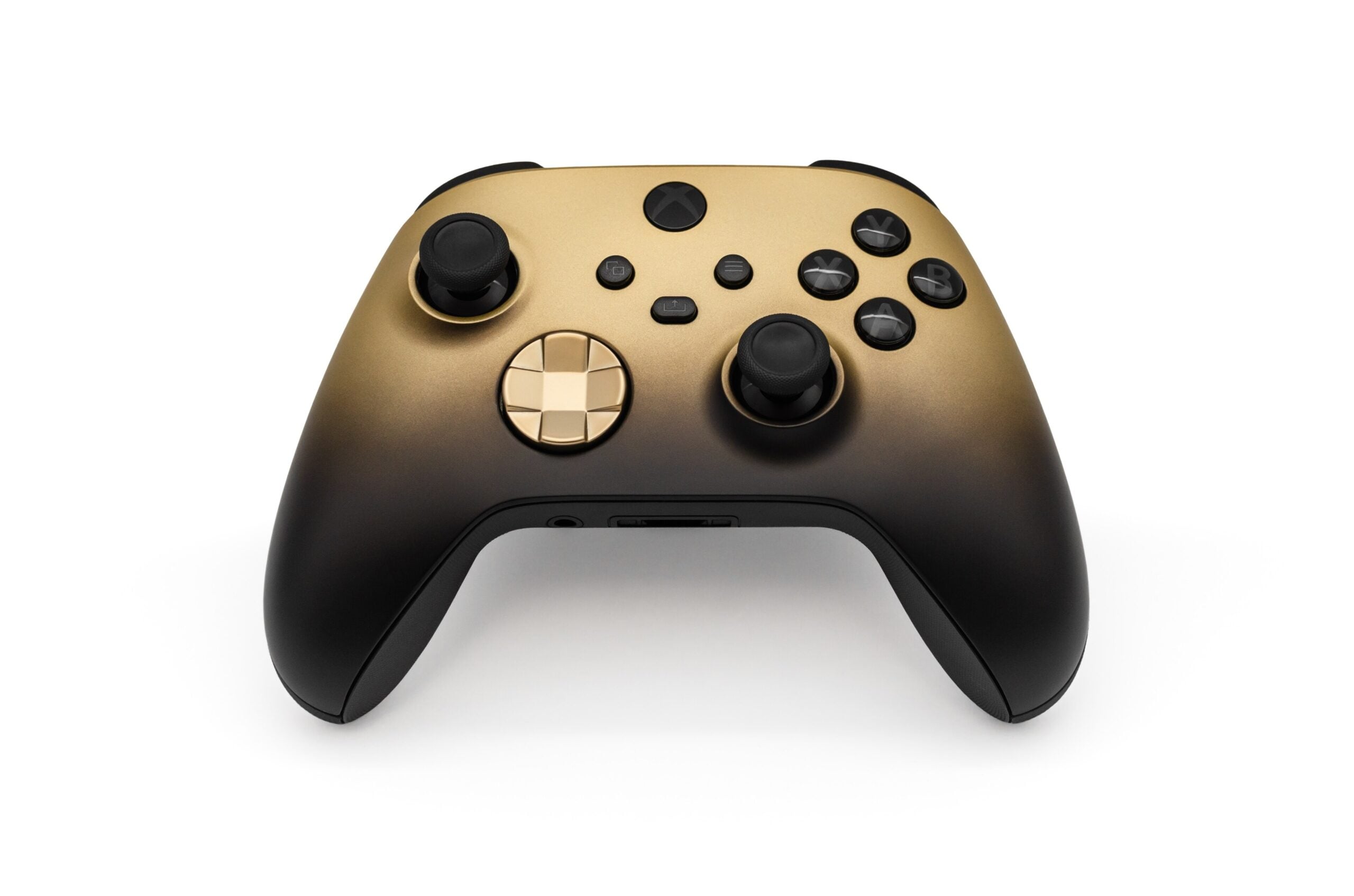

Xbox has begun rolling out two previews for Xbox Cloud Gaming, one of which lets a supported Android or iOS phone act as the controller on a supported smart TV, the company said in a post on 4 November. The second preview, open to players in the United States, covers a feature called cloud connect on the new Xbox Nano Controller.
Both are tests rather than finished features. “Both experiences are still being tested,” Xbox said. “Availability and supported games or devices may be limited while we learn from your feedback.”
How the phone controller preview works
The preview covers players who want to start a cloud game on a television without a controller to hand. It runs on supported smart TVs with a supported Android or iOS phone, and the controls open in the phone’s browser, so a separate controller is not needed. Xbox said some games will also have controls tailored to how they play.
To try it, players turn on Preview Features under Settings > Account in the latest supported smart TV experience. Launching a game with no physical controller connected brings up an option to use the phone for that session. The television displays a QR code, which the phone scans to connect as a controller.
Xbox said the preview began rolling out on 4 November on supported TVs, in countries where Xbox Cloud Gaming is supported.
Cloud connect on the Nano Controller is a US-only early test
Players in the United States can preview cloud connect with the Xbox Nano Controller from the same date. Instead of a Bluetooth connection to the television, cloud connect uses the player’s Wi-Fi to connect the controller directly to the cloud server running the game, which Xbox said can help reduce input latency, so gameplay may feel more responsive.
Cloud connect is an early test and does not work with every cloud gaming experience yet, according to Xbox. For now it can be tried on supported smart TVs and on the web.
Setup runs through the Xbox beta app on Android or the Xbox Accessories app on PC, and Xbox Insider enrollment is required for setup through the PC app. The app steps connect the controller to a Wi-Fi network, after which players open a supported Xbox Cloud Gaming experience and sign in with the same Xbox account used during setup. Xbox has published a cloud connect setup guide with the detailed instructions.
How players send feedback during the preview
For the phone controller, feedback can be sent from the phone or through a supported smart TV app. On the phone, after scanning the QR code displayed on the TV to connect the phone as a controller, players tap the Xbox icon in the top-left corner and select “Give Feedback”. On the TV, the Guide opens by pressing the Xbox button on a controller or the Xbox icon in the top left corner, where the same option appears. In the Xbox app’s main menu, the option sits under the profile icon in the top right corner.
For cloud connect, feedback goes through the Xbox Accessories app on PC or the Xbox mobile app by selecting the “Feedback” icon.
Xbox said it is testing both experiences to learn what works well and what needs improvement, and that it will use what it learns to help shape future updates.