

If you use Safari as your primary web browser, you probably also use it to store your usernames, passwords, and other credentials. Thanks to Apple’s Keychain, those credentials are safely stored and shared across your devices via iCloud. The same applies to Safari itself, which helps store your passwords and create highly secure ones. So, what happens if you want to view saved passwords in Safari on your Mac?
Luckily for us, this web browser lets you access and view the passwords you saved. It even allows you to update or delete them manually. This comes in handy on numerous occasions, so let’s talk about how to view saved passwords in Safari on your Mac.
How to View Saved Passwords in Safari on Your Mac
Accessing your passwords and credentials on Safari is done on the browser itself.
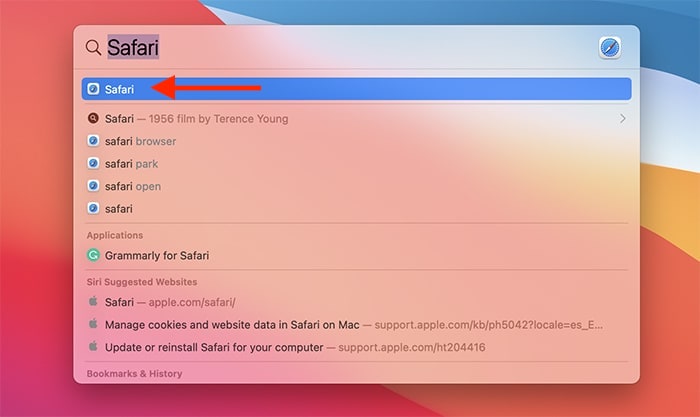
1. Launch Safari by clicking on its icon in your Dock (if it’s visible there). If you can’t find it, launch Spotlight Search by pressing the Command + Space keyboard shortcut. Type in “Safari,” then press Enter to launch the application.
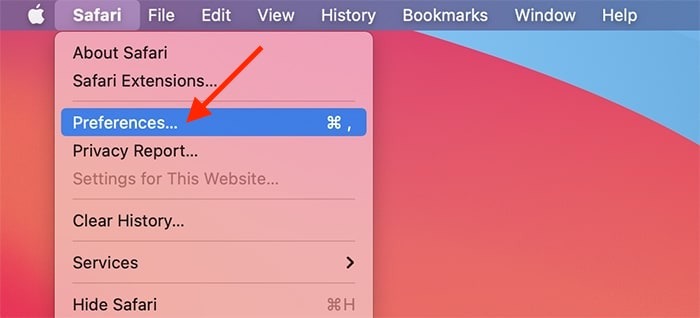
2. Select “Safari” using macOS’s menu bar (at the top of your screen). A drop-down menu will appear. Select “Preferences,” and a new window will open.
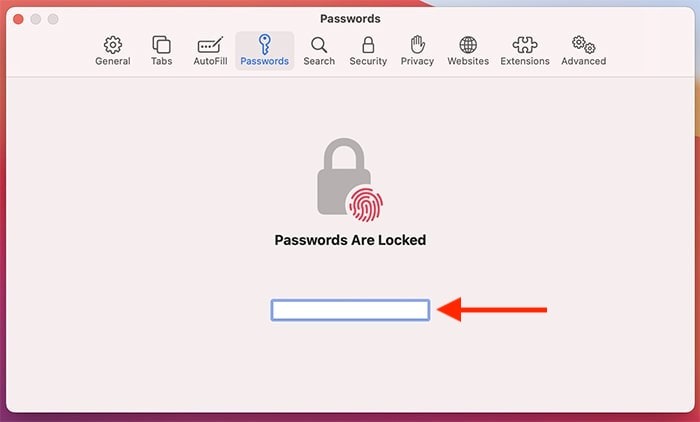
3. Using the newly opened Preferences window, select the “Passwords” tab. As you can imagine, Safari won’t let you reveal your sensitive data that easily. So depending on the type of security measures you’ve set up, you’ll need to provide your password or identify yourself via Touch ID.
4. After a few seconds, you should see a long list of your credentials. Take a good look, and you’ll see three columns there. On the left, you can identify the website associated with your username and password. And on the right, you will see your username and then your password. At first, your passwords are shown as dots. However, as you click on each entry, the associated password will be revealed in full.
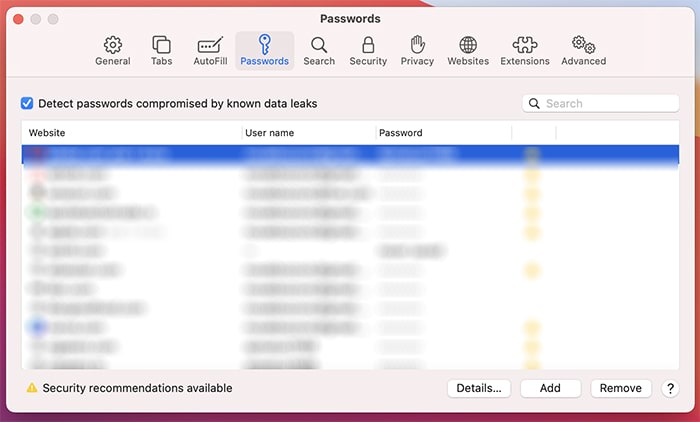
That’s it! You now know how to view saved passwords in Safari on your Mac. However, while we still have your attention, we’d like to help you expand your knowledge a bit. Using Safari’s “Passwords” interface, you can remove or add entries manually, improve your cybersecurity, and even share your passwords.
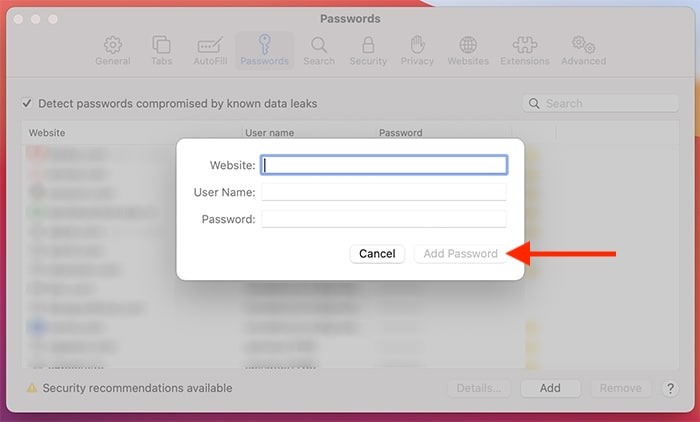
1. To add a new entry manually, visit the Passwords interface following the steps above. Once you get to see the list of your credentials, check the bottom-right corner.
2. Click on “Add” to add a new entry manually. You will need to input a website URL as well as your credentials. Once done, select “Add Password” to let Safari auto-fill that information the next time you need to use it. And if you select an entry and click on “Remove,” you’ll instruct Safari to forget your credentials.
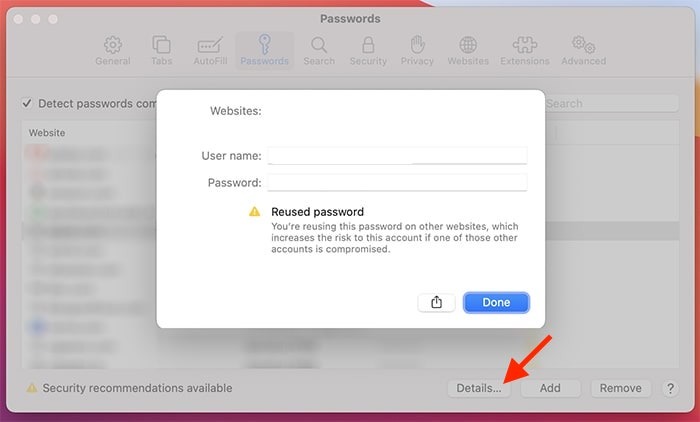
3. And lastly, there’s also the “Details” button (in the bottom-right corner). Using that button, you can check if you use a compromised or reused password, along with the information on how to improve your security. Using strong passwords is crucial for preserving the privacy of your personal information, so do your best to create unique and strong passwords. Let’s also not forget that you can use the “Details” window to share your passwords securely, using Apple’s AirDrop.
Conclusion
That would be all on how to view saved passwords in Safari on your Mac. If you are not a fan of the password manager, here’s how to disable Safari’s built-in password manager. After that, make use of the best free password managers to store your passwords.