


Chrome means well, but its autocompleting feature may not always show you the right URL. You could press the delete button on your keyboard to make the suggested URL go away automatically, but it would also be great if it didn’t show up in the first place.
If you’re in a hurry, you could accidentally go to a site you didn’t mean to and waste some valuable time. There are certain things you can do to prevent that annoying autocomplete from appearing or to clear those sites you don’t visit anymore.
Also read: How to Delete a URL From Chrome’s Omnibox Suggestions
Disable Autocomplete in Chrome’s Settings
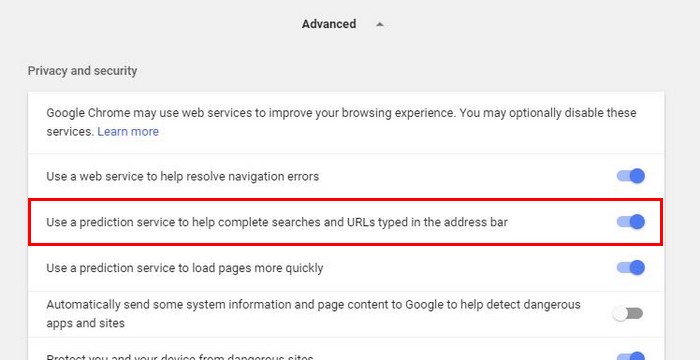
One way of disabling Chrome’s autocomplete is in the browser’s Settings. Click on the three vertical dots and select Settings. Scroll all the way down and click on the “Advanced” dropdown menu.
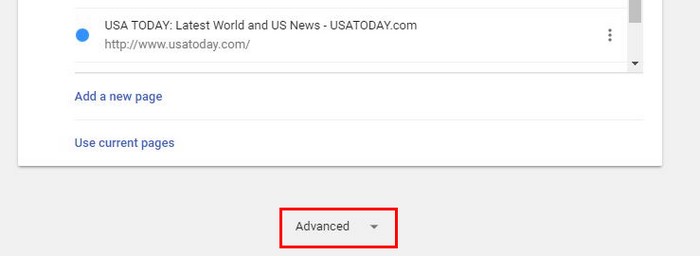
The third option down should be the one that says “Use a prediction service to help complete searches and URLs typed in the address bar.” Just toggle off the option and say goodbye to autocomplete.
Clear Browsing Data
If you do find the autocomplete useful but find that it only suggests sites you don’t visit anymore, you can always start fresh by clearing the browsing data. That way Chrome will only recommend sites you’re currently visiting and eliminate the ones you don’t.
1. To clear the browsing data, go to Settings just like you did before.
2. In the “Advanced” section scroll down until you find the “Clear browsing data” option.
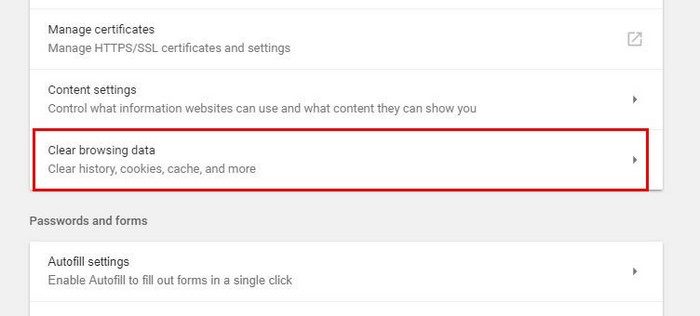
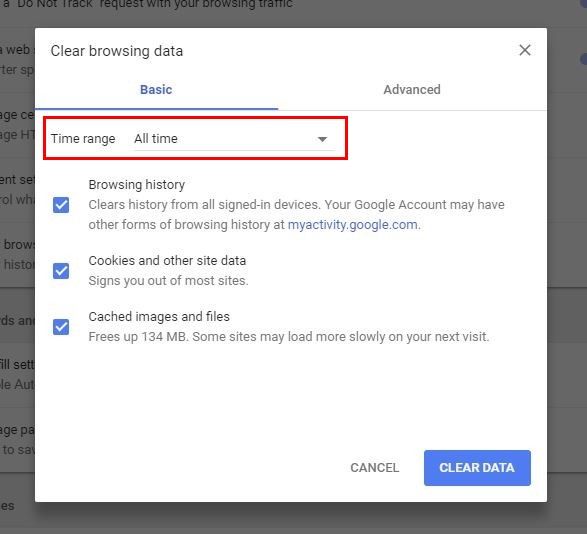
3. Click on this option, and a new window will appear. You can select whether to erase the browsing history, cookies, and/or cached images and files. If you want to take things a little further, you can click on the “Advanced” tab where you can erase things such as what was previously mentioned, passwords, autofill form data, content settings, hosted app data, and media licenses.
4. In the time range option, make sure that you select the “All-time” option. This will erase absolutely everything. If you don’t want to do this, you can delete the browsing history from either for the last twenty-four hours or seven days.
How to Disable Autocomplete in Mobile Chrome
Nowadays, you probably use mobile Chrome more than the desktop version. To erase the autocomplete in mobile Chrome, open the browser and tap on the three vertical dots and choose Settings.
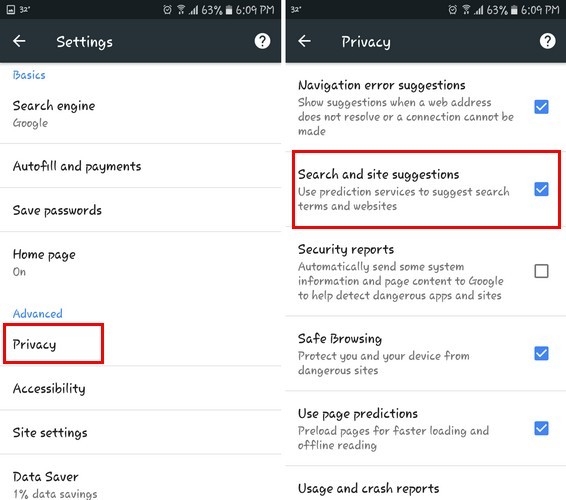
Select the “Privacy” tab and uncheck the box that says “Search and site suggestions.” If you also want to clear the browsing data on mobile Chrome, swipe all the way down since it’s the last option available.
Conclusion
Follow the above steps, and you can say goodbye to the annoying autocomplete that’s been taking you to the wrong sites all this time. As you can see, the steps are very easy to follow, so you have nothing to worry about if you’re not very tech-savvy.
Did we miss a tip you use to disable autocomplete in Chrome? If so, leave a comment below and share it with us.
Image credit: macro pixels url cliche