

There are many reasons you may want to transfer the files from one Google Drive account to another. Maybe you’re switching to a new email but want to keep the files you’ve already created. Or, you may find it easier to have personal and work-related files in separate accounts. Moving the files is not complicated, but it can be time-consuming when a large number of files are concerned. This guide shares four ways to transfer your Google Drive files to another account.
Good to know: need to delete files from Google Drive? We walk you through the steps.
[mte_toc]1. Share Your Files
One way to move files from your Google Drive to another account is to use Google’s share feature. Follow these steps to share them on PC and the mobile app.
PC
If you’re doing this operation from a PC, instead of just sharing, though, you must make your new account the owner of the files.
- Go to Google Drive, and log in to your current Google account.
- Select all the files.
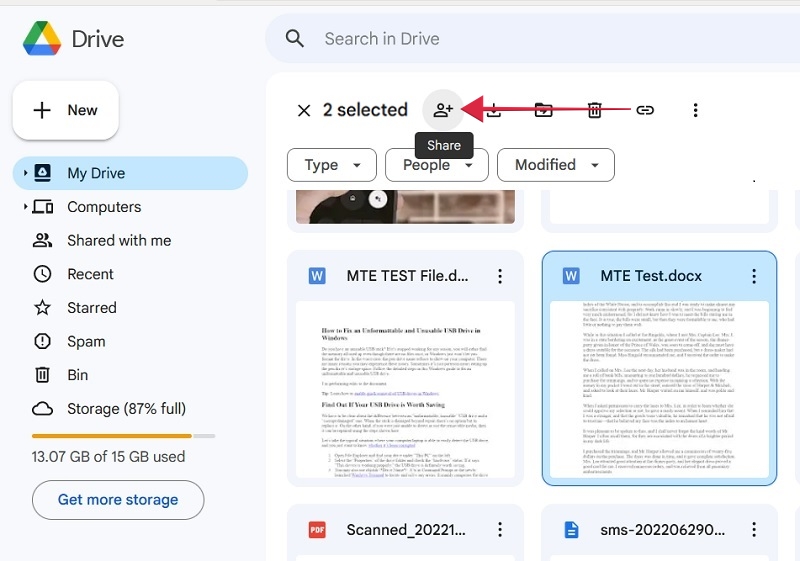
- Click on the “Share” button near the top right. It’s a person with a plus sign next to it.
- Type your new account’s email address in the “Add people and groups” box.
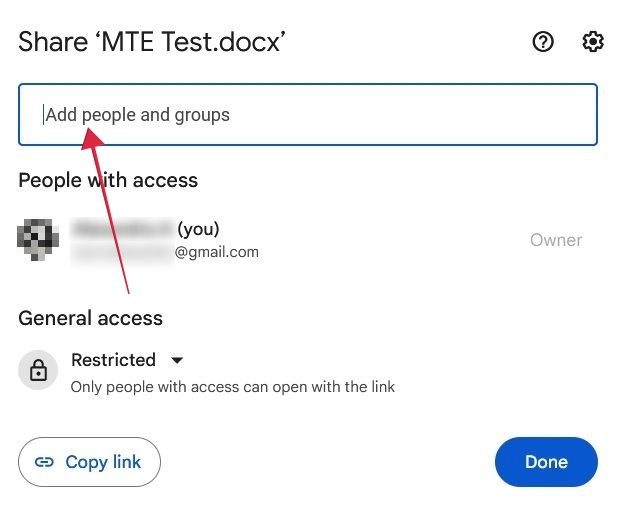
- Make sure it says “Editor” in the box next to where you added the account.
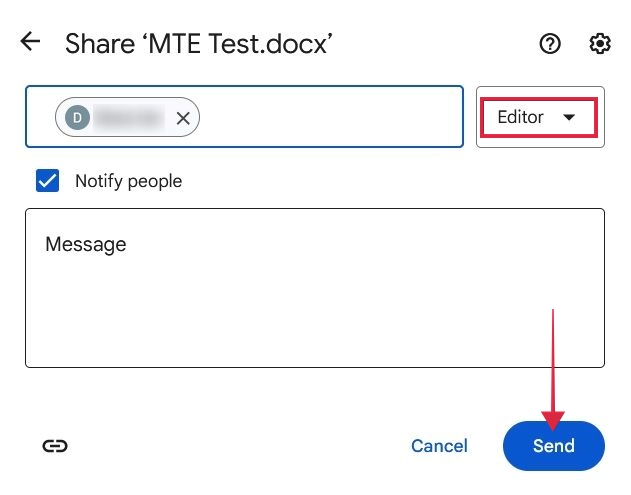
- Click the “Send” button.
- Once the files have been sent, select the files you want to transfer, and press “Share” again.
- You’ll notice there are two “People with access” now. Click on the box that says “Mixed roles” next to the new Gmail address, and select “Transfer ownership.”
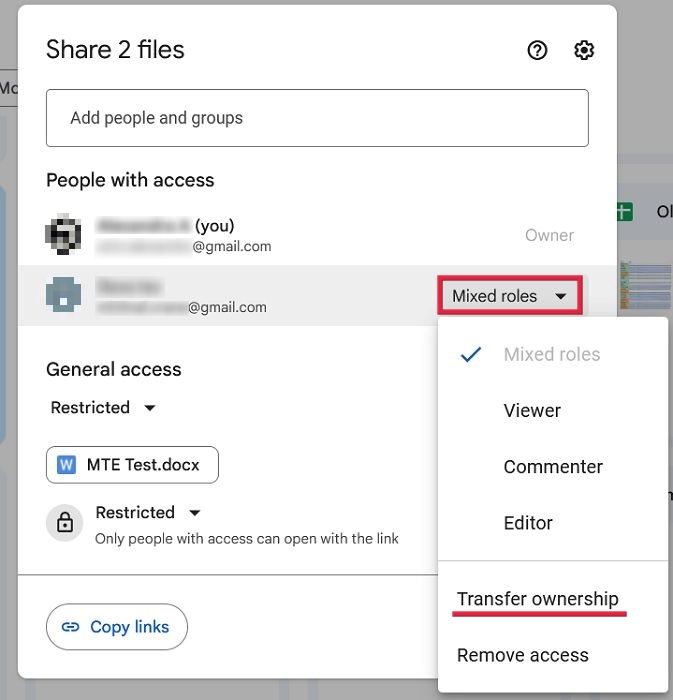
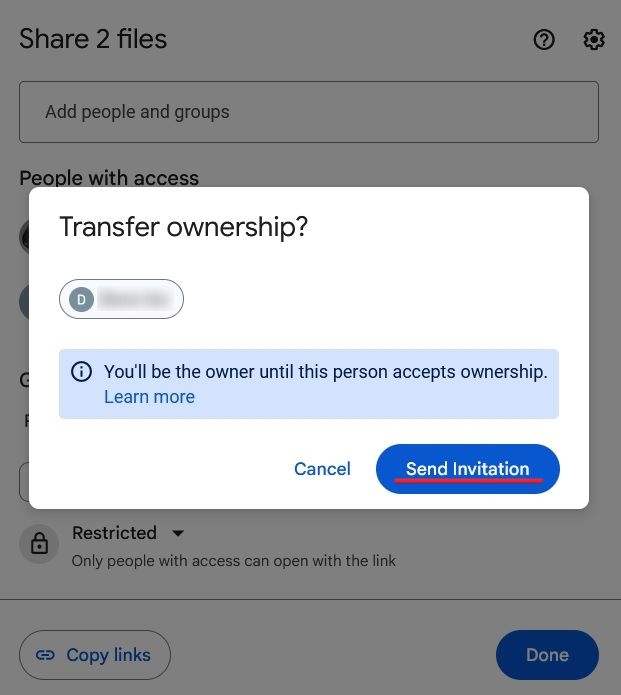
- Click “Send invitation” in the next pop-up.
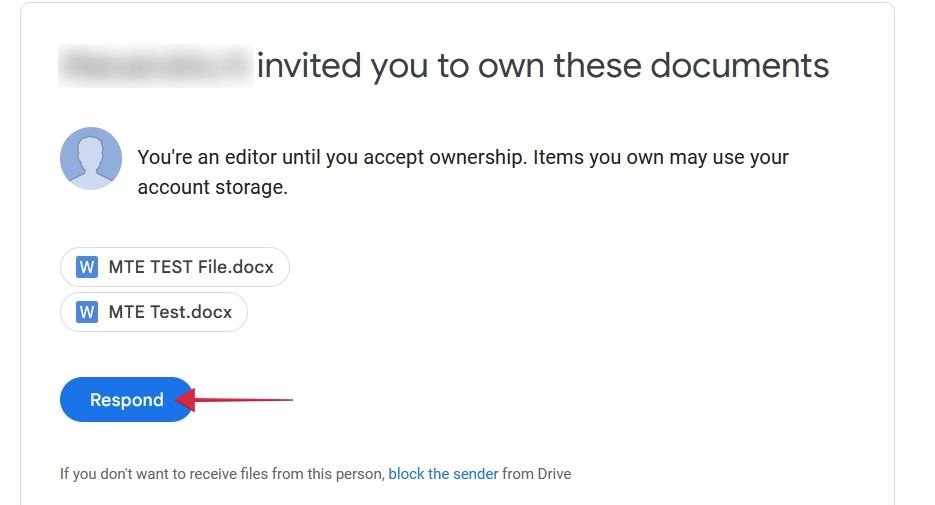
- Go to your new email, and check your inbox. Click the “Respond” button in the email inviting you to take ownership of the files.
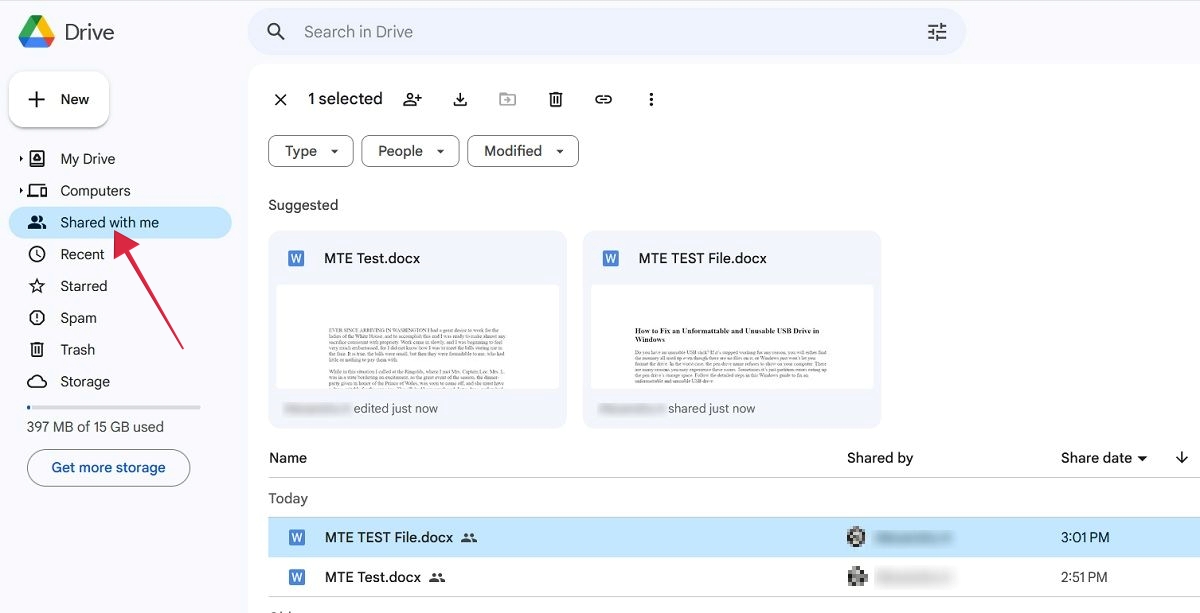
- Switch to Google Drive for your new account. Click on the “Shared with me” tab to view the new files.
Tip: get up to speed on how to quickly see the number of files in the Google Drive folder.
Mobile
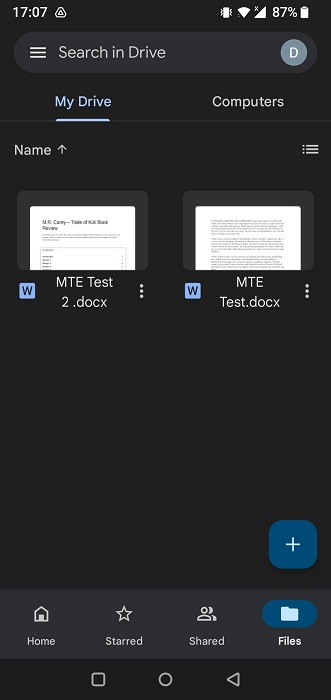
On mobile, transferring files to a secondary Google Drive account is a little bit easier (if you’ve previously logged in with it on the device in question), as you create copies of the documents.
- Open Google Drive, and log in with your current Google account.
- Find the files you want to transfer, and select them by long-pressing on them. Tap on the three dots in the upper-right corner.
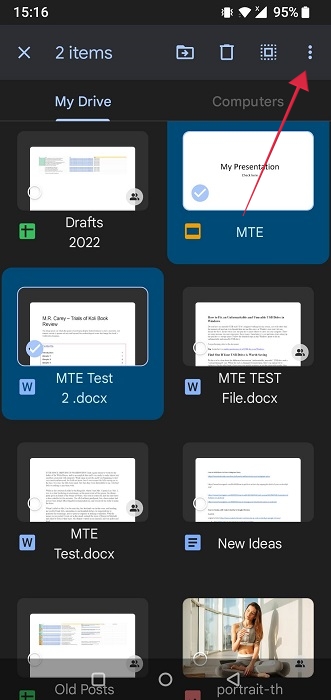
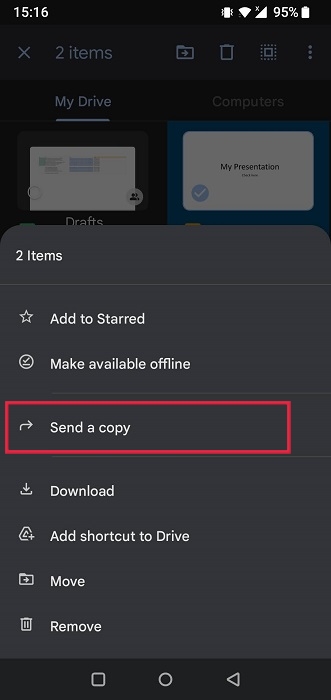
- Select “Send a copy” from the pop-up menu.
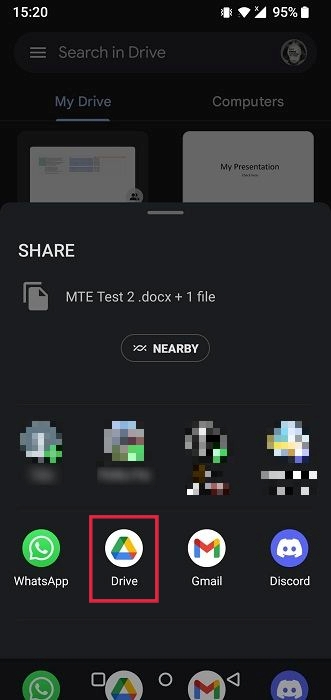
- Select “Google Drive” from the list of apps.
- Tap on “Account,” and select your new Gmail account.
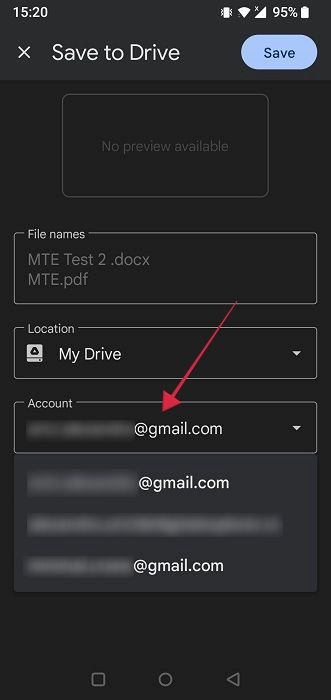
- Press “Save.”
- Switch to the other account from the Google Drive app to see the files.
Tip: did you know you can add Google Drive to File Explorer? This guide shows you how.
2. Use Google Takeout to Move Your Files
Google Takeout is a service that takes all your existing Google data and packs it together into one file. If you use this process to transfer your files, you can save them in offline storage, such as your computer or external hard drive. Alternatively, upload the archive to your new account’s Google Drive.
- Go to Google Takeout on a browser on your PC or mobile device. You will see a super-long list of data that is stored under your Google account.
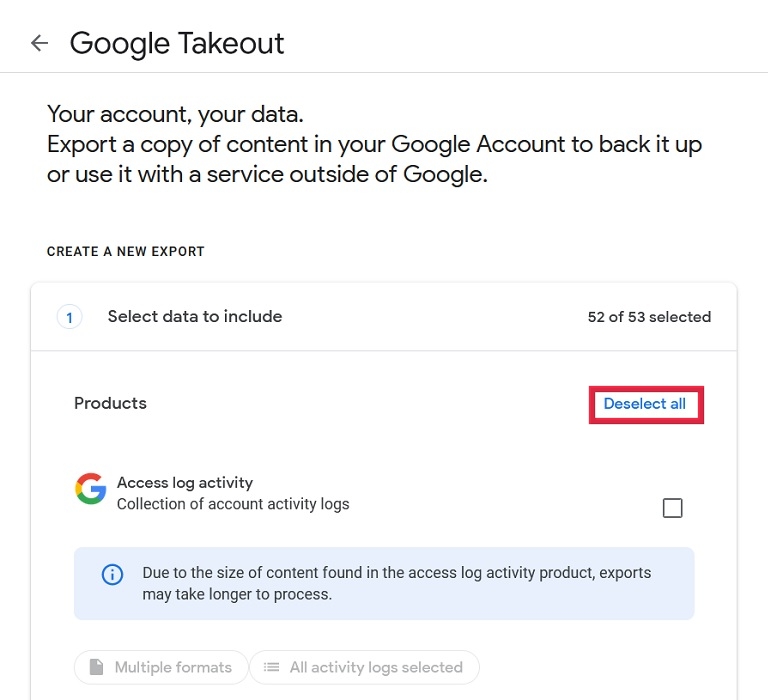
- Click on the “Deselect All” button at the top.
- Scroll down until you see the “Drive” section, and check the box.
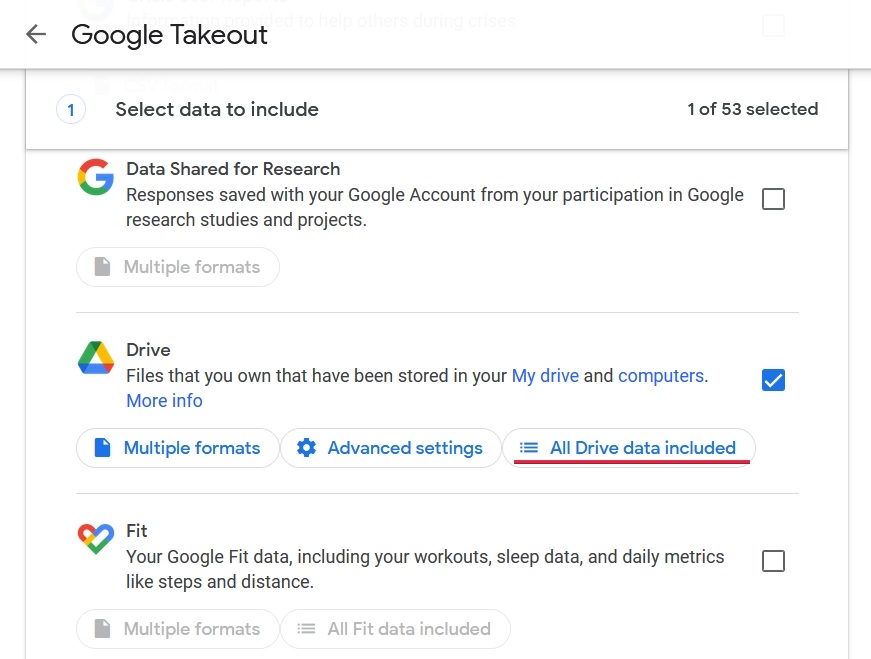
- If you don’t want to download everything, click on “All Drive data included.”
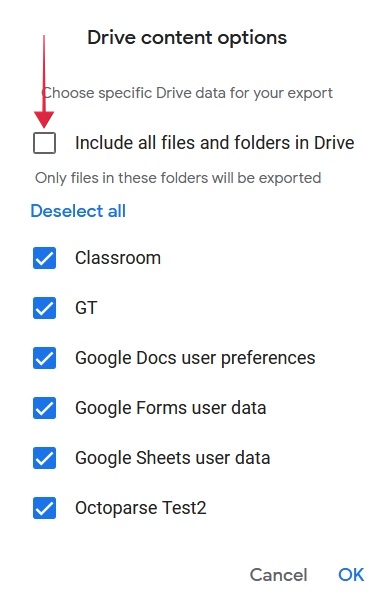
- Deselect the “Include all files and folders in Drive” option at the top, then choose only the files you want to transfer.
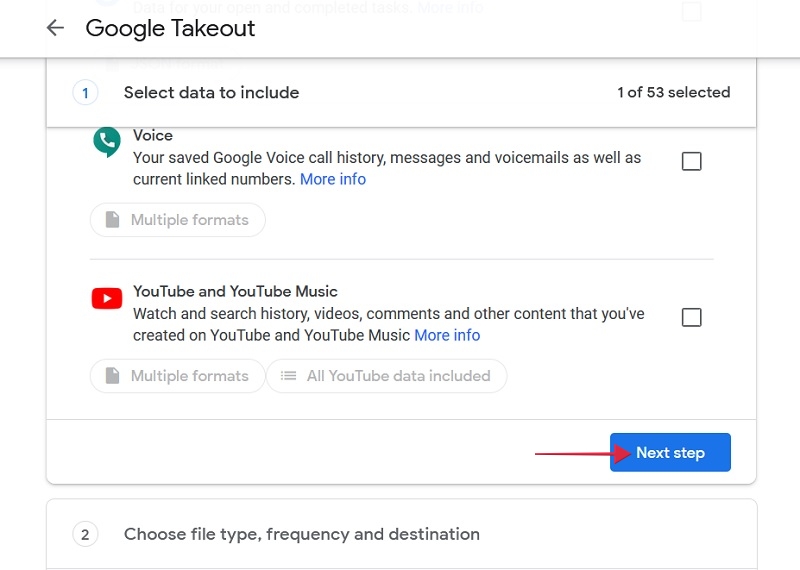
- Once you made your selection, scroll down to the bottom, and click “Next step.”
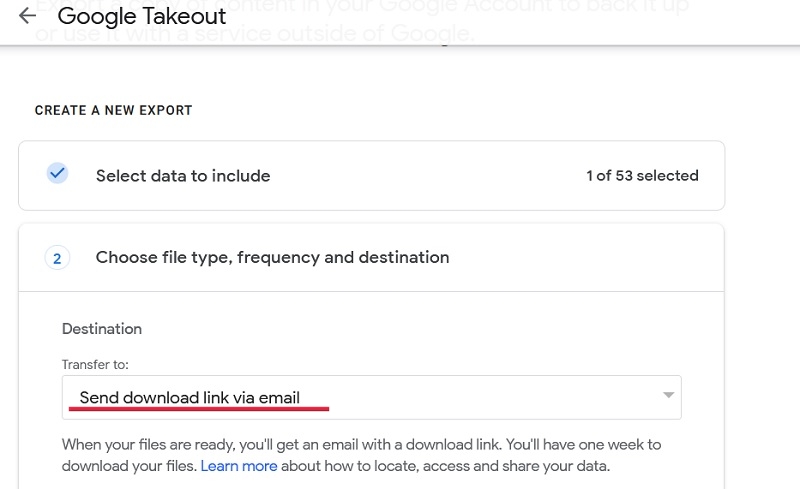
- On the next page, make sure the box underneath “Transfer to” says “Send download link via email.”
- Make sure the “Frequency” is set to “Export once.” Also, set the file type (.ZIP or .TGZ) and size.
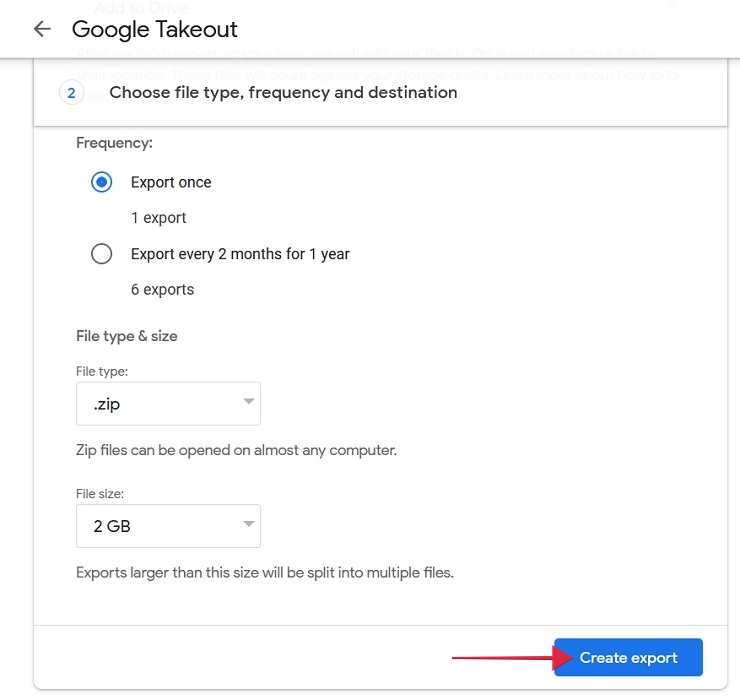
- Press “Create export” at the bottom.
FYI: we can also show you how to restore your Google Takeout data.
3. Download Your Files
Instead of using Google Takeout, you can use a simple download procedure to transfer your files to the new account. Follow these steps to do so on PC and mobile.
PC
- Log in to your old account on Google Drive.
- Create a new folder by clicking on “New.”
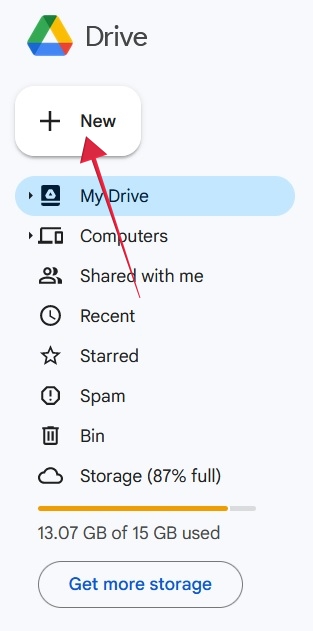
- Select “New folder.”
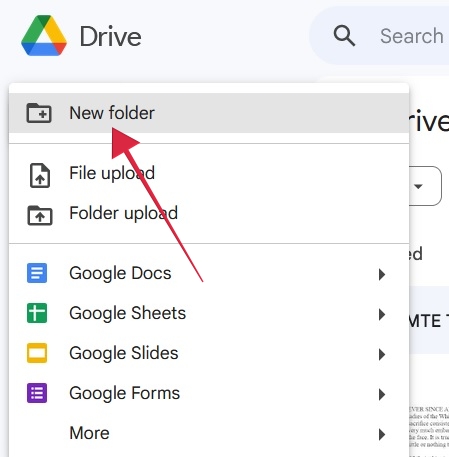
- Name your folder, and press “Create.”
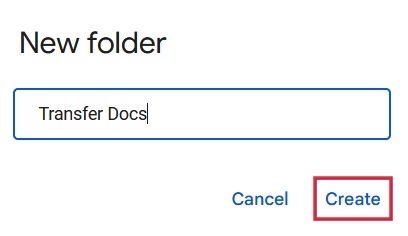
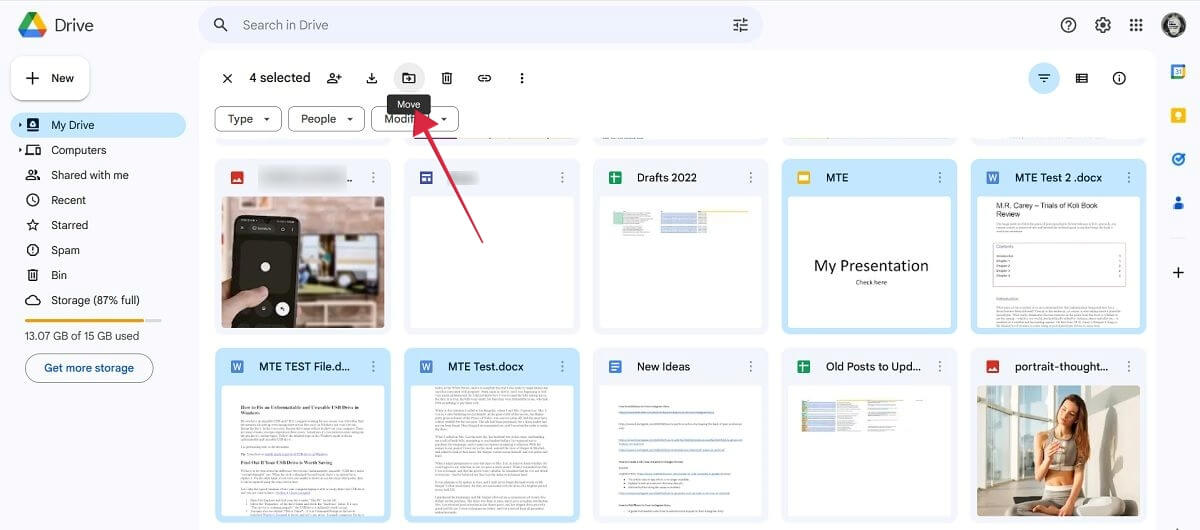
- Move all your other files to the new folder. Go back to Drive, select the files in question, then click the “Move” button at the top.
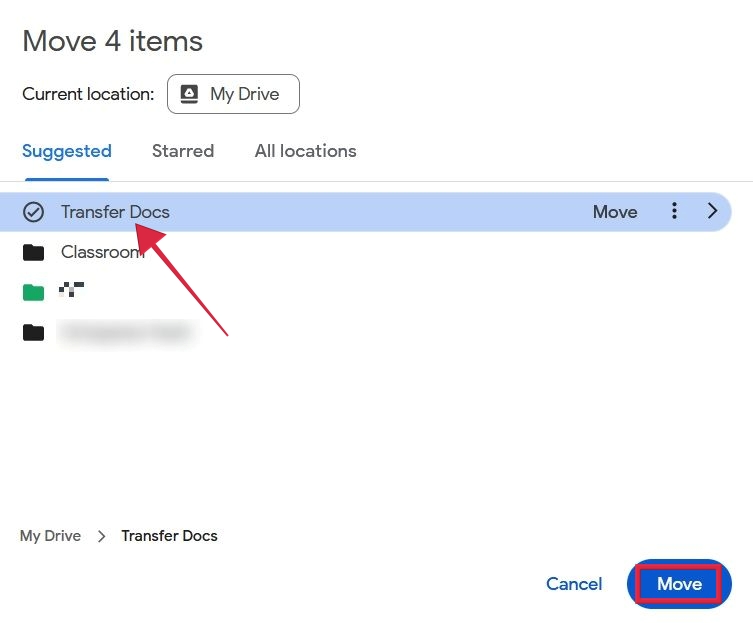
- Click on the new folder you selected, followed by “Move” at the bottom.
- On the main Drive interface, find the “Folders” section, click on the three dots next to the folder you’ve just created, and select “Download.”
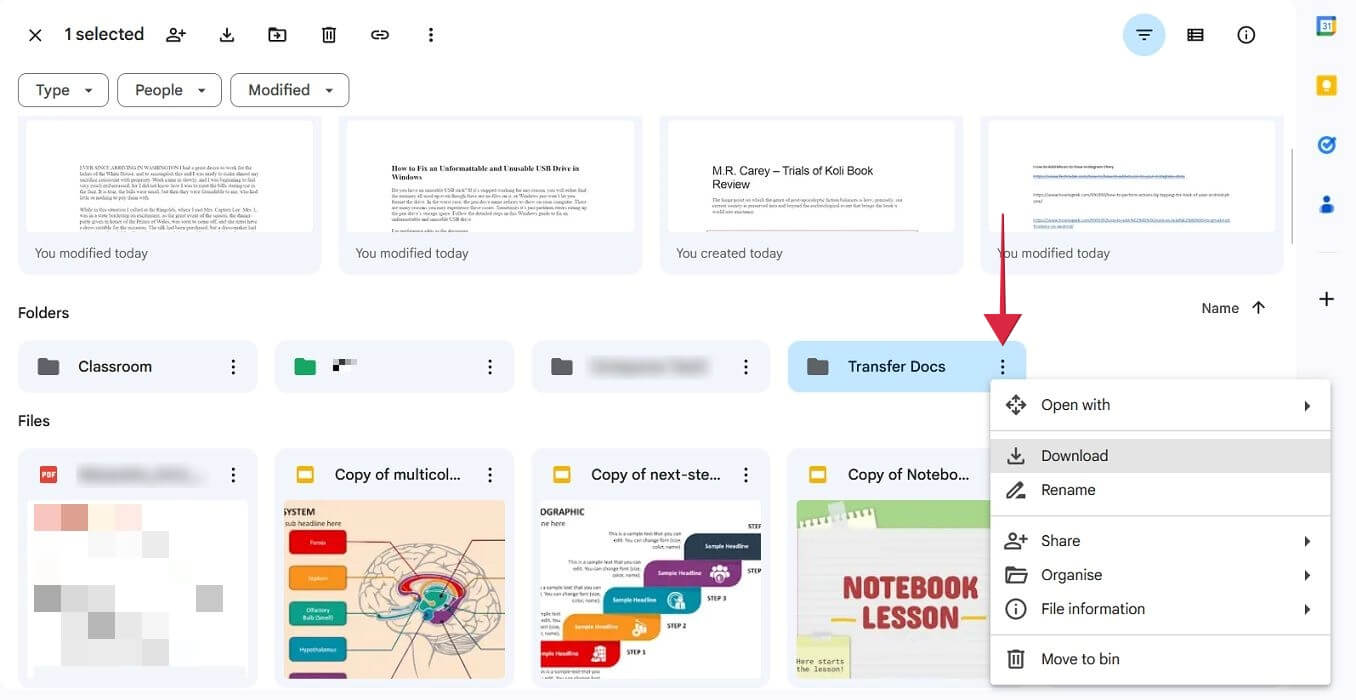
- Wait for the .ZIP file to download to your computer.
- Log in to your new account, unzip the folder, and upload the documents onto your new Drive.
Tip: need to sign out of Google on mobile and desktop? We show you how.
Mobile
On mobile, there’s no option to download a folder, so you’ll need to take a slightly different route to download your files.
- Open Google Drive, and log in with your old account.
- Find the files you want to transfer, and long-press on each to select them. Press the three dots at the top.
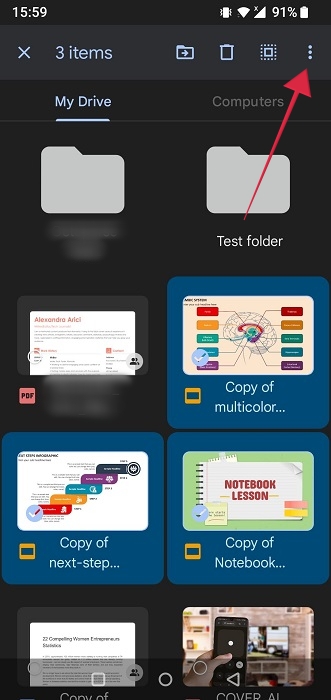
- Select the “Download” option.
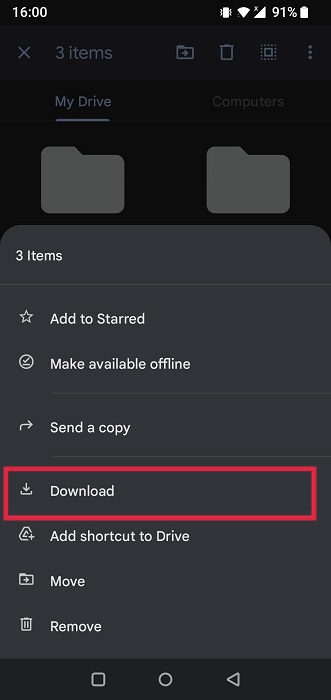
- The files will be independently downloaded to your device. You’ll be able to find them in your phone’s File Manager app. Also check out alternative File Manager apps for Android.
- Switch to your new account in Google Drive, and reupload the files.
Tip: If you need more storage space, use this trick to sync multiple Google Drive accounts.
4. Try MultCloud
There is also a third-party service called MultCloud that will allow you to move files from one drive to another without downloading anything or switching back and forth between two different accounts several times. The MultCloud interface looks similar to any file explorer.
- Create an account at MultCloud.com.
- Click “Add cloud” on the right.
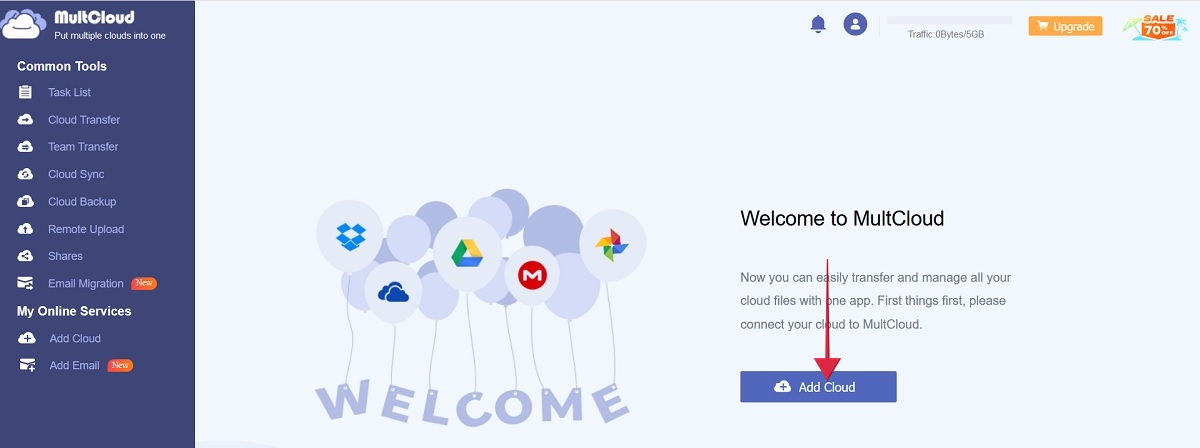
- Select the “Google Drive” option.
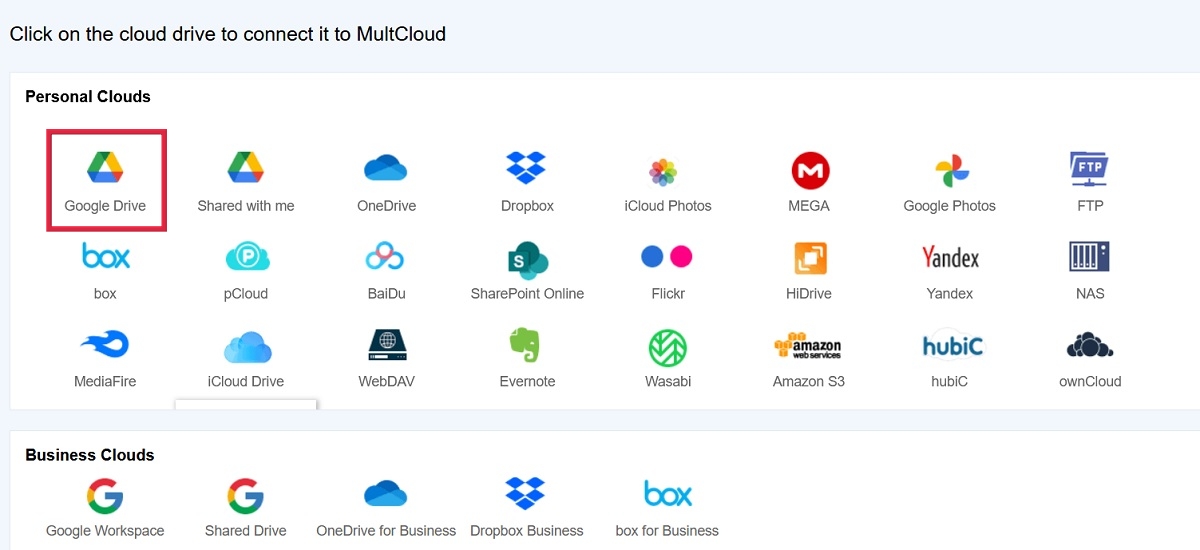
- Choose your original account.
- Repeat the process by pressing “Add cloud” in the menu and choosing your secondary account.
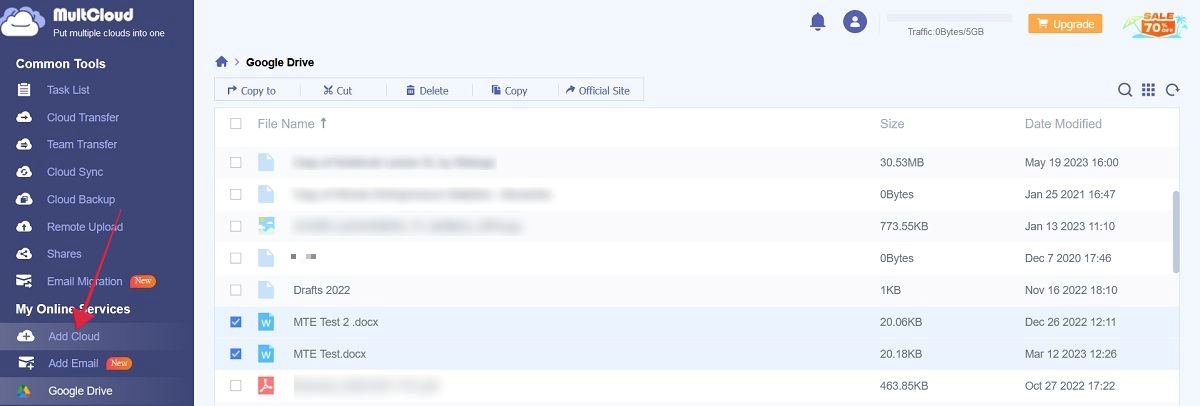
- Click on the first of your two accounts that are listed on the left.
- Select the files you want to move to the new account, and click “Copy to” at the top.
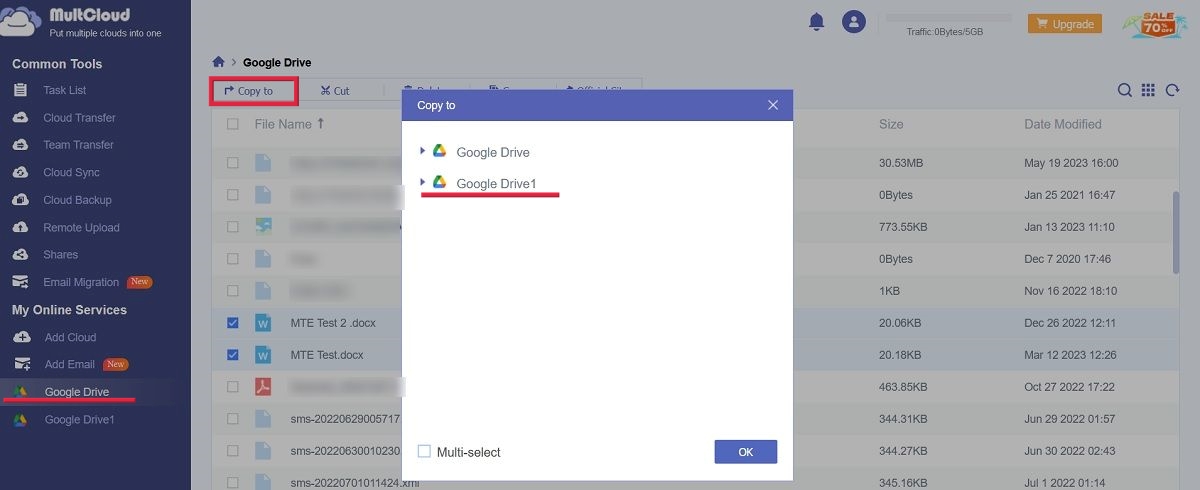
- Select the second Google Drive account to easily make the transfer.
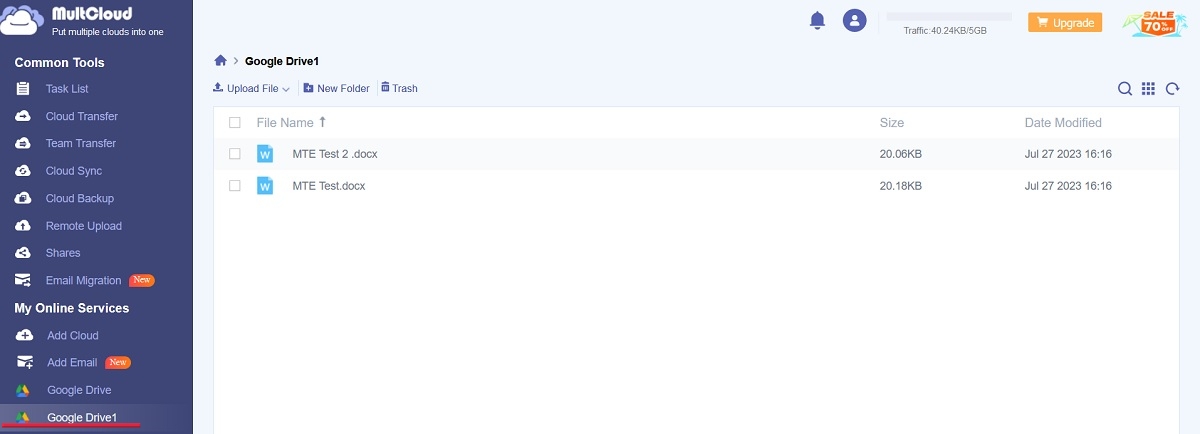
- Click on the secondary Google Drive to find the files.
Tip: learn how to use hyperlinks in Google Docs in this guide.
Frequently Asked Questions
How can I upload multiple files to Google Drive?
On PC, the easiest way is to select the files first, then drag and drop them in the browser window where Google Drive is opened. A small window will say that the files are being uploaded. On mobile, press the “+” button at the bottom of the Google Drive app, and select “Upload.” Long-press to select multiple files and start the upload process.
How can I switch between users with ease in Google Drive?
Switch between users in Google Drive on PC or mobile by pressing/clicking on your account’s profile picture in the upper-right corner of your browser window. Click on “Add another account” if your new Google account is not there.
What's the size of Google Drive?
When you sign up with a Google Account, you get 15GB of free storage, which is stretched out across various services, including Google Drive, Gmail and Google Photos. If you need more than that, upgrade to a Google One plan, which can increase storage to 100GB and up, based on the plan you’ve selected.
Image credit: Freepik & Flat-icon & Unsplash. All screenshots by Alexandra Arici.