
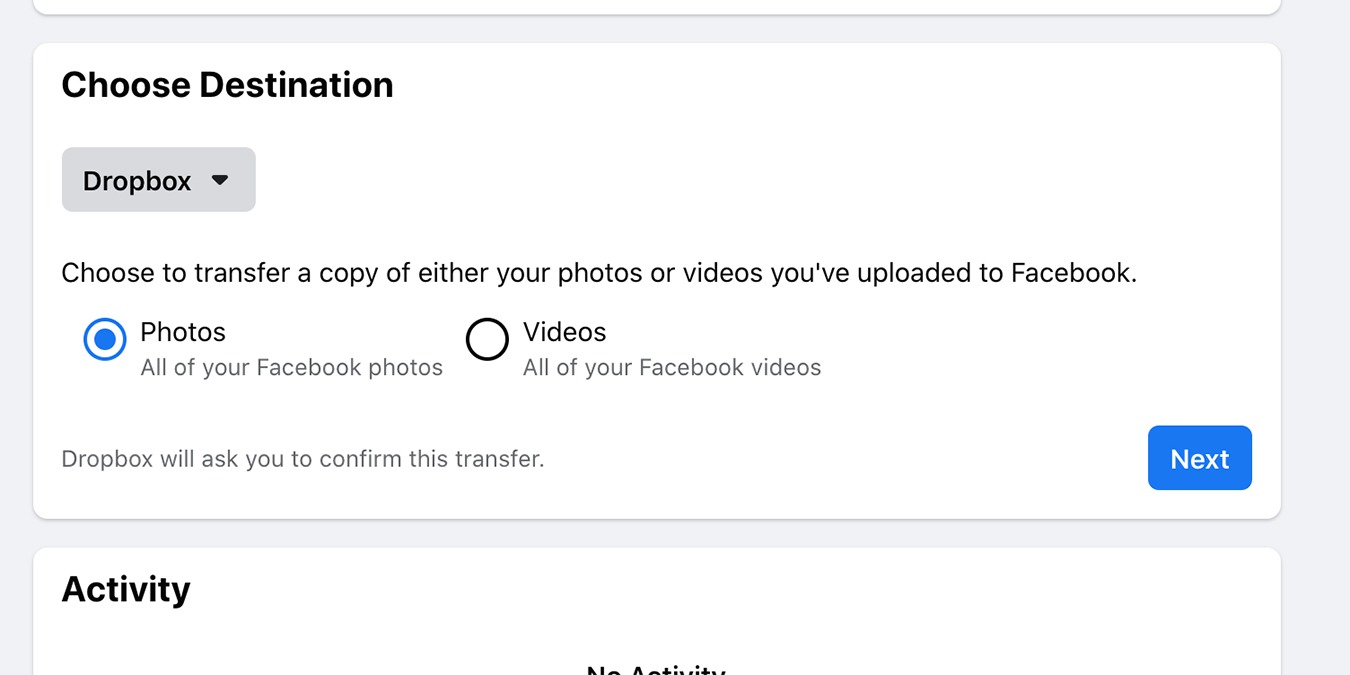

Facebook has a data transfer tool that allows you to directly transfer your photos and videos to Dropbox, Koofr and Google Photos. The main advantage of this method is that you do not need to manually download and re-upload the photos/videos. In this guide, we cover exactly how to transfer your media out of Facebook.
Also read: Beginners Guide to Google Photos
Transfer Facebook Photos and Videos on Your Computer
1. On your computer, open the Facebook website. Log in to your account, and from the top-right arrow icon, select “Settings & privacy.”
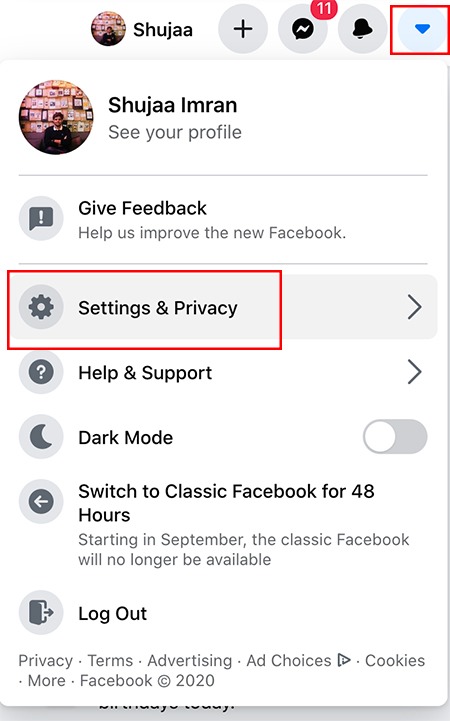
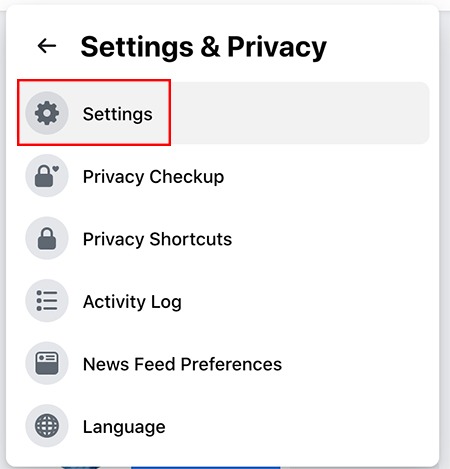
2. Here, click on the “Settings” button.
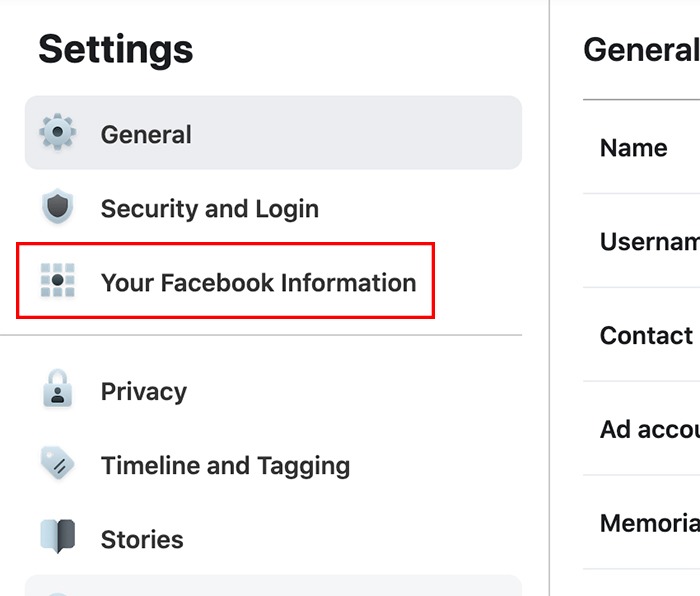
3. Select “Your Facebook Information” from the menu on the left.
Here, you’ll see “Transfer a Copy of your Photos or Videos.” Click on the “View” button next to it.
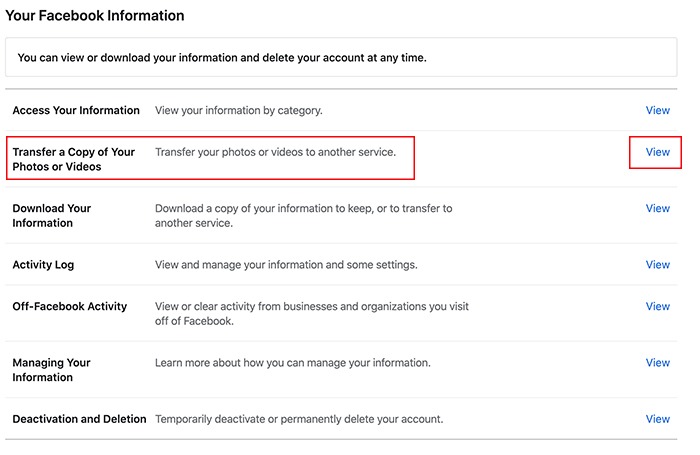
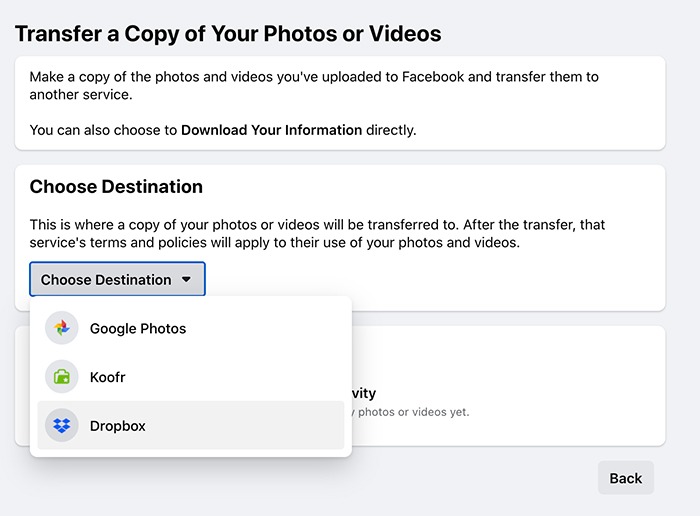
4. After re-entering your password, you’ll be presented with the options of different services to transfer your media. These are Google Photos, Dropbox and Koofr. Pick the cloud storage service you want to transfer to.
5. In the next step, choose whether you’d like to transfer your Photos or Videos to the cloud storage. Unfortunately, you can only choose to transfer one at a time, so if you’d like to transfer both, you’ll have to repeat the entire process again.
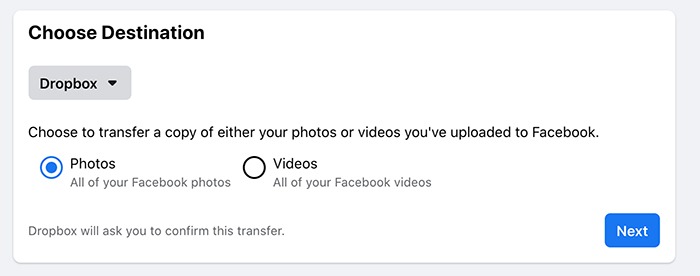
There is no option to select particular photos/videos. Facebook will transfer everything uploaded to your account.
6. Once you’ve selected what type of media you want to transfer, Facebook will ask you to log in to your cloud storage account.
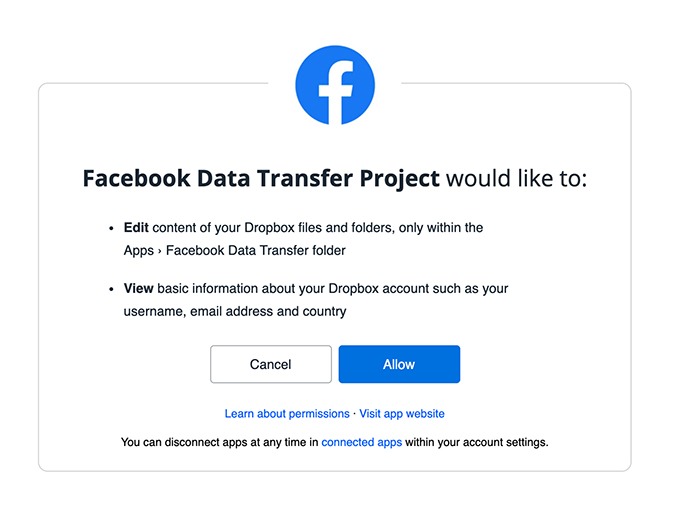
7. Log in to your account and click on “Allow” to allow Facebook permission to add photos and videos.
8. Once you return to Facebook, click on the “Confirm Transfer” button to start the transfer process.
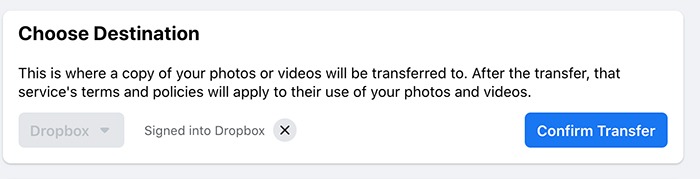
The tool runs in the background, so you can choose to close the tab if you want. You can check the progress by revising the transfer tool’s page, and the “Activity” section will show you the transfer status. Facebook will also send you a notification once the process is complete.
It is pertinent to note that all photos/videos will be transferred in the same album structure in which they are available on your profile. For example, you’ll see separate folders for Profile Pictures, Cover Photos, Timeline Photos, etc.
Transfer Facebook Photos and Videos Using the Facebook App
If you don’t have access to a computer, you can perform the same process on your mobile.
1. Open the Facebook app on your iPhone, iPad or Android device.
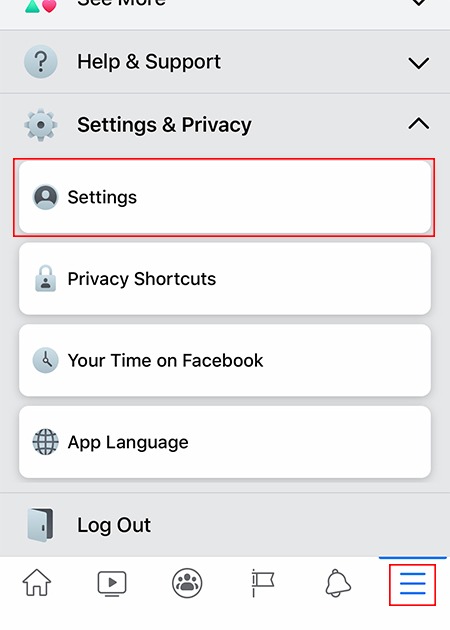
2. Open the Settings menu by tapping on the three-line icon located in the bottom-right corner of the app.
3. Scroll down and select the “Settings” option under Settings and Privacy.
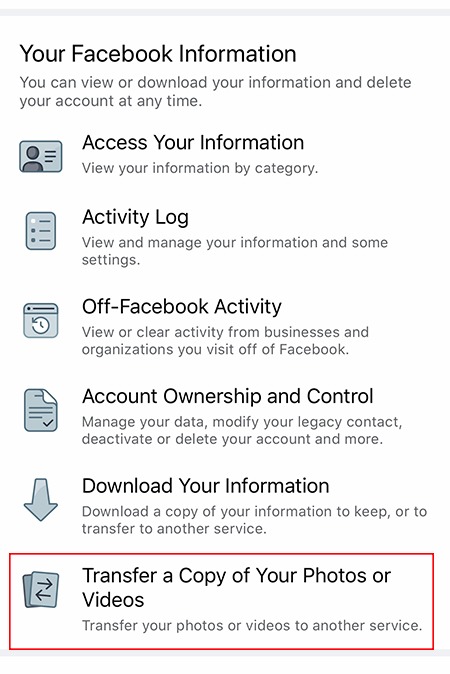
4. In the “Your Facebook Information Section,” tap “Transfer a Copy of Your Photos or Videos.”
5. Enter your Facebook password and press “Continue.”
6. Choose your destination cloud storage service and select whether you’d like to transfer your photos or videos.
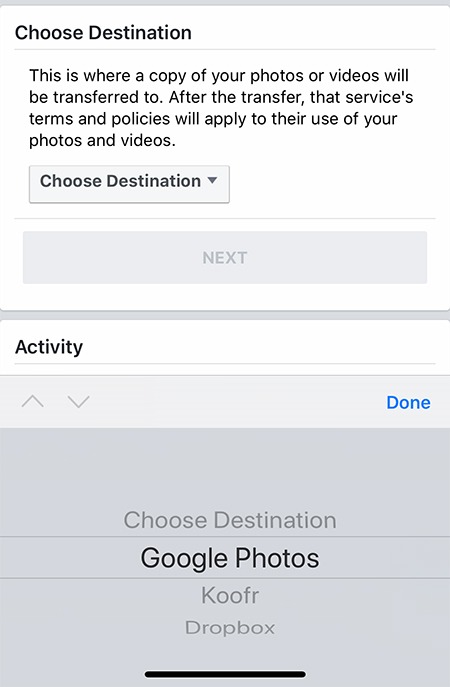
7. Enter in your cloud storage account details and grant Facebook permission to add the media. Similarly back in the Facebook app, select “Confirm Transfer” to begin the process.
Your transfer will run in the background. Facebook will notify you when your photos and/or videos have successfully been moved.
With the process detailed above, you’ll have a backup copy of all your Facebook media saved in the cloud. Other than transferring your media out of Facebook, you can also bulk-delete your messages in Facebook Messenger. And if you are planning to switch out of Facebook, check out some of the best Facebook alternatives here.