

Keeping track of all my blogs and their page views is almost a full-time job. Luckily, there is always the Google Analytics that made things much simpler to deal with. Although Blogger has started offering its own analytics, these are not as comprehensive as those from Google Analytics. in this article, I outline how you can set up Google Analytics to track your Blogger websites.
Step 1. Set-Up A Google Analytics Account
The first thing you need to set-up Google Analytics is to have a Google Account. Since this guide is primarily for Blogger users, I assume that you already have one.
If so, head over to the Google Analytics page and select “Sign Up Now“.

Next you will be given more information about Google Analytics and the opportunity to create a new account. To do so select “Sign Up >>“.
On the next page you will have to enter the name of the website which you wish to analyse as well as the name of this Analytics account. Under a single Google Account you can create as many Analytics accounts as you like, and each account can have up to 100 websites. It is a good idea to keep your “Account Name” fairly general so that you can add a variety of websites under it. Finally, select the appropriate territory and time zone.
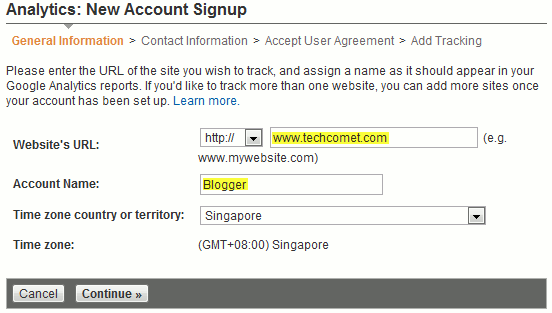
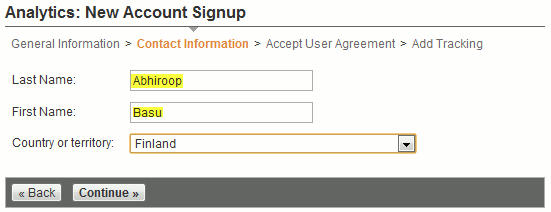
You will then be asked to enter some more personal details, including your name and country.
The last step requires you to accept Google Analytics’ terms and conditions.
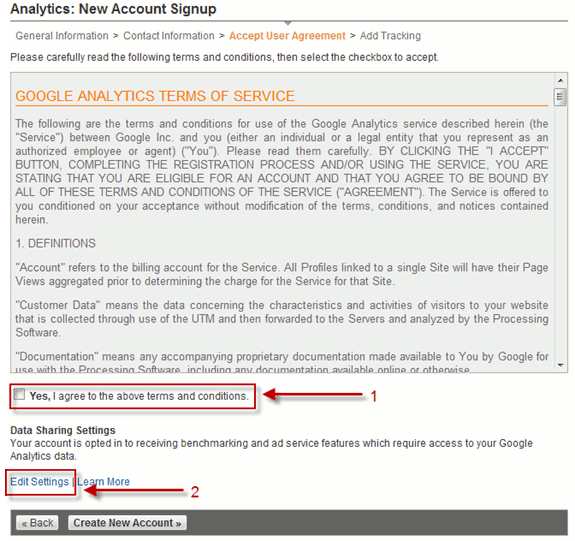
However, in addition to accepting the terms and conditions, be sure to have a look at the “Data Sharing Settings” by clicking on the “Edit Settings” link. Through these settings, you can determine how much information from the analytics Google retains.
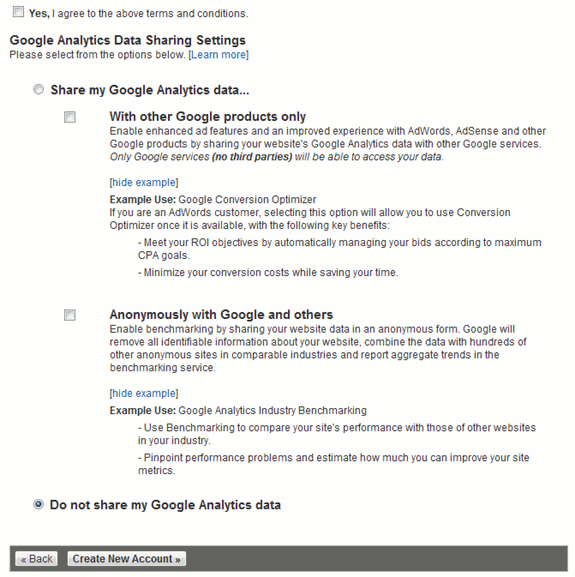
When you are satisfied with your selections, select “Create New Account“. You will be prompted to clarify your data sharing options.
Your account is now created and you will be provided with a tracking code to input into your website’s HTML template. This code is used to link your website with Google Analytics.
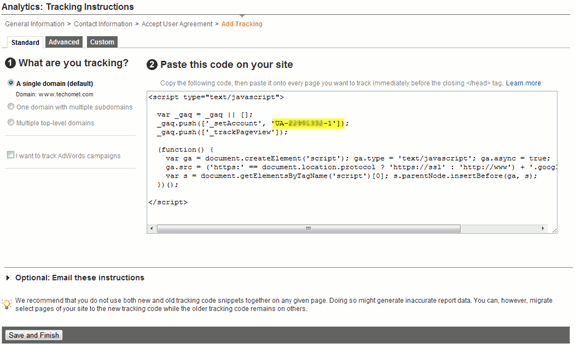
Select “Save and Finish” once you have copied the tracking code.
Finally, you will see an overview of your newly created account and your soon to be tracked website.
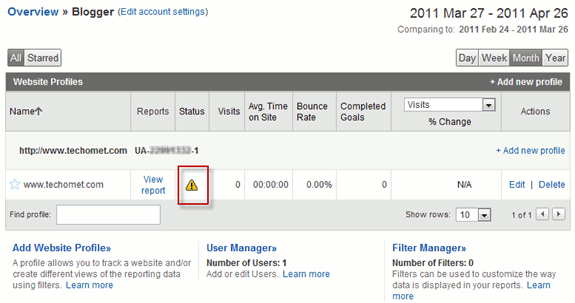
As the screenshot shows, there is an “error” in the status. This is because the tracking code has not been copied to your websites HTML template.
Step 2 – Installing Tracking Code in Blogger
This guide is primarily for Blogger accounts, however the tracking code can be pasted in the HTML template of most websites.
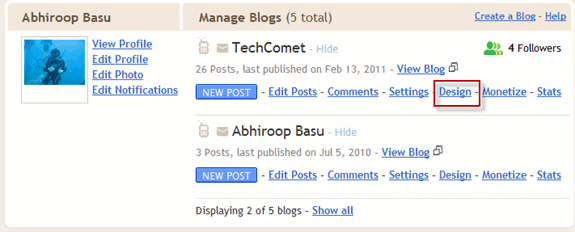
For Blogger Accounts: To copy this code into your website’s template head over to your Blogger dashboard and click on the “Design” link under the website which you wish to track.
On the next page select “Edit HTML”
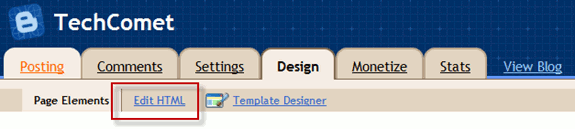
You will see the full-text of your website’s HTML template. Check “Expand Widget Templates” to view all the HTML code. Then paste the tracking code just above the “” tag.
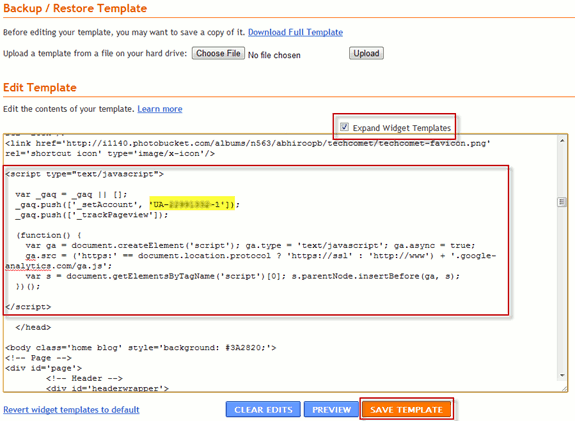
The default tracking code is as follows:
This tracking code will come with a alphanumeric number known as the “Web Property ID”. This is the essential part of the tracking code and it is in the form “UA-XXXXXXXX-Y“. Remember to exchange “UA-XXXXXXXX-Y” with your actual Web Property ID when you paste it into your HTML template.
Once you have completed this select “Save Template“.
Step 3 – Confirm Tracking
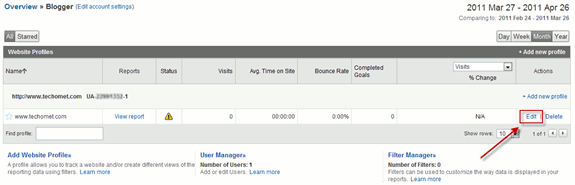
Your website will now be tracked on Analytics, but if it is not, head back to your Analytics overview page and select “Edit”.
Then select “Check Status“.
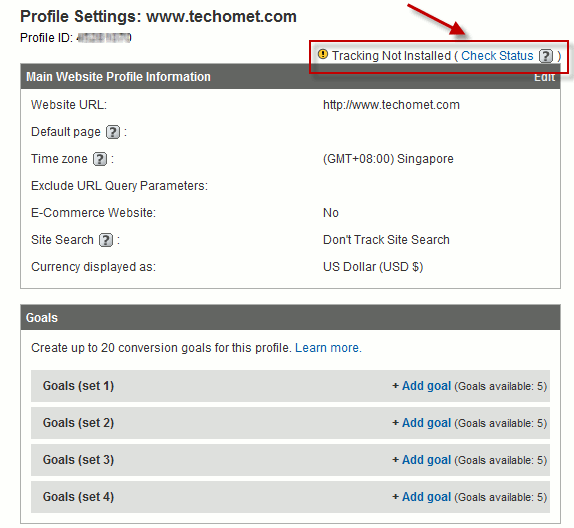
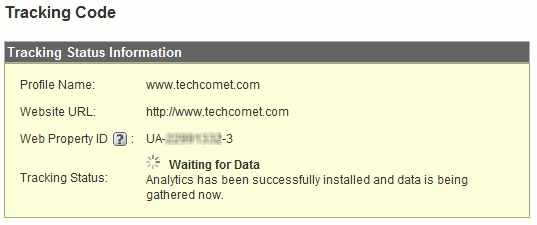
This will ping the tracking code in your website’s HTML template and Analytics will set to work collecting data for your website.
Step 4 – Add More Websites
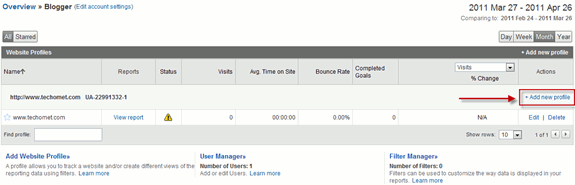
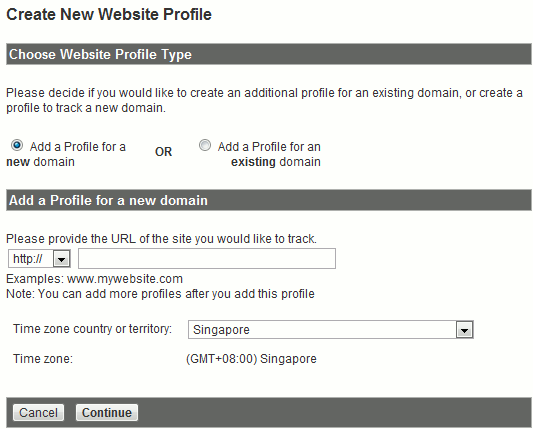
To add more websites to your Analytics account, simply select “Add new profile”.
Conclusion
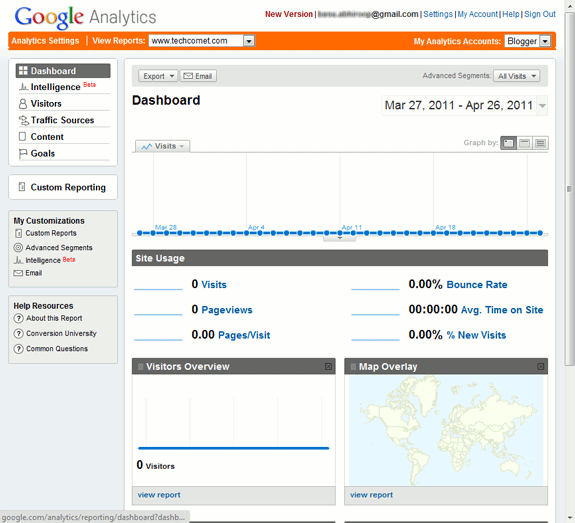
Once the data from your website is collected you will see a chart with all your information.
That’s it.