

Virtually all blogging platforms, including Blogger, have the “quote text” function. This is useful when you want to highlight sections from other texts or where you need to highlight information from within your own article. Quoted text can be customized to look different from the main body of your article and these differences make it stand out.
In this article I will describe how to use the “quote text” function in Blogger blogs as well as how to customize its look.
How to Quote Text
Selecting text to quote is fairly easy. In Blogger, for example, you can “quote text” by selecting it and pressing the “quote text” button.
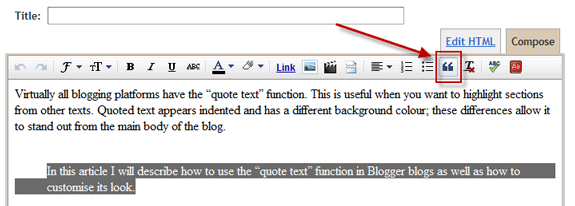
You can also select text to quote by adding the “” tag around the text.
The default look is a simple indentation and this does not really help in differentiating it from the rest of the article. So, it is useful to change the look of the default quoted text.
Editing the Look of the Quoted Text
Editing the look of quoted text requires editing the basic HTML design of your blog.
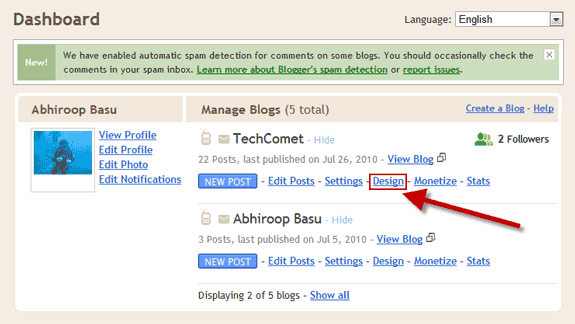
First, open your Blogger dashboard and select “Design”.
Next, on the main Blogger window select “Edit HTML”.

This will open up the HTML template editor. Here check “Expand Widget Templates” to ensure that all the HTML code for your blog is visible.
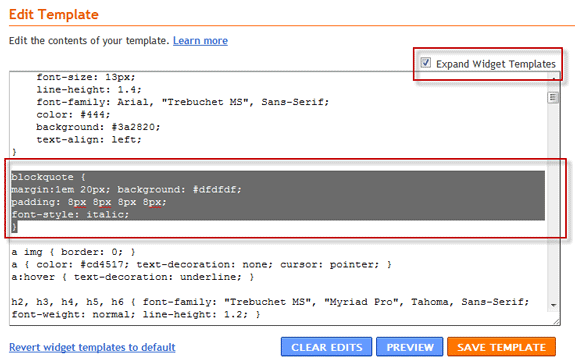
Then scroll down and look for the section that contains the word “blockquote”. All the relevant options for the quoted text will go between “{” and “}”.
Customizing the Look of the Quoted Text
The options I use for my quoted text are as follows:
blockquote {
margin:1em 20px;
background: #dfdfdf;
padding: 8px 8px 8px 8px;
font-style: italic;
}
This produces the following effect when I select text to quote:
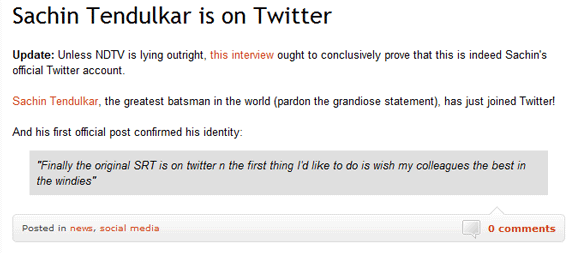
The text is slightly indented, it is italicized and there is a soft grey background. These changes really make the quoted text more striking and it is easy to differentiate it from the main body of the article.
There are a number of different options you can add to your quoted text and I will discuss them below.
Margin
First, you will want to indent your text so that it is not in the same line as the rest of your article. You can do this by adjusting the number of pixels that the margin is from the rest of the text. I have set mine to 20px. Adjust this value as you see fit.
margin:1em 20px
Background Color
Next you can change the background color by adjusting the “background” tag. I have chosen a light grey color. The colors in HTML code are represented by six “hexdigits”.
background: #dfdfdf
Padding
The amount of “padding” you use determines the distance that the quoted text is from the edge of the box created by the background color. The smaller the number of pixels, the closer the text will be to the edge of the box.
The first figure is the distance (in pixels) from the top of the quote text box to the start of the text, the second figure is the right indent, the third figure is the bottom indent and the fourth figure is the left indent (In short, the 4 figures start from the top and go in a clockwise direction).
padding: 8px 8px 8px 8px
Font Style
You can also bold or italicize the quoted text to really make it look different from the rest of your article.
font-style: italic
font-style: bold
Borders
I have not chosen to add a border to my quoted text, however, if you wish you can do this by using the “border” tag. You must chose the thickness, style and color of your border.
border: 2px solid #dfdfdf
border: 2px dotted #dfdfdf
Conclusion
In most modern blogs there are often sections that are quoted from other websites and blogs. To make your blog stand out and to add a “professional” touch to it, I would recommend spending some time and customizing the look of your quoted text.
Let us know how text is quoted in your articles!