
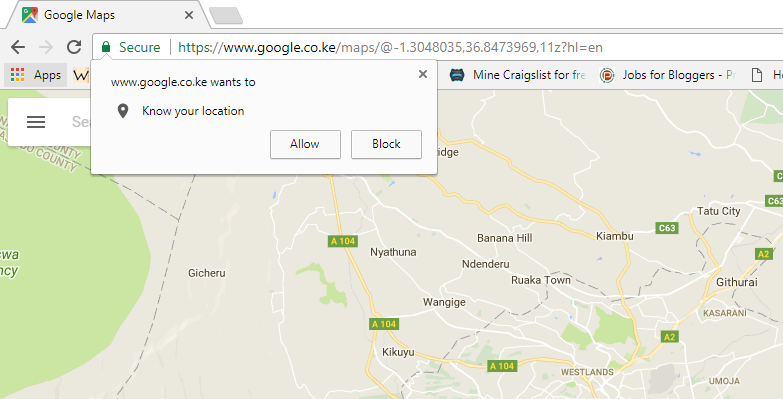

When browsing the Web with some of the modern web browsers like Mozilla Firefox, Google Chrome, Safari and Microsoft Edge, you might receive a prompt asking for your physical location. Websites request this information so they can provide you with content that is relevant to your area. However, some websites are very notorious and will ask for your location every time you visit a particular site, which can be annoying at times.
If you find it annoying and don’t intend to ever reveal your location details to a website, you can turn off location requests by disabling this option in the browser settings. In this tutorial we will show you how to turn off location requests in Google Chrome, Mozilla Firefox, and Microsoft Edge.

How to turn off location requests in Google Chrome
In Google Chrome this option is found in the Privacy settings. Follow the steps below to turn it off.
1. Click the menu icon (marked by 3 vertical dots) located in the top-right corner of the browser window.
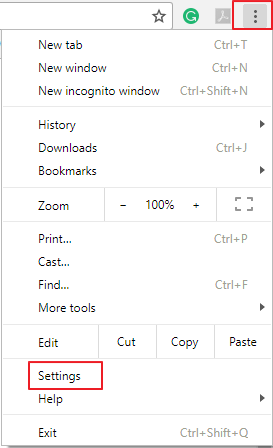
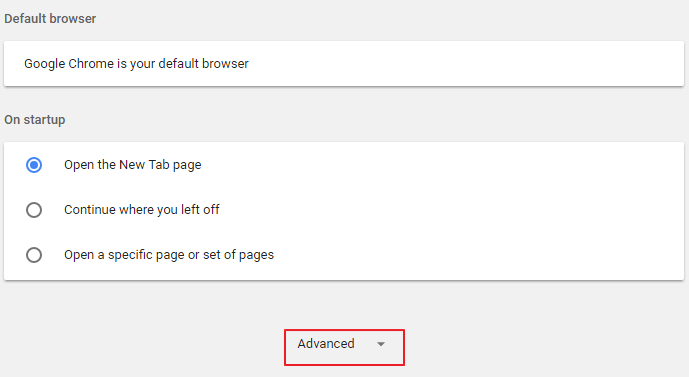
2. Click “Settings” in the drop-down menu. This will open the Settings tab. Scroll down to the bottom of the page and click the “Advanced” button.
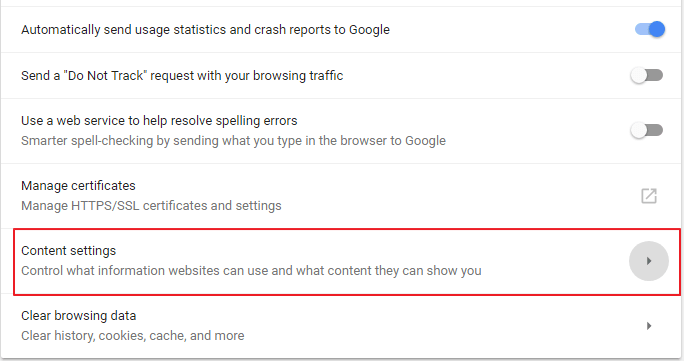
3. Clicking the “Advanced” option will expand the Settings menu. Under the “Privacy and Security” section scroll down to “content settings.”
4. Under the content settings window navigate to the “Location” tab.
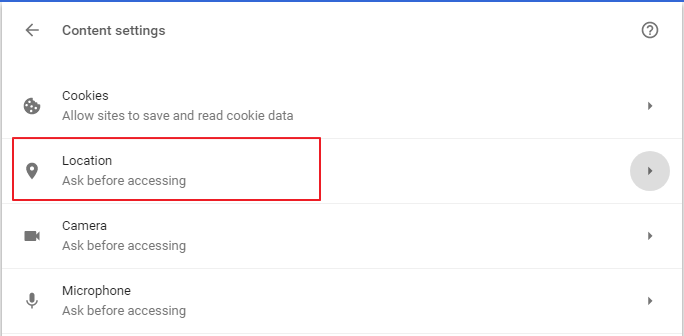
5. Clicking on the “Location” option will open a new tab where you’ll find the “Ask before accessing option.” Click on the slider to the right side of this option to turn it off.
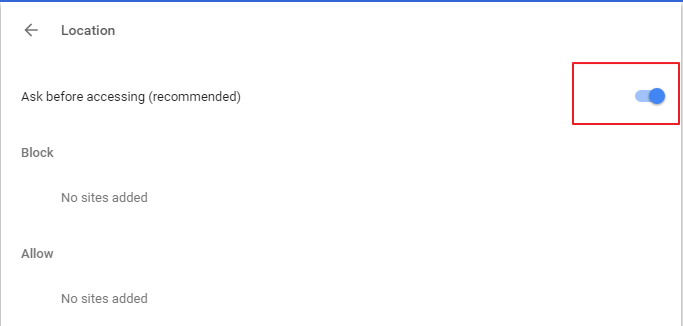
That’s it. Turning the switch off will stop Chrome from asking for your location. To reactivate this option, go through the procedure again and click to turn the switch back on.
How to turn off location requests in Mozilla Firefox
Mozilla’s location settings are hidden in its about:config menu. This menu contains a variety of advanced settings, and you can easily mess up your browser by altering the wrong settings. Only change the settings if you are sure of what you are doing. To disable location requests, simply follow the steps below.
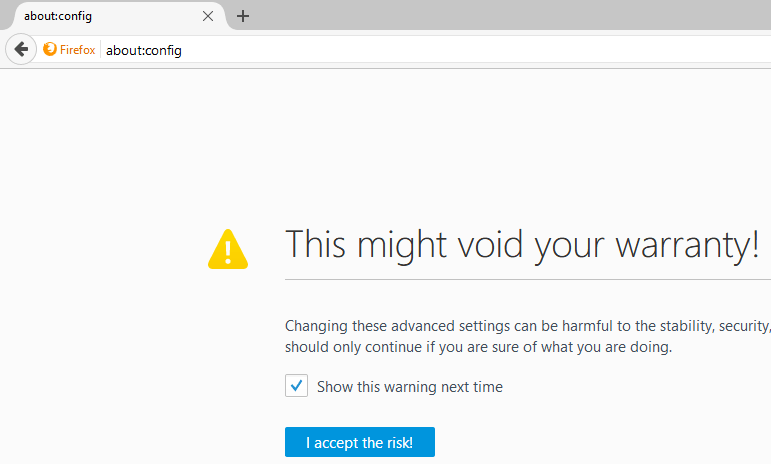
1. Type about:config in the Firefox address bar and hit Enter. This will invoke the risk notification warning. Click “I accept the risk” to continue.
2. In the search box on the “about:config” section Type geo.enabled and hit Enter.
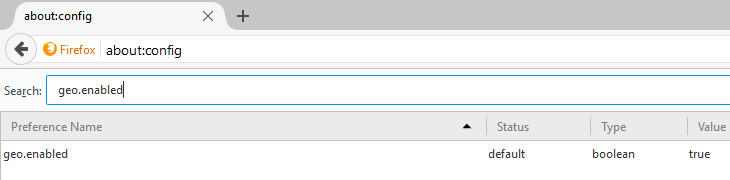
3: You’ll notice that the “geo.enabled” featured has been set to “True” by default. Double click on this option to change its value to “False.”
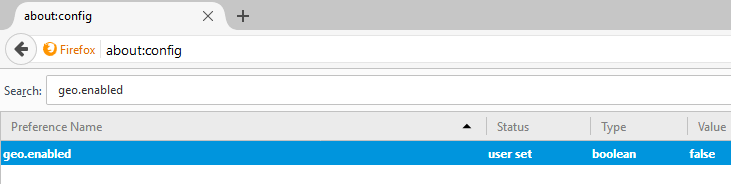
That’s it. You can now close the “about:config” screen.
How to turn off location requests in Microsoft Edge
Microsoft Edge is the newest browser, and because it has been optimized for the modern Web, it also allows websites to send location requests from time to time. However, since Edge is built on the Windows platform, disabling it involves altering the Windows 10 Settings app. To disable it, open the Settings app and head to “Privacy -> Location.”
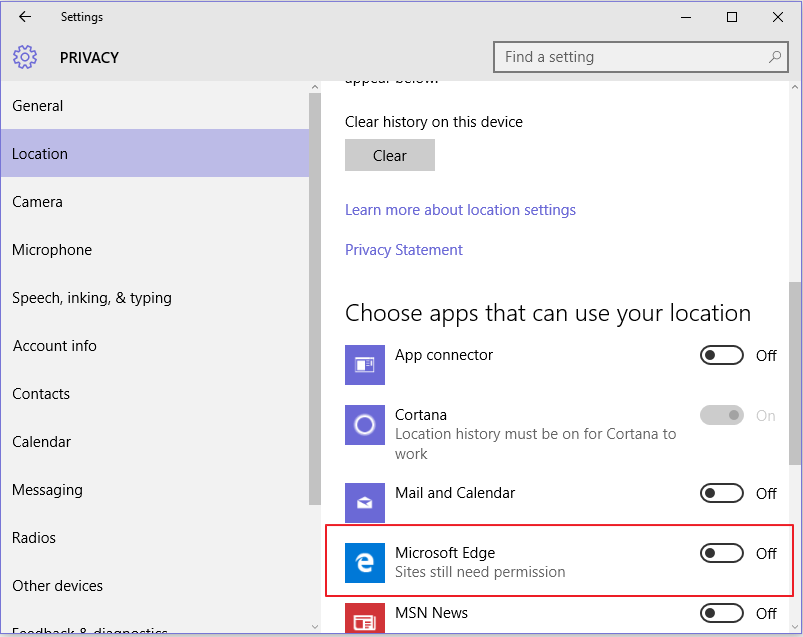
Scroll down to the option that says “Choose apps that can use my location” and click to turn the switch off.
Conclusion
Websites that ask for your location often require you to enter either an address or zip code. With the galloping rate of cyber crime, you don’t want to do anything online that might expose your confidential information. If you feel that revealing your location to certain websites might compromise your privacy, turning off this feature in the browser settings might be a good idea.
Hope you found this article useful. Feel free to comment and share.