

GIFs are interesting, but they can be annoying when they suddenly show up when you are not expecting them. They are disruptive and also eat up loads of bandwidth leading to a slower page load.
If you are not a big fan of GIFs, you can simply disable them in your browser to speed up page-loading and keep distractions to a minimum. Here is how you can stop GIFs from automatically playing in Chrome, Firefox, Internet Explorer and Opera.
Disable GIFs in Chrome
Chrome doesn’t offer any built-in option to disable GIFs, but you can take advantage of a third-party extension to get this feature. For this purpose Gif Jam (Animation Stopper) is a good Chrome extension that will stop GIFs from loading, and only their first frame will be shown. If you are not comfortable with Gif Jam, then you can also take advantage of Google’s own solution, Animation Policy, that also gives you more customization options.
Disable GIFs in Firefox
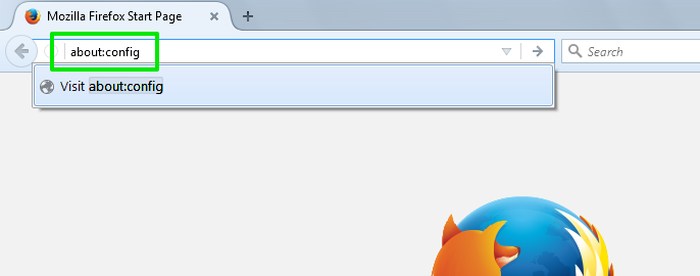
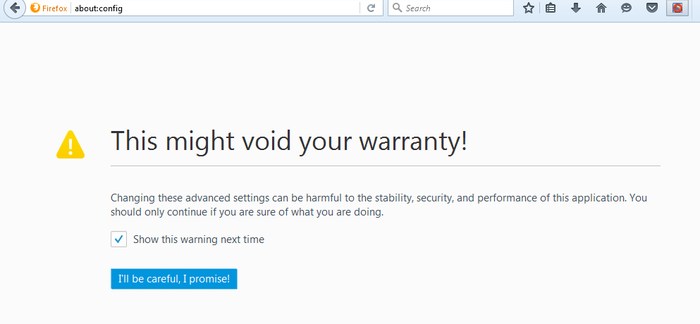
In Firefox you will have to disable GIF from the experimental features listed on the “about:config” page. Type about:config in the Firefox address bar and hit Enter. Confirm the prompt, and experimental features will open up.
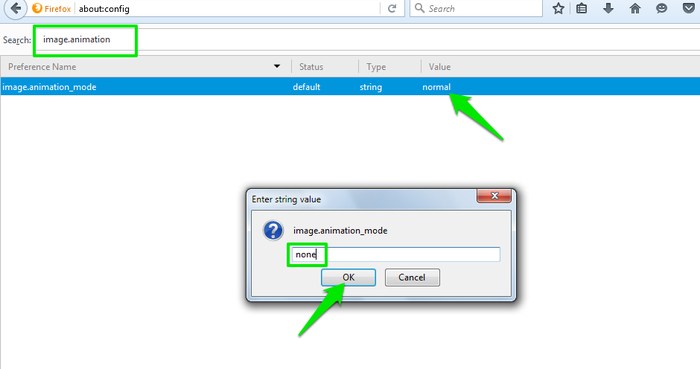
Now type image.animation in the top search bar, and double-click on “normal” next to “image.animation.” Change the value from “normal” to “none” to stop all GIFs from playing, or change it to “once” in order to only play them once and prevent looping. You will have to type the value yourself.
You will always have to go through the above process to enable or disable it. If you find it inconvenient, you can also take advantage of a third-party extension that will let you quickly enable/disable GIFs in Firefox. Toggle animated GIFs is a popular Firefox extension for this purpose that gives complete control over GIFs. You can click on a GIF to play/pause, restart or just completely disable it.
Disable GIFs in Internet Explorer
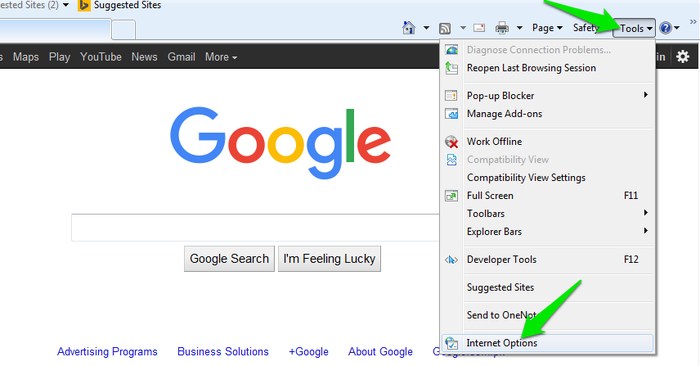
In Internet Explorer click on the “Tools” menu, and select “Internet Options” from it.
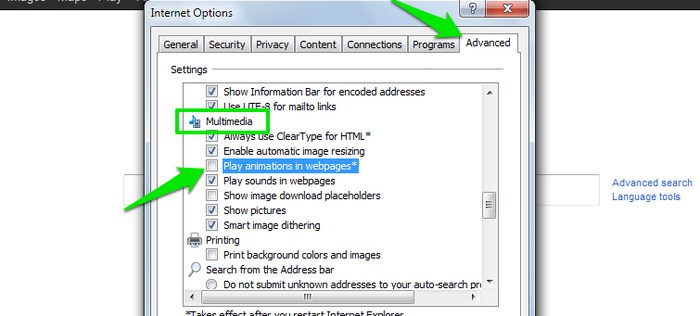
In the internet options move to the “Advanced” tab, and then scroll down to the “Multimedia” section inside the “Settings” panel. Here you need to uncheck the option “Play animations in webpages” to disable GIF in Internet Explorer. You may have to restart Internet Explorer to apply the changes.
You can also press the “Esc” key while a GIF is playing to pause it – handy for quickly getting the distraction out of your way.
Disable GIFs in Opera
Opera once had a built-in option to disable GIFs, but it is not available anymore in the newer versions. I have checked all the settings and flags, but there seems to be no option. Additionally, Opera also happens to have no supported extension to block GIFs. One workaround is to install an Opera extension named “Download Chrome Extension” (no longer available). This extension will allow you to install almost all Chrome extensions in Opera.
Once it is installed, you can download and use any of the GIF blocker extensions for Chrome that I have mentioned above in the Chrome section.
Conclusion
GIFs have become quite popular recently and are popping up everywhere. If you are not interested in watching GIFs, then disabling them is a good way to speed up page-loading time and also save on bandwidth. While we are talking about speed, you should also try disabling images in your browser; it has some great benefits as well.