

Have you ever wanted to share a specific moment from a YouTube video? There are several ways to link to a specific part of a YouTube video. In this tutorial, we share five methods.
[mte_toc]Also read: 9 of the Best YouTube Downloaders to Watch Videos Offline
1. Copy Video URL
You can use YouTube’s built-in features to share a specific part of any YouTube video. Simply pause the video at the exact moment you want to share, then press either Ctrl + click or right-click anywhere on the video, and select “Copy video URL at current time.”
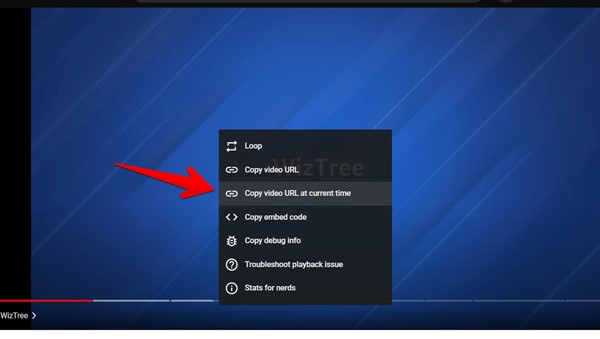
A URL containing this exact timestamp will now be copied to your clipboard, ready for you to share. Anyone who clicks the link will be immediately transported to this exact portion of the YouTube video.
2. Add Timestamp While Sharing Video
If you’re struggling to hit pause at the right moment, you can type the exact timestamp you want to share. To use this method, follow the steps below:
- Click the “Share” button below the video.
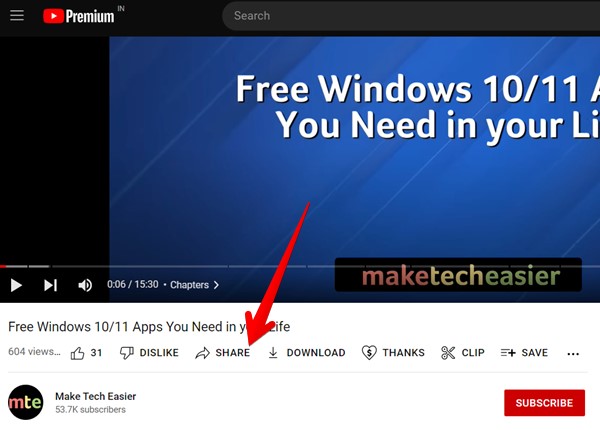
- In the subsequent pop-up, select the “Start At” checkbox.
- By default, YouTube suggests the time where the video is currently paused. However, you can type any time into the accompanying text field.
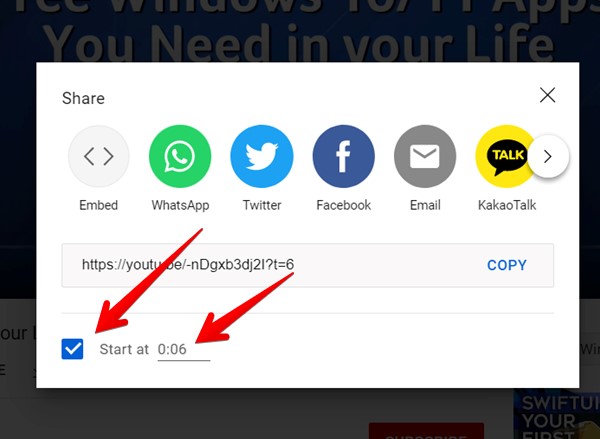
- Once you’re happy with the information you’ve entered, you can share this YouTube video as normal. For example, you could share it on WhatsApp, Facebook, or Twitter. Alternatively, you can copy the generated URL and paste it into any location of your choosing, such as Instagram Messages, Stories, etc.
Also read: 8 YouTube URL Tricks You Need to Know
3. Using YouTube Clips
YouTube offers another native feature called Clips to share a specific part of a video. You will find the Clip button under all of the supported videos. Click or tap on the button to create a clip 5 to 60 seconds long from the original video. The clipped video can then be shared with others and will play in a loop from the original video’s page only. Please note that clips do not create a new video.
To extract a part of a YouTube video by creating its clip, follow these steps:
- Start watching the desired video.
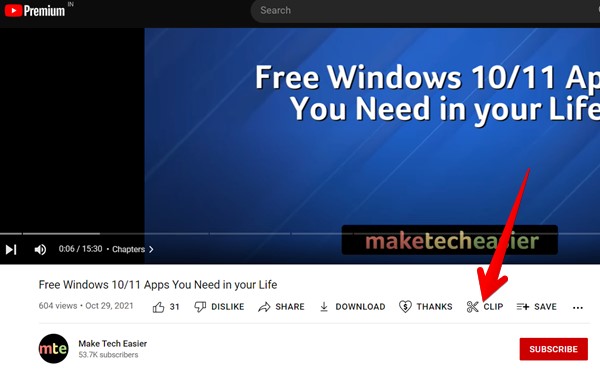
- Click or tap on the “Clip” icon under the video.
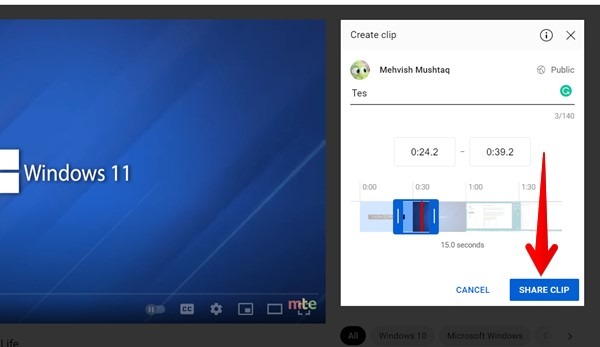
- The Create clip screen will show up. Type a description for the clip.
- Enter the start and end times for the clip or use the slider to select the portion of the clip that you want to share and hit the “Share clip” button.
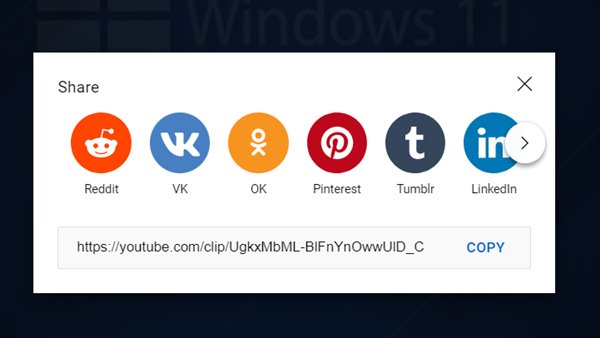
- Copy the clip link and share it with others. The clipped video will play in a loop, and users will get the option to watch the full video.
Pro Tip: To view your clipped videos, go to “your YouTube channel Settings → your clips.
How to Disable Clips on Your Videos
If you don’t want others to clip your videos, follow these steps:
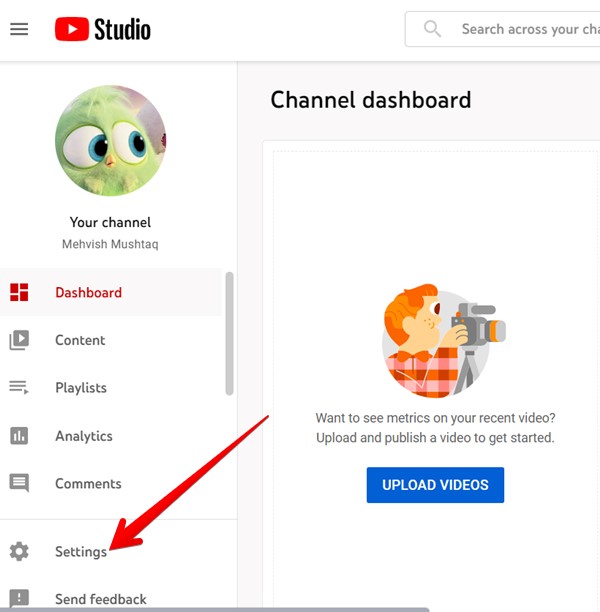
- Open YT Studio in a browser.
- Go to “Settings.”
- Hit the “Channel” option followed by “Advanced settings.”
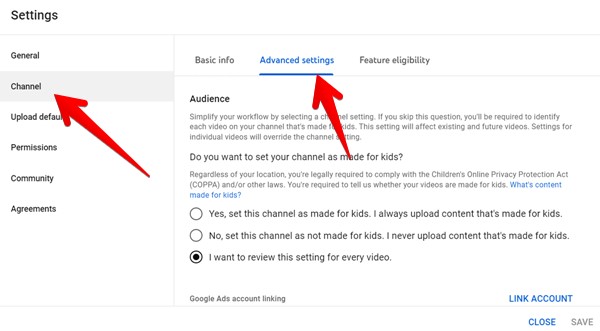
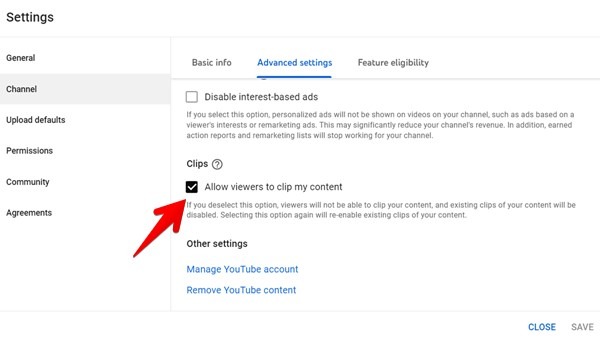
- Scroll down and uncheck the box next to “Allow viewers to clip my content,” then hit the “Save” button.
Also read: YouTube TV vs. YouTube Premium: What You Need to Know
How to Block a User from Clipping Your Videos
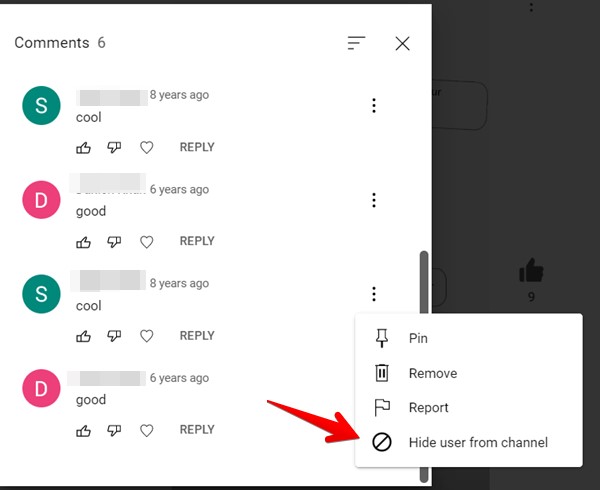
If you don’t want a specific channel or user to clip your videos, you can hide that person from your channel. When you hide a person, their comments won’t show up on your videos and they will not be able to clip them.
To hide a user, go to the comment they left on your video. Click on the three-dot icon on the comment and select “Hide user from channel.”
Also read: How to Create and Manage Your YouTube Clips
4. Create Timestamp Links Manually
You may have noticed that when you share a specific part of a YouTube video, the video’s URL is appended with the new start time. This allows you to manually create the links on your own by adding the start time for the video in the correct link format.
For Shortened Links
When you press the Share button under a video, generally, the video link will be in this shortened format: https://youtu.be/-nDgxb3dj2I. For these, you must add a question mark (?) followed by the letter t, which stands for time, followed by the timestamp (?t=hms, where h = hour, m = minute, and s = seconds) of the point where you would like the video to start.
For example:
For Regular YouTube Links
If you copy the YouTube video link from the URL bar or the YouTube link is in the full format of https://www.youtube.com/watch?v=-nDgxb3dj2I, then you must append it with &t=hms.
Some examples:
Also read: How to Watch and Chat on YouTube Live Stream
5. Using Chapters
If a YouTube video supports chapters or timestamps, you can share the desired chapter.
- Open the desired video.
- Click on the “Show more” button under the description to see the available chapters.
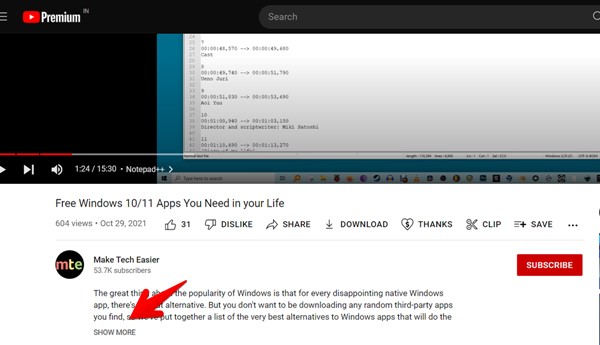
- Click on “View all” to see all the chapters in a video.
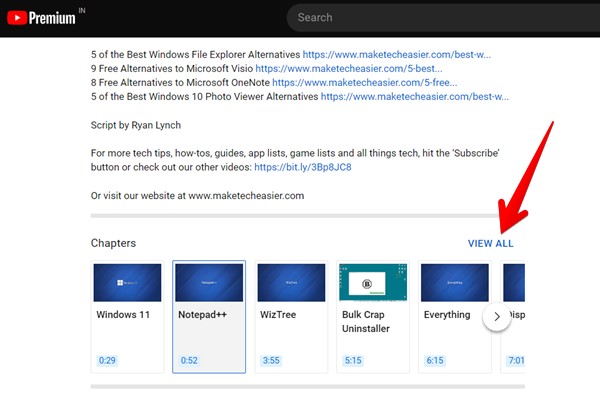
- When the chapter list shows up, click on the chapter you would like to share and hit the “Share” button.
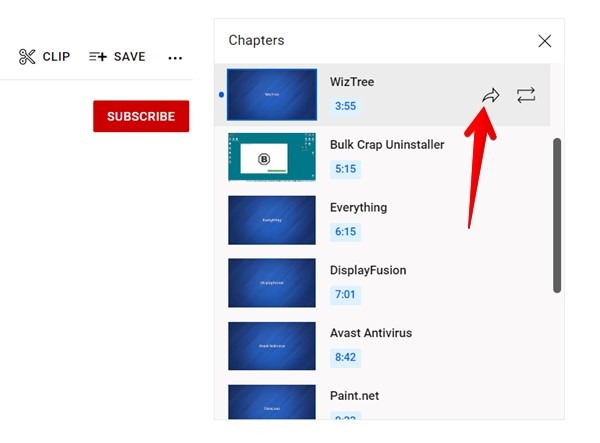
- Copy the chapter link and send it to others.
Also read: How to Block YouTube Video Channels
Frequently Asked Questions
How can I just skip part of a YouTube video?
You can use the numbers on your keyboard to skip ahead through a certain percentage of the video. The numbers 1 to 9 correspond with 10% to 90% of the video’s playtime.
Is it possible to start a video from a specific time in an embedded YouTube video?
Yes. Click on the “Share” button under the video and choose “Embed.” Check the box next to “Start” at and enter the start time.
How can I share multiple YouTube videos?
You must add the videos to a playlist, then share the playlist.
All screenshots and images created by Mehvish Mushtaq.