

Do you get a dozen of email every single day and forget following up on earlier emails? Do you need a simple way to set up email reminders so that there is no need to use a task management or to do list application, just because you want to remember important schedules, meetings etc?
Followupthen is a simple web service with a brilliant concept. The site lets you set up scheduled email reminders on any of your email account’s e.g Gmail, Google Apps, Yahoo, Hotmail and so on. You can define a future date or hour in any email message and your reminder will hit the inbox on the scheduled day or time. No registrations or sign ups are required in order to use the Followupthen service.
What’s impressive about Followupthen is that you can not only send the reminders to your email, but you can also auto forward them to any other recipient of your choice. Hence, you can automatically ping a particular email address at a future date, which is great!
Getting Started With Followupthen
Following are the steps involved to start setting up scheduled email reminders using the Followupthen service:
1. Open your email inbox and compose a new email message. Type “1minute@followupthen” in the “To:” field and add any text as the subject line or in the body of the message.
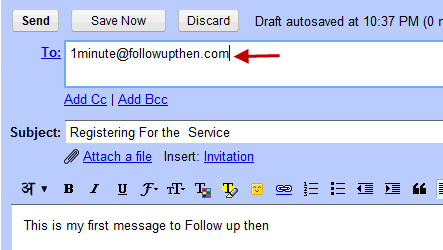
2. Hit “Send” and wait for a minute. You will soon receive an invitation email from Followupthen which looks like the following:
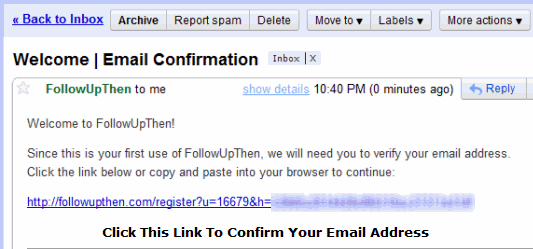
3. Click the confirmation link and fill up a captcha on the next page to confirm your account. Next, select your local time zone from the drop down selection box, as shown below:
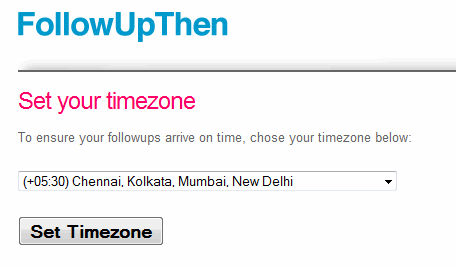
It’s very important to select the correct timezone setting, otherwise your scheduled reminders won’t reach your email inbox on proper time.
All done, you have successfully set up your Followupthen account.
The Reminder Syntax Of Followupthen
When you want to set up an email reminder, compose a new email message and specify the time interval in the “To:” field. Then enter a subject line, a message body and send it to time-interval@followupthen.com.
For example: Let’s say you want to get the reminder email exactly at 8 pm tomorrow evening. In that case, you have to use the following format, as illustrated in the image below:
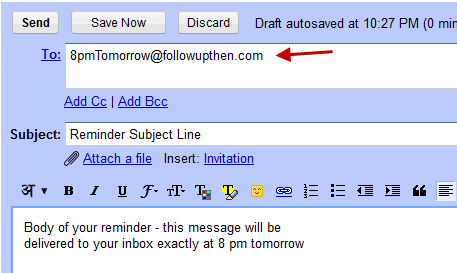
Here are the most common time interval syntax which can be used with Followupthen:
- 2pm@followupthen.com – This will send a reminder at 2pm (local time). If you are setting the reminder after 2pm today, you will get the reminder tomorrow.
- 3amtomorrow@followupthen.com – This will send the email reminder at 3am tomorrow.
- 3minutes@followupthen.com – This format can be very useful when you want to set up quick “day specific” reminders. The reminder email will hit your inbox exactly after 3 minutes.
- 7days@followupthen.com – This format can be used to get the reminder email after a certain number of days.
- friday@followupthen.com – This is again a very handy format which can be used to set up email reminders for specific weekdays. The reminder email will hit your inbox in upcoming Friday. If by coincidence, the current day of the week also comes out to be Friday, you will get the reminder exactly on the next Friday.
- Jul15@followupthen.com – This format can be used to set up email reminders for a specific date. Very useful when you want to remember a specific event, a date or may be something else.
You can visit the Followupthen documentation page to learn more on other reminder formats.
Using the CC: Field With Followupthen: Say you just received an email from one of your clients and want to follow up with him 3 days later. When you have composed a reply to the client’s email, add a “CC:” field and forward it to 3days@followupthen.com
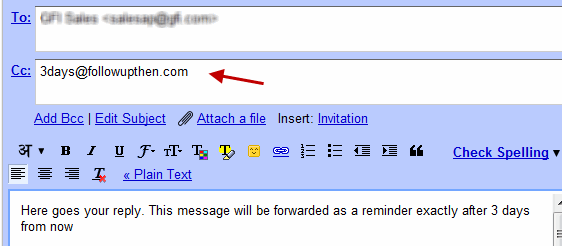
Then send the reply as usual. After 3 days, both you and your client will get the email reminder which will contain the earlier message threads. This is really a very easy way to automatically follow up important messages, or to set up email reminders for multiple people who work in a team.
Have you used any email reminder service ? What technique do you use to automatically follow up on important conversations ? Please share your ideas in the comments section.