

Discord is an easy way to hang out with your friends, have a video-conference and much more. This is a guide on how to properly set up screen sharing on Discord from scratch. We cover the important settings such as tweaking sound, video, and other background information. If you’ve never used Discord before, this is the perfect place to start, as all the detailed steps have been covered.
Setting Up a Discord Server
To begin, you need to set up your own Discord server. The detailed procedure has been covered here but we will summarize the important steps. You need to create your own Discord account at the official site and verify your email. Upon verification, you will be guided to create your first server, which you can customize with a name and icon.
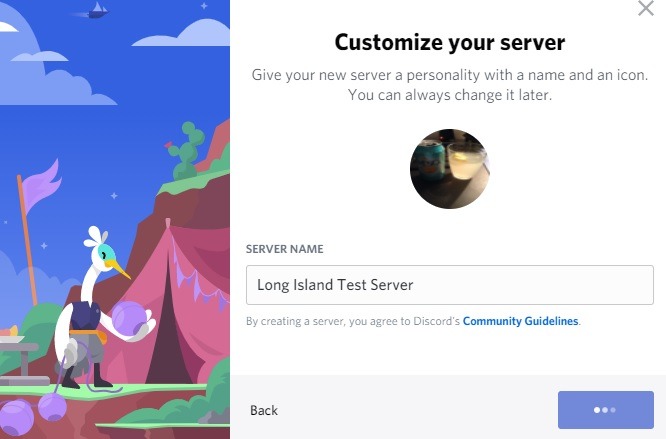
After creating the server, you are ready to finetune the audio/video settings for a full-fledged interaction with friends.
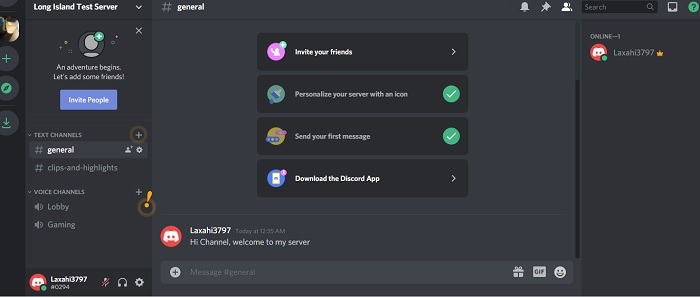
Setting Up Microphone, Video and Screen with Discord
Locate and click the tiny “user settings” icon on your profile details below.
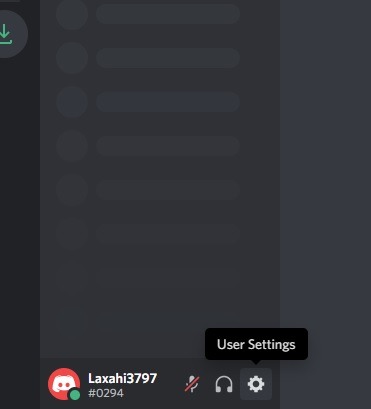
Navigate to the “Voice and Video” section where you can fine-tune your voice settings. You can choose a default microphone device or another one, if available, and test the mic for optimal sound clarity.
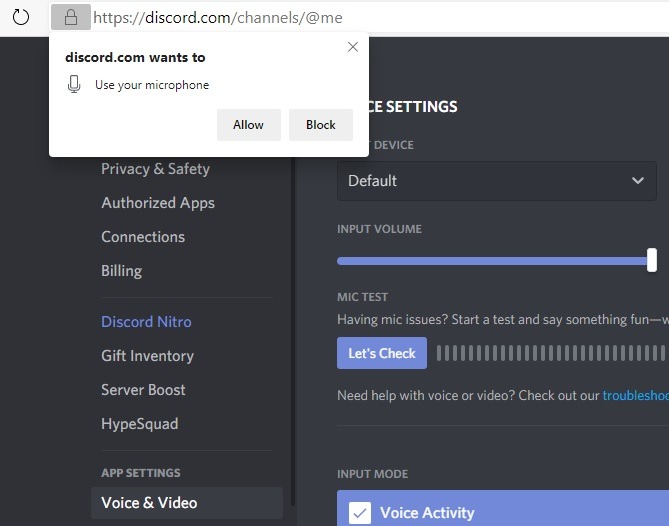
Similar to Skype call settings, your own voice will be played back to you. If you need slightly more volume, adjust the sliders accordingly.
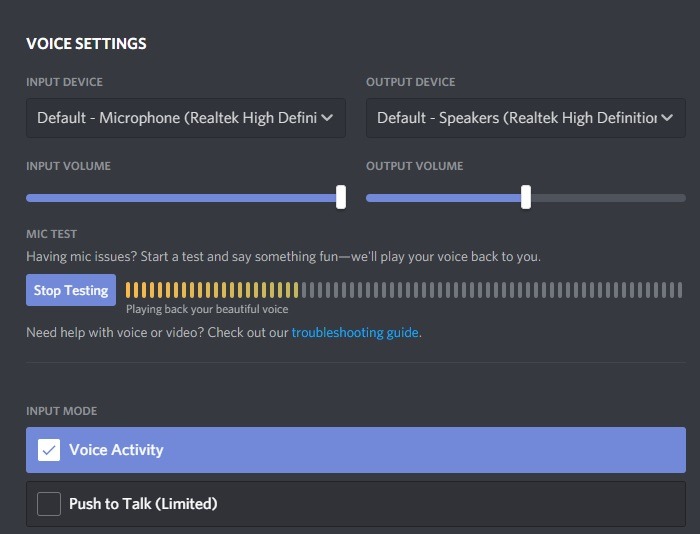
Also in this section, there is a “Video settings” menu where you can integrate your device camera with Discord. To do this, select the default video (webcam on your computer) followed by “Test Video.”
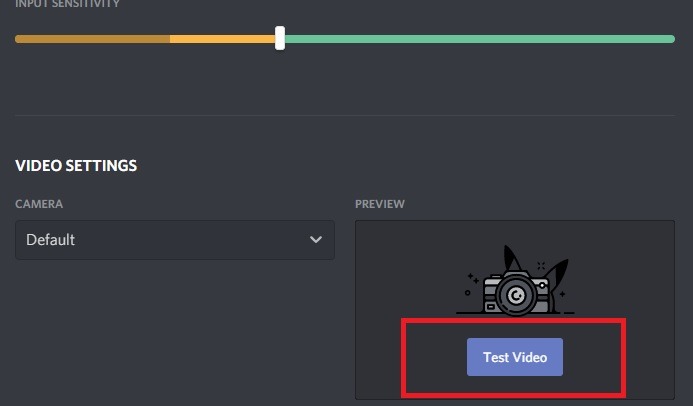
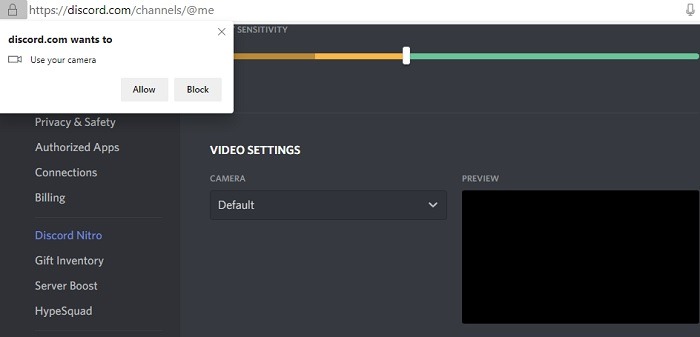
You can preview your webcam recording after giving Discord the required permissions to use your camera.
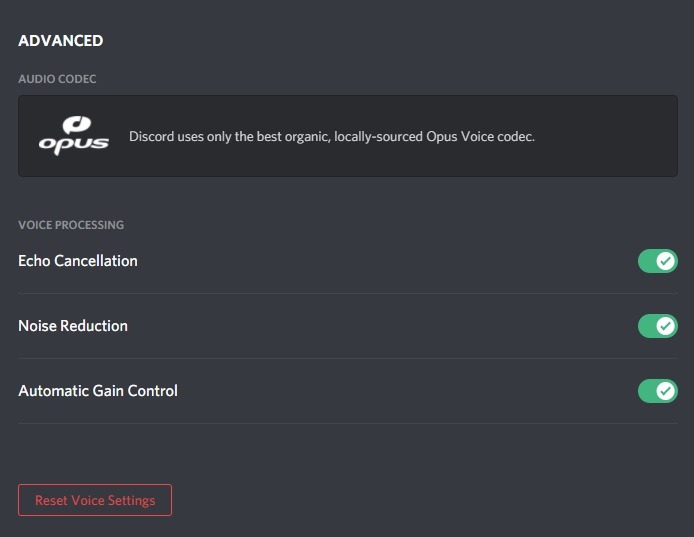
It’s better to enable advanced audio codec settings by Opus, such as echo cancellation, noise reduction, and automatic gain control. Now your Discord server is ready, and it’s time to go live with your session.
Also read: How to Connect Spotify to Your Discord Account
Add Friends to Your Discord Server
To start a session in Discord, you need to add Discord users as your friends. Of course, that means they should create their own accounts. Before sending friend requests, keep in mind that each user (including you) will have a “four-digit” tag preceded by a hash. You can view these tags in their public profiles.
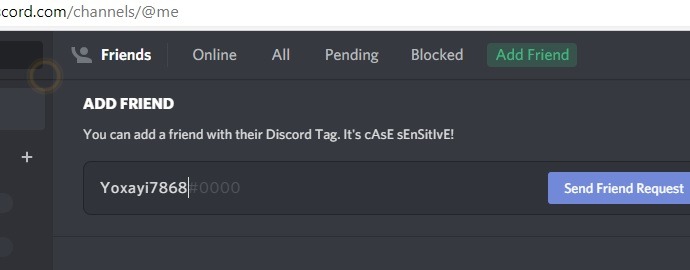
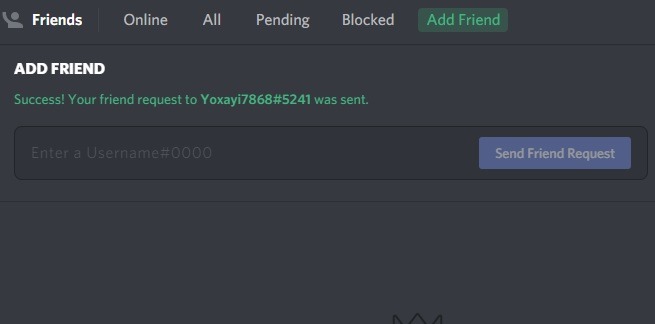
Once the correct four-digit tag is used, the friend request will be a success. If you don’t know, ask your friends for their tags. In this example, it is #5241.
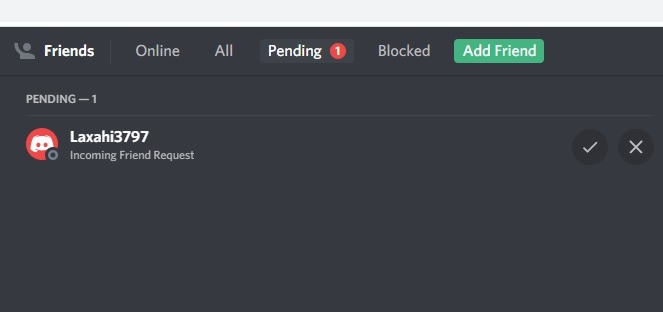
The recipient will notice a friend request message on their own servers as shown below.
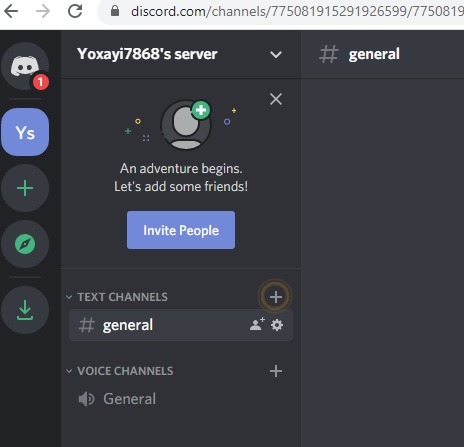
The recipient will have to go to “Friends” and approve any pending friend requests.
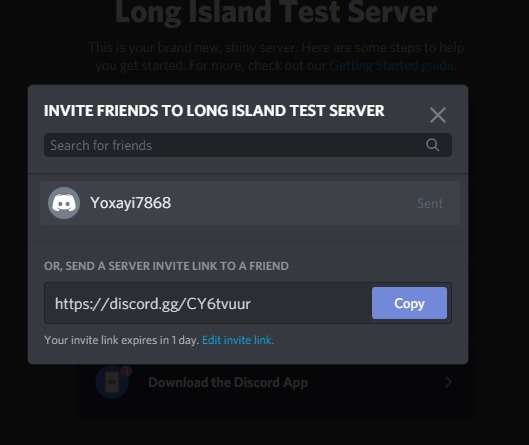
Another easy way to add friends to your Discord server is to copy-paste a server invite link and send it across.
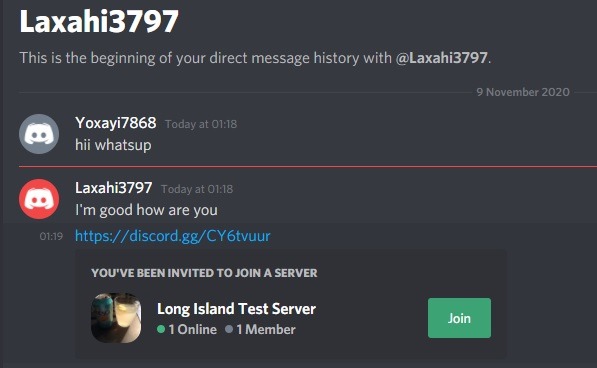
Once your friend has successfully joined your server, you can chat with each other, and it will display online on either screen.
Screen Sharing and Voice/Video Calls with Discord Friends
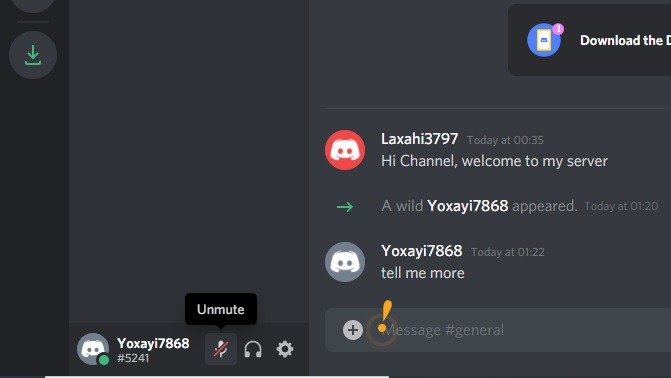
Starting voice and video calls with friends you invited is very easy. You have a choice to mute/unmute the conversation in the channel from the microphone icon.
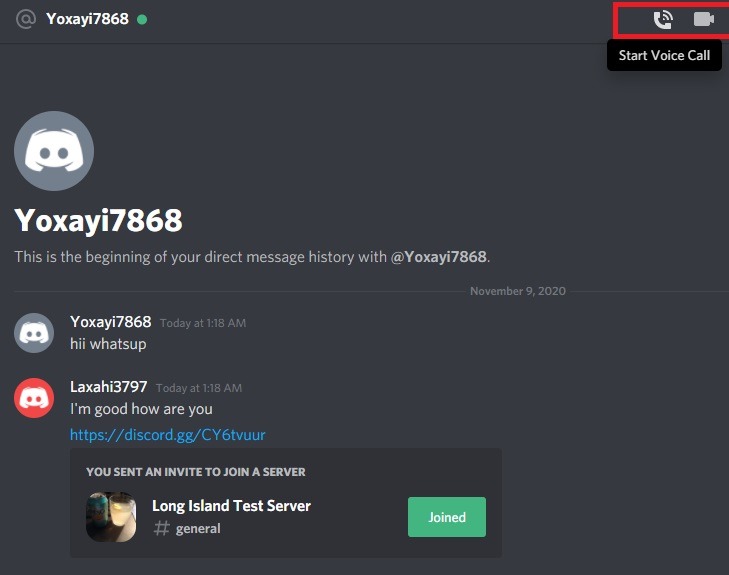
As a server owner, go to the Discord homepage and start a voice or video call with any friend. If you want to add more friends to the call, it can be done after all the friends have been added to the Direct Message history on your screen.
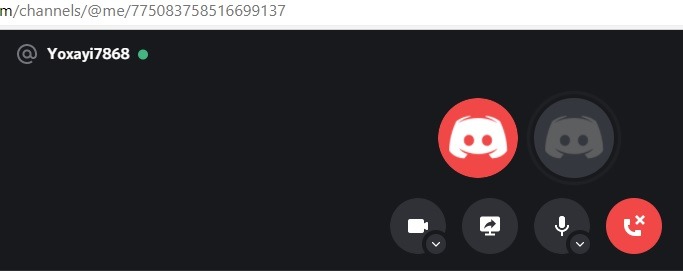
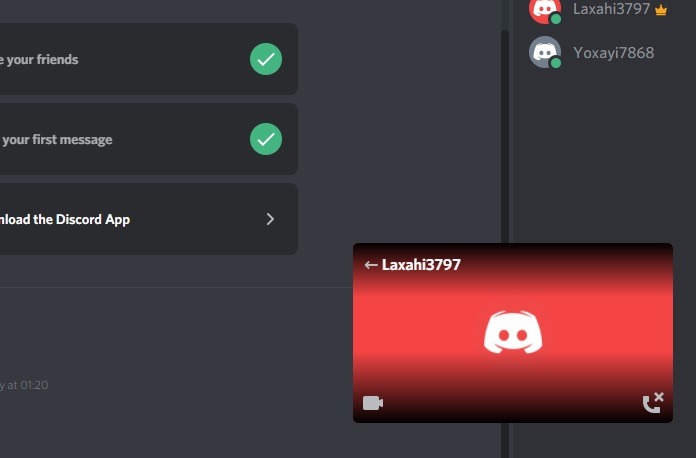
When the call is about to be established, you will see the following screen.
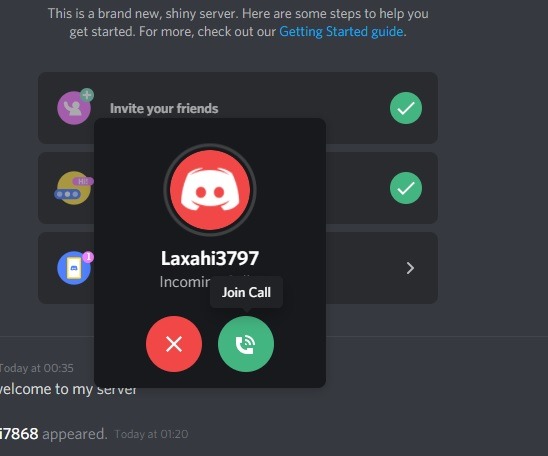
The recipient will notice your call invitation and can join by accepting the call.
You can turn on the camera at any point to convert a voice call to a video call. Conversely, you can turn off the camera when you don’t want to share videos. Of course, you can always turn off the mic during a call if you’re taking a break or for other reasons.
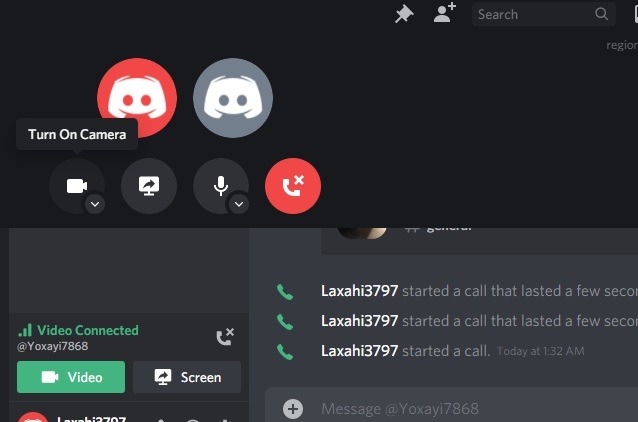
The recipients will be able to see your video on their devices and Discord channels. You can have a video conference if all the users have enabled video settings.
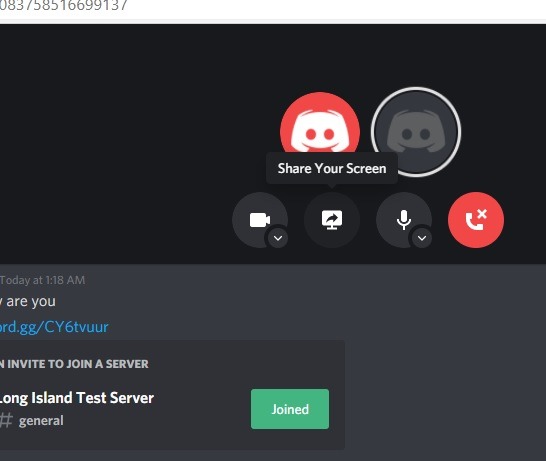
To share your screen, again go back to the call profile on your screen and select the option.
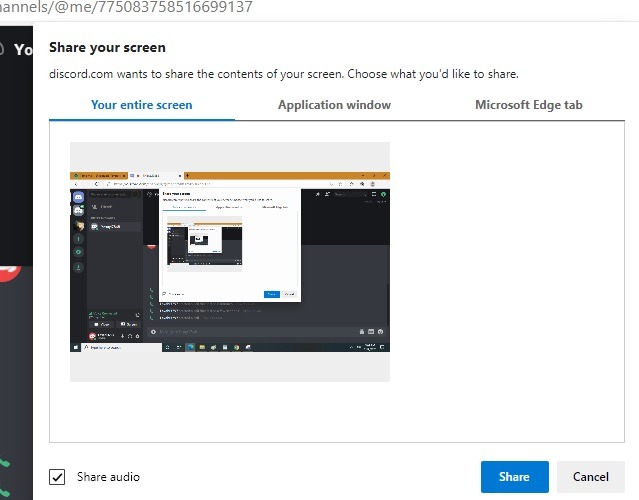
You will be presented with three modes of sharing your screen. You may share the entire PC or focus on a single application window or browser tab.
Unlike many professional meeting tools such as Zoom or GoToMeeting, sharing the screen takes just a second. There’s no delay, and the sender and recipient should be able to view the screen with greater clarity. If you don’t want to share the screen anymore, click “Stop sharing.”
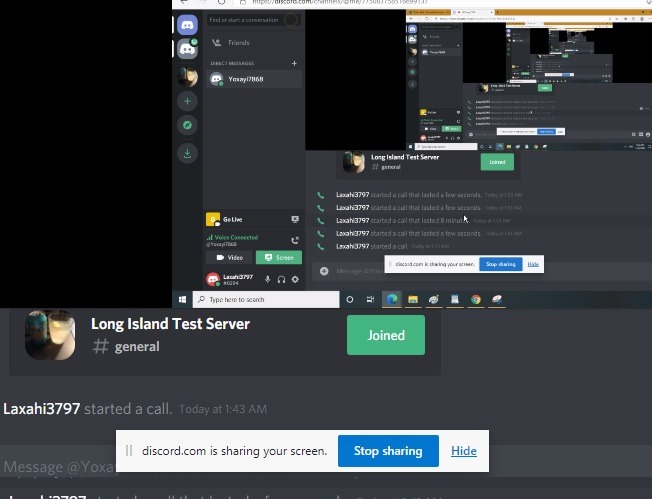
Since Discord works on desktop, mobile app and browsers, you can readily share your channel and have a quick video call with several people. Although popular with gamers, it supports a full range of features to qualify as a meeting tool for anyone looking to try.
You can do many advanced tricks with Discord using what are called Discord bots. Using a few technical steps, you can even create your own customized Discord bots.