

Mozilla Firefox allows you to save the login details, such as username and password, for the websites that you visit on your computer. So the next time you visit that particular website, the login details automatically get filled in. That way, you don’t have to remember the login credentials for each of the websites you have registered yourself on.
While that is a really nice feature, it has a drawback: your confidential data is not secure. Any user who accesses your computer can see your stored logins and then get access to your website accounts without your permission. This usually happens when you share your computer with others.
Well, Mozilla knew that things like this would happen in the future, so they have a feature in place called Master Password. What this Master Password does is prompt the user to enter a password before he or she can access the saved password. Once you have set this up in your browser, all the users who want to access the stored logins in your browser will be required to enter this password. They will not be able to see any of your logins if they fail to enter the password.
Note: This guide is done on a Mac version of Firefox. The steps may be slightly different for other operating systems.
Setting Up a Master Password in Mozilla Firefox
1. Launch Mozilla Firefox on your computer.
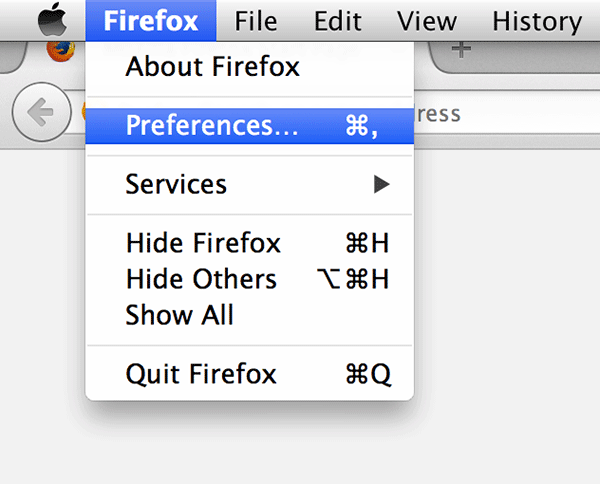
2. Click on “Firefox” in the top-left corner followed by “Preferences….” You will be taken to the Settings panel where you can modify the settings for your browser.
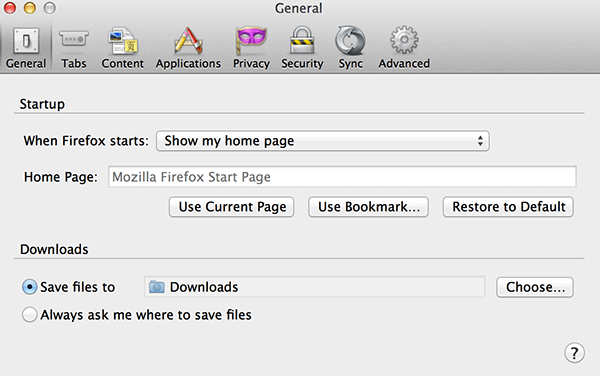
3. You should land on the General settings panel. The option for setting up a master password is located in the “Security” panel. So click on it and you will be taken there.
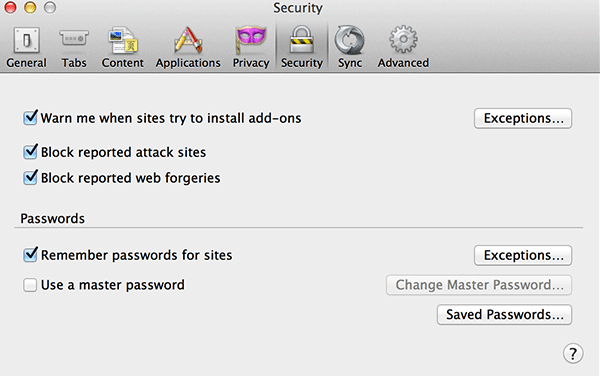
4. Once you are on the Security panel, you should see an option saying “Use a master password.” Click on it and it will be enabled.
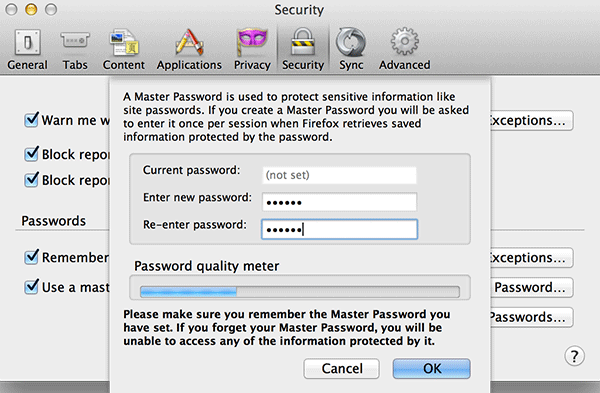
As soon as you click the button in the above step, you should see a dialog that prompts you to enter a password. This is the master password that users will be required to enter before they can see your login details. Make sure you enter a really strong password, as it will lead to passwords for all of your website accounts saved in your browser.
5. When you have entered a password, click on “OK” to save the changes.
Once a password has been set up, you should see a confirmation message that looks like the below image. It means everything went well and you have successfully configured your browser with a master password.
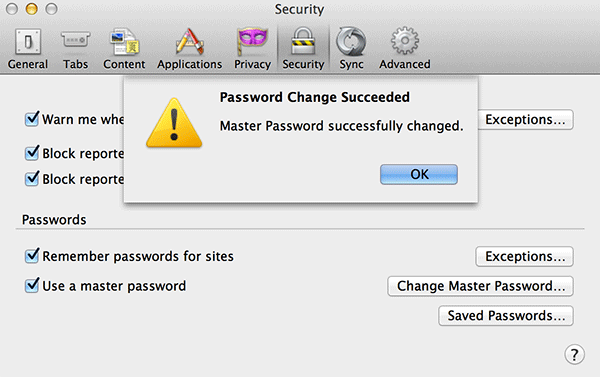
You are done.
If you wish to confirm that the master password really works, you can click the “Firefox” menu followed by “Preferences….” Then, click the Security panel followed by “Saved Passwords….”
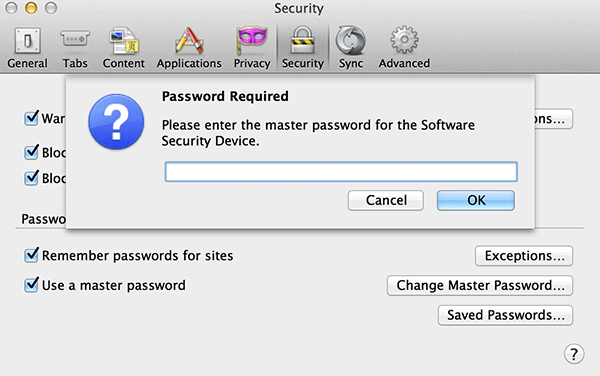
You will be asked to enter the password you chose in the above guide before you can view your stored logins. It worked!
Conclusion
If you happen to share your computer with others and just don’t want them to be able to see what website logins you have saved in your browser, the above guide should help you set a master password that acts as a blocking gate to prevent access to your login credentials.
Happy sharing (of your computer and not your logins)!