


I was doing some research for an article recently and had a bunch of tabs open in Firefox for that purpose. But some other thing came up, and I needed to switch focus to another task. This was when I felt that I needed a way to save my browser sessions so that I could always restore all the tabs whenever I needed to.
In this article I will focus on the ways to achieve this in Firefox, Chrome and Vivaldi. There are specially made extensions for this purpose but you can also achieve the same effect without employing a third-party option. We will explore both methods in this article.
Firefox
Without Extensions
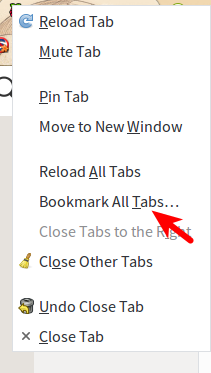
To save your browser session in Firefox, the easiest way is to bookmark all the tabs and save it in a special folder in your Bookmarks menu. Simply right-click on any of the open tabs and select “Bookmark All Tabs.”
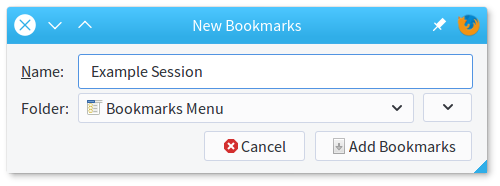
You will see a popup window on your screen where you will name the folder according to where you want to save this set of tabs. Once you are satisfied, just click the “Add Bookmarks” button to save the entire browsing session.
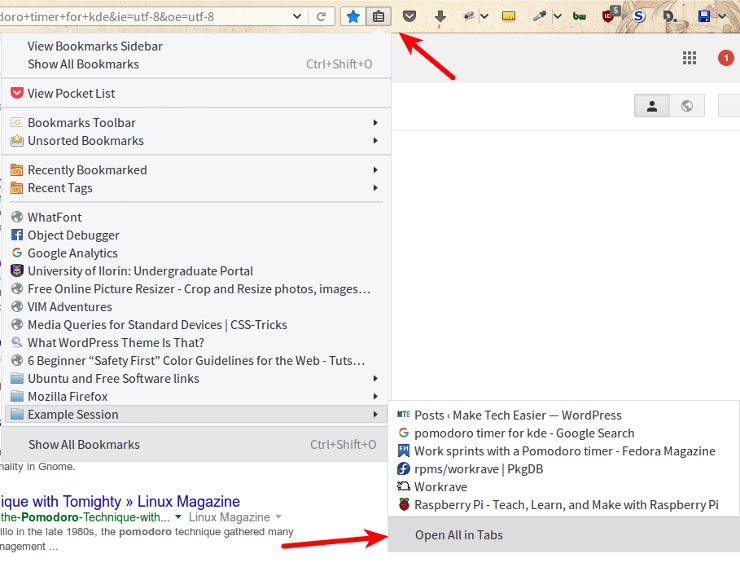
To restore this session click the bookmarks icon beside the address bar, and navigate to the folder where you saved your session. Then click “Open All In Tabs” as illustrated in the screenshot below.
With Session Manager
While you do not necessarily need third-party software to save a browsing session in Firefox, there are extensions which can make this process a bit easier for you. One of these is Session Manager which you can install from the Mozilla Addons page (no longer available).
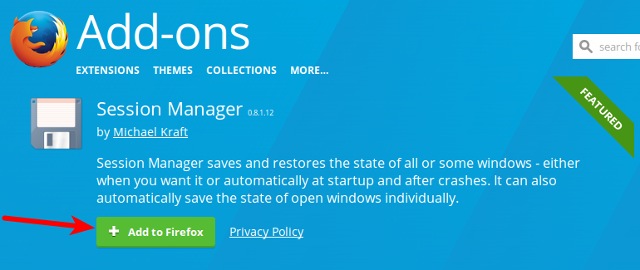
Once the extension has been installed, you will see two new icons on your browser pane. The one that looks like a floppy disk is what you will use to save and restore browsing sessions, while the other with a red plus (+) sign is for opening recently closed tabs and windows.
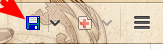
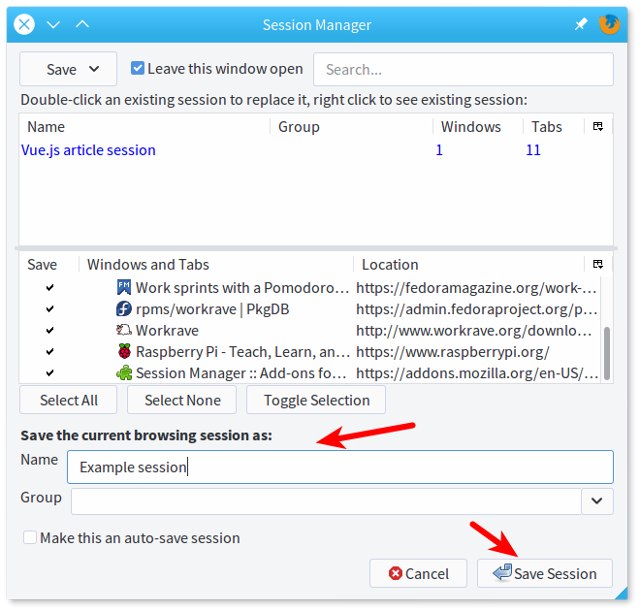
Click the floppy disk icon highlighted above to open a new window where you can enter a custom name for your session. Hit the “Save session button” to save for later.
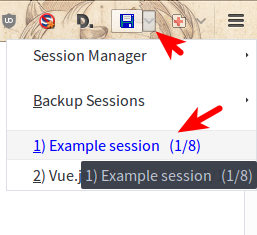
To open your saved sessions, click the small arrow beside the disk icon, and click the name of the session you want to open. This will load all the tabs from that session in your browser window.
Chrome
Without Extensions
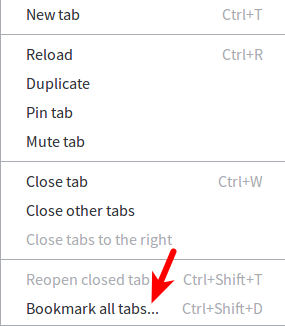
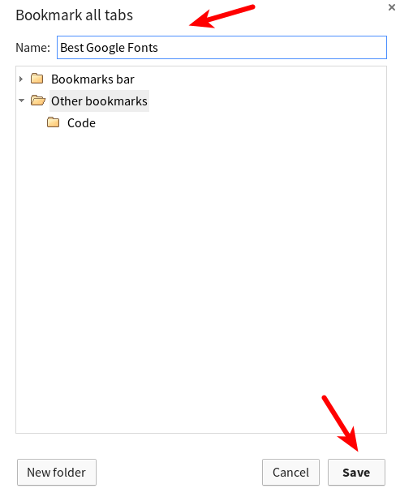
The process of saving browsing sessions in Chrome without extensions is identical to that of Firefox. Hit “Ctrl + Shfit + D” or right-click on any tab in your browser window and go to “Bookmark All Tabs.”
You will see a new popup where you can enter a name for the browsing session and choose where you want to save it. Hit the “Save” button to finish.
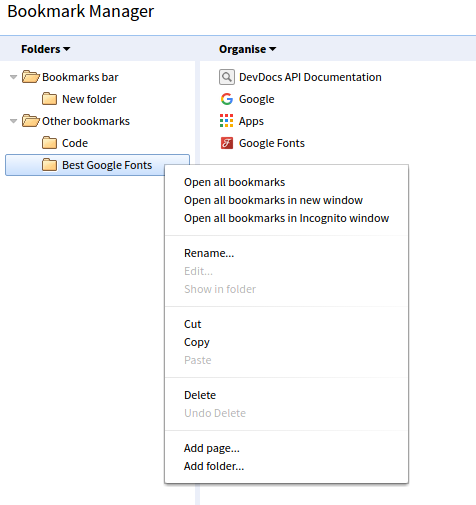
To reopen saved sessions in Chrome you will need to open the bookmark manager by hitting “Ctrl + Shift + O” and right-click on the folder where you saved your session. Finally, select your preferred option from the menu.
With Session Buddy
Session Buddy is a nifty Chrome extension that you can use to save your browsing sessions without going through the tedious bookmarks method.

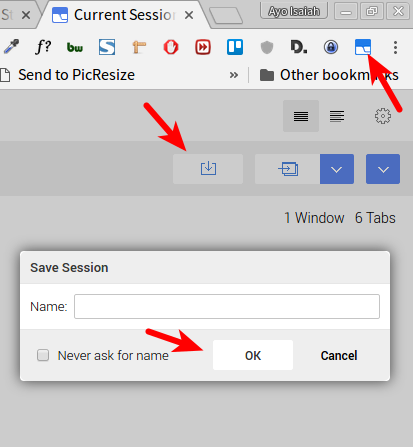
Once the extension is installed, you can click the extension icon in the top panel to open a new tab where you will see various options available. To save your current browser session, click the save icon highlighted in the screenshot below, and enter a name for your session.
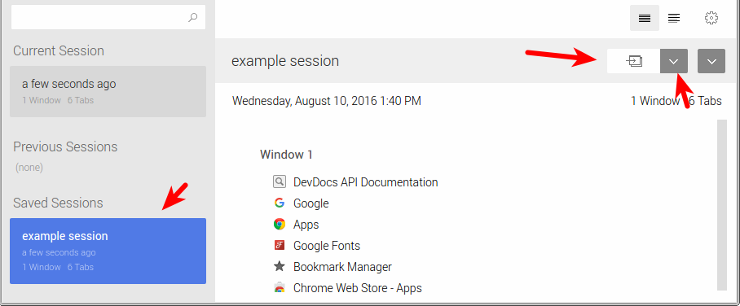
Your saved sessions will appear on the left side of the window, and you can easily select any of them, and then click the highlighted icon below to open the session in your current browser window or click the arrow for more options.
Vivaldi
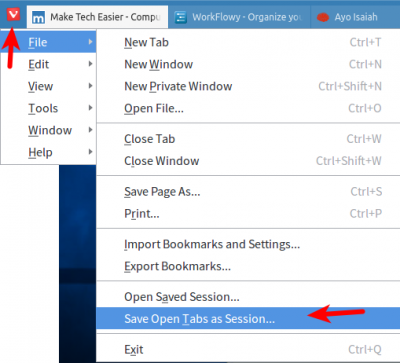
Vivaldi has the most intuitive way of doing this without extensions. To save a browser session all you need to do is click the Vivaldi icon, and go to “File -> Save Open Tabs as Session.”
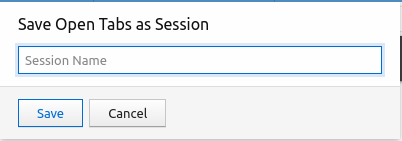
A new dialog will appear on your screen that will prompt you to enter your preferred name for this session. Enter any name you like, and hit the “Save” button.
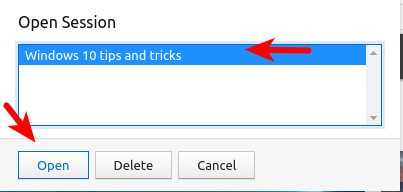
Now all you need to do to restore a saved browser session is click the Vivaldi icon again and go to “File -> Open Saved Session.” Then click the name of your saved session and hit the “Open” button to restore your tabs.
Let us know if this article has been helpful to you or if you have any further tips to share regarding saving browser sessions for later. Please do so in the comments section below.
Image credit: Bookmark