


While it is possible to run Firefox Quantum and Firefox Nightly simultaneously, it does requires some setup. You’ll need to create some profiles to keep the applications from conflicting with one another.
Create a New Firefox Nightly Profile
1. Close all instances of the Firefox browser.
2. Open the Firefox profile manager:
- In macOS and Linux enter the command
firefox -Pin the Terminal. - In Windows, enter the command
firefox.exe -Pin the “Run” field.
This will launch the Firefox Profile Manager. It allows you to select, create, and modify Firefox profiles. Profiles are used to keep track of user information. By creating a new profile, you create a “blank slate,” returning all user settings to their defaults when running Firefox under that profile. Creating a new profile will not disrupt or damage your primary profile.
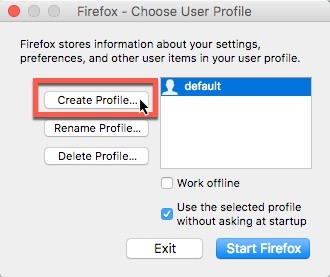
3. Create a new profile by clicking the “Create Profile …” button at the left of the window. This will open a splash window describing what a profile is. Click “Next” on that window.
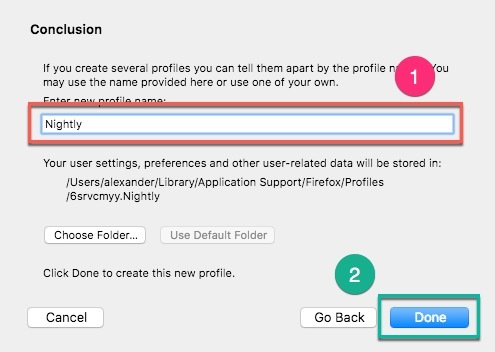
4. In the resulting window you’ll have the opportunity to name your new profile. Name it “Nightly” to help you keep track of which profile is attached to which browser, then press the “Done” button to create the profile.
5. Before your close the Profile Manager window, make sure to uncheck the box next to “Use the selected profile without asking at startup.”
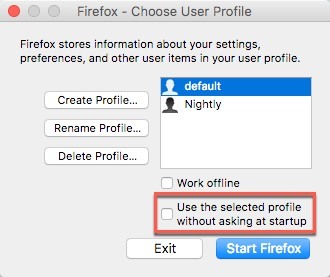
By unchecking this option, you’ll be able to launch Firefox Nightly with the profile manager, allowing you to select your “Nightly” profile before starting the application and avoiding any conflicts.
Also read: 12 Ways to Speed Up Firefox Quantum
Launch Firefox Nightly with the New Profile
1. Launch Firefox Nightly with the profile manager.
In Mac type the following command to the Terminal:
"/Applications/Firefox Nightly.app/Contents/MacOS/firefox-bin" --ProfileManager
Note: this step is the same for Windows and Linux. Just change the path to the Firefox Nightly installation folder.
This will launch Firefox Nightly with the Profile Manager window, allowing you to select the “Nightly” profile before the browser launches fully.
2. Select the “Nightly” profile from the list.
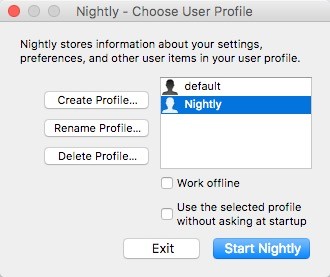
3. Check the box next to “Use the selected profile without asking at startup.”
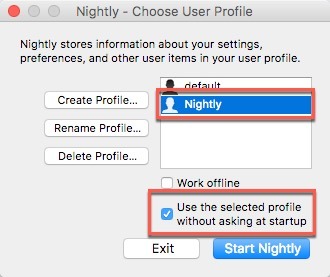
This will allow you to launch Firefox Nightly normally (i.e. by double-clicking on the application or dock icon) and automatically load the “Nightly” Profile when doing so.
4. Click “Start Nightly” to open Firefox Nightly with the selected “Nightly” profile.
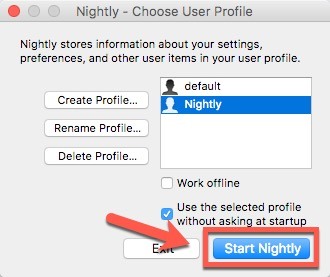
5. In the future, you can launch Firefox Nightly normally. It will automatically open with the correct profile. If you want to change the profile that Nightly opens with, run the Terminal command above again.
Opening Firefox Quantum
We also need to open Firefox Quantum with the correct profile to avoid any conflicts. Repeat the above steps with Firefox Quantum.
1. Open Firefox Quantum with the profile manager.
On a Mac, enter the following command in the Terminal:
/Applications/Firefox.app/Contents/MacOS/firefox-bin --ProfileManager
Note: this step is the same for Windows and Linux. Just change the path to the Firefox Quantum installation folder.
2. This will open the Firefox profile manager and allow you to select a profile.
3. Select the “default” profile from the list.
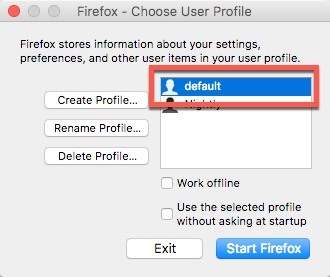
4. Check the box next to “Use the selected profile without asking at startup.”
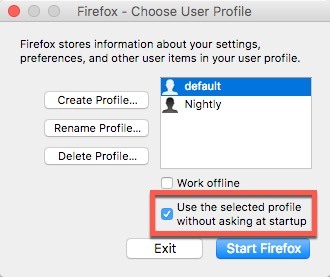
5. Click “Start Firefox” to launch Firefox Quantum with the “default” profile.
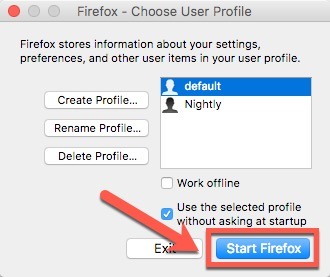
As with Firefox Nightly, you can now launch Firefox Quantum normally. It will launch with the “default” profile automatically.
Conclusion
It is possible to run Firefox Quantum and Firefox Nightly simultaneously; it just requires a little bit of setup. Once you have that in place, you’ll be able to launch both apps normally without conflicting with one another.