
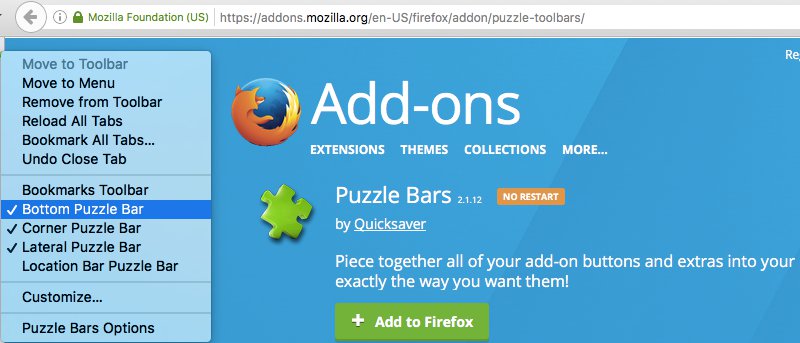

If you were not comfortable with Mozilla’s decision of removing the status bar from Firefox, then you are not alone. Many users have substituted with add-ons to get the Firefox Icon Bar back. If you are also looking for such an add-on, then we know the perfect one for this purpose.
In this post we will introduce you to the Puzzle Bars add-on for Firefox that will let you add multiple icon bars to Firefox in your desired area. Let’s see how Puzzle Bars can help you customize your Firefox experience and access important icons with a single click.
Quick Overview of Puzzle Bars
Puzzle Bars adds additional icon bars on the top, bottom, left, right bottom corner and in the address bar. You can move all your menu icons and add-on icons to any of these bars for quick access. The bars automatically hide when they are not in use (can be disabled in the options) and will show up when you hover your mouse cursor over them. This enables Puzzle Bars to offer all the toolbars while gicing you a clean interface all the time; it’s like they are not even there. Puzzle Bars is best for people who have dozens of add-ons installed and would like to access them quickly while still having a clean Firefox interface.
Puzzle Bars Options
Before using Puzzle Bars, it is best to tweak its options according to your needs. Go to the Puzzle Bars options and you will see five types of bars to be customized. Below is an explanation of each bar and settings to tweak.
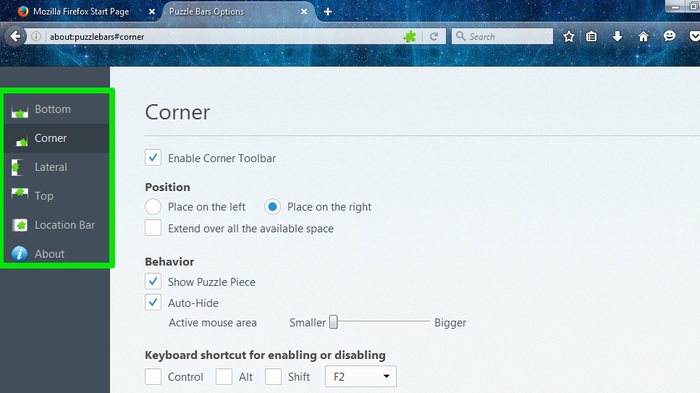
Bottom: This bar is located at the bottom, and you can define a keyboard shortcut to easily enable or disable it.
Corner: It is the bar on the left side; you can specify a keyboard shortcut to enable/disable it and also enable “Auto-hide” for it.
Lateral: You can find this bar at the bottom right corner of the window just above the bottom bar. You can enable “Auto-hide” for it and specify a keyboard shortcut to enable or disable it.
Top: Located just below the address bar, you can specify a keyboard shortcut for it to enable/disable it.
Location Bar: This is located inside the address bar, and you can click on the downward arrow next to it to show icons placed in this bar. Just like Lateral bar, you can specify a keyboard shortcut and enable “Auto-hide” for it.
Adding Icons to Puzzle Bars
There are two ways to add icons to the provided bars. To quickly add an icon to any of the bars, just right-click on the icon and select the appropriate bar from the context menu. For example, you can right-click on the “New Private Window” icon and select “Move to Top Puzzle Bar” from the menu to move it to the Top bar.
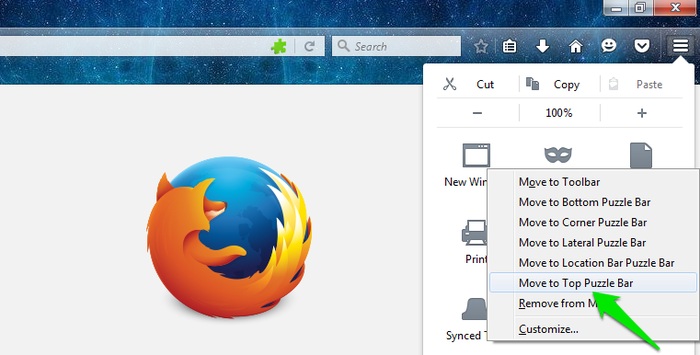
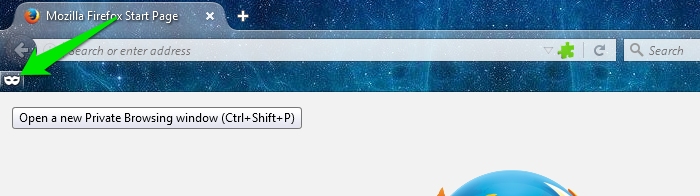
This method is quick and makes it very easy to quickly add one or two icons to your preferred bars. However, if you want to add loads of icons to these bars, then you should use Firefox’s built-in “Customize” option.
Right-click on any of the bars and select “Customize” from the menu; you can click on any of the Puzzle Bars or even click on the address bar.
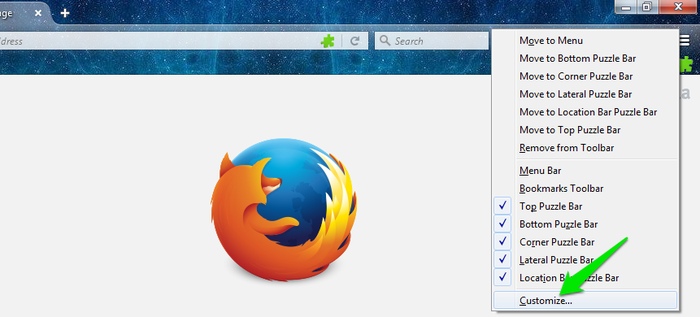
Note: make sure your desired icon bars are enabled before going in “Customize” mode, as they will not be shown when disabled.
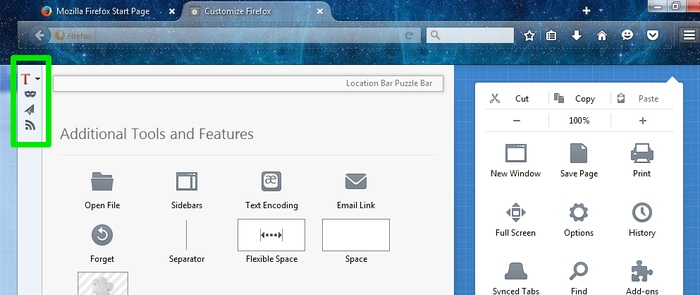
In “Customize” mode, just drag and drop icons from the menu or the address bar to the Puzzle bars, and they will be placed there.
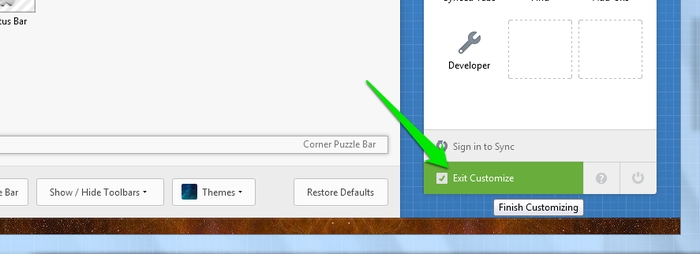
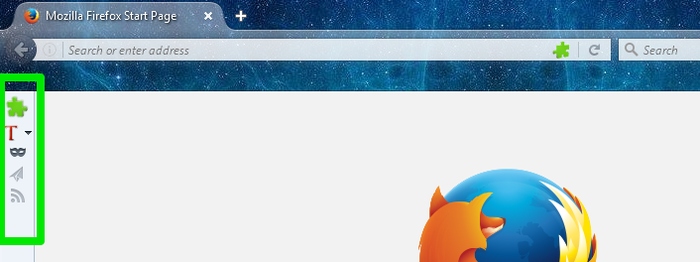
When you are done adding, just click on “Exit Customize” to exit the mode and see all icons in the desired places.
My Verdict
I think Puzzle Bars is perfect for power users who have installed dozens of add-ons and are now looking to access them quickly without any mess. I recommend you not use all of the bars unless needed, as each bar has enough space to hold most of your icons, and extra bars would be a waste of space. For me an extra top bar is more than enough, but if I need another bar, I enable Lateral bar.
Let us know in the comments if Puzzle Bars was useful for you in any way.