


When you’re writing a paper it can be frustrating to get your citations sorted. Knowing what to cite, when, and in what style can add more undue stress to writing a paper. Thankfully, over the years, many online services have been created that automate the citation process. Google Docs takes it a step further, however, by allowing you to do your research and citing all within the document itself! This makes for an easier time finding and citing sources that relate to what you’re trying to say.
Opening the Explore Panel
At one stage in Google Doc’s life, it had a panel called “Research” that allowed you to do just that. These days it has the somewhat confusing name “Explore” but still fills the niche of doing research within Google Docs. To open the Explore panel, click on “Tools” at the top, then “Explore.”
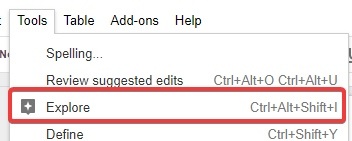
An Explore panel will open on the right side.
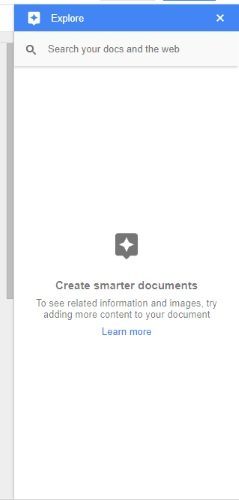
Performing Research
Now that the Explore panel is open, you can use it to perform research. The easiest way to think about Explore is like a personal Google you can have open on the side of your document as you’re writing. As such, whenever you need to look something up, you can type it into the Explore panel as you would into Google. Explore will show you a list of results.
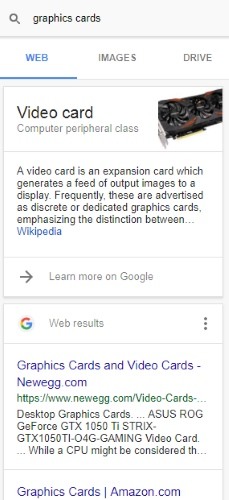
Click on the one you like the look of the most, and it will appear in a new tab for you to read. If you already have a website in mind that you’d like to cite, you can simply enter the URL into the search box and Explore will do the rest.

If you notice, along the top is the option for images. By clicking on each image, you can see a larger version of it, as well as details on its usage license. Clicking “Insert” adds the image to your document. Make sure it has the correct license, and always cite work if needed!
Citing Research
Once you’ve found a website that you’d like to cite, write about it in your paper. Then, put the blinking cursor at the point in the document where you would like to add a citation.

Hover over the result you’d like to cite here. Click the quotation button will appear to the top right of the result.
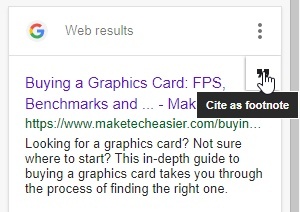
Once clicked, two things will happen. First, Google Docs will add a superscript number where your cursor is to identify it. Then, Google will cite it at the bottom of the document. It’s worth noting that this citation isn’t written into the footer, so you can still use it for page numbers and other options.


Changing Citation Format
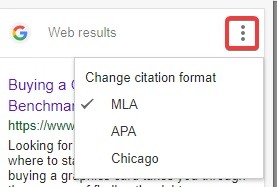
Institutes often enforce specific citation formats. If you want to change the formatting of the citations, click the three dots beside the search box. Here you can choose between MLA, APA, and Chicago formats.
Making a Bibliography
For papers that require a bibliography, Explore may not be ideal. Instead of having the citations at the bottom of the page, bibliographies are typically put at the very end of the paper. If your institute requires a bibliography instead, there’s two ways you can get around this.
Cut and Paste the Citations
There’s no way to set Explore to make a bibliography automatically, so you’ll have to make one yourself. Cite sources as you would above, then shift all the footnotes it creates into a bibliography section. Make sure the citation style matches what is required for the bibliography.
Use an Addon
Alternatively, Google Docs has some nice addons which automate the process for you and generate a bibliography on the fly. One such addon is EasyBib Bibliography Creator. It can be installed into Docs and used to create a full bibliography. Once installed, access it using the “Addons” menu at the top of Google Docs.
In My Cites
Arranging and formatting citations can be a major time sink. By using Google Doc’s explore feature, you can automate an otherwise monotonous part of writing a paper. If it’s not up to your standards, there are addons to help get the perfect citations.
Do you find citing papers a chore? Let us know below!