


Whenever a user or visitor comments on your WordPress site or blog, along with their name, email address, and web address, their IP address is also recorded automatically and shown to you in the Comments dashboard. This is helpful if you want to quickly ban or block an IP address for whatever reason. Even though you can easily customize different fields in the comments dialog box, WordPress doesn’t provide any options to remove the IP address or prevent itself from recording it. This is especially important if you have a privacy policy of not collecting any user data unless they submit it themselves.
No matter what the reason is, you can easily stop WordPress from recording IP addresses in user comments or even remove any existing IP address logs in WordPress comments. The following lays out all the steps for you.
Note: before doing anything, make sure that you have a good backup of your WordPress site (both files and database). This allows you to revert back if anything goes wrong.
Stop Recording IP Addresses in Comments
Thankfully, stopping WordPress from recording IP addresses in comments is straightforward. To start open your FTP client, navigate to your current theme folder and open the file “functions.php.”
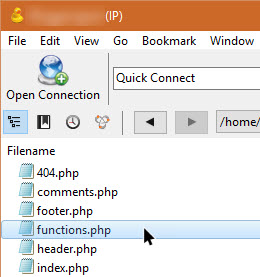
Once the file has been opened, scroll down to the bottom of the file, add the below code and save it.
//Stop recording IP address in comments
function mte_remove_commentsip( $comment_author_ip ) {
return '';
}
add_filter( 'pre_comment_user_ip', 'mte_remove_commentsip' );
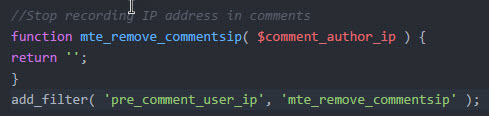
What the above code snippet does is remove the IP address from the comment before adding it to the database. With this code WordPress will not record a user’s IP address when they comment on your site. If you want to revert back, simply remove the added code snippet.
Alternatively, if you don’t want to mess with your WordPress files to add custom code snippets, you can use a free plugin called Remove IP to achieve the same result. Just open your plugins Dashboard, search for the plugin and install it. Once installed, click on “Activate Plugin.”
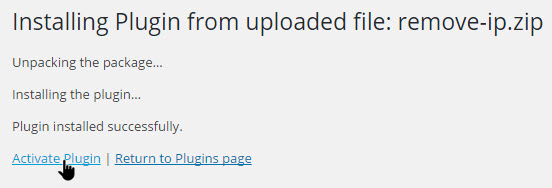
The good thing about the plugin is that it doesn’t have any additional settings. As soon as you install it WordPress stops recording the IP addresses in comments. To revert back, deactivate and delete the plugin from your plugins dashboard.
Remove Existing IP Addresses from Comments
Even though you’ve stopped WordPress from recording visitor IP addresses in comments, you didn’t remove the IP addresses that are already recorded. If you also want to delete all the previously recorded IP addresses in comments, all you need to do is execute a single line of SQL query.
Note: the following instruction assumes that you are using cPanel and phpMyAdmin to connect to your database. The MySQL command will work for any database client, though.
To do that, open your cPanel, and search for and open “phpMyAdmin.” Once the phpMyAdmin page has been opened, select your database from the left pane.
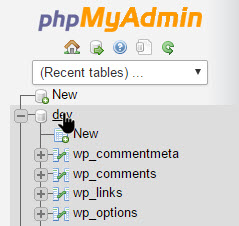
After opening your database, navigate to the “SQL” tab. This is where you will run your custom SQL queiries.
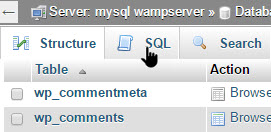
Here in the page enter the following query in the text box, and click on the “Go” button appearing on the bottom-right corner.
UPDATE wp_comments SET comment_author_IP = '';
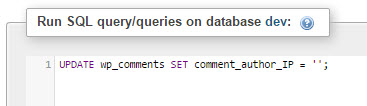
As soon as you execute the query, you will receive a confirmation regarding how many rows are affected.
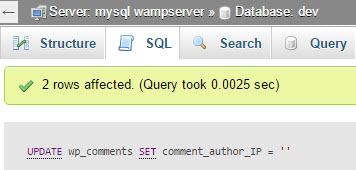
You’ve successfully removed all the previously recorded IP addresses in the WordPress comments.
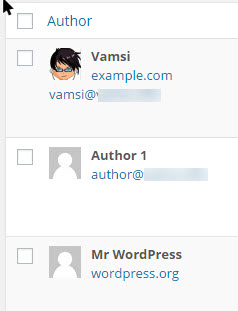
Do comment below sharing your thoughts and experiences about using the above methods to stop WordPress from recording IP addresses and to remove existing IP address details in comments.
Image Credit: NeilPatel