

When you lose your iPhone or Apple Watch, aside from the frustration of losing the physical device, there is also a concern of someone trying to access and use your Apple Pay information. Your Apple Pay data is specific to your device, so if someone can gain access, there is a chance they can go on a shopping spree at your expense. Fortunately, Apple is ready for this and has a way for you to disable your Apple Pay information remotely so that you can feel secure, with locating your missing device being your own worry.
Also read: Google Pay vs. Samsung Pay vs. Apple Pay: The Best Apps for NFC Mobile Payments and More
Disable Using Find My
The quickest and easiest way to disable any lost Apple device is to use the “Find My” platform. As long as you have access to another computer (any computer, just not Apple), iPhone, or iPad, you can log in and start the disabling process.
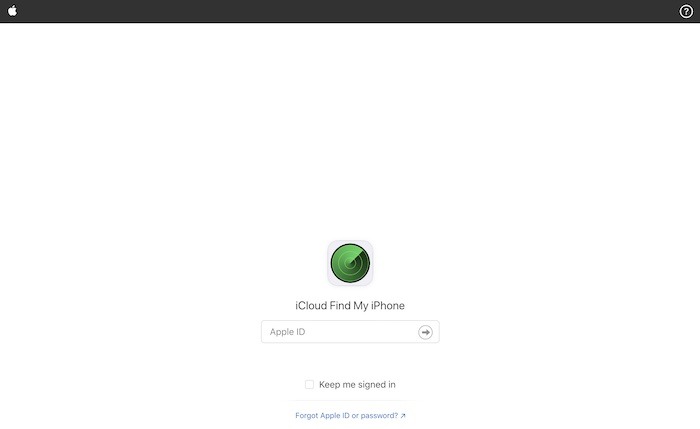
1. Begin by going to the “Find My” app on any Apple device or jump directly to iCloud.com/find on any computer and sign in with your existing Apple ID.
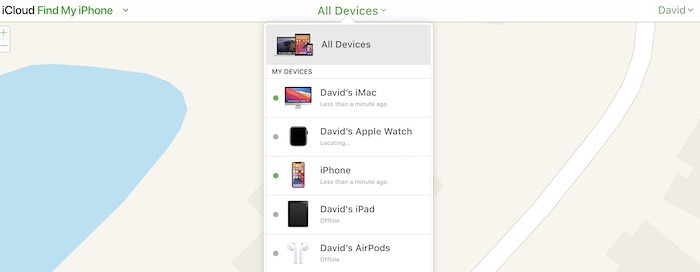
2. At the top of the iCloud.com page, locate the heading for “All Devices” and select the lost device from the list. In the Find My iOS app, go to “Device,” which is the second option from the left at the bottom, and locate which device you want to disable.
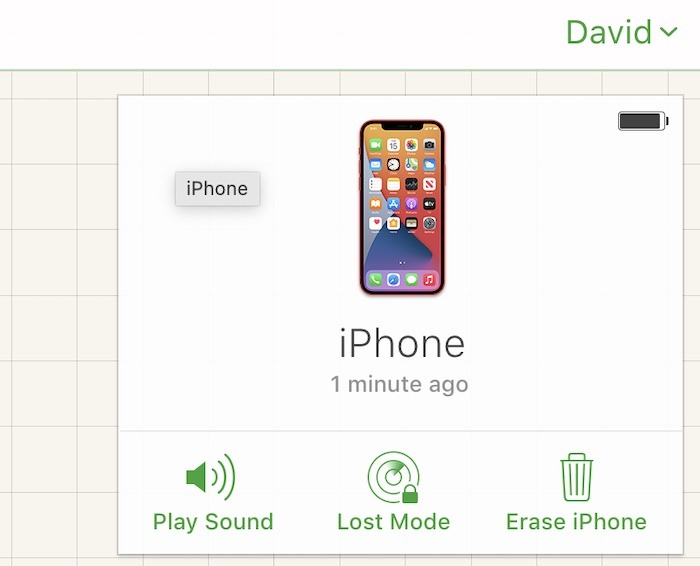
3. With the device selected on iCloud.com, click or tap on “Lost Mode,” which will then prompt you for a phone number to reach you when your phone is located. Once that number has been added, Apple Pay is immediately suspended as long as the phone remains in lost mode.
4. On iOS, tap on “Activate” underneath “Mark As Lost.” A quick prompt will verify that you do want to lock a computer or disable an iOS device. Hit “Continue” and Apple Pay will be disabled. This is a great way to avoid having any charges made from your devices and saves you from canceling any of the credit cards you have available through Apple Pay.
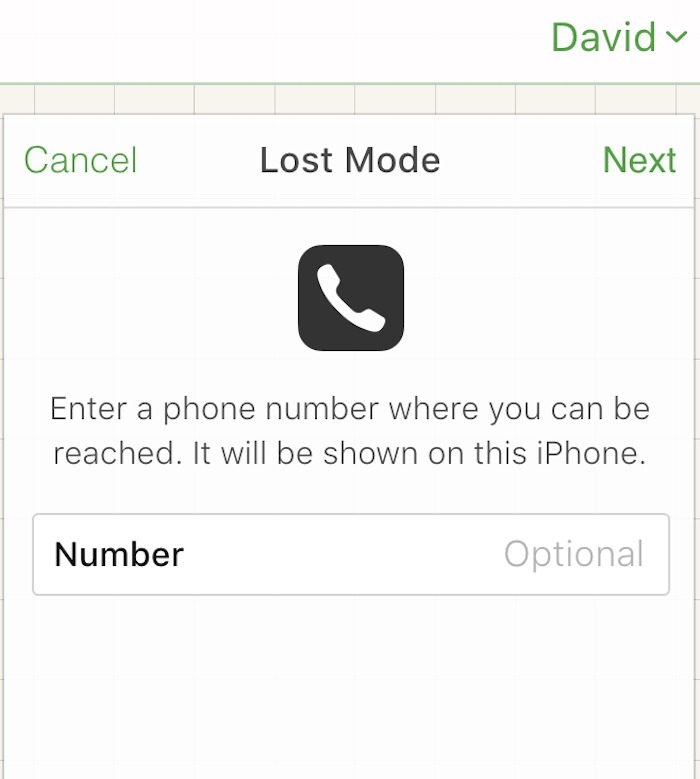
5. When your device is found, you can reenable Apple Pay as soon as “Lost Mode” is deactivated.
Remove Details from Apple ID Website
While Find My is certainly the best solution for remotely disabling Apple Pay, it’s not the only option available.
1. Start by going to appleid.apple.com and log into your Apple account using the same ID info as your iCloud login.
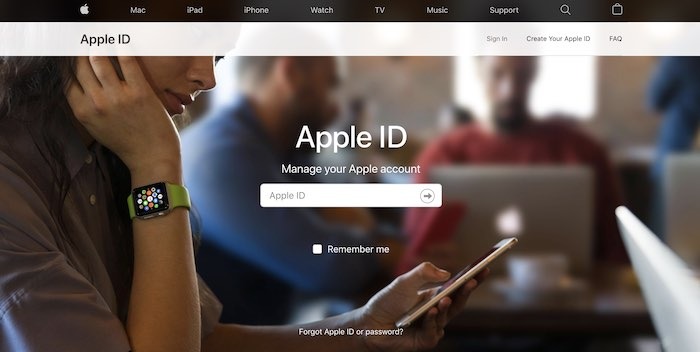
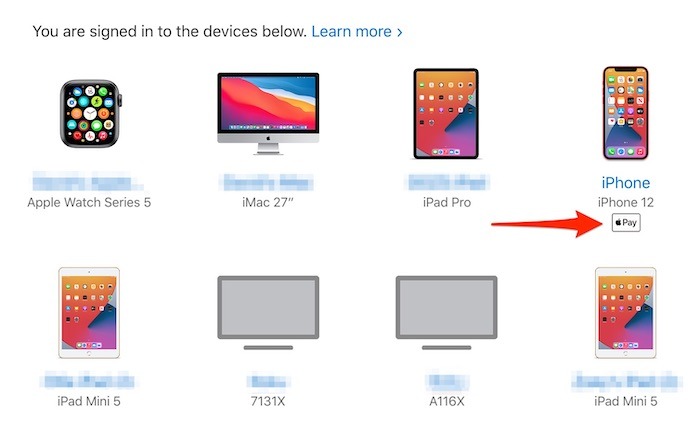
2. Scroll down until you see your available Apple devices. Any device that is currently set up for Apple Pay has the “Pay” logo directly underneath.
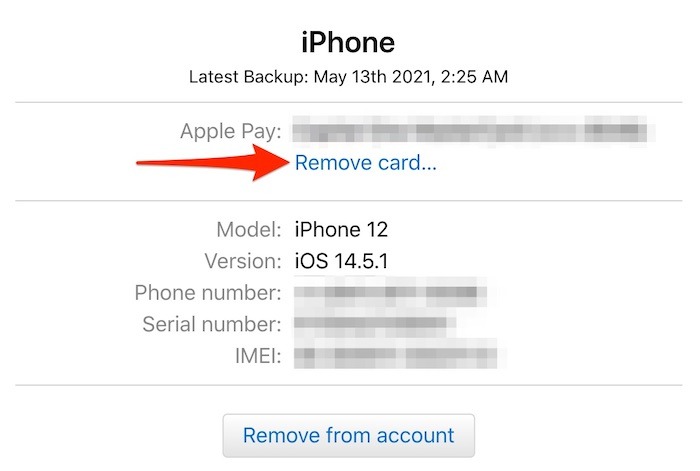
3. Clicking on the device, you will see an option underneath the Apple Pay payment options labeled “Remove card …” Click on “Remove” to confirm you want to remove the card from your device.
4. Repeat the above steps for all of your devices that are linked to Apple Pay to ensure it’s not available anywhere until any lost or stolen device is recovered. When a device is found, you will need to re-add all of your removed cards. The whole process shouldn’t take more than a minute or two in each direction.
Final Thoughts
Should the time ever come that you lose any of your Apple products, it’s important to have the peace of mind that you can easily remove Apple Pay. There will already be enough stress and angst over finding your device, losing memories and photos, etc., and you shouldn’t have to worry about someone going to Best Buy with your credit card.