


There are a number of screen-recording tools for both Windows and Mac to record your computer screen so that you can show others. While most of these tools are free, they often require you to install them in your computer.
What if you need to record your computer screen while using your friend’s laptop that doesn’t have a recording tool installed? If that is the case, you can use YouTube to record your computer screen.
Unknown to many, YouTube does have a feature that allows you to record your desktop’s screen. Here’s how to do just that.
Record Computer Screen Using YouTube
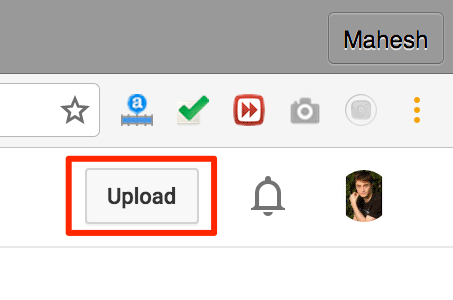
1. Head to YouTube and log in to your account. Click on the “Upload” button at the top-right corner of the site.
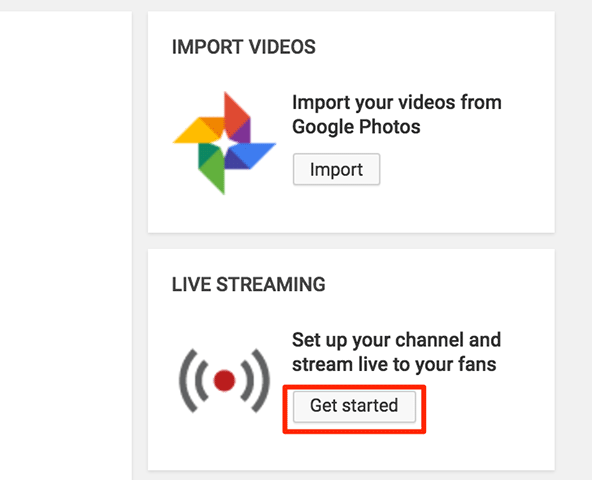
2. You will see the standard upload video screen of YouTube. On the right-hand side of the screen, you should see an option that says “Live Streaming.” You need to click on the “Get Started” button for that option.
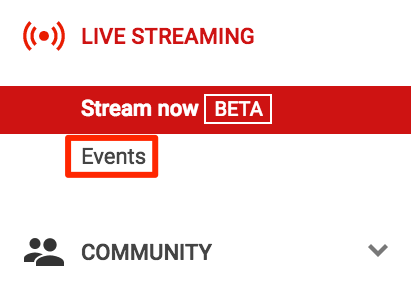
3. On the following screen you need to choose “Events” from the “Live Streaming” menu given in the left-hand side of the screen.
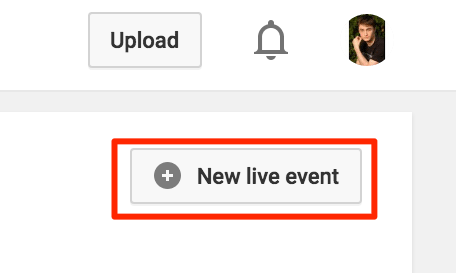
4. On the screen that follows, click on the “New live event” button given in the top-right corner of the screen.
5. You should now be on the page to create a new live event. The page should ask you for some information about the event.
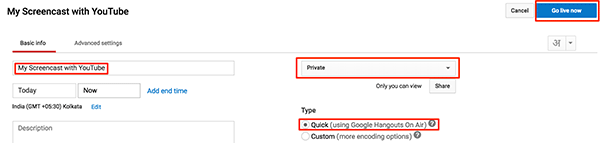
You need to enter the following information into the fields on the page:
Title – enter a name for the screencast that you are going to create.
Privacy – select “Private” from the drop-down menu so that it is not publicly viewable. This is important as your main purpose is to record the screen and not to live stream.
Type – select “Quick (using Google Hangouts On Air)” here.
Once you are done with the above options, click on the button that says “Go live now” to start broadcasting your event.
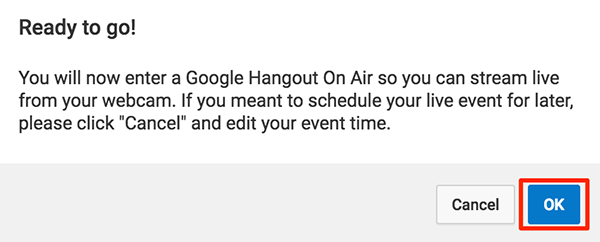
6. You will be asked if you are ready to start the live event. Click on “OK” to move forward.
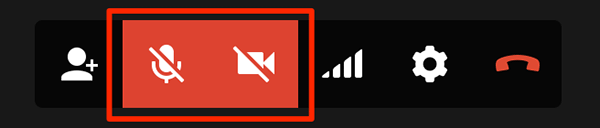
7. On the following screen click on the camera and microphone icons so that both of them are turned off. You need to do this because you do not want to stream using your webcam but want your desktop screen to be recorded.
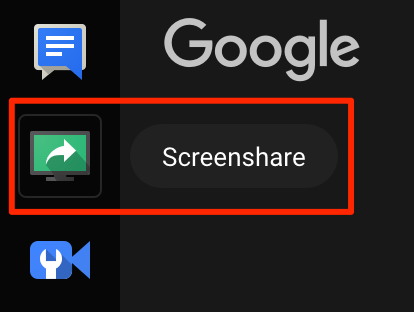
8. Click on the “Screenshare” option given in the left-hand side of the screen. It lets you share your screen in a live event on YouTube.
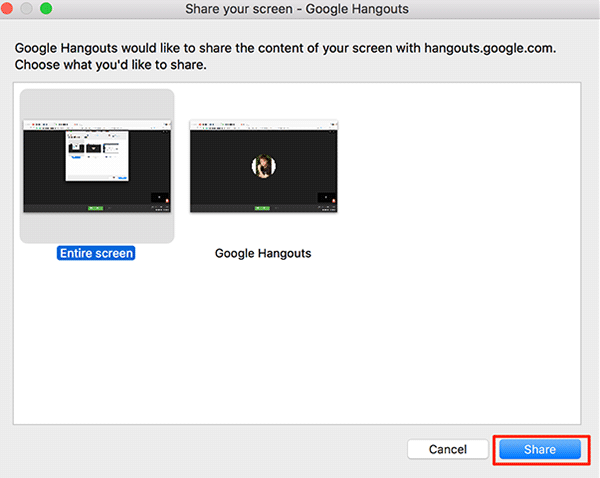
9. You will be asked which screen you would like to share (here “share” means “record,” so which screen you would like to record).
Click on the screen you would like to record to select it, and then click on “Share” in the bottom.
10. Click on “Start broadcast” in the bottom of the screen to start recording your screen.
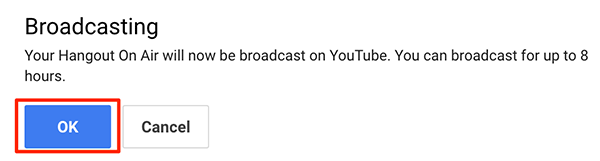
11. A prompt should appear explaining you can broadcast for up to eight hours. Click on “OK” to move forward.
12. The recording should begin, and you can now do your tasks that you wish to show in your screencast. When you are done, click on “Stop broadcast” in the bottom of the screen, and the screen recording will be stopped.
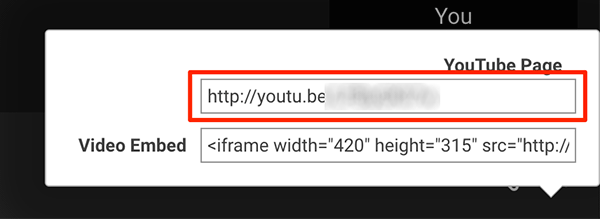
13. Click on “Links” in the bottom-right corner of the screen to get the link for your recording. You can then go to that link to view the recording.
Conclusion
If you ever need to record your computer screen but you do not have the required apps installed, you can use YouTube to do the job perfectly for you.