

WordPress is arguably the most used CMS in the world. From simple personal blogs to complex ecommerce sites, it has proven to be a winner. This being the case, many developers often create their WordPress website on a local host or personal computer, then finalize development before transferring to a live server and making it available to the world.
If you belong to this group of people and have finished the development on the localhost, here are the steps to move your WordPress from localhost to a live server.
Note: there are plugins that can automate this process. This tutorial will cover the manual steps without requiring the help of a plugin.
Create new database on live server
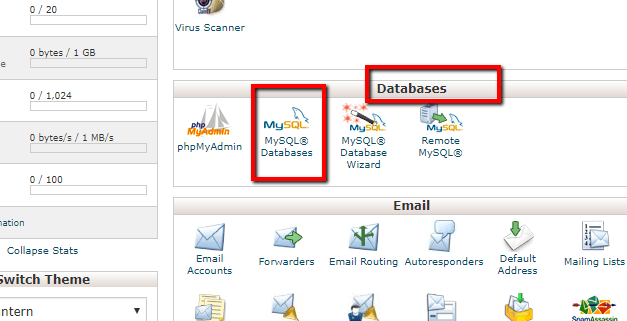
If your web host comes with cPanel, log in to the Cpanel, and click on “MySQL databases” in the Databases section.
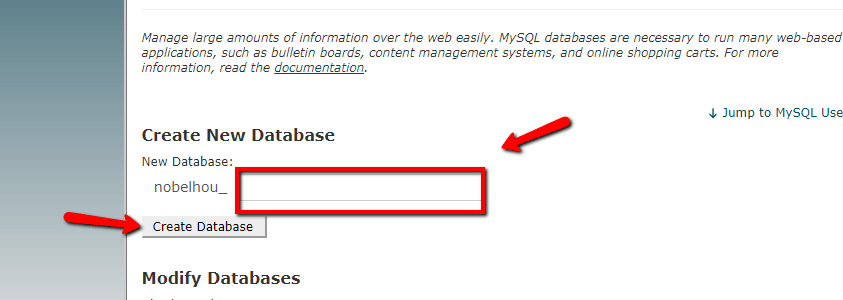
Under the new database text box, name your database and click the “Create Database” button. On the new window that is displayed, click “Go back.”
Also read: How to Create a Staging Area for Your WordPress Site
Create new database user
In the next window you have to fill the textbox with a username and (strong) password, then click the “Create user” button. Record the username and password, as you will need it later.

Once again, hit “Go back” in the newly displayed window.
Add user to database
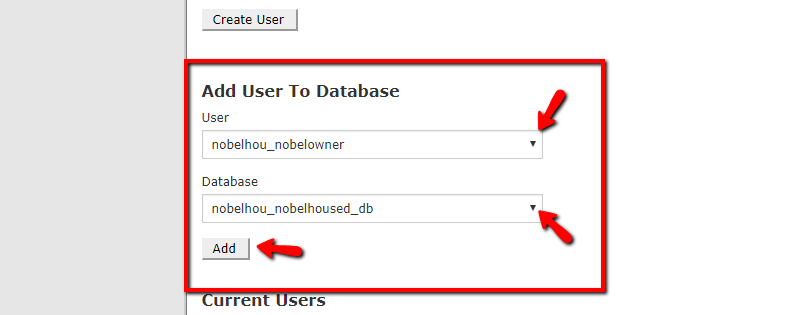
Scroll down to “Add user to database,” select the user just created from the user dropdown list and also select the database just created from the database dropdown list. Next, click the “Add” button.
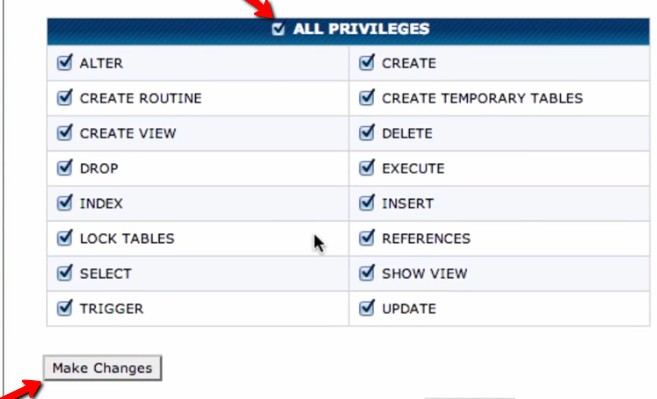
On the next window that opens, click the “All Privileges” checkbox, followed by the “make changes” button. Once again, click “Go Back” on the window that opens.
In the window that is displayed, double-check to see that your database contains the user you have just created. Once you are done, click on the Home button at the topmost left corner of the page.
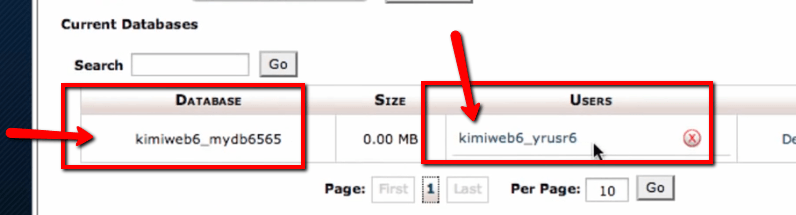
Migrate database from localhost
On the local host open phpMyAdmin, or whatever database management program you are using.
Locate your WordPress database.
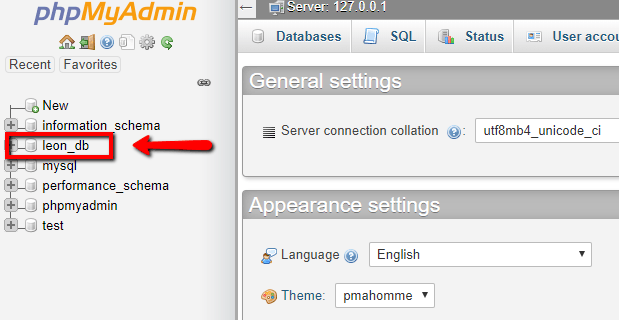
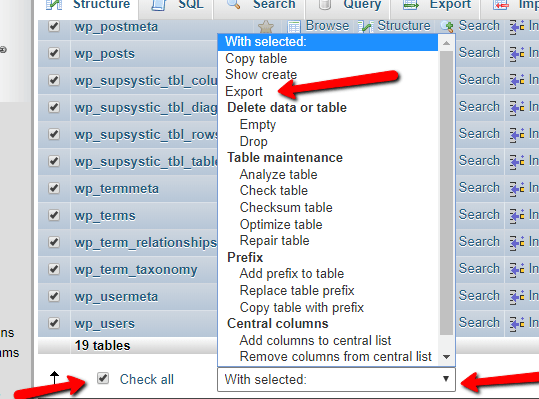
Select the database, scroll down and click on “Check all.”
On the “Select with” dropdown menu, select “Export.”
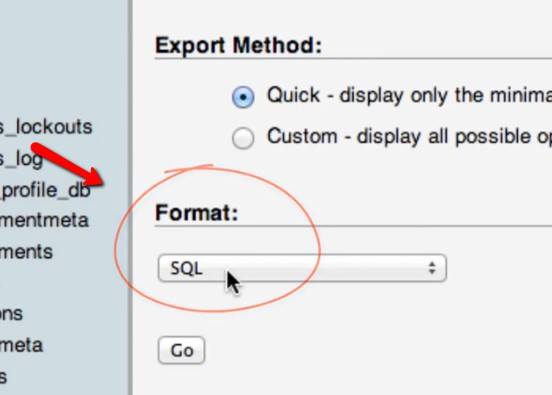
In the next screen ensure that the format is on SQL, then click on “Go.” Save the exported database with the extension “.sql.”
Importing the database
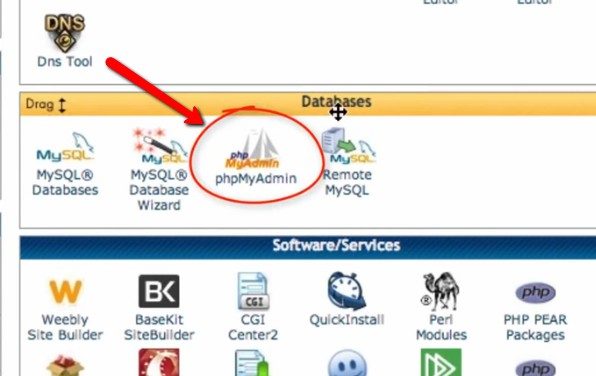
Go back to cPanel on your live server, and under “Databases” click on “phpMyAdmin.”
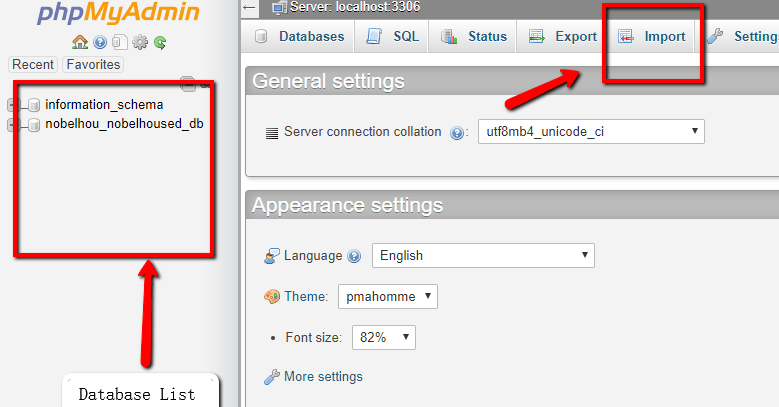
On the left pane you should see a list of databases. From this list click on the name of the database you created at the start of the tutorial and click “Import.” Navigate to the sql file you saved on your local computer and import.
If everything went well, it should bring you back to the phpMyAdmin main screen. You are now done migrating the database to the live server.
Move localhost files to Cpanel
In your localhost, open your file manager and navigate to the WordPress folder (the folder that contains the “wp-admin,” “wp-content” and “wp-includes” folders). Compress the whole WordPress folder into a zip file.
In the cPanel in the live server, open the “File Manager” under the “Files” section. Select “Document root for” and make sure the domain you need to move your website to is selected and hit “Go.”
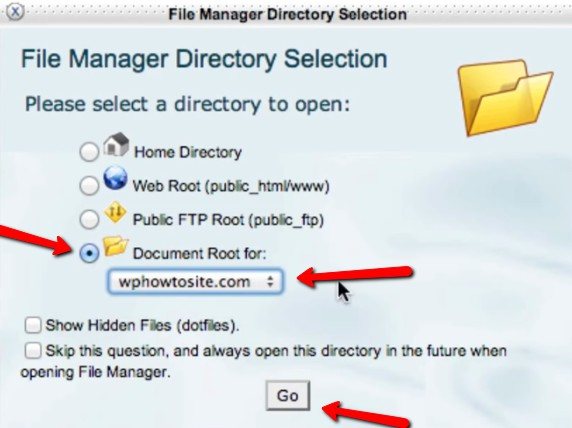
Make sure in the next window that “public_html” is selected on the left pane. Click on “Upload.”
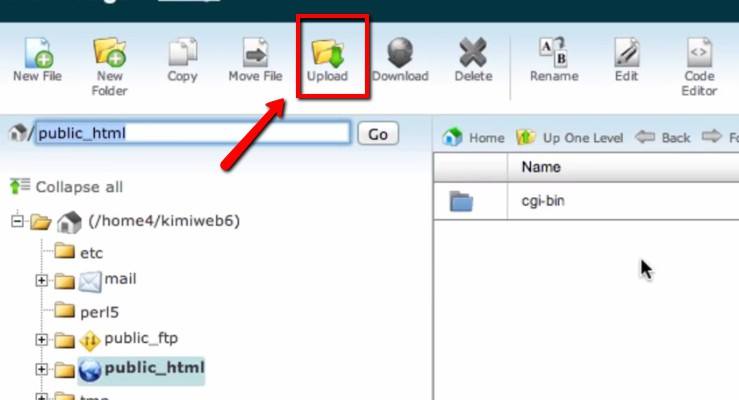
Navigate to the location of the compressed zip file and upload it. Once complete, click the “Back to” link.
Your zip file at this point should display as a file in your “public_html” folder. If it doesn’t, click “Refresh.”
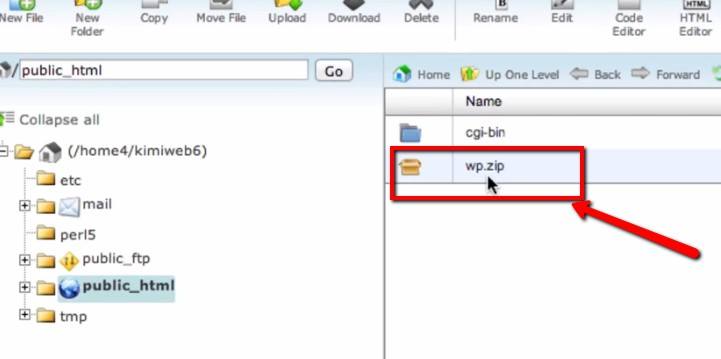
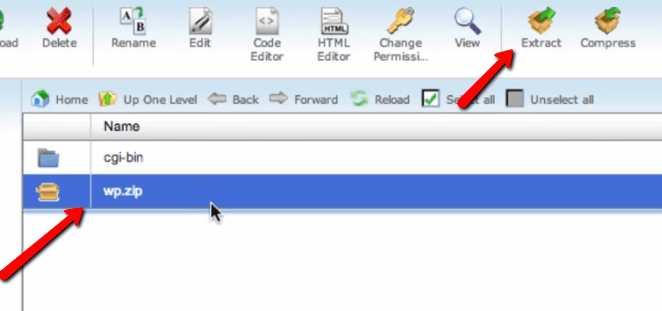
Select the zip file and click “Extract” at the top-left corner. Once the extraction is complete, delete the zip file.
Editing the wp-config File
The last and final step is to edit the wp-config.php file to change all local host settings to production settings.
Return to your “public_html” in the File Manager. Select the file “wp-config.php,” and click “code editor.”
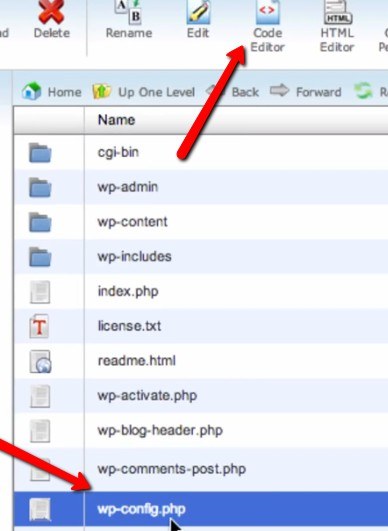
Replace the database name with the name of the database you created in your cPanel. Also, change the “DB_USER” and “DB_PASSWORD” to the one that you created earlier.
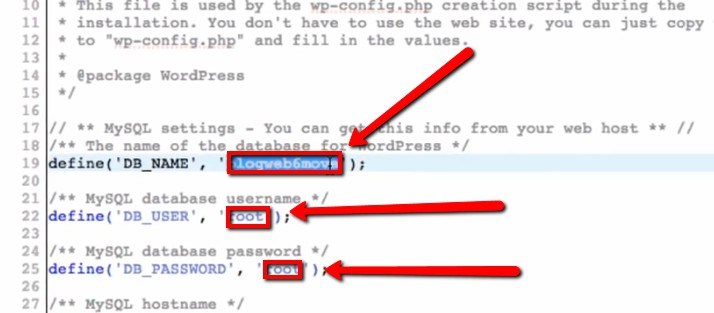
Check for the “WP_HOME” and “WP_SITEURL” values. If they don’t exist, add the following lines to the wp-config.php file:
define('WP_HOME','https://your-live-url.com');
define('WP_SITEURL','https://your-live-url.com');
Do remember to change the “your-live-url” to your actual domain URL.
Save the wp-config.php file and exit.
Once this is done, type your domain name in the address bar of your browser, and your site should be up and running. Go through every single page and log in to the admin panel to make sure everything is working fine. If not, refer to this tutorial to troubleshoot your WordPress installation.
Conclusion
This is a comprehensive tutorial, and it may seem confusing. But after repeating this process once or twice, it becomes easy to follow for all your WordPress installations. Also, this method is more advisable when you do not have very large databases to upload.