


Docker is an interesting platform. With it you can deploy thousands of containers with pre-configured software for use on servers. What’s even more interesting is that this platform has gotten so huge that it can be used on other platforms outside of Linux.
Still, for as big as Docker is there’s a bit of a barrier to entry – lots of commands and not a good official UI tool to pair it with.
That is, until now. Introducing Simple Docker UI. It’s a Chrome-based app that allows you to install, manage and tweak docker images.
Installing Docker
Before using Simple Docker UI you’ll need to get Docker installed and running on your system. There are some detailed instructions on how to get the Docker system up and running on Ubuntu Linux. Just head over to this guide, and follow it step by step. Soon after, Docker should be running on your system, and you’ll be able to try out the Simple Docker UI app.
Not using Ubuntu? Don’t worry, Docker has it’s own instructions for all operating systems. Just head here, and you’ll have it set up in no time!
Getting Simple Docker UI
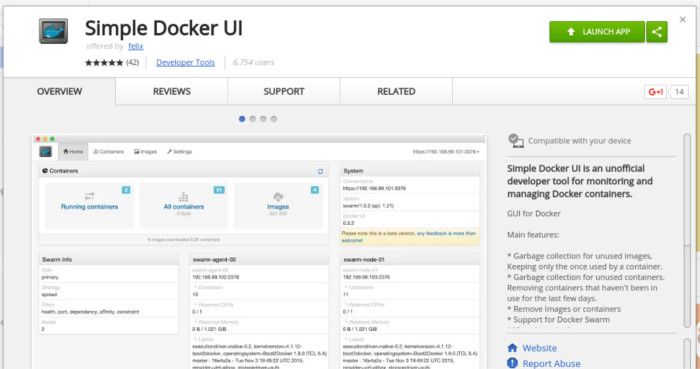
Simple Docker UI is a Chrome application – meaning, in order for everything to work properly you’ll need to have a valid Google Chrome or Chromium installation on your system. Both are fairly easy to install.
Once that’s out of the way, you’ll need to install the app itself. It can be found here. Just click the “Add to Chrome” button, and it’ll soon be on your system. Once it’s there, it’ll pop up under “apps” in the Chrome browser. Launch it, and you’ll be good to go.
Setting Up Simple Docker UI
Though thi is a Chrome app, that doesn’t mean it’ll work right away. First, you’ll need to configure a few things. To start, open a terminal window and do the following:
sudo nano /etc/systemd/system/docker-tcp.socket
Once inside the file, paste the configuration below into it.
[Unit]
Description=Docker HTTP Socket for the API

[Socket]
ListenStream=2375
BindIPv6Only=both
Service=docker.service

[Install]
WantedBy=sockets.target
Once the configuration is in the file, save it by pressing “Ctrl + O” on your keyboard. Then, exit nano by pressing “Ctrl + x.” Doing this will ensure that Simple Docker UI can connect to the remote API.
You’re not done yet, though. Some modules need to be started. The first thing that needs to be done is that the systemd file we created needs to be enabled. This can be done with:
systemctl enable docker-tcp.socket
Once enabled, Docker needs to be stopped. Why? The socket can’t be started without it.
systemctl stop docker
Now that Docker has been stopped, we can use systemd to start the socket.
systemctl start docker-tcp.socket
Finally, everything in the command line is configured correctly. Now all that is required is adding the connection to the Docker Remote API. To do this go to the Settings part of Simple Docker UI, and click the “Verify” button. That should be all you need to do, and everything should be working.
Note: you may need to restart your machine for your Docker containers to start showing up in Simple Docker UI.
Using Simple Docker UI
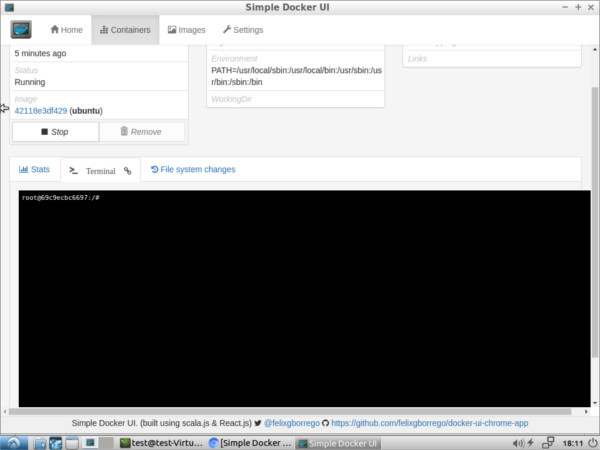
There’s a lot to do with Simple Docker UI. For starters, you can view your installed Docker images. It’ll let you know how big it is and when it was created. It’s also possible to click on the Containers tab to get more detailed information. Clicking on any of the containers gives you “Start” and “Remove” buttons along with detailed information, a change-log, and even a terminal to interact with.
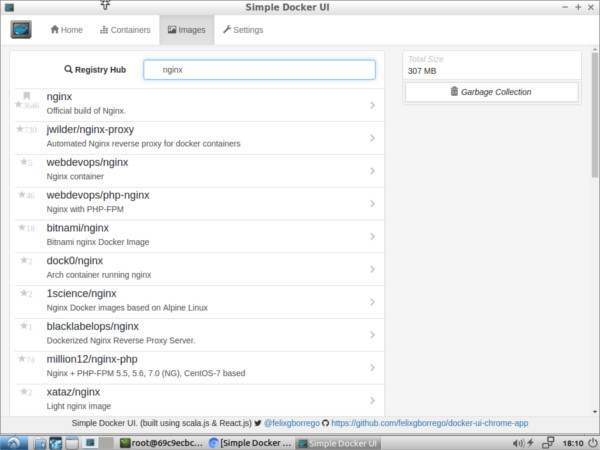
Along with viewing installed images, you can search the Registry Hub for any image, find it, install it and deploy it to your system pretty easily. Never has it been easier to search the registry and get the images you need with just a couple of clicks.
Installing and deploying an image is remarkably easy. Once you find what you want in the registry, the tool will go out and download all it needs, and then it’ll be installed into your Docker installation. After that you’ll be asked to name the container and customize it, and then it’ll run.
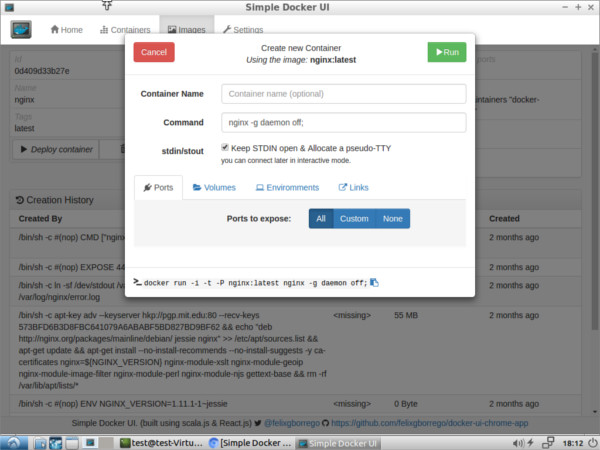
Soon after, your Docker container will have the software you need running on your server or Linux desktop. All that was done with a few clicks. Who can argue with that?
Conclusion
Overall, everything you’d need to do in Docker with the command line can be done in this app in a more efficient and effective way. Sure, it’s a Chrome app, and that makes it far from perfect, but it’s hard to argue that this tool isn’t anything but extremely useful.
If you’ve wanted to try Docker but don’t want to mess with the terminal, this tool is for you. Alternatively, if you do like using Docker with the terminal but you’re looking for something faster, Simple Docker UI might be exactly what you’re looking for.