How to Integrate Google Plus Comments to WordPress

If you have been visiting sites hosted on the Blogger platform, you will find that the comment section has been replaced with Google Plus Comment. In WordPress, you can easily add Facebook comment system, but what if you prefer to use Google Plus comment instead? Here is how you can integrate Google Plus Comments to WordPress.

Pro and Cons of using Google+ Comments

The good thing about Google+ Comments is that people have to login to their Google account before they can comment. Real name and photo will be displayed instead of some bogus name and image. You will also see lesser spam on your blog.

On the other hand, you might see fewer comments as it is unlikely that all your readers have joined Google+. Also, people might not be willing to have their name and face appear in the comments.

1. Google+ Comments For WordPress

In addition to Google Plus comments, this plugin also add Facebook, Disqus and Livefyre comments to the mix so you can choose which one of them to display in your blog.

1. Download and install Google+ Comments for WordPress. If you search through the WordPress Dashboard, you will find that there are several plugins of the same name. Make sure you select the one that is developed by Brandon Holtsclaw.

2. Once installed and activated, go to “Comments -> G+ Comments”. In this page, there are a few things that you can configure. The “Tab Order” is where you can add the different type of comment systems to your blog. For example, if you add “gplus,facebook,livefyre,disqus,wordpress“, it will show Google Plus comments, Facebook comment, LiveFyre, Disqus and WordPress comment in the respective order.

google-plus-comments-settings

3. The next section is where you add your Disqus and LiveFyre username, if you have added them to the list.

4. The last section is where you configure the name (label) of the comments that show up in the frontend. Once you are done with the settings, click “Save Changes”.

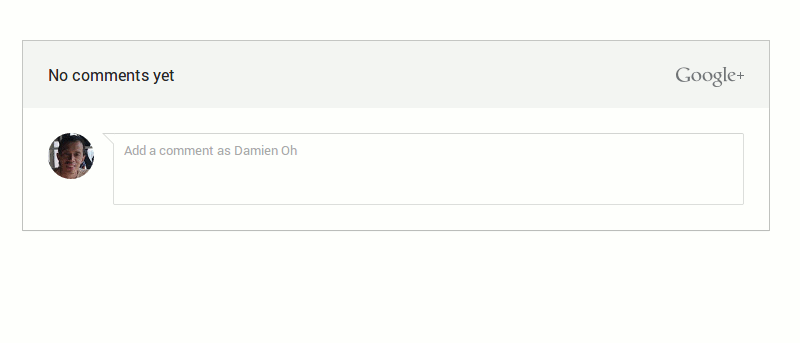
This is what you will see in the site’s comments section:

google-plus-comments-frontend

2. Google+ Comments

Google+ Comments by Alex Moss is yet another useful plugin that you can use. It comes with some useful features, like shortcode and css class, for you to easily integrate and customize Google+ comments in your theme.

Once installed and activated, go to “Settings -> Google+ Comments”. You can enable/disable the addition of Google+ javascript file. If you have been using another Google Plus related plugin, chances are this script has already been added to your theme. Disable it only if you are sure the script is already inserted into your theme, else the G+ comments won’t work.

googleplus-comments-settings

Next, you can configure whether the G+ comment will show up in Posts, Pages, or only the Home page. You can also set the width and make it responsive. Lastly, you can change the label and add a CSS class so you can style it in your stylesheet.

At the bottom of the Settings, there is the instruction for you to add shortcode to your theme/post.

googleplus-comments-shortcode-instructions

3. Google+ PlusOne Comments

There is no settings for Google+ PlusOne Comments. Once activated, it will automatically replace your WP comments with Google+ Comments. As simple as that. If you are looking for a simple, no-frills solution that just works, this is the one for you.

4. Google+ Comments Widget

While the name of this plugin stated that it is a widget, it is not a widget. Don’t go to the Widget section and expect a widget for Google+ Comment. You won’t be able to find it.

google-plus-comments-widget-settings

Google+ Comments Widget works just like the above 3 plugins. It retains your old comments and displays them alongside the G+ comment box. One thing though, it might break your design (if you choose to retain the old comments). Test it first before you make it live.

Conclusion

While Google has made the Google+ comment system available for Blogger, it is easy to integrate into WordPress as well. My personal favorite is Google+ Comments by Alex Moss. Feel free to try them out and let us know which you prefer.

Subscribe to our newsletter!

Our latest tutorials delivered straight to your inbox

Damien Oh Avatar

Read next

Suzanne Simard sealed paper birch and Douglas fir seedlings inside plastic bags, fed them carbon-14 and carbon-13 dioxide, and nine days later found carbon had crossed between species through fungal threads in the British Columbia soil beneath her boots
A species of jellyfish called Turritopsis dohrnii can revert its adult cells back to a juvenile polyp stage when injured or starving, effectively restarting its life cycle, and biologists have so far failed to identify any natural limit to how many times it can do this.
A Japanese man named Jiroemon Kimura, who lived to 116, was born in 1897 when Queen Victoria still ruled and died in 2013, meaning a single human life personally overlapped with the invention of the airplane, the atomic bomb, the internet, and Instagram
The Hollywood sign originally read HOLLYWOODLAND when it was built in 1923 as a real estate advertisement for a housing development, and it was only meant to stand for 18 months, but nobody ever got around to taking it down and the city eventually adopted it as a landmark
Almost all of the world’s internet traffic does not travel by satellite but through fibre-optic cables lying on the ocean floor, a hidden web of wires crossing the deepest parts of the sea to connect the continents.
People who flip their phone face down on every table aren’t being secretive. They figured out that staying interruptible meant handing their time to whoever rang first
Twitch vs. Facebook Gaming vs. YouTube Gaming: What’s the Best Live Game Streaming Platform?
Chrome Extensions Ownership Transfer is a Direct Threat to You: How to Stay Safe