
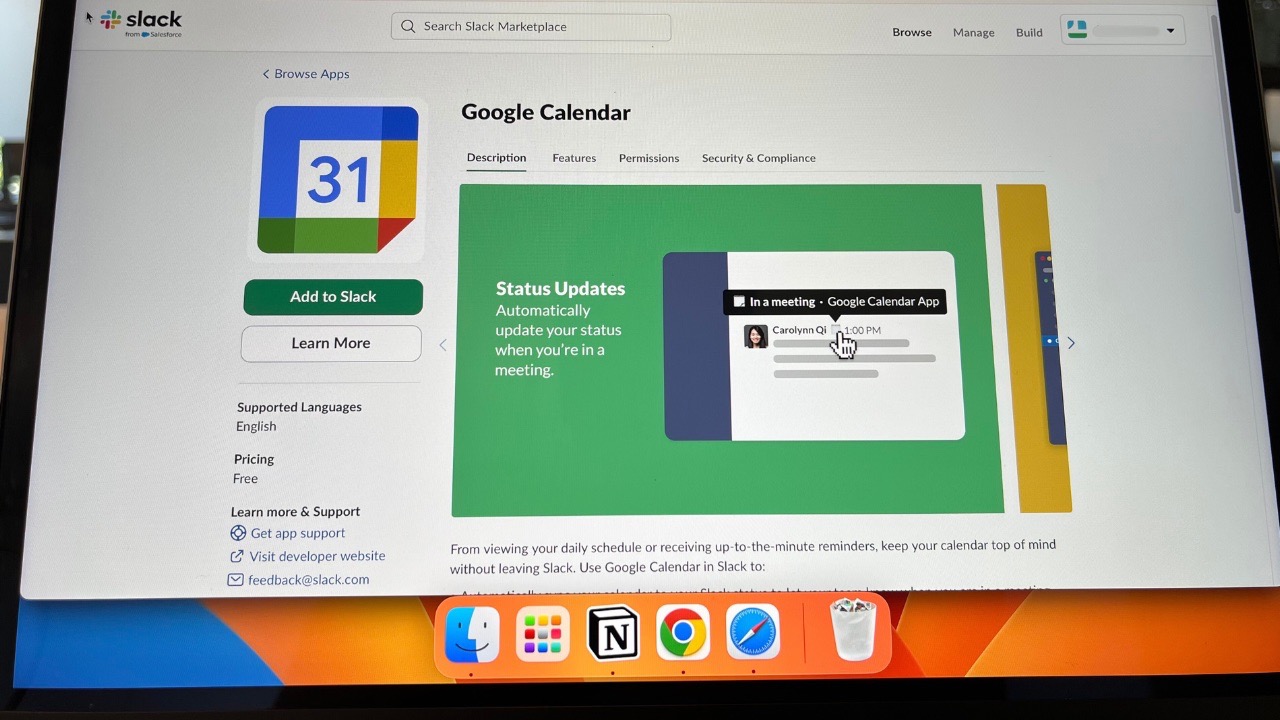

While I think that Slack has a solid base of communication features, I’ve also integrated multiple apps to help create tasks, share documents, keep track of meetings, and more. Knowing how to install Slack apps will significantly improve your user experience, and here, I’ll show you the steps to follow.
[mte_toc]Do you know: are you wondering if Slack premium is worth your money? We check out both Slack free and paid version. Here is our verdict.
Installing Slack Apps
To start this process, visit the Slack Apps page. Make sure you’re signed in to the workspace you want to install the app on first, as each app will only install once per workspace.
Similarly, some apps will only install if you have admin access to that Slack channel. So, if you don’t, you should ask an administrator to grant you those permissions.
You can install a Slack app in two ways. The first is only for a selection of apps. If you post a Google Drive link into Slack, for example, the chat application will automatically detect the file type and prompt you to see if you’d like to install the app. Tap Yes, install when the automated response appears.

The second, and most common way to install Slack apps, is by going to the Slack Marketplace. Start by searching for the app you wish to integrate or finding it within the menu tabs.
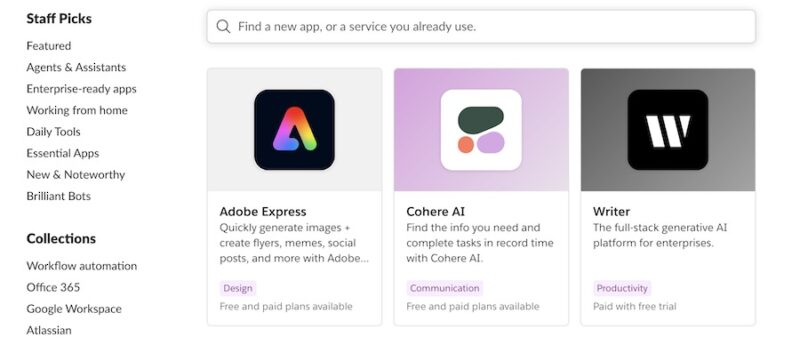
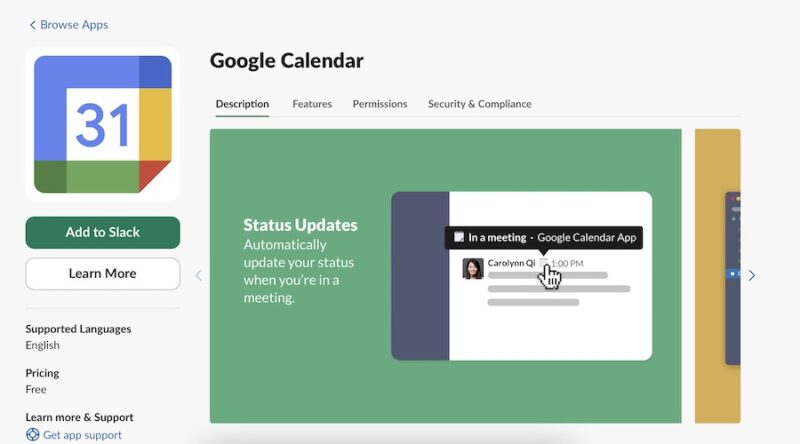
When you see the app you want to integrate, click on the green Add to Slack button. Since I use Google Calendar to organize my day, I’m going to integrate said app.
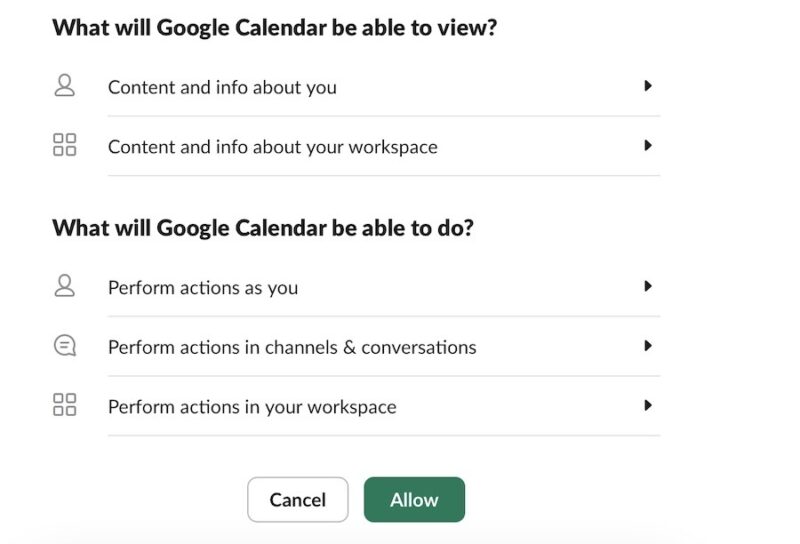
The app you’re installing will then ask for permission to access Slack. Select Allow to confirm this.
After installing Google Calendar, Slack redirected me to its app. You’ll see a new conversation, and the tool will appear under Apps.
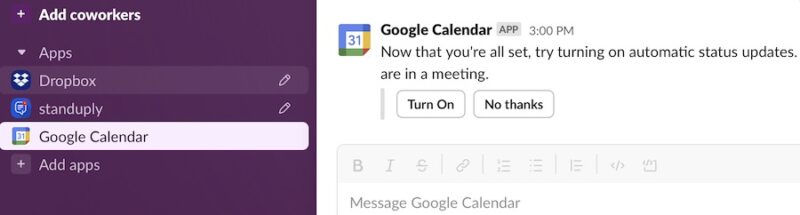
Some apps might ask you to sign in first; in the past, I’ve had to restart the installation process. However, I’ve had no problems the second time around.
Removing Slack Apps
Part of creating and managing a Slack workspace involves deleting Slack apps when you no longer need them. If you have a free plan, you may also need to make room for new ones; you can only use up to 10 simultaneously.
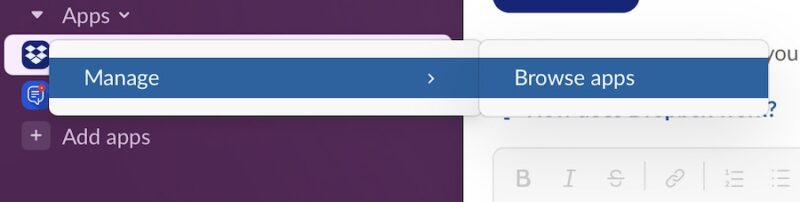
Since I initially found deleting Slack apps confusing, I’ll save you from going through the same pain that I did by providing the steps here. First, open Slack and go to Apps -> Manage -> Browse apps.
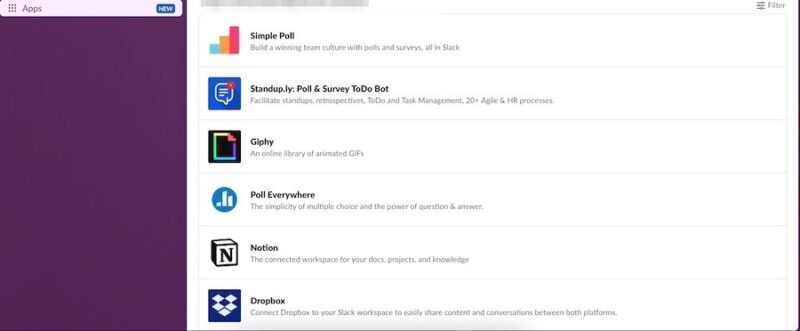
From here, you’ll see the complete list of all apps that are currently installed in that workspace. To uninstall a specific app, click on it in the list.
Another page will appear. When it does, tap Configuration.
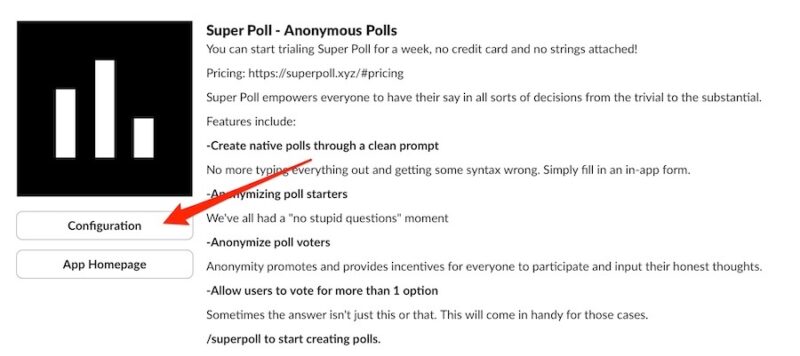
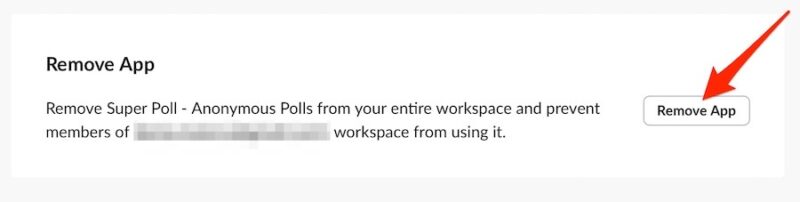
From here, scroll down to the bottom of the feature list. Tap Remove App.
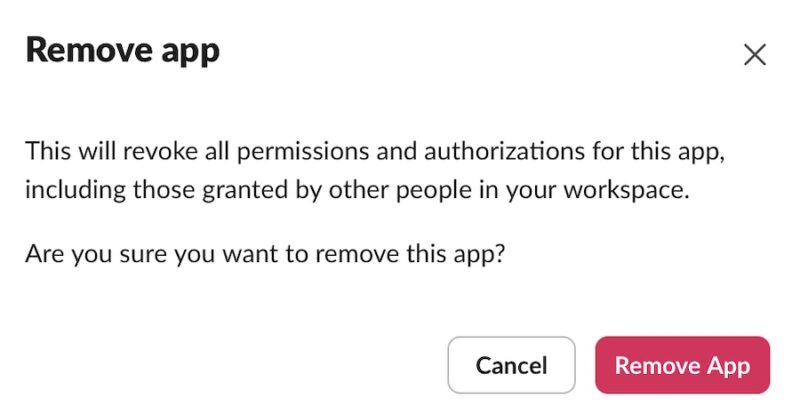
After asking to delete my Slack app, I then saw a pop-up window. Here, I tapped Remove App again to confirm my choice.
Manage Installed Slack Apps (and Why You Might Need to)
Whether you’re looking to integrate apps for productivity or for enhanced video communication, you might need to manage various settings. For example, you can choose which channels a bot is active in.
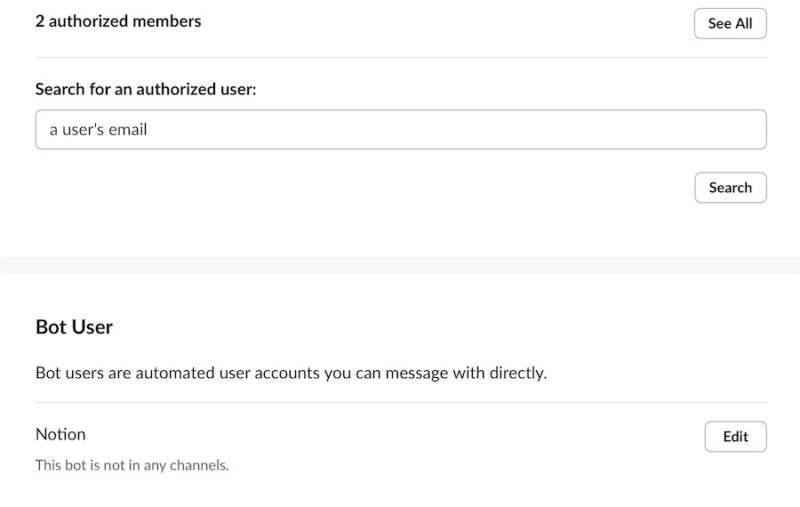
The settings available vary from app to app, but finding them is an identical process. For example, I wanted to choose who in Slack could access my Notion integration and went to Apps -> Manage -> Browse apps. After finding Notion and selecting Configuration, I went into this specific setting. You’ll find whatever you need on this page; for more adjustments, go to the specific app homepage instead.
Knowing how to use Slack apps will enrich your experience with the tool. With thousands to choose from, adding and removing them is incredibly straightforward. You can also check out all the best Slack apps before integrating them.
Image credit: Danny Maiorca. All screenshots by Danny Maiorca.