

Social media is a helpful tool for staying in touch with friends and family. But you may not always want people to see when you are online. On Facebook, all they have to do is look for the green dot next to your profile photo under the “Contacts” tab. This can lead to awkward incoming messages that you may feel compelled to answer. An excellent solution is to turn off your “Active Status” on Facebook so that you can browse (and stalk) in peace. This tutorial shows how to set that up.
Tip: need even more privacy? Learn how to disable read receipts on Facebook Messenger.
[mte_toc]How to Turn Off Active Status on Facebook From a Web Browser
It may seem incredibly intrusive if all your contacts know precisely when you are browsing Facebook. Luckily, it is relatively easy to make your Facebook more private. Just turn off your “Active Status” on the Web.
- On the right side of your Facebook profile are three headings: “Pages,” “Profiles,” “Birthdays” (if any), and “Contacts.”
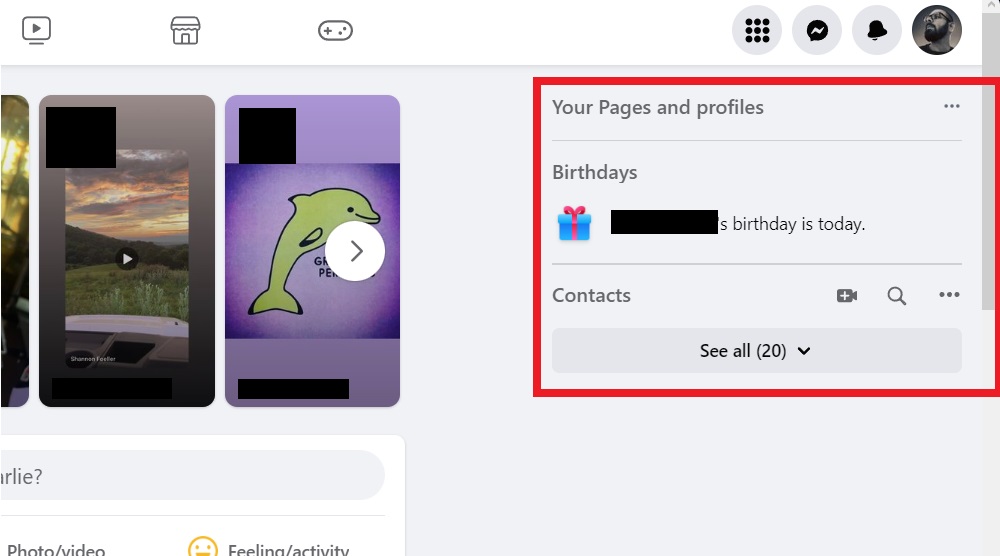
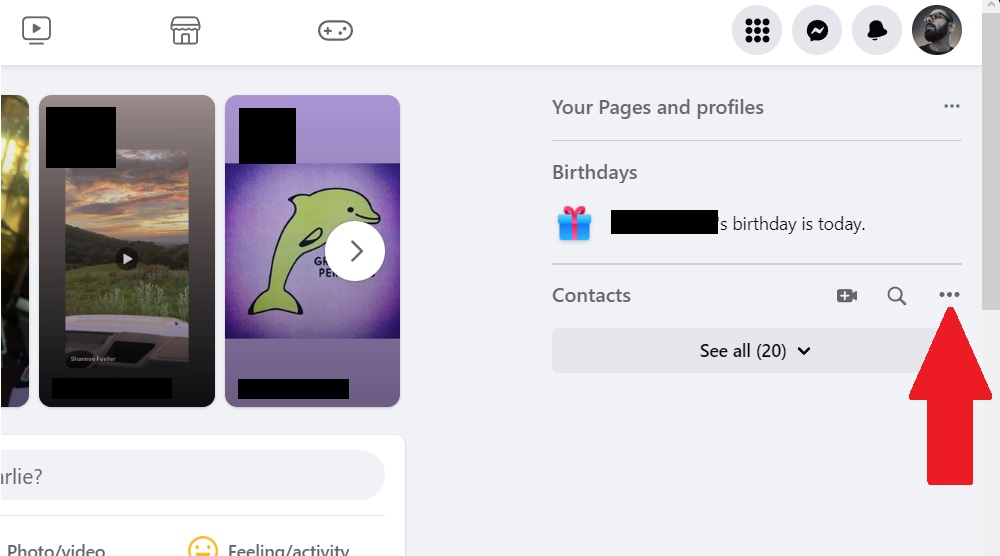
- Click on the three dots next to “Contacts.”
- Click on “Active Status.”
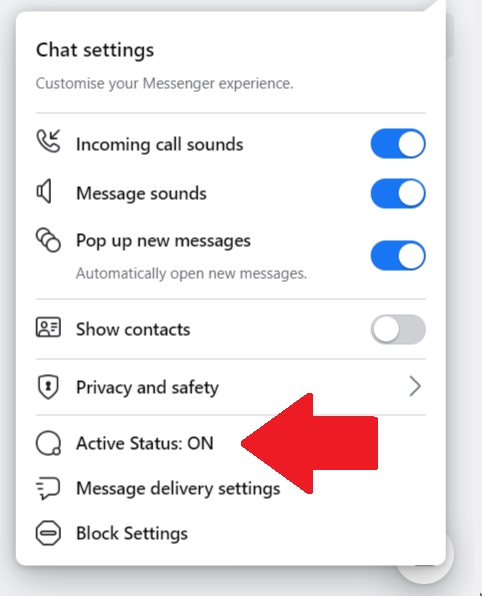
- Toggle the switch to turn it off, and click on “Save.”
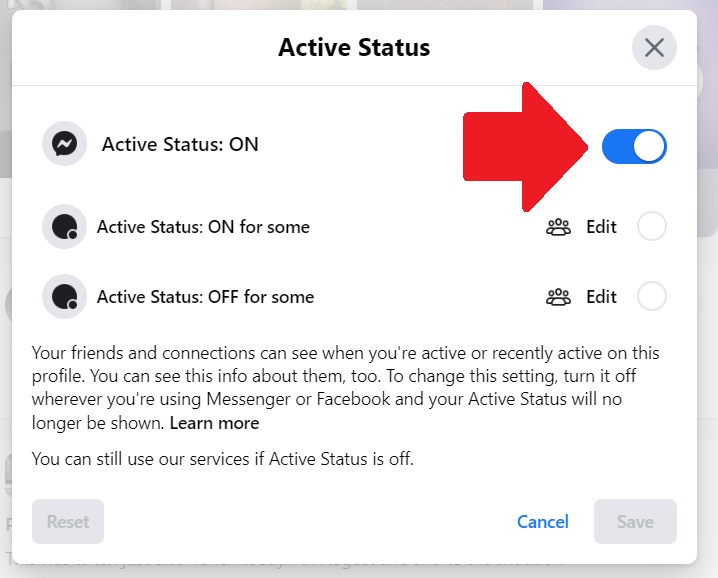
Good to know: make your favorite social network easier on your eyes at night by enabling Facebook’s dark mode.
Turn Off the Green Dot Indicator From the Facebook Mobile App
Unfortunately, turning off “Active Status” on the web browser does not deactivate it on the Facebook mobile app. The steps are slightly different on mobile:
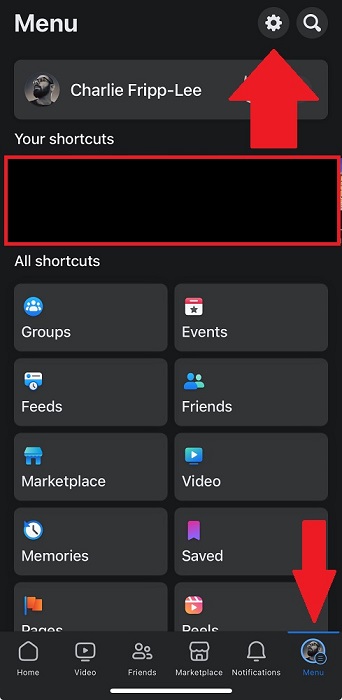
- Open the mobile app, tap on your profile photo in the lower-right corner, then tap the gear icon in the top-right corner.
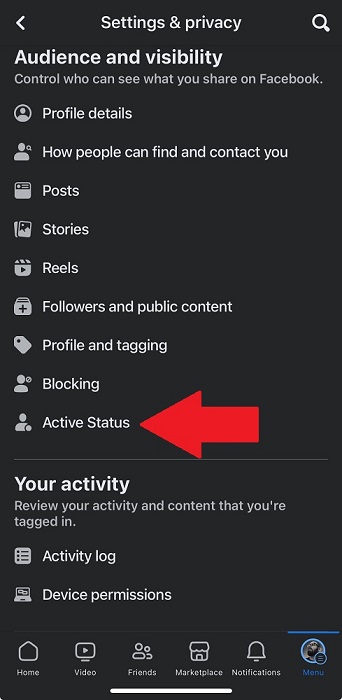
- Scroll down to the “Audience and visibility” section, and tap “Active Status.”
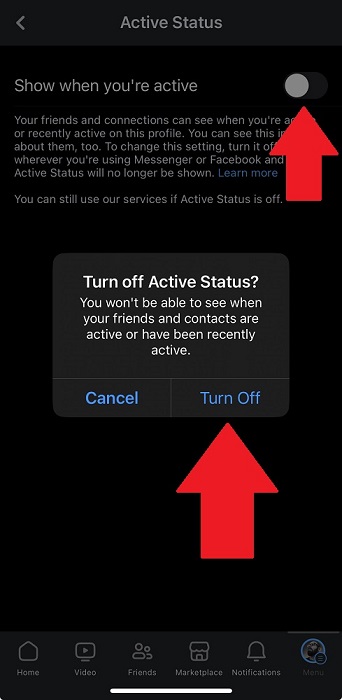
- Toggle the switch for “Show when you’re active,” and confirm the action by tapping on “Turn Off” on the pop-up.
How to Appear Offline on Facebook via the Messenger App
The official Facebook app isn’t the only place where you can take control of your online privacy. Use the separate Messenger app to toggle your “Active Status,” and choose who you want to know that you are online.
- Open the Messenger app and tap on the three lines in the top-left corner. Tap on the gear icon next to your name.
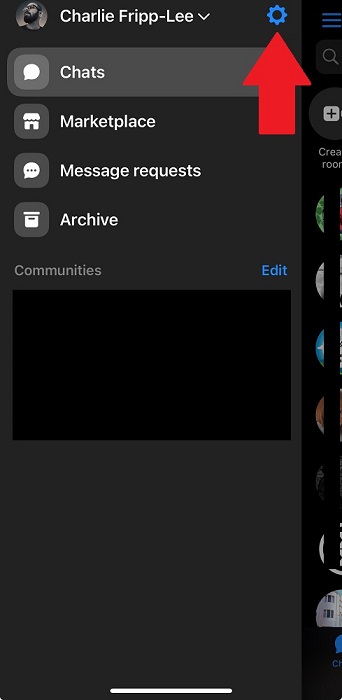
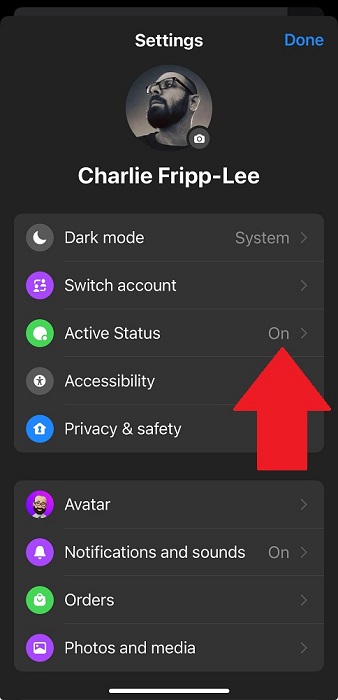
- Tap on “Active Status.”
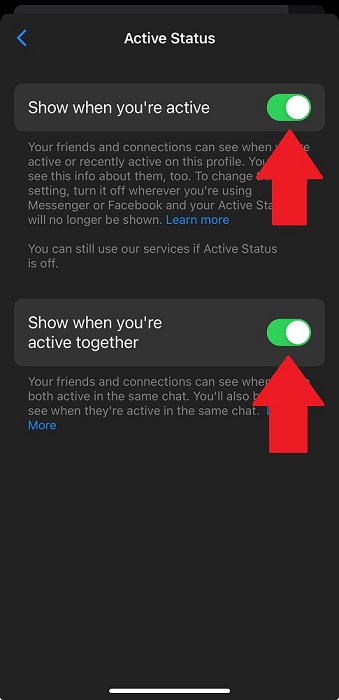
- Toggle the “Show when you’re active” switch to turn off the ability for others to see when you are active or have been active recently. You can also toggle “Show when you’re active together” if you don’t want your contacts to see when you are online in the same chat as them.
There are a few more options on Messenger’s desktop version. After clicking on your profile photo, navigate to “Preferences -> Active Status.” From here, you can customize “Active Status” using more granular controls.
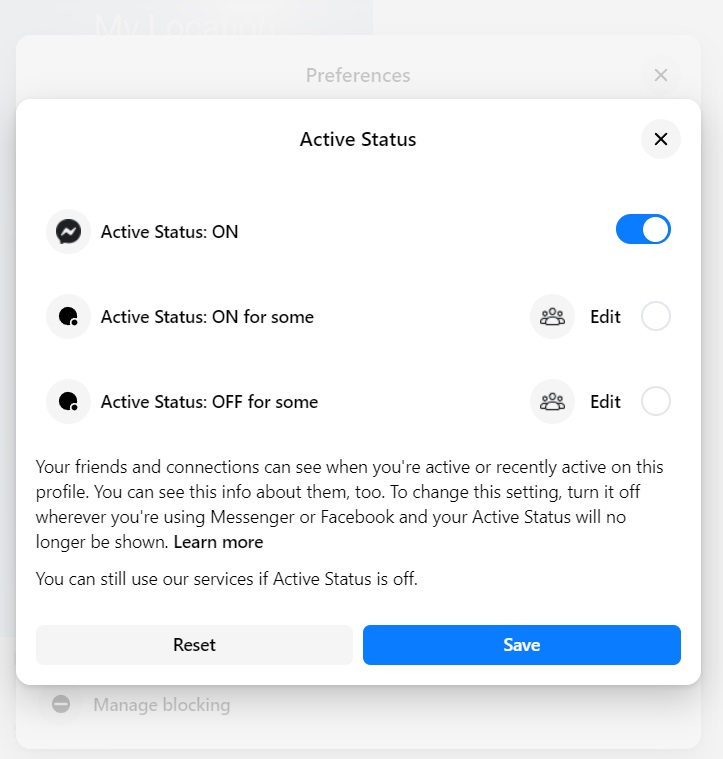
Click the “edit” button next to the corresponding option to add people to the approved or denied list.
Social media lets us be in contact with long-lost friends and faraway family, but not everyone wants to advertise when they are online. It’s also easy to use Facebook to search for people, posts, or businesses. But no matter your view on Facebook’s privacy features, there is no doubt that actions such as turning off the Active Status are helpful.
However, a distinction must be made between the green dot on regular users and Facebook pages. Even if your Active Status is deactivated, you may still see it on a page, as Facebook assigns this green dot to pages that have a record of being quick and responsive in their replies to messages on Facebook, Messenger, or WhatsApp.
Image credit: Unsplash. All screenshots by Charlie Fripp.