
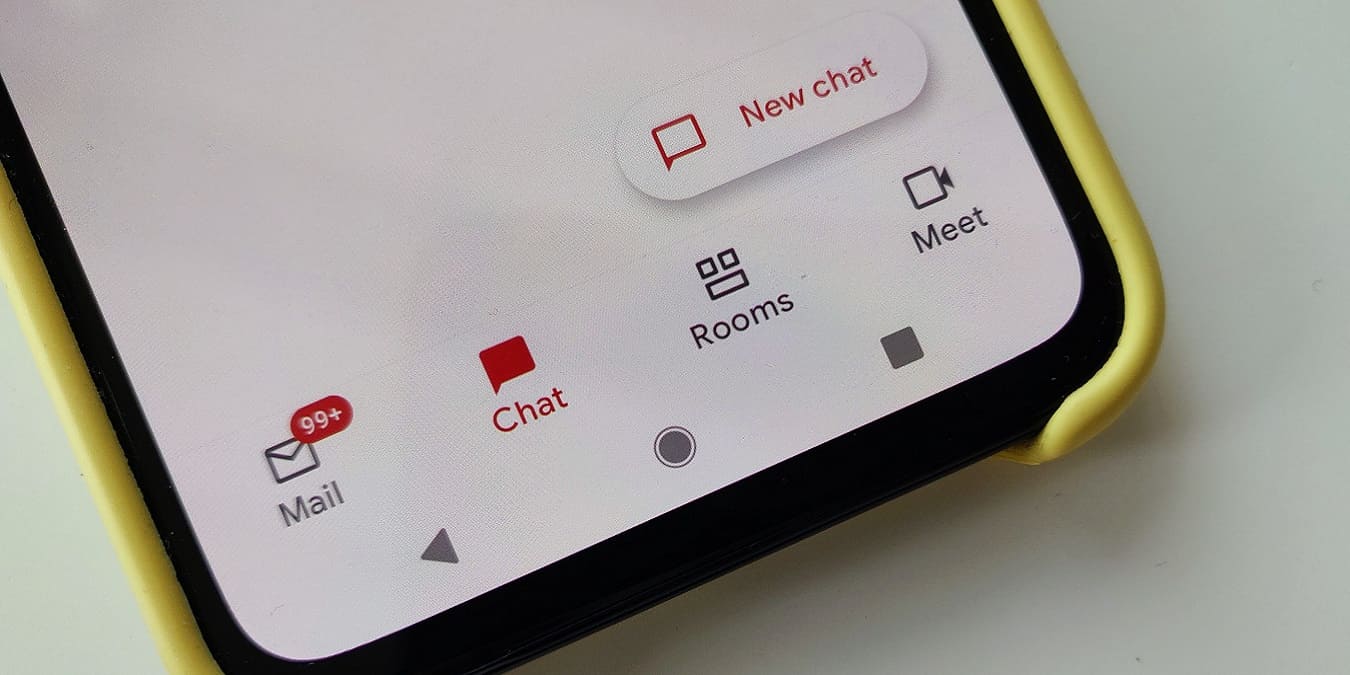

Google has recently ported two popular features to its free Gmail app which were previously available through its enterprise apps suite Workspace: Google Chat and Rooms. These two options allow users to communicate with each other directly from the Gmail app.
Like the names suggest, Chat is meant for one-on-one communication, while Rooms allows users to create dedicated spaces where they can talk to various contacts with Google accounts. If you’re curious about Gmail’s latest feature set, this article shows you how you can activate the new options and start using them right now.
Also read: 11 Useful Gmail Search Tips to Improve Your Productivity
How to Activate Chat in the Mobile App
You can activate Google Chat from Gmail’s Android client by following a few easy steps.
1. Open the Gmail app on your device.
2. Tap on the hamburger menu in the top-left corner.
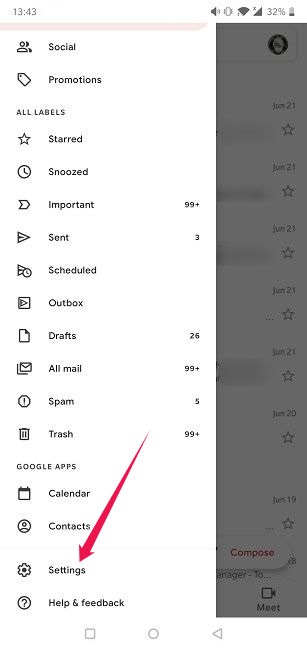
3. Scroll down until you find Settings and tap on it.
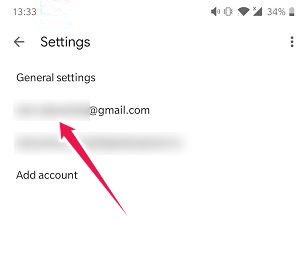
4. Select your account.
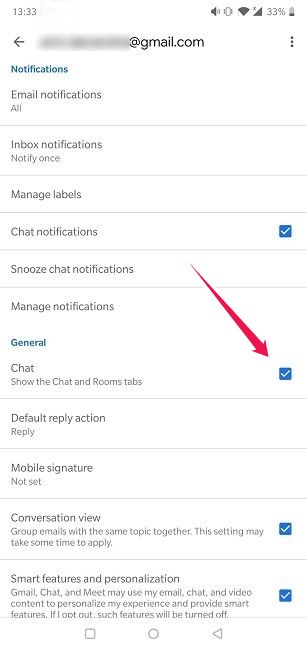
5. Scroll down until you find the “Show the Chat and Rooms tab” option in the General section and check it.
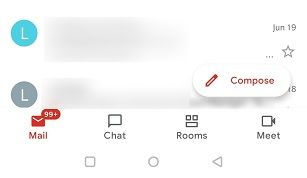
You should notice that two new buttons for Chat and Rooms have appeared at the bottom of the screen next to the Meet button.
How to Use the Chat and Room Options on Mobile
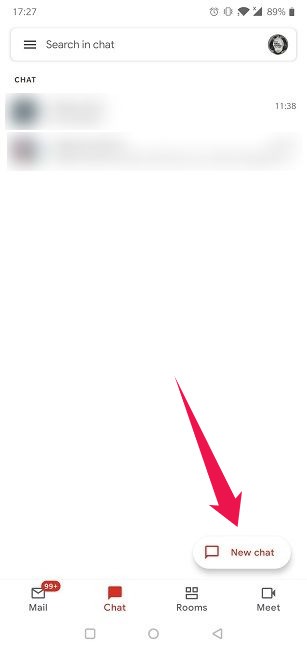
To get started, simply tap on the Chat icon and then on the “New chat” button that appears in the lower-right corner.
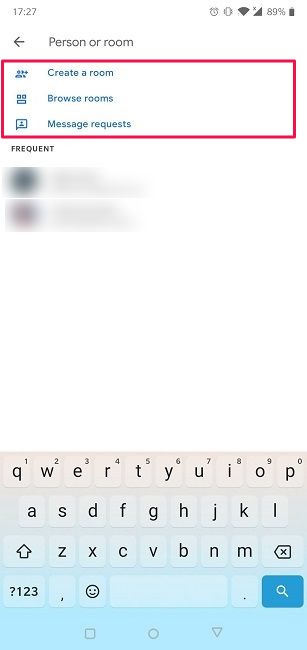
From there, you can choose the person you wish to chat with. Alternatively, you can create a Room or browse existing Rooms from the same window. It’s possible to manage chat requests from this panel as well. The people you chat with most often will appear below for easy access.
You can invite people to join a Chat, and they will get an email with a link. If they used Hangouts or Chat before, they will simply get a notification.
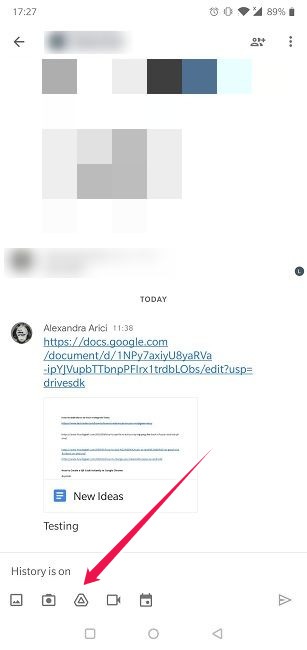
Chat has Google Docs integration, so you can share documents and other files simply by tapping on the Google Docs button at the bottom of the chat window. When the other person clicks on the link, it will open in a new window.
How to Activate Google Chat on PC
You can activate Google Chat in the Gmail app for Web. The steps are a bit different in this case but not too complicated.
1. Open Gmail in your browser.
2. Click on the Gear icon in the upper-right corner to go to Settings.
3. Click on the “See all Settings” button at the top.
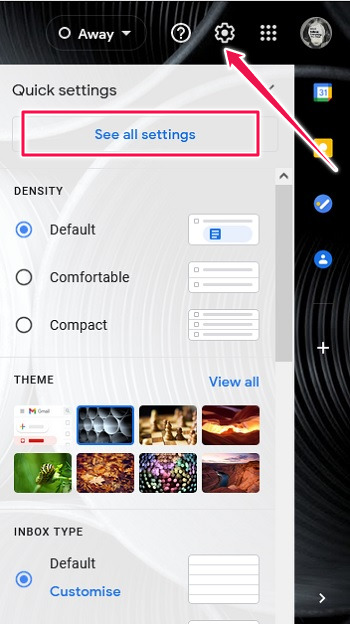
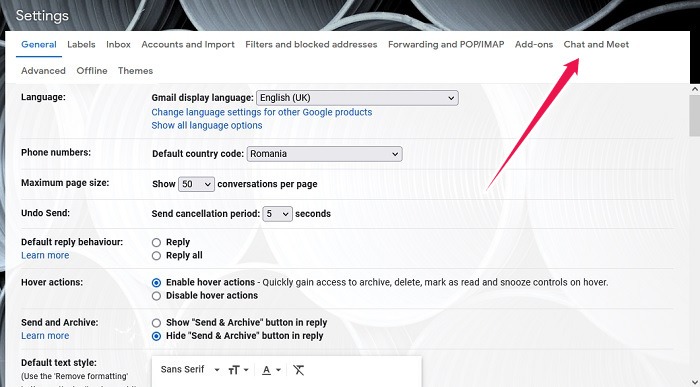
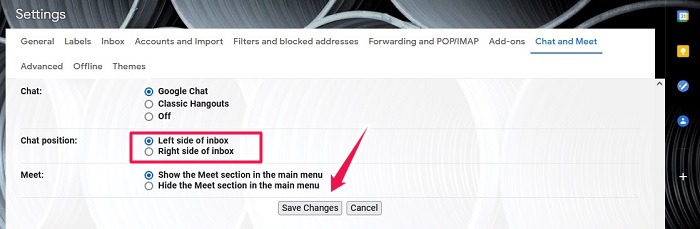
4. Select the “Chat and Meet” tab from the top.
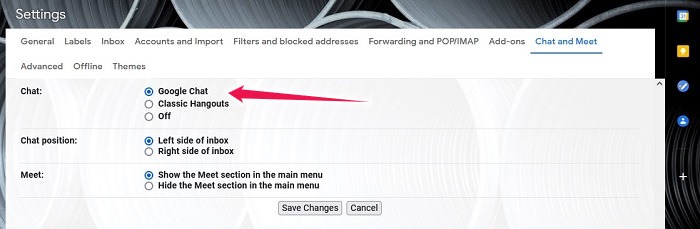
5. Tick the “Google Chat” option to have it appear for you.
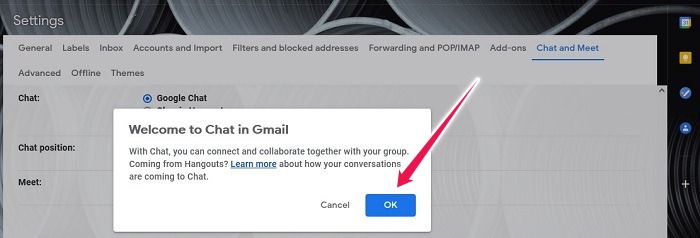
6. Click on “OK” to confirm your choice.
7. In the same section, you can choose where to position the Chat box: either on the left or right side of the inbox.
8. Finally, click on the “Save changes” button in the lower part.
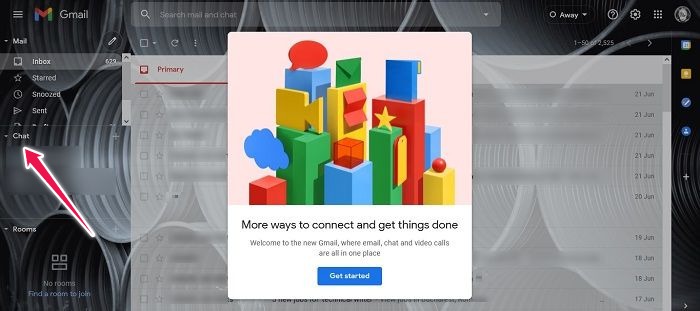
Your Gmail screen will refresh, and a pop-up will appear on the display welcoming you to Google Chat. You can now start using the options.
Also read: The Best Gmail Features You Should Know to Improve Email Experience
How to Use the Chat and Room Options on PC
Once you’ve activated Google Chat, you’ll notice the Chat and Room options have appeared on the left or right side of your inbox, replacing Hangouts (if you were previously a user). Meet, Google’s video calling service which allows users to communicate face-to-face, is now the bottom option.
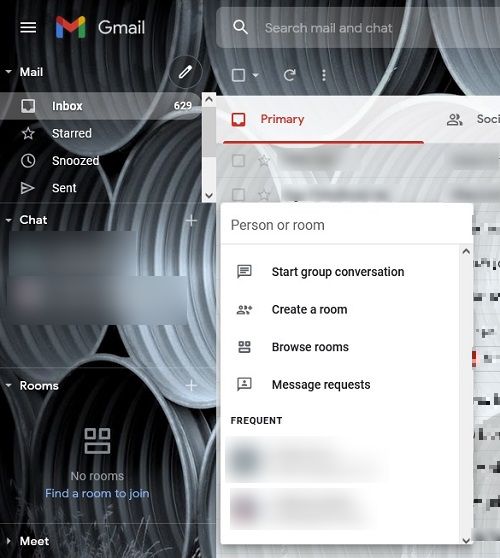
You can start a Chat or create a Room by pressing the “+” button next to each section. From here, you can search for the person(s) you want to chat with, start a group conversation, create a Room or browse available Rooms.
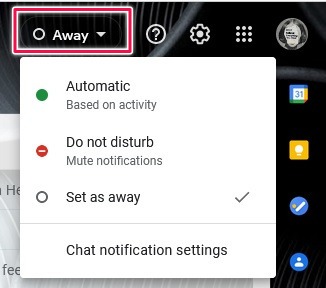
Chats are displayed in small windows which can be resized for your convenience. You can let people know you are available to chat by switching on your active status from the top-right corner of the display. Alternatively, you can opt for “Do Not Disturb” or Away (which basically makes you invisible).
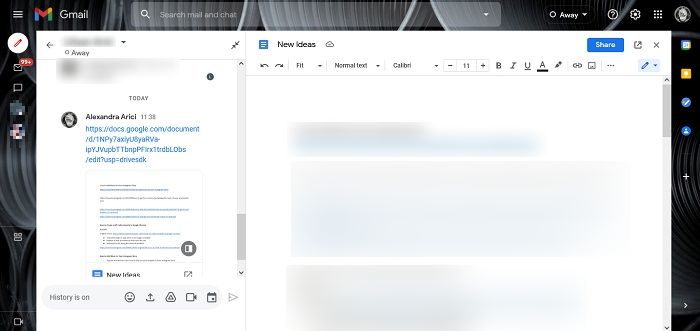
What’s more, you can maximize these chat windows, which gives you access to a few extra tricks. For example, if you share a Google Docs links now, you can opt for the “Open in Chat” option. Clicking this button will have the effect of opening the Google Doc in a new, multi-pane interface inside Gmail, with your texts shown in a sidebar on the left and the document on the right. If you’re chatting with colleagues at work, this function can be extremely useful.
As you can see, it’s pretty easy to activate and start sending messages using Gmail’s new Chat feature. If you want to learn more Gmail tricks, we suggest you take a look at our guide that shows you how to turn off smart reply and smart compose in Gmail. Alternatively, get up to speed on how you can manage multiple Gmail accounts and check email in one place.