


For some people, forwarding emails is a troublesome thing that they do daily. For Gmail (and many other email clients) users, you know that it only allows you to forward one email at a time. So if you have a bunch of emails to be forwarded, you need to open each of those and click the Forward option to have them forwarded. Wish there was a way to quickly forward multiple emails at once? Luckily, there is.
Multi Forward for Gmail is an extension for the Chrome browser that lets you quickly forward multiple emails in your Gmail account.
Here’s how to do that.
Forwarding Multiple Emails at Once in Gmail Using Chrome
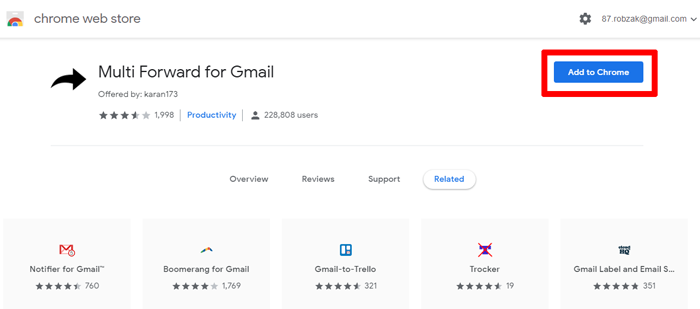
1. Head over to the Multi Forward for Gmail extension page in the Chrome Store and click on “Add to Chrome” to add the extension to your browser.
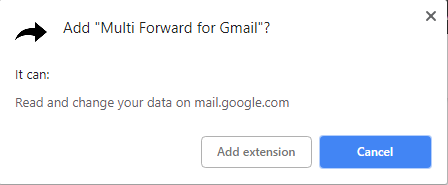
2. A prompt should appear asking if you really wish to add the extension to your browser. Click on “Add” to allow the extension to be added.
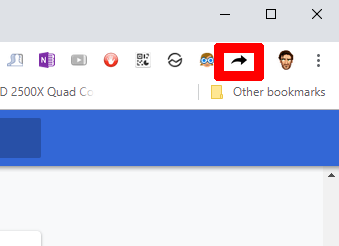
3. The extension should be added to your browser. You can see its icon in the browser’s menu bar. In order for it to work properly, you need to close the browser and then re-open it.
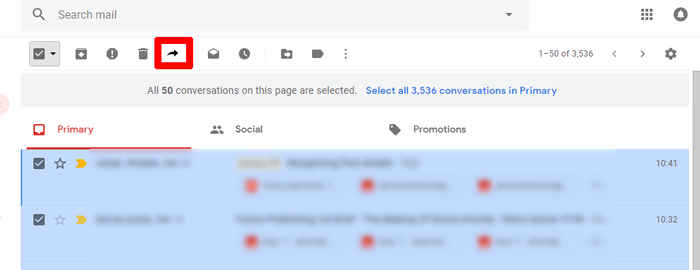
4. Here begins the actual forwarding procedure. Open your Gmail inbox and select multiple emails that you wish to forward. Click on the little arrow icon appearing beside the regular email options on the top.
5. At this point, the extension will ask you to “Sign in” to authorize it. You only need to do this the one time. Click “Sign-in”, then sign into your Gmail account to authorize the app.
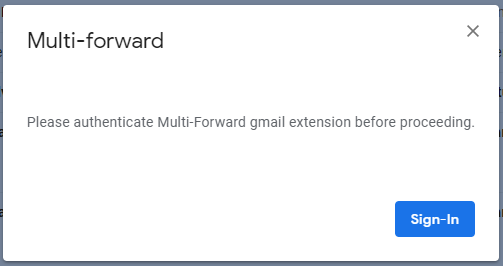
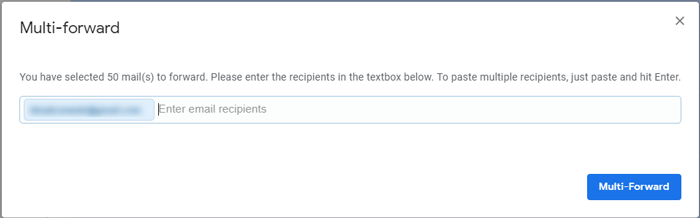
6. With that done, click the multi-forward icon in your inbox once more, then enter the names of the recipients you want to send the emails to. You can enter multiple email addresses, and when you are done, simply click the “Multi-Forward” button to start the forwarding process.
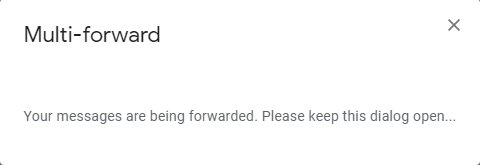
7. It will take some time to forward the selected emails. You will get the following screen while it is processing your emails.
8. When it is done forwarding all the emails, you will see a message indicating that the multi-forward has been sent to all its recipients.
Conclusion
Your headache is over with the above trick, as it saves you from the hassle of individually opening emails and forwarding them. You can now have them all forwarded in one go with a little Chrome extension.