
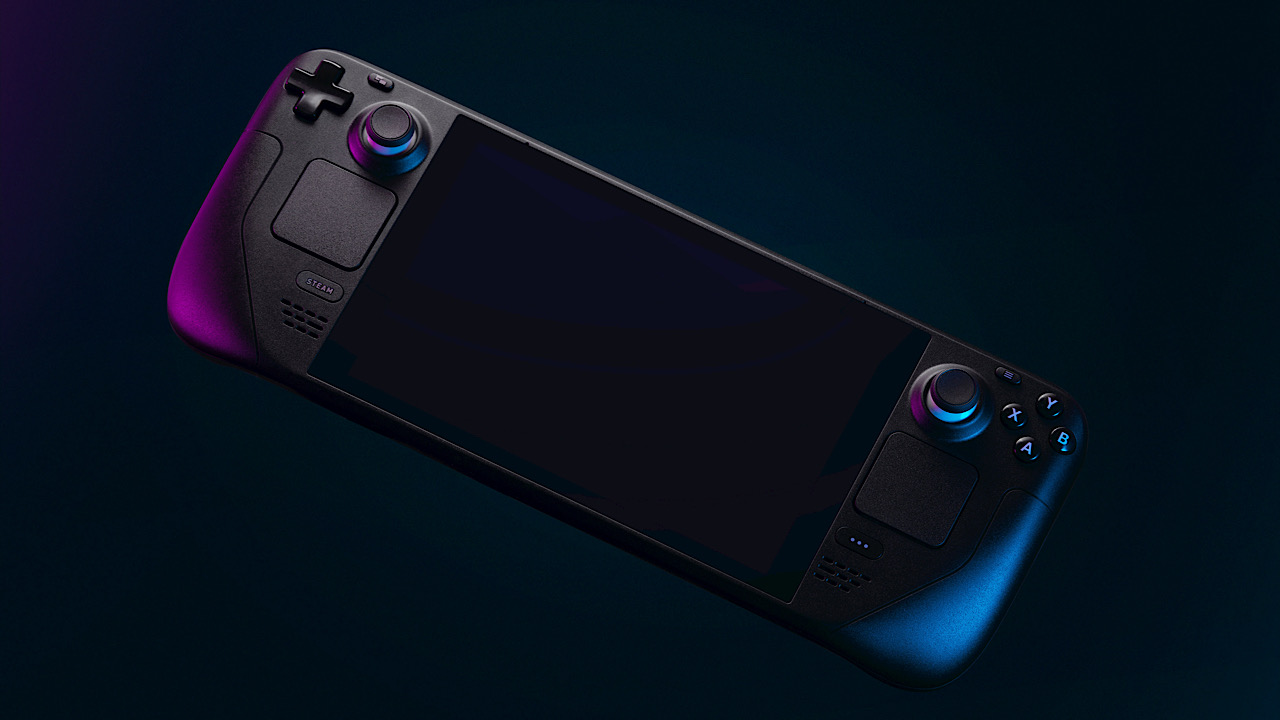

Steam Remote Play is a godsend for gamers looking to play co-op or multiplayer games with their friends. You can also use it to stream your high-end games from your dedicated PC to your secondary device. But, in cases where Steam Remote Play is not working, you can rely on the fixes below to get it up and running in no time.
[mte_toc]Update Steam
Before you do anything else to fix Steam Remote Play not working, update your Steam client. Updating Steam often resolves many of the most common Steam issues.
To update Steam, click Steam -> Check for Steam Client Updates (top-left corner of your Steam client).

Steam will check for any available updates and update the client automatically if needed. Check whether you’re able to play your favorite games with Steam Remote Play.
Ensure Steam Remote Play Is Enabled
This may sound obvious, but it’s possible that Steam Remote Play is disabled in your Steam settings.
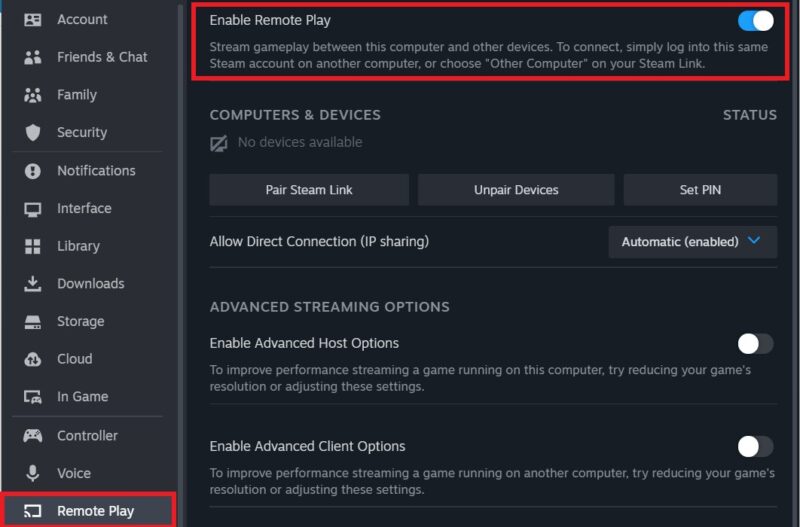
To ensure this isn’t the case, click Steam -> Settings -> Remote Play, and check that Enable Remote Play is turned on in the panel on the right.
Disable Steam Beta Client
Steam offers participation in its beta client program if you wish to experience new features before they’re released to the public. However, the Steam beta client can sometimes cause the Steam Remote Play error.
To check whether you’re running the regular version of the Steam client, click Steam -> Settings -> Interface, and check whether No beta chosen is selected in the Client Beta Participation drop-down menu.
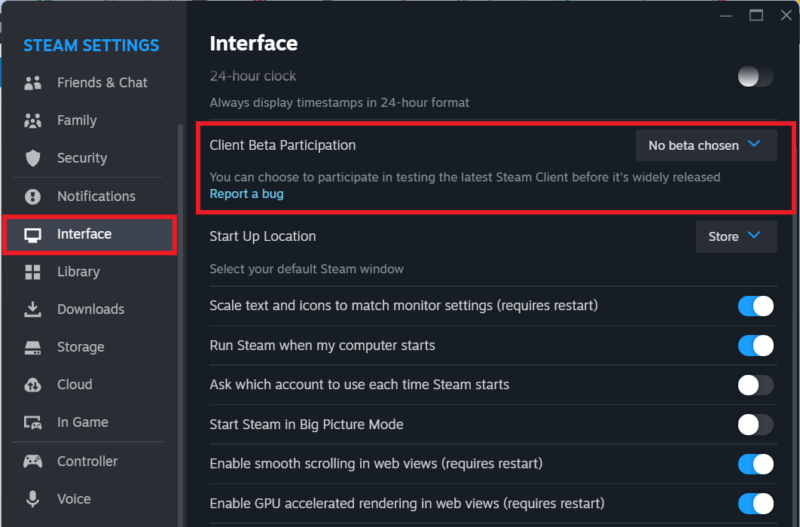
In this case, you needn’t do anything else. Proceed to the next fix below. But if you see that you’re part of the beta program, you can opt out of it by selecting the No beta chosen option and restarting Steam.
Check whether Steam Remote Play is fixed. If not, proceed with the fixes below.
Unable to log in to Steam? Learn how to fix Steam login error code E87 on Windows.
Unpair Steam Link Device
Steam Remote Play is often used to stream multiplayer games on Steam on your secondary or guest device. This paired device could be malfunctioning, or the Steam Link between your PC and the device could be faulty.
To solve the issue, unpair the secondary device so that you can re-pair it. Click Steam -> Settings -> Remote Play, and select Unpair Devices under Computers & Devices. Click Confirm on the pop-up.
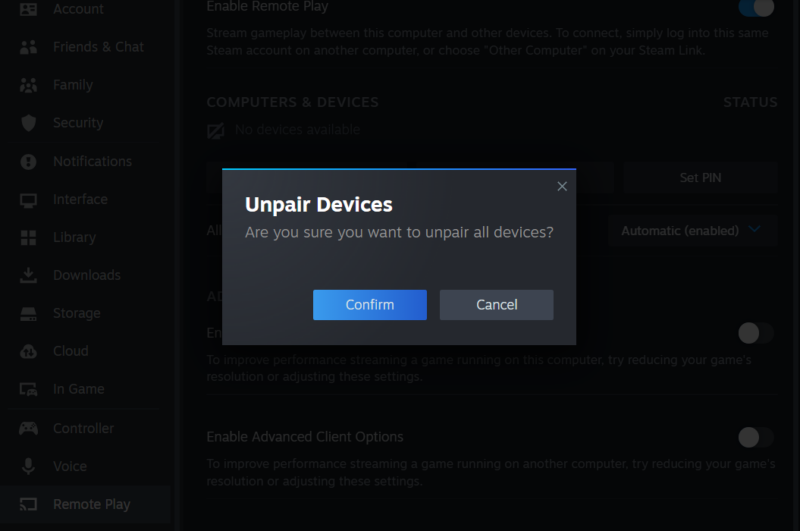
Set up Steam Remote Play again by re-pairing the device and trying Remote Play again.
Disable Hardware Decoding Within Steam
Hardware decoding is helpful when streaming your game using Steam Remote Play. But on some systems, it can cause performance issues, and disabling it is better.
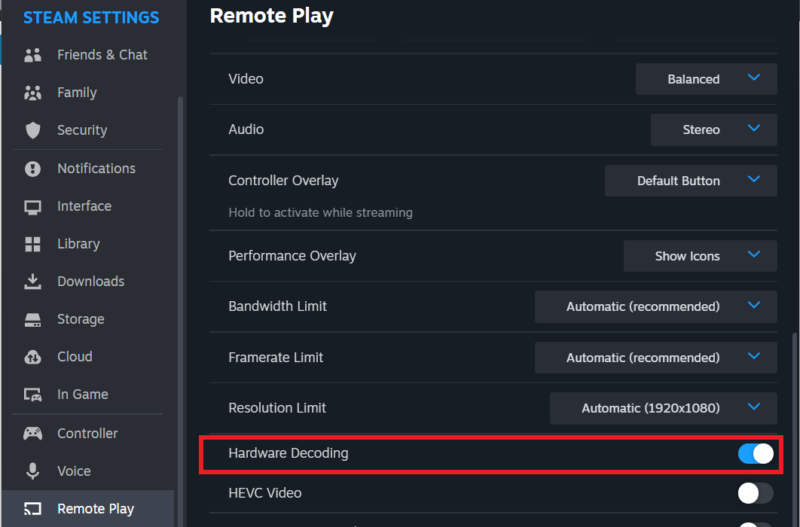
To disable hardware decoding in Remote Play settings, click Steam -> Settings -> Remote Play, and turn on Enable Advanced Client Options.
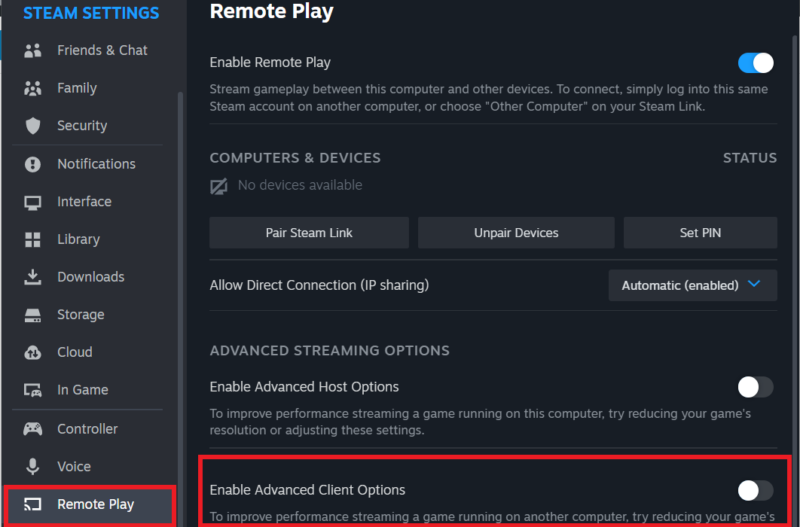
Disable Hardware Decoding in the options. Check whether this fixes the Steam Remote Play not working issue.
Disable or Reconfigure Firewall Settings
Your firewall is responsible for allowing or blocking apps from accessing your networks. Sometimes it can mistakenly block Steam Remote Play from accessing the Internet.
Even your third-party antivirus can block Internet access to Remote Play. If you have a third-party antivirus program, check its settings and try disabling the firewall temporarily to see whether that enables network access for Remote Play.
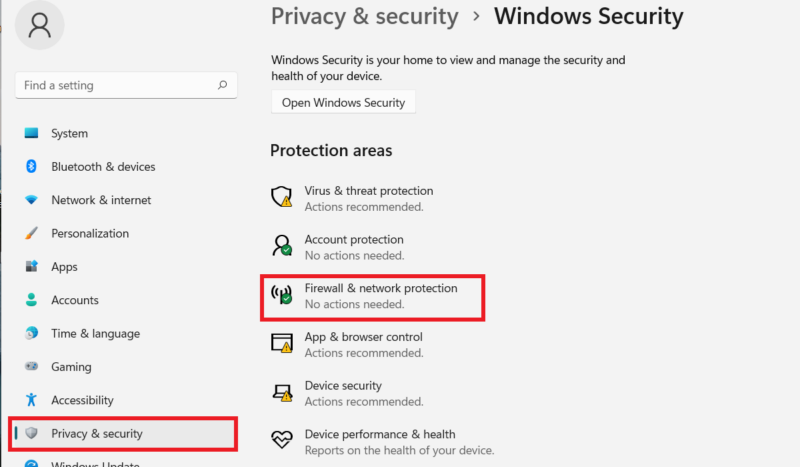
To disable your built-in Windows firewall, open Settings by pressing Win + I. In the Privacy & security tab, click Windows Security -> Firewall & network protection.
Click Public network in the new window. Turn off Microsoft Defender Firewall to allow all connections.
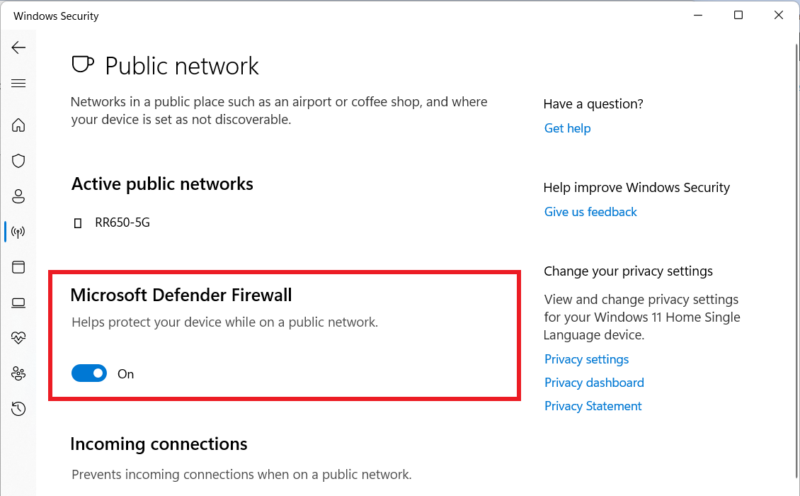
This is just a temporary measure to check whether the firewall is really blocking Internet access for Remote Play. If it still doesn’t work, remember to turn your firewall back on.
Force an IP Address Change
Steam Remote Play may not work if there is an IP address refresh on your device. Forcing an IP address change can fix the issue.
Type “cmd” in the Windows search bar and open Command Prompt. Execute the following commands one by one:
ipconfig /release
ipconfig /renew
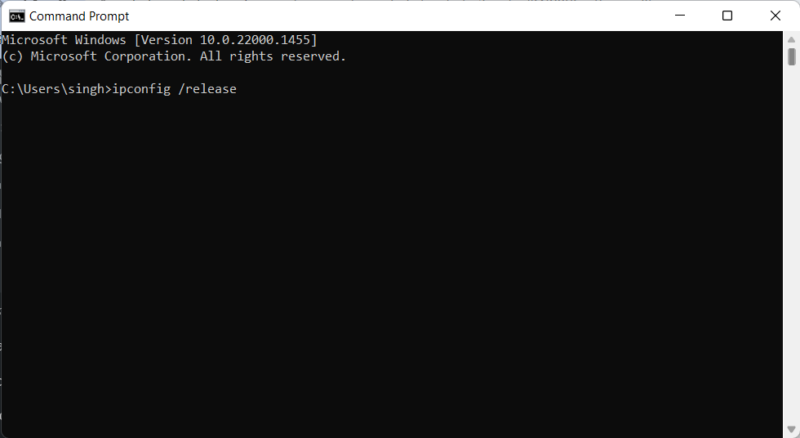
Check whether Steam Remote Play is working normally.
Disable IPv6
IPv6 succeeded IPv4 as the latest Internet Protocol standard and brought many advantages with it. But it can also cause network issues on some systems if you have it enabled alongside IPv4.
You can disable IPv6 using multiple methods, but the simplest uses the Settings app. Press Win + I to open Settings, then click Network & internet -> Advanced network settings.
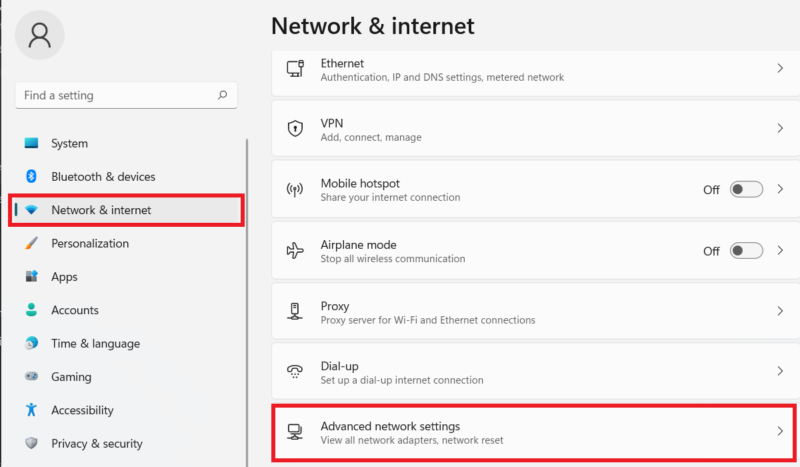
Scroll down and click More network adapter options to bring up your network adapters.
Right-click your network adapter, and click Properties. Uncheck Internet Protocol Version 6(TCP/IPv6) in the dialog box, and click OK to save the changes.
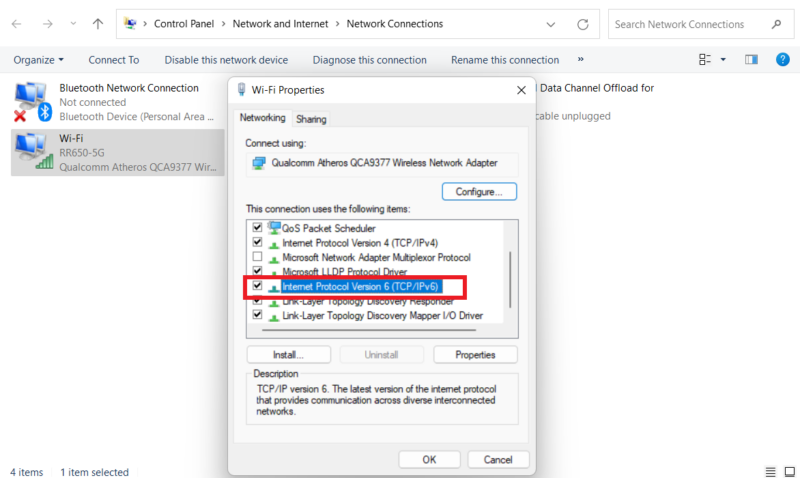
Restart your computer, and check whether you fixed Steam Remote Play.
Steam is ubiquitous with PC gaming, being the most popular platform among gamers. You can also play Mac games on Steam, as well as horror games. We can also show you how to have your friends watch you play games on Steam.
Image credit: Unsplash. All screenshots by Tanveer Singh.