

The Edge browser has undergone major upgrades since its inception, and it’s now better positioned to compete with the top-tier browsers like Mozilla Firefox and Google Chrome. It’s fast, secure, and also comes with a host of other top-end features, including support for extensions. However, there is one niggling problem that mars its ability to deliver the wow experience – flashing tabs. If you find the “blinking tabs” issue annoying and would love to switch it off, read on to discover how to fix it.
Edge’s Flashing Tabs Problem – Why it Happens
If you are browsing a couple of websites using the Edge browser with several tabs open, you might notice some of the tabs you’ve opened blinking or flashing a bright orange color. Microsoft conceived this as a beneficial feature to draw your attention to anything you might want to attend to. It’s not a bad idea, but that frequency of the flashing might be quite irritating.
Any changes that occur to a recently opened tab triggers the flashing effect. For example, if a download has finished or a site you had logged in automatically logs you out, that tab will start flashing a bright orange color. Flashing stops when you click that tab. And if you don’t close it, the tab might start blinking again after a while. By the time you are done with one tab, another might start blinking, and you could inevitably end up playing a “whack-a-mole” game to stop the annoying flashing.
The flashing tabs problem is as a result of something that is hard-coded in the Edge browser itself. Complaints against the issue are mounting, and so is the hunt for a solution. While there is no way in Edge settings or Windows settings to turn it off, there are a few workarounds that have worked for many users and might work for you, too. Here are two workarounds which many Edge users reported to have worked for them.
1. Uncheck “Turn on Visual Notifications for Sound”
To uncheck this feature, simply follow the steps below.
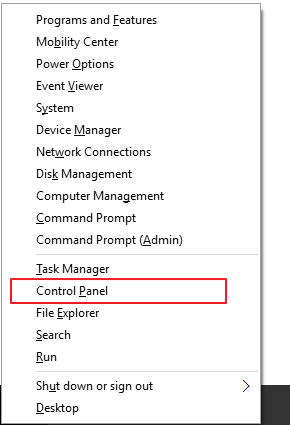
1. Press the Win + X shortcut to open the WinX menu, then scroll down to the control panel option and click on it. You can also ask Cortana to launch the control panel.
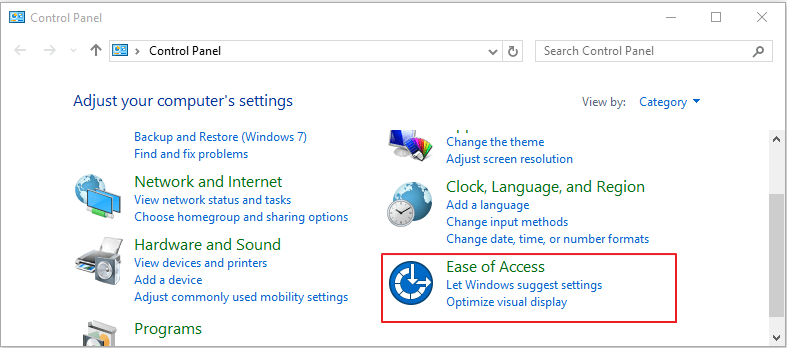
2. Navigate to the “Ease of Access” section in the control panel window and click on it.
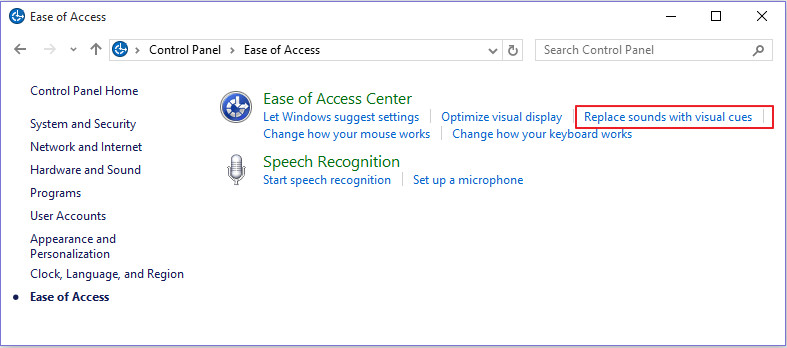
3. In the Ease of Access Center menu that will open, click the “Replace sounds with visual cues” option.
4. Here you’ll find the option for turning on visual notifications for sounds. Uncheck the box to turn the flashing effects off, then click the Apply button to save the changes. If the box is unchecked, you might want to try another workaround.
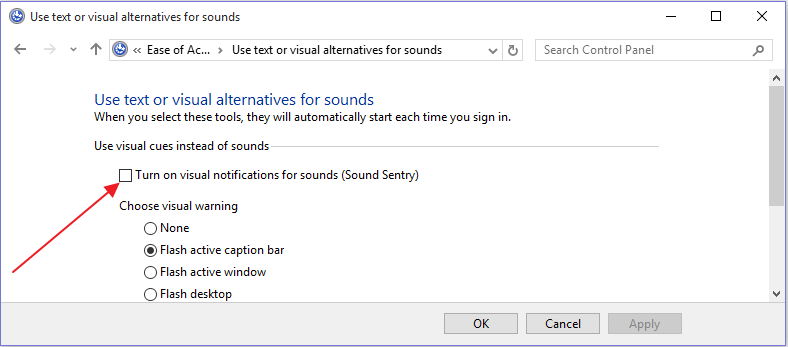
Doing so should configure your browser to play a notification sound instead of flashing tabs. This has worked for many Edge users, but there are still some who claimed it didn’t work for them. If it doesn’t work for you, you might want to try the next solution.
2. Use a “Light” Theme
To choose a Light theme, simply follow the steps below.
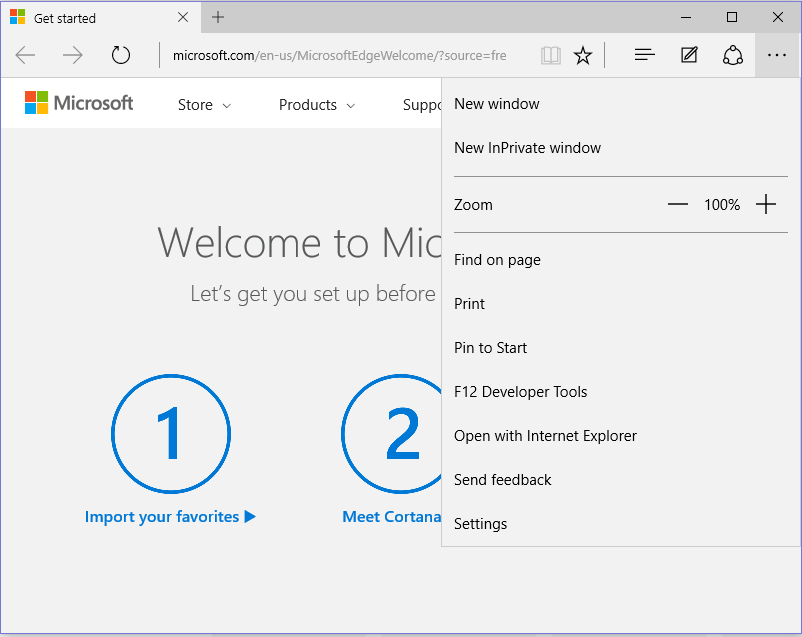
1. Click the three dots located at the top-right corner of the Edge browser. Scroll down and click on “Settings.”
2. Under the “choose a theme” option, select “Light.”
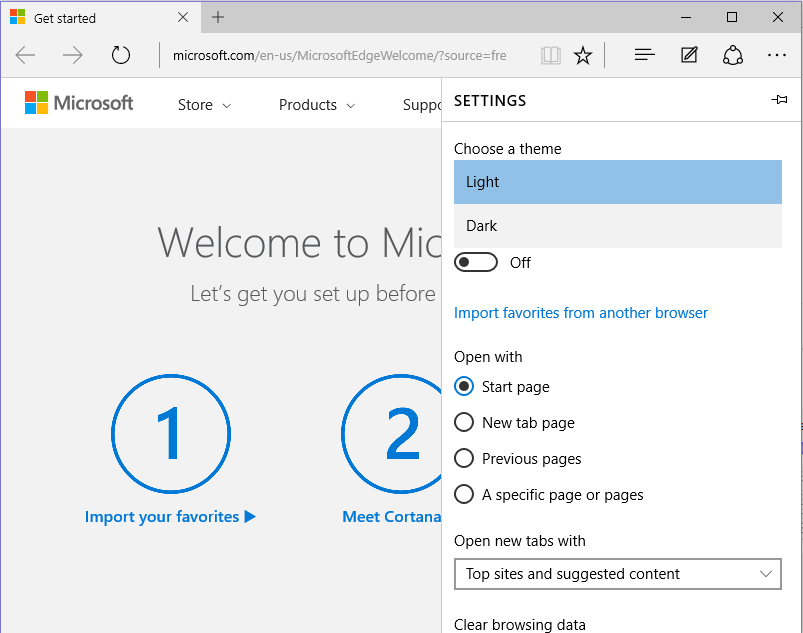
Changing the theme to Light has worked for many users in preventing the tabs from blinking.
Wrapping Up
Though there is still no definitive solution from Microsoft for fixing the flashing tabs issue, the above workarounds are a good solution and have worked for many users. Some experts in the Microsoft community have also suggested enabling flash player in the Edge settings as a possible solution, so you might want to try that one, too. Let us know in the comments section below whether the above workarounds fixed the problem.