

Do you have a bunch of MP3s that lack the correct metadata? For example, you’re browsing your digital music collection and decide to play a file named “Nirvana – Smells Like Teen Spirit” but it’s actually “Plush” by Stone Temple Pilots. We’ve all been there, and it is super annoying. Or maybe you’re collecting CDs and ripping your collection so you can enjoy lossless audio on the go. Either way, you’ll want your digital audio files to have the correct metadata information so you can navigate your music library efficiently. Thankfully you can easily edit and fix your audio’s metadata.
[mte_toc]There are a number of applications that can edit metadata tag information. These apps support many popular audio file formats. This includes Mp3, FLAC, WAV, OGG and more. Most of these apps are super simple to use, so you’ll be editing metadata tags and organizing your digital music collection in no time.
Using MP3Tag to Edit Audio Metadata
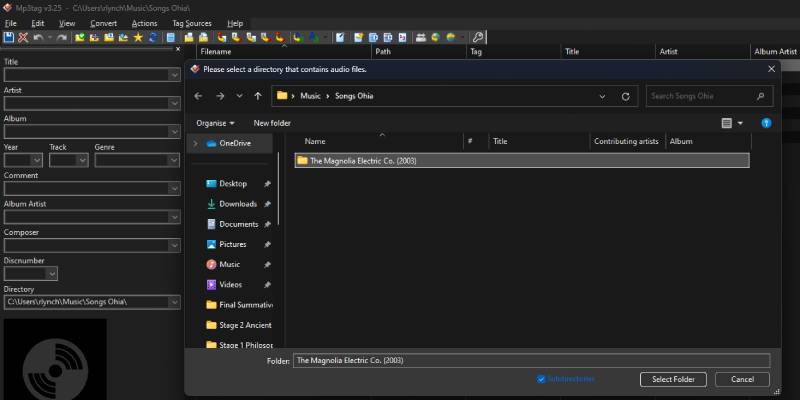
MP3Tag may look simple, but it’s a powerful tag editor. To get started, you can drag and drop the desired audio file(s) directly into MP3Tag. Alternatively, you can click on the icon that looks like a folder with a green check mark on it. This will open a file explorer window where you can select the directory containing the files you want to edit.
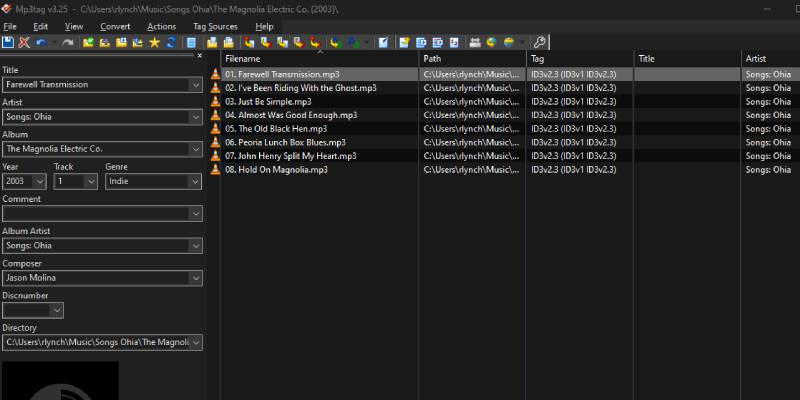
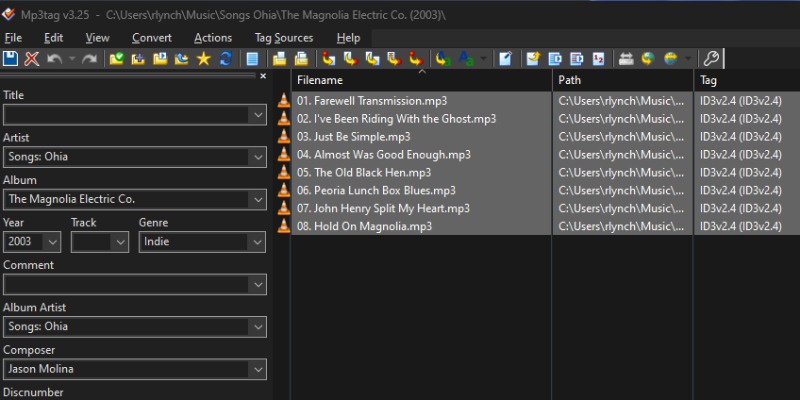
Once MP3Tag is populated with your chosen directory, you’ll see all of the audio files in the main panel within MP3Tag. To edit the tags of each file individually, simply click on the file you want to edit. Any changes you make to the metadata fields in the left-hand panel will only apply to that file.
If you want to edit the metadata of a bunch of files at the same time, you can select multiple files by Ctrl + click on each file. Alternatively, you can click and hold and drag your mouse over the files you want to edit.
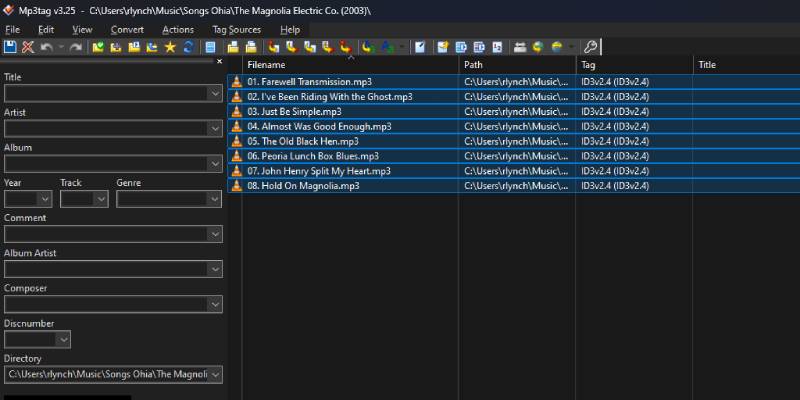
On the left-hand side of the Mp3Tag window, you’ll notice various metadata tag fields. These include “Title”, “Artist”, “Album”, “Track Number” “Year of Release” and more. With the file(s) you want to edit highlighted, simply enter the desired information into the relevant fields.
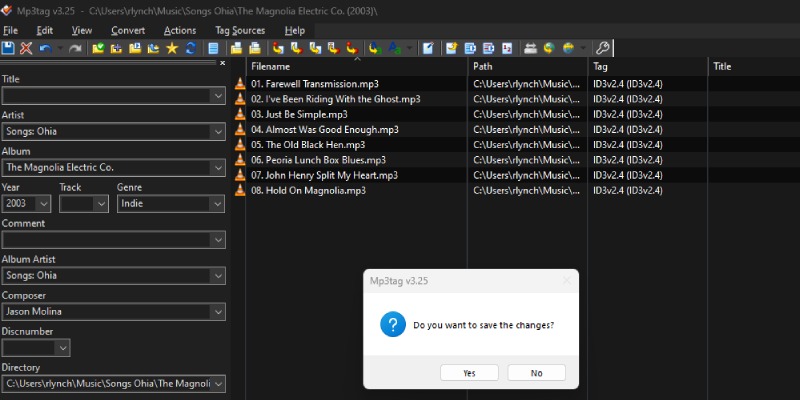
Once you’ve made your changes, save your edits by clicking the save icon in the toolbar, which looks like a blue floppy disk, or press Ctrl + S.
I find it incredibly annoying when I play a music file and discover it lacks artwork. Thankfully, you can use MP3Tag to add the right cover art to your audio files. Download the cover art you need to your PC. I recommend a minimum 300 x 300 file size, but I prefer higher resolution images if available.
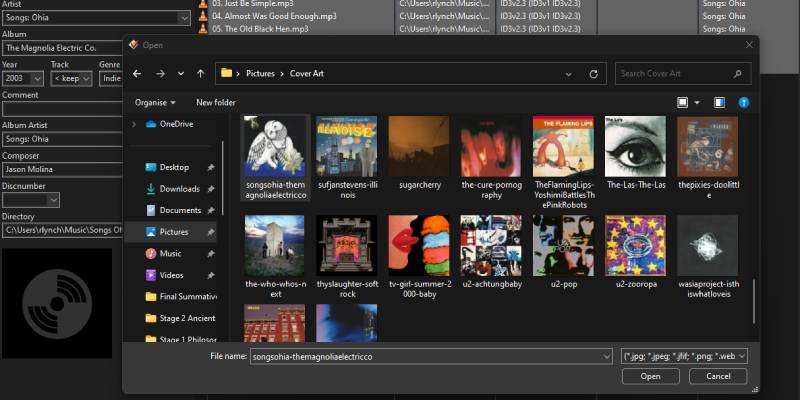
Add the audio file(s) into MP3Tag and select the files you want to add the cover art to. On the bottom left of MP3Tag, there is a black square with an image of a spinning disc inside. Right-click this icon and choose “Add cover” from the menu. This will open a file explorer window where you can select the correct artwork. The image will now be attached to that audio file(s). Remember to apply your changes by clicking the save icon or pressing Ctrl + S.
Use VLC Media Player to Edit Metadata
If you don’t want to download another app for your PC just to edit metadata tags, I sympathize. Fortunately, chances are you already have an app on your PC that can edit tags – VLC Media Player, which does a lot more than just play videos. Open an audio file with VLC Media Player and right-click on the file name within the VLC playlist window. In the menu that opens, click on “Information”.
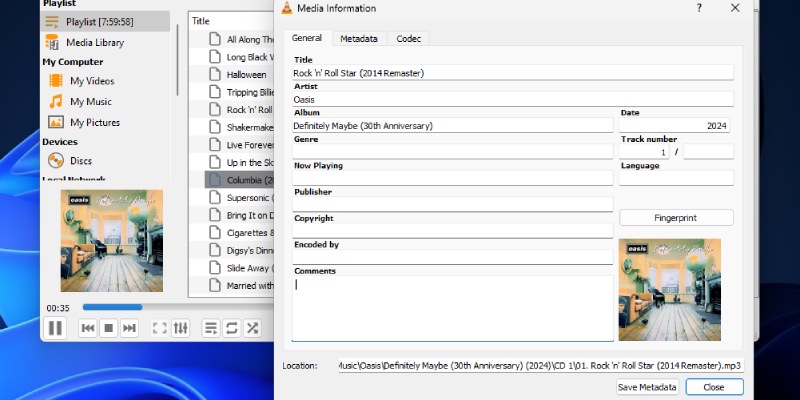
This will open a window where you will find fields like “Title”, “Artist”, “Album”, “Genre” and more. You can even add album art by right-clicking the square in the bottom right and selecting “Add cover art from file”. There is also an option to download covert art from the Internet, however, in my experience it doesn’t always retrieve the correct artwork. For that reason, I’d stick with downloading the cover art to your PC and pointing VLC to that image file. Edit the metadata tags as you see fit, add some album artwork and click the “Save Metadata” button to apply your changes.
Using Windows Media Player to Edit Audio Metadata
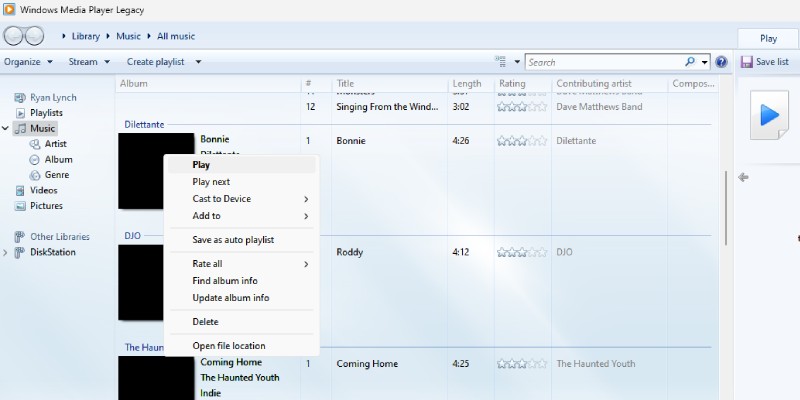
If you’re using a Windows PC, there is a legacy application included with the OS called Windows Media Player (WMP) Legacy. This isn’t to be confused with the revamped, updated Media Player. If you don’t have the old WMP app, you can still get it. As the name suggests, it can play various media files, but it really shines when editing metadata tag information. This is because WMP edits tags automatically. It does this by scrubbing various online databases to find the correct metadata information.
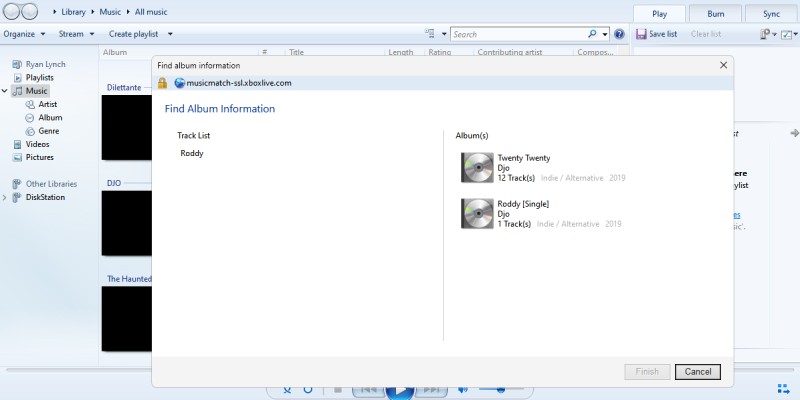
To get started, launch Windows Media Player Legacy. If this is the first time you’ve done so, the app will ask you if you want to allow it to connect to the Internet to retrieve information. Accept this and follow the prompts to show WMP where your music files are located. This will populate WMP with your music library. To edit the metadata info for a particular track, right click on the song and select “Find Album Info”. When WMP thinks it has found the right info, you can review it before applying it to your files. Click on the “Finish” button to apply the changes.
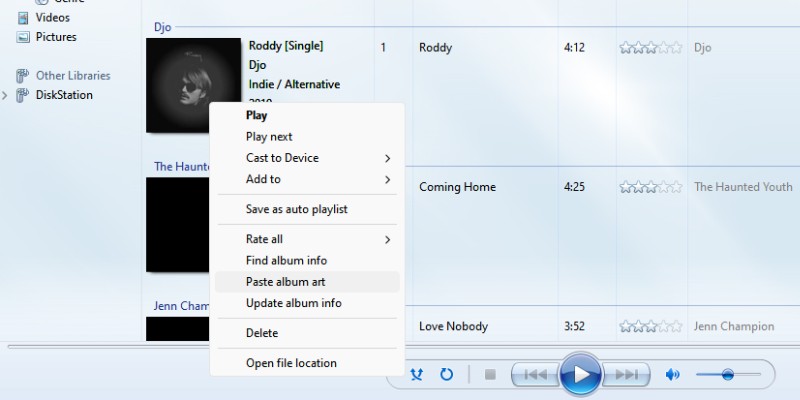
In some instances, Windows Media Player does not retrieve the album cover art. If this happens, you’ll need to add it manually. Conduct an image search for the album artwork. Once you find a suitable image, right-click it and select “Copy image”. Head back to WMP and right-click the square album art icon next to the track and select “Paste Album Art”.
Using Apple Music App
The default music player for Mac computers is known as the Apple Music App, although I’ll always refer to it as its original moniker, iTunes. Nitpicking aside, the Apple Music App can also easily edit metadata tags without having to download third party software.
Just launch the Music App and find the song you wish to edit and right-click on it. As a former Mac user, I always achieved this by pressing and holding the Ctrl key while clicking, but there are a bunch of other ways to right-click on a Mac. In the menu that appears, select “Get Info”. In the “Details” tab, you’ll be able to edit various metadata tags such as song title, artist, album and more. Once you’ve made your edits, click OK to apply your changes.
Note: you can also locate the music file you want to edit in Finder and follow the same steps outlined above if you want to bypassing opening the Music App.
Use Musicolet on Android
Musicolet is one of the most beloved music players for Android devices, which is saying something since it is a crowded field. This is due to the fact that Musicolet has a number of attractive features built-in to the app, including a robust metadata tag editor. To get started, install Musicolet on your Android device and follow the set-up prompts.
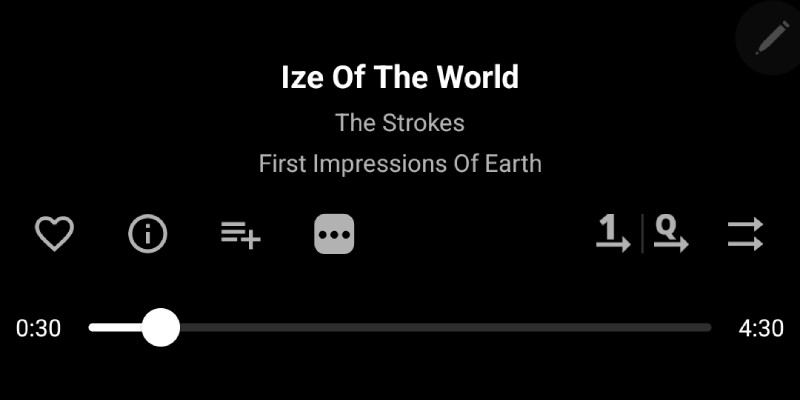
Once your music library is populated within the app, select a song to play. On the Now Playing screen, tap on the three horizontal dots above the progress bar. In the menu that opens, tap on “Edit Tags”. Here you’ll be able to edit a variety of metadata fields. You can even add lyrics to the file!
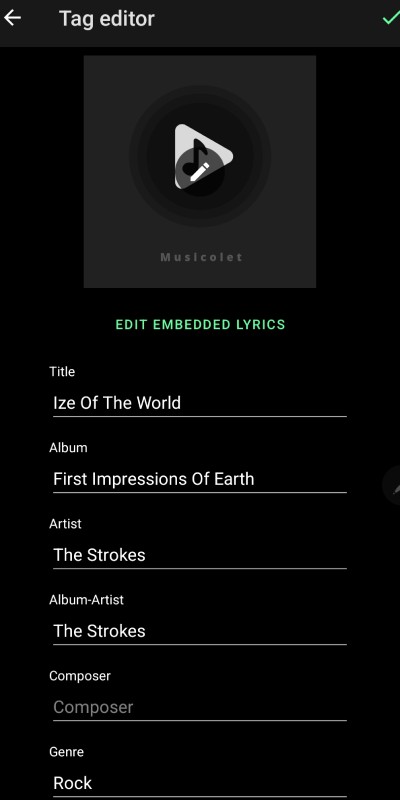
You can even add or change the album art. To do so, click on the album art icon. If there isn’t any album art associated with that file, it will just be the Musicolet logo. A pop-up will appear giving you two options.
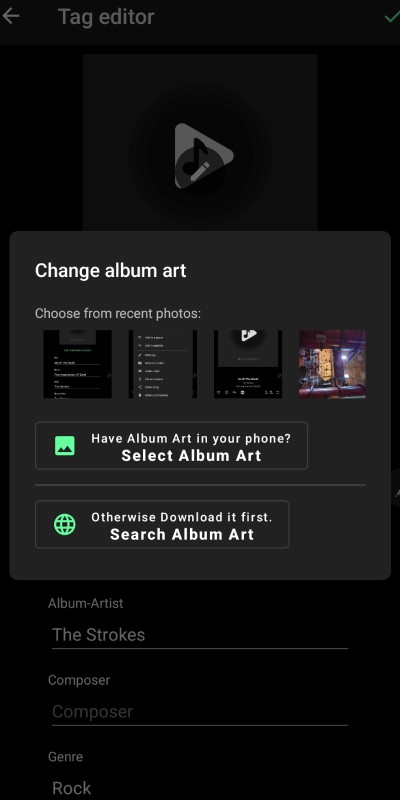
If you have the album art image downloaded on your device, tap on the option labelled “Select Album Art” and point Musicolet to the relevant image. If you don’t have the image on your phone, tap on the option labelled “Search Album Art”. Doing so will open your device’s default browser and automatically search for the album art based on the metadata info.
Wrapping up
There are a number of ways to edit the metadata of your audio files. Once your music collection is properly tagged, navigating your music becomes a breeze and you’ll wonder why you didn’t do it sooner. So what are you waiting for? Get to tagging!
Image credit: Unsplash. All screenshots by Ryan Lynch