


Updating your current status to everyone is one of the most exciting features of Facebook. However, in some instances, you may want your status to be seen by now those who can access your Facebook profile. For example, do you really want to share your status about “Party at my place today!” with your parents and all of your family members? Most probably not, so this is where Privacy Control options will help you.
Facebook gives you complete control over who can see your status and from whom you would like to hide it. All this can be quickly done while updating the status with just a few clicks. Below, you will see the complete process of updating your status for specific people only.
Updating Your Facebook Status for a Specific List of People
Facebook automatically divides people in your contacts by categories such as Friends, Family, Work, Location, etc. While updating your status, you can choose one of these lists to share your status with only those specific people.
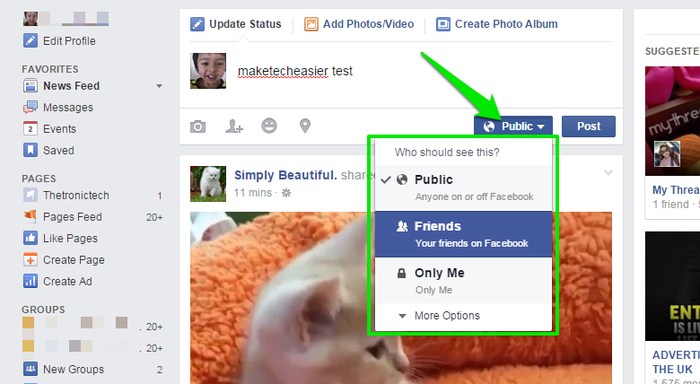
To do so, click on the “Public” button below the status bar while writing your status. You will see a drop-down menu where you can choose to share the status publicly or just with your friends. While “Public” is selected, your status can be seen by anyone who can access your profile, including non-Facebook users. And if “Friends” is selected, then your status will only be shared with people who you have explicitly added as your friends on Facebook.
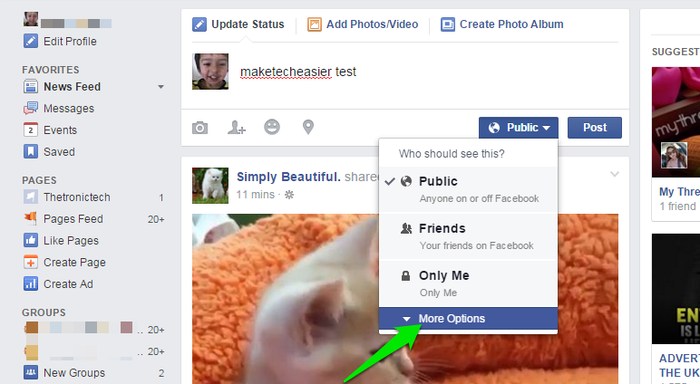
If you want more choices, then click on the “More Options” button at the end of the drop-down menu. Now you will see lists like Family, Work, specific demographic locations, etc. These lists are automatically created according to your contacts and activity on Facebook.
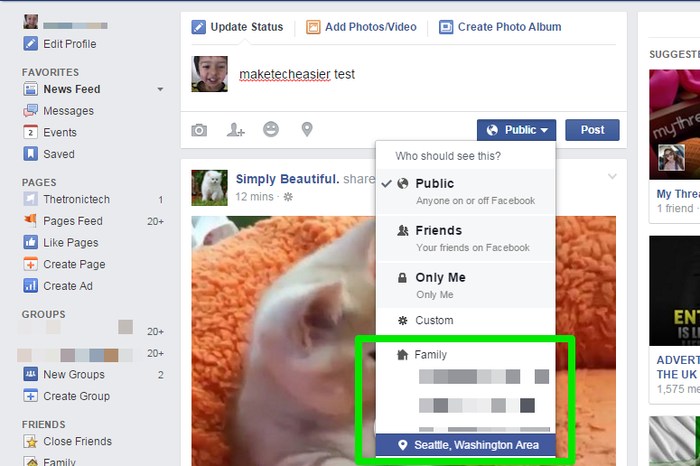
Update Your Facebook Status for Specific People Only
Above is a simple process of updating your status only for a specific group of people. However, if you want more control and want to show or hide your status only to specific people, then Facebook offers that as well.
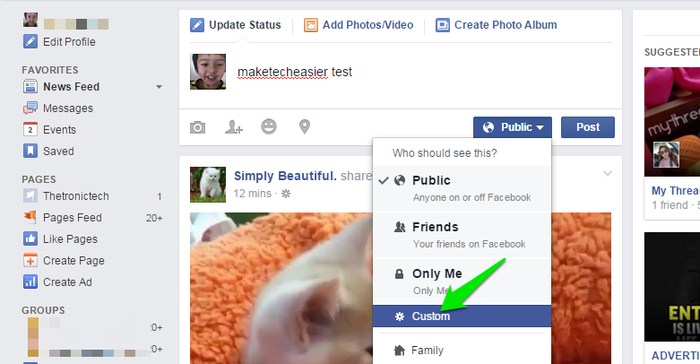
For this purpose, click on the “Custom” button that shows up when you click on the “More Options” button in the drop-down menu.
A dialog will open where you will see two sections: “Share with” and “Don’t share with.” Anyone added in the “Share with” section will be able to see your status even if they are added in your restricted people list, while anyone added in the “Don’t share with” section will not be able to see the status even if they are in your friends list and you share your status with friends.
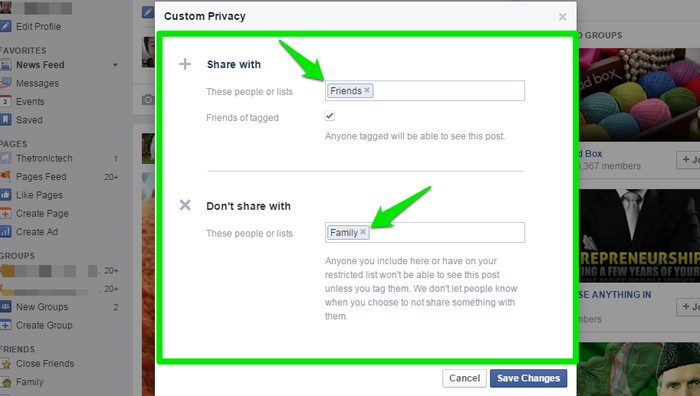
This provides complete control over your status privacy. For example, you may want to give a party invitation to all your friends but might want to skip on party pooper Jim who happens to be in your friends list. Just put him in the “Don’t share with” section and freely update your status with other friends.
You can add or skip specific people or even a specific list of people by adding them in the “Share with” or “Don’t share with” sections. Just type the first letter or a few starting letters of your friend’s or list’s name and Facebook will automatically find them for you to add them.
Note: the new privacy settings will be used when you want to update your status again, so make sure you reconfigure these options before updating your status again (if required, of course).
Conclusion
Updating your Facebook status for specific people can be really handy in certain situations. Now that you know this simple trick, you won’t have to worry about your boss or parents reading your status on Facebook. Do comment below and let us know how you take advantage of this privacy control feature of Facebook.