


Google Docs has a ton of benefits. You’re less likely to lose data to corrupt or lost files, can collaborate in real-time, and can also upload your Word documents and access them anywhere.
But Google Docs has one downside you can’t ignore – image extraction. That’s right, you can’t extract images directly from Google Docs.
No worries, though, as there are workarounds. Here are three workarounds to extract images from Google Docs.
Also read: How to Add a Written Signature to Google Docs
1. Use Screenshots
This option is best for extracting just one or two images from a document, and there are better options for extracting multiple images or all of the images from a document.
You can use any image-editing software to achieve this.
1. Go to Google Docs on your browser.

2. Select and open the document you want to extract images from.
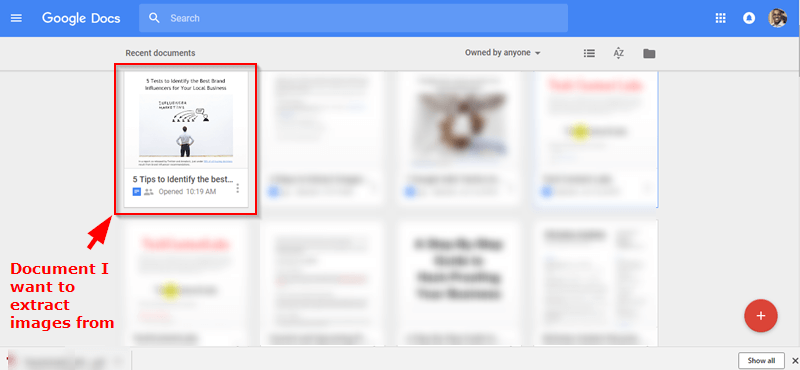
3. With the page open, scroll to the image you want to extract. On your keyboard, press Ctrl + Print Screen to take a screenshot. If you are using Mac, simply press Command + Shift + 3, and it will save the screenshot to your desktop.
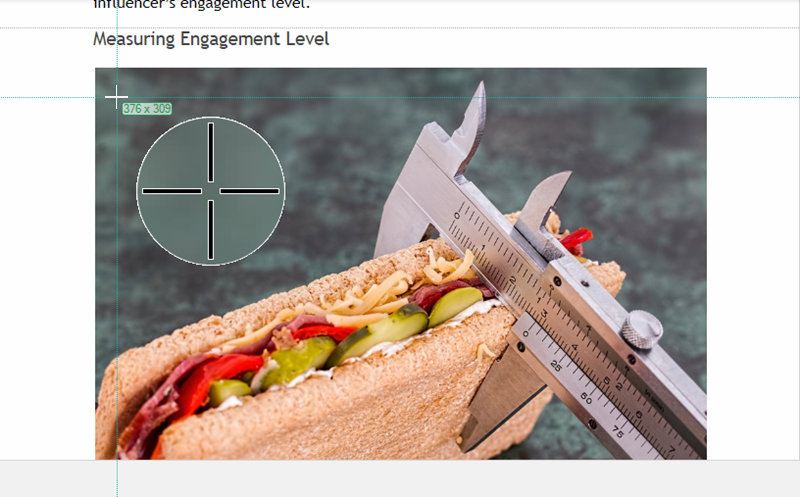
4. Open the screenshot with an image editor, and extract the image you want from the screenshot.
Also read: How to Efficiently Share or Send Google Docs via Email
2. Use “Publish to Web”
In this method the document that contains the picture you want to extract, is first published to the Web. The method works best if you want to edit the images first before downloading them.
1. Open the document you want to use on Google Docs.
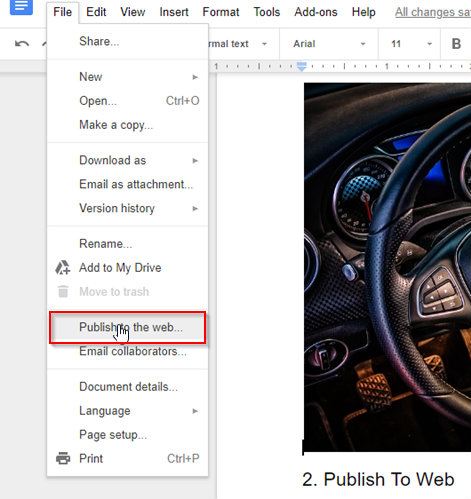
2. Click “File” on the top-left of the page. On the dropdown click “Publish to the web …”
3. Under “Link” you’ll see a blue “Publish” button. Click on it.
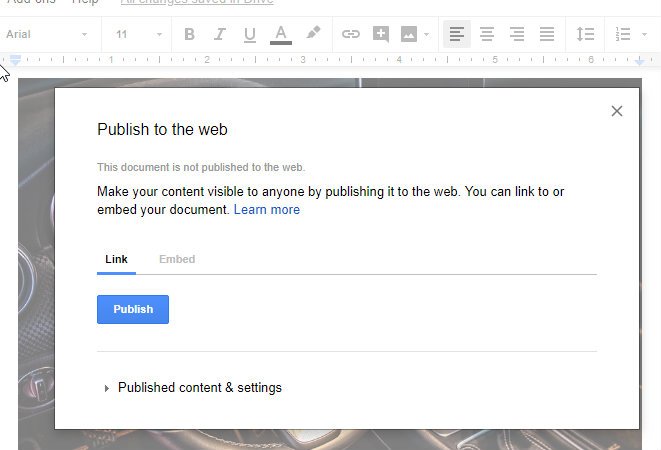
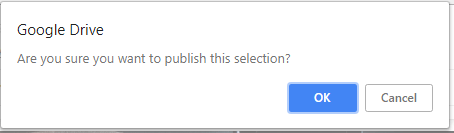
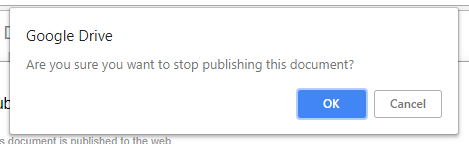
4. Click “OK” on the next pop-up.
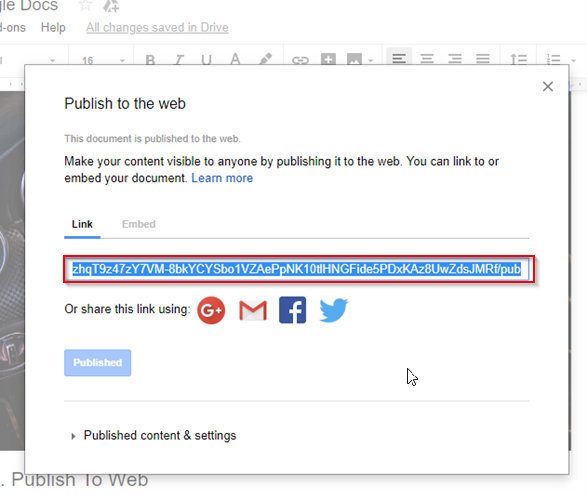
5. Copy the link that is generated, paste it to a new tab and click your Enter key to load the page.
6. If you choose to save an image on your computer immediately, right-click on the image, and select “Save Image As.”
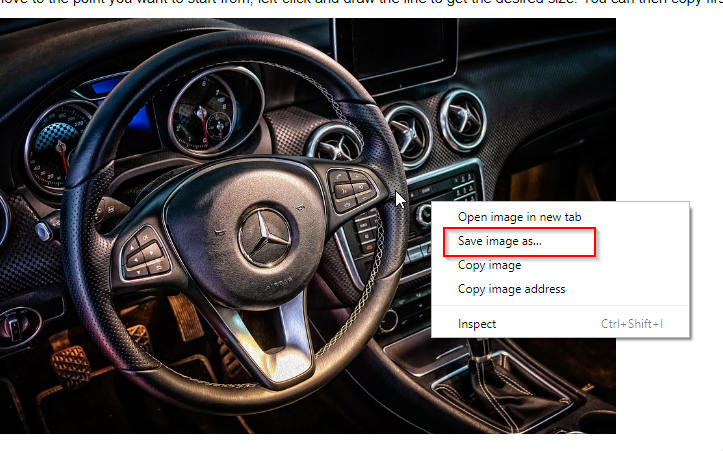
7. Select the location you want to save images to and click OK.
Remember to stop publishing when you’re done extracting the images. Go back to the Google Docs document you published. Click “File -> Publish to the web,” and then under “Published content & settings,” click on the “Stop publishing” button.
You may have to expand the “Published content & settings” if you don’t see the button.
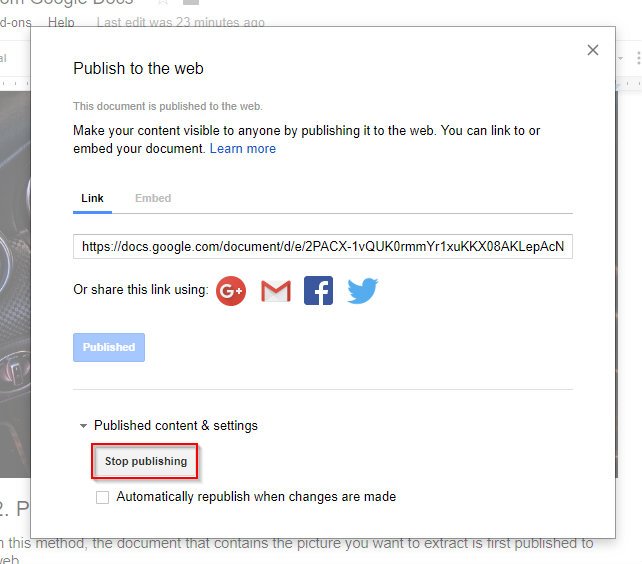
Make sure to uncheck the “Automatically republish when changes are made” checkbox, and then click OK on the next pop-up.
Also read: How to Efficiently Share or Send Google Docs via Email
3. Download as a Web Page and Extract to Folder
If there are too many images in the document, and you want to extract them all, you might want to use this method.
The following shows how it works.
1. Click “File” and select “Download As” from the drop-down. Go to “web page (.html, zipped)” on the list that follows.
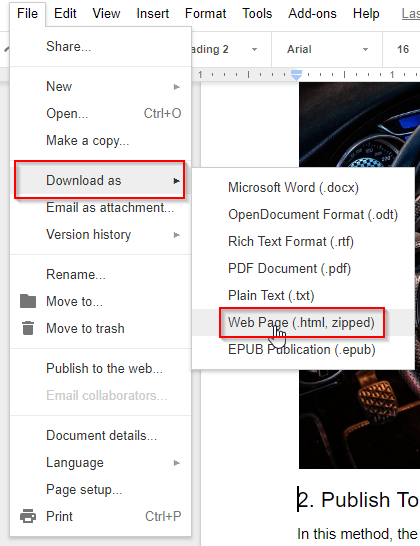
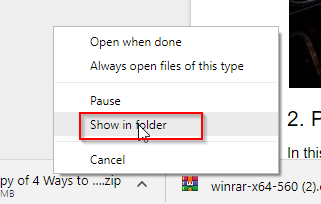
2. This action downloads your document into a .zip file. If you use Windows, depending on your PC and browser settings, you will find the downloaded .zip file at the bottom-left part of your computer screen.
3. Right-click on the .zip file and select the option to “Show in folder.”
4. When you locate the file, right-click on it and click on “Extract here.”
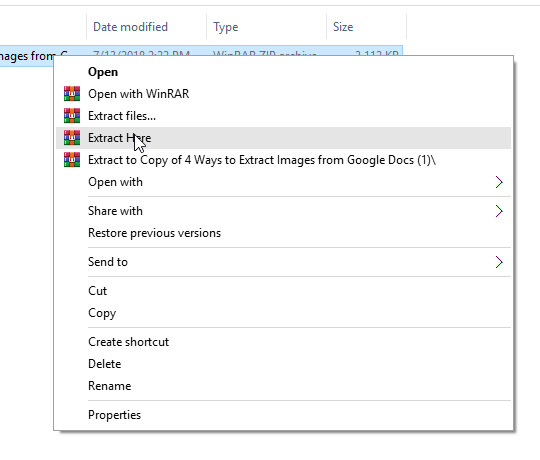
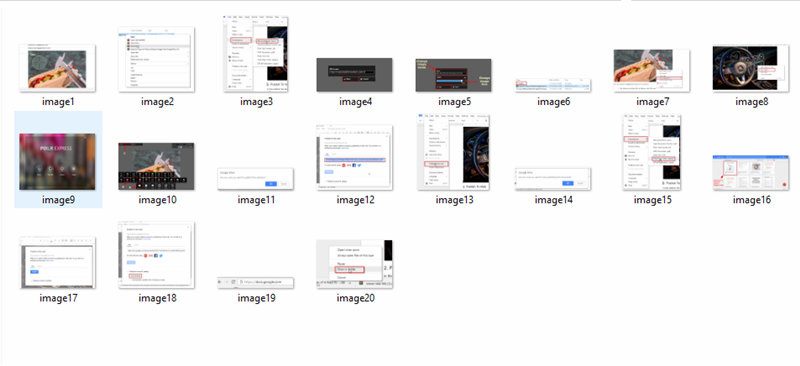
5. All the images would be extracted into one folder.

6. Notice that the images are numbered. These numbers are arbitrary and do not reflect the order in which the images appear on the document.
Wrapping Up
Of all three ways to extract images from Google Docs, I find the third most convenient because it extracts all the images at once, but you should try them all to decide which one you prefer.
Also read: 12 Google Docs Résumé Templates You Should Check Out