How To Edit Photos In Google Plus

Google Plus was recently updated with a new interface and a good number of added features. This includes Creative Kit, a built-in image editor that allows a user to edit photos in Google Plus right within the app. The following instructions illustrate how this is done.

To edit photos in Google Plus, you’ll need to find photos you have saved on your Google + account. Hover over the Home button on the top left corner and go to Photos.

google creative kit menu

You’ll see your photos in tiled view. The default tab is Highlights, but go to the Photos tab to view all photos. Click on the photo you want to edit.

This brings up the photo in full view, and you should see an “Edit” option on the top bar of the photo page. Click on this and wait for the photo editor to load.

google-creative-kit---edit-photo

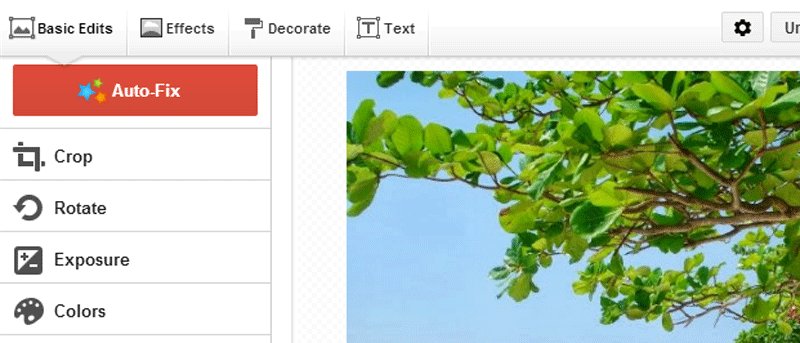
The controls for editing the photo appear on the left side of the new window, while the photo appears centered in the middle of the page.

An Auto-Fix option is used to quickly fix common aspects of the image, such as colors, exposure, and tint. If you’re not satisfied with the overall quality of your image, I suggest you try this option first. An Undo and Redo button is located on the top right corner if you want to undo or redo the last action.

google-creative-kit--editing-panel

In addition to Auto-Fix, there are four more tabs on top of the photo editor screen. These are: Basic Edits, Effects, Decorate and Text. To know more about each feature, you can click on the question mark found on the right side of a control button.

Basic Edits allows you to crop, rotate, resize or sharpen an image. Other options like Exposure and Colors have automated features, just like Auto-Fix.

Each of these options expand to show added controls for using the feature. When you’ve adjusted the right tweak for your image, click Apply.

The Effects tab includes a selection of filters, some exclusive to Google +, while some are seen in other photo-editing tools. These filters can be applied as is, or you can use the sliders to adjust the intensity of the filter and allow more of the original image to show through.

google-creative-kit-filters

The Decorate tab allows you to add graphics to your image, including doodles, speech bubbles, and other elements that add a bit of humor and personality to your image. Choose from a wide collection of graphics and drag and drop them to your image.

google creative kit decorate

The last tab is used to add text to a photo or image. A box on the top left corner is provided for typing in the text, while a list of fonts are listed below. Type the text, choose a font, then click the Add button below the text field. You should see the text box within the image. Click on the box to bring up the Text Properties window which gives you more options such as color, alignment and font style.

google creative kit text

If you happen to be browsing your photos in Google + and need a quick fix for some of them, then this option is the perfect solution. Creative Kit has all the basic functions to edit photos in Google Plus. In addition to its accessibility, it has a simple and elegant interface that’s easy to learn and manage, so editing your photos shouldn’t be a tedious task.

How do you edit photos in Google Plus? Do you have a tool to do it in the app or browser or do you use a different method? Let us know in the comments area below.

Subscribe to our newsletter!

Our latest tutorials delivered straight to your inbox

Kim Barloso Avatar

Read next

Suzanne Simard sealed paper birch and Douglas fir seedlings inside plastic bags, fed them carbon-14 and carbon-13 dioxide, and nine days later found carbon had crossed between species through fungal threads in the British Columbia soil beneath her boots
A species of jellyfish called Turritopsis dohrnii can revert its adult cells back to a juvenile polyp stage when injured or starving, effectively restarting its life cycle, and biologists have so far failed to identify any natural limit to how many times it can do this.
A Japanese man named Jiroemon Kimura, who lived to 116, was born in 1897 when Queen Victoria still ruled and died in 2013, meaning a single human life personally overlapped with the invention of the airplane, the atomic bomb, the internet, and Instagram
The Hollywood sign originally read HOLLYWOODLAND when it was built in 1923 as a real estate advertisement for a housing development, and it was only meant to stand for 18 months, but nobody ever got around to taking it down and the city eventually adopted it as a landmark
Almost all of the world’s internet traffic does not travel by satellite but through fibre-optic cables lying on the ocean floor, a hidden web of wires crossing the deepest parts of the sea to connect the continents.
People who flip their phone face down on every table aren’t being secretive. They figured out that staying interruptible meant handing their time to whoever rang first
Twitch vs. Facebook Gaming vs. YouTube Gaming: What’s the Best Live Game Streaming Platform?
Chrome Extensions Ownership Transfer is a Direct Threat to You: How to Stay Safe