


Microsoft Edge has made a good impression on Windows 10 users thanks to its light, fast-loading sites and non-intrusive interface. It features exciting features such as Read Mode and Web notes. This is something that is already available in other browsers, either directly or through plugins, but Edge includes it by default.
Edge still has a long way to go to be an appealing browser such as being able to recover closed tabs, plugins or save a site. Microsoft is working on that, and hopefully we won’t have to wait too long for it. In the meanwhile, Edge is a capable browser if you visit sites with a lot of text because of Reading Mode since it can eliminate anything that you may consider distracting.
Switch Out Microsoft Edge as Windows 10 Default Browser
Microsoft Edge is the default browser for Windows 10, whether we like it or not. If you don’t want it to be your default browser and want to change it for another one, here is how:
1. Click on the Start button and click on “Settings.”
2. Click on “Predetermined App,” and look for web explorer.
3. Select the browser you want by default (assuming you have already installed another browser like Firefox or Chrome).
Program Various Homepages in Microsoft Edge
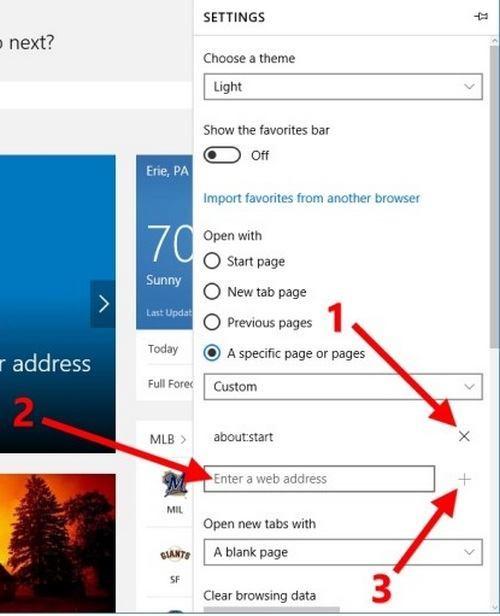
If you want to see certain pages start up every time you launch Edge, you can set up as many pages as you like:
1. First, open Microsoft Edge and go to “Settings.”
2. Under the “Open with” section, select “A specific page or pages.” Click on “Custom” and enter the URL of the site you want to see every time you start Edge. If you wish to enter another one, just click on the plus icon, and you are good to go.
Protect Your Privacy in Edge
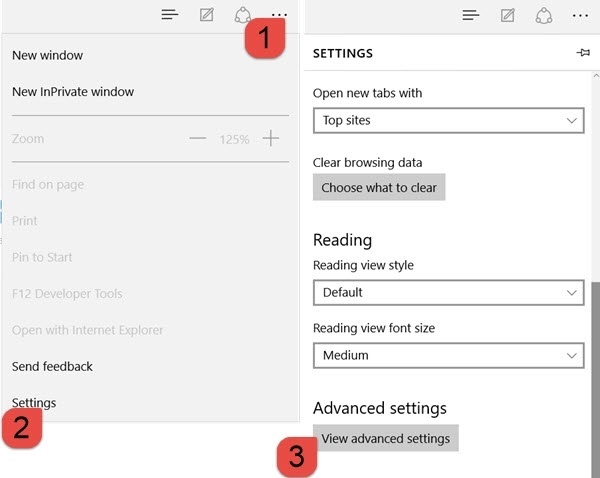
There are just things that we don’t want any browser to collect, and if that is the case with you, you can decide what Edge can and can’t do in “Advanced Settings.” There you can deactivate Adobe Flash Player, save passwords or not, send “do not track applications,” and activate page prediction. With this last function, the pages will preload so they can be ready when you switch over to other linked sites.
If you activate “Protect my PC against Downloads and Malicious sites” with SmartScreen, Edge will keep you safe from phishing. You will need to send them the sites you visit so they can link them. You might want to deactivate “Show Search Suggestion” when typing because they have to analyze your data to select those suggestions.
Activate the Microsoft Edge Home Button
In Advanced Settings you will also find the option to enable the Home Button, something that is not enabled by default. You can also choose what to see when you open a new tab: the browser’s start page, a blank page, most recent sites or the ones you choose.
If you see a page you like, you just have to click on the start icon to add it to your favorites. To read it later, but without adding it to your favorites, click on the start icon and Reading List.
Import Favorites in Edge
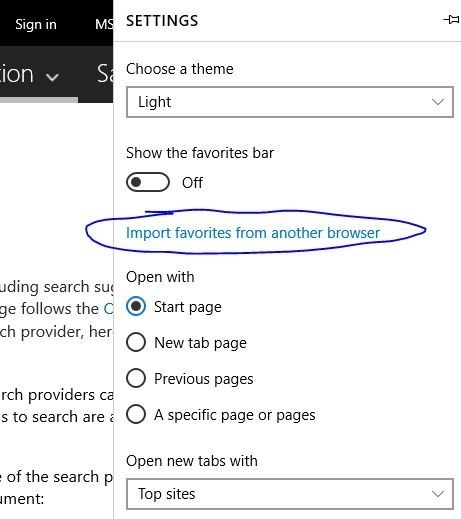
Importing your favorites from another browser is very easy. All you have to do is:
- Click on the 3 horizontal dots
- Click on Settings
- Click on Import favorites from another browser
Keyboard Shortcuts for Edge
These are some useful keyboard shortcuts for Microsoft Edge:
- CTRL + D – To Save sites into favorites or Reading List
- CTRL + T – Open a new tab
- CTRL + Enter – When you are typing a site’s URL, this adds the .com and goes to the sites
- CTRL + I – Open favorites on the side of the screen
- CTRL and “+” sign – Increases the font size
- CTRL and “-” sign – Reduces the font size
- CTRL + O – Default Font Size
What to Do When a Page Doesn’t Look Good on Edge
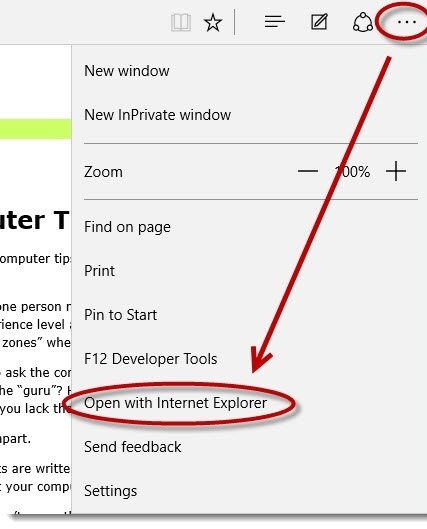
Certain sites don’t look so good on Edge just yet. Microsoft has advised users to use Internet Explorer to visit sites that use Silverlight. If you come across one of these sites, you can access the site through Internet Explorer by clicking on the Ellipses (3 horizontal dots) and choose Open with Internet Explorer. (And if you are still using Internet Explorer, make sure it is Internet Explorer 11 as all previous versions are now unsupported by Microsoft.)
Conclusion
With these useful tips, you will feel like an Edge Pro and use it to the fullest. What Microsoft Edge tips do you know? Let me know in the comments.