
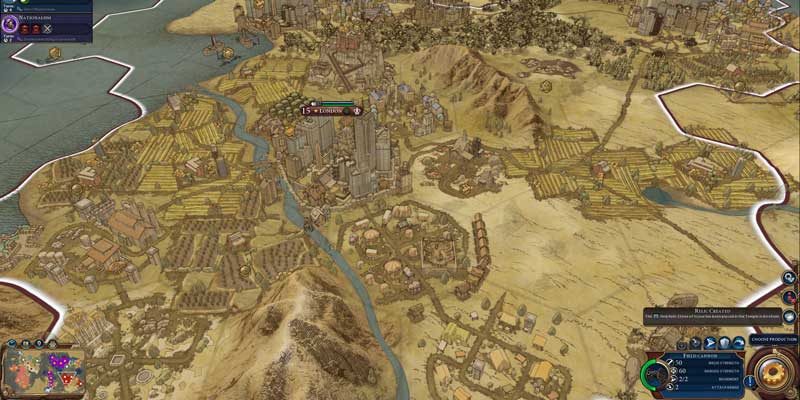

Ever look at your screen and wish you could just crank a little bit more resolution out of it than it’s physically capable of? Sounds like a pipedream, but the reality is that you can crank more resolution out of it using a special something called downsampling (or, in less friendly terms, OGSSAA – Ordered Grid Super Sampling Antialiasing. Try saying that over and over again). While it doesn’t physically cram more pixels into your display, it can provide a big boost to your gaming performance.
Here we’ll show you what downsampling means and how to do it using both AMD and Nvidia graphics cards.
Note: this feature is mostly useful for gaming rather than increasing your desktop resolution, so don’t expect to turn your desktop into a fully functioning 4k display!
Also read: How to Use ExitLag for Lag-Free Gaming
What Is Downsampling?
The magical process of downsampling makes your computer think that your monitor is capable of handling higher resolutions, so when you switch it on, you’ll see in your games and Windows display settings that higher resolutions have appeared. In terms of its effects, it’s more akin to a very powerful form of anti-aliasing rather than actually increasing your desktop display (hence it’s OGSSAA alias).
The trick behind this is that when you select this higher resolution, your graphics card renders the full resolution, but then squeezes it down to fit on your screen which offers crisper images, less jaggies and more screen space. Note that this puts as much strain on your graphics card as it would to actually use that higher resolution, so in games in particular, expect a big performance hit unless you have a powerful card. With older games, however, you’re laughing.
Also read: AMD Radeon Software Settings – What Do They All Mean?
Also read: What Is a MUX Switch and Why Should Your Next Gaming Laptop Have One?
Downsampling on AMD: Virtual Super Resolution
For a couple of years now AMD has included downsampling in its driver packages under the snazzy title of “Virtual Super Resolution.” Finding it is easy. Just open your Radeon Settings, and the “Virtual Super Resolution” option will be right there. Click it to turn it on, and your screen may go blank for a second, but will then reappear (still in its original resolution).
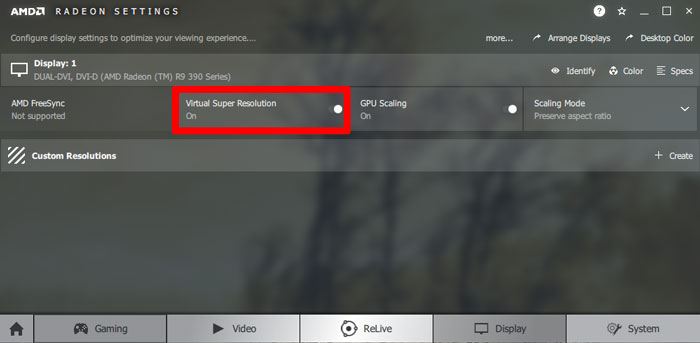
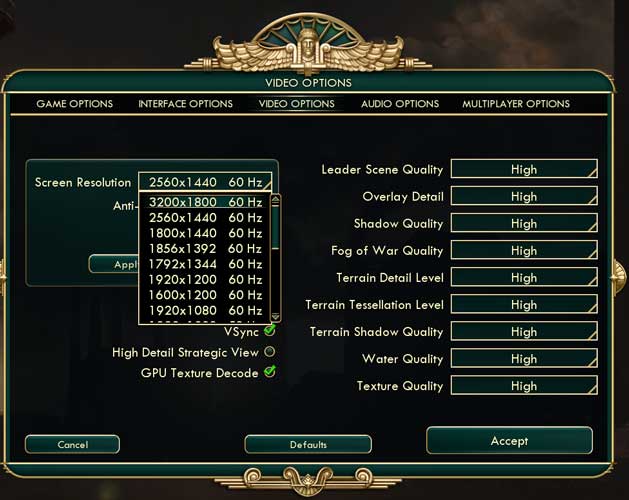
But now you’ll have extra resolution options unlocked, depending on the base resolution of your monitor. So if you have a 1080p display, you can crank your resolution up to 1440p or 4K, and 1600 x 900 resolutions can go up to 1080p while 1440p/QHD displays go up to 3200 x 1800.
You can increase your desktop resolution by right-clicking on the desktop, then clicking “Display settings,” but don’t expect great results. The real effects will be tangible when you use these higher resolutions during gaming.
Downsampling on Nvidia: Dynamic Super Resolution
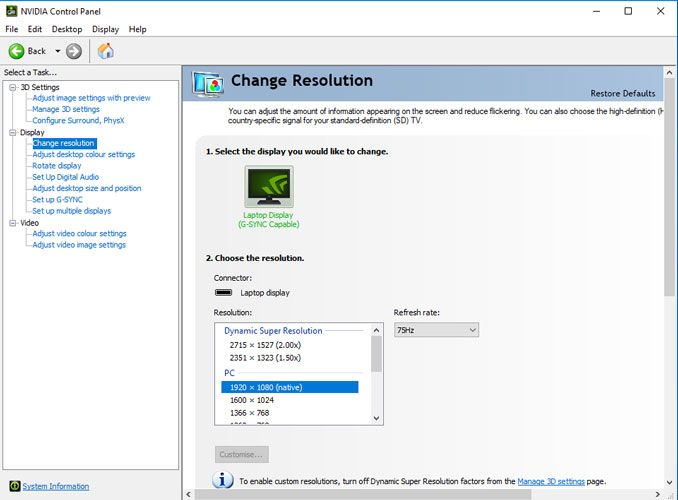
Nvidia’s equivalent downsampling function is called “Dynamic Super Resolution” (DSR) and does much the same thing. Go to your Nvidia Control Panel, click “Manage 3D Settings” in the pane on the left, then find “DSR – Factors” in the box and select the resolutions you’d like to downsample from. You can tick a few resolutions, so they’ll all be available to you from now on.
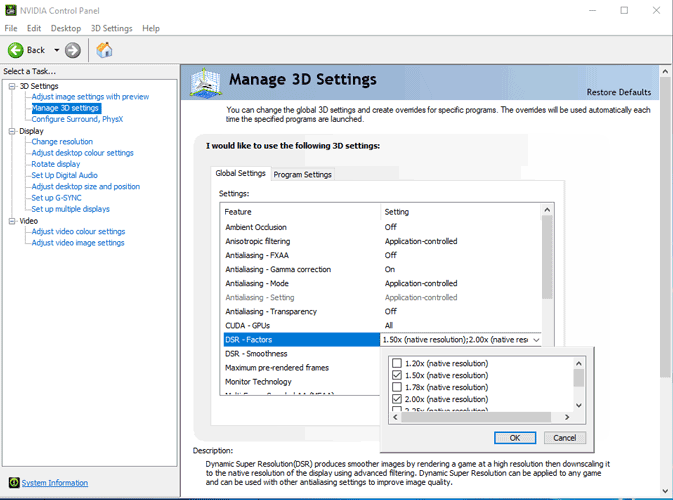
If you find that the picture quality during gaming looks too rough or that text isn’t clear, or conversely if the image looks too blurred to your liking, you can go back to the Nvidia Control Panel and change the “DSR – Smoothness” setting into one that gets things looking how you like them. My personal preference is to stick smoothness at 15%.
Also read: 10 Tips to Optimize Your Windows 11 PC for Gaming Performance
Conclusion
Downsampling is one of the best ways to smooth out the image quality on your gaming rig. It doesn’t work uniformly well across all games, however, so you’ll need to just try it out on a game-by-game basis, and see where it works best.