


For all of the incredible entertainment Netflix brings to our lives, autoplay video previews is not part of it. Netflix fans have long asked the company to allow an option to disable these previews. Thar time has finally arrived, and the video streaming giant will now allow users to turn off the bombardment of sound that is the autoplay video preview. We know you’re ready to get to the goods, so here is how to disable Netflix’s most annoying feature.
Wait! Why Do Autoplay Video Previews Exist?
This is actually a really great question with a strong answer. Originally launched to users near the end of 2016, Netflix had a strong belief that its users needed a way to find new content. At the time, the company expected to launch over 1,000 hours of original content in the coming year. With that in mind, Netflix knew it had less than 90 seconds to capture the attention of its user-base. The company saw these previews as a way to “continually evolve the Internet TV experience.”
Unfortunately, users have revolted and blogs have made no attempt to hide their disdain for this feature. Even Star Wars: The Last Jedi director Rian Johnson called Netflix out on Twitter back in 2018, a good 18 months after these previews went live. Fast forward to today, and Netflix is finally listening to its users and providing them with a way to disable these previews forever.
Also read: Top Tips to Enhance Netflix Viewing
How to Disable Autoplay Previews Under Profiles
The very first thing you need to do is make sure you are signed into your Netflix account on the web. Next, follow these steps exactly, and in less than a few seconds you’ll be rid of these awful previews for good.
1. Click on your profile picture in the top-right corner of the screen. Next, select “Manage Profiles.”
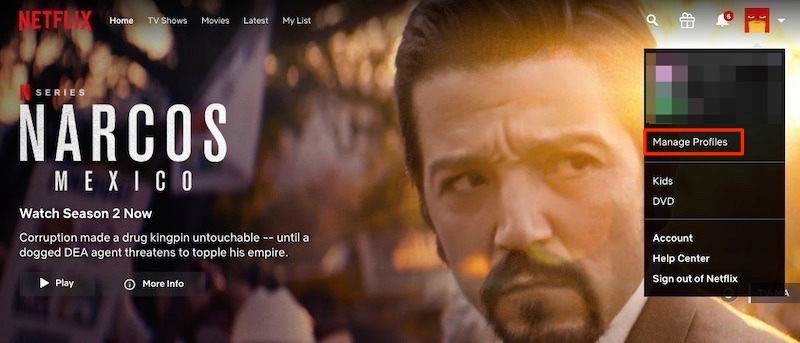
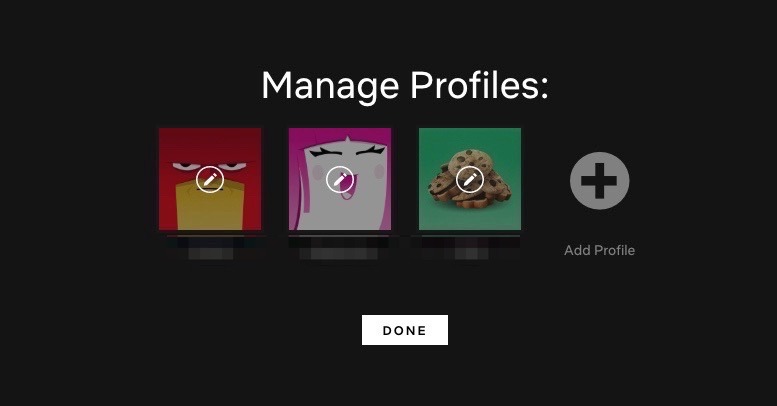
2. You need to select which profile (if applicable) you want to customize the settings for. This part is critical, as disabling autoplay video previews for one user does not mean your Netflix account as a whole is disabled.
3. Uncheck the box that is labeled “Autoplay previews while browsing on all devices.” Make sure you note that this says “all devices” so that your iOS-, Android- and desktop-based Netflix experience will be rid of these previews.
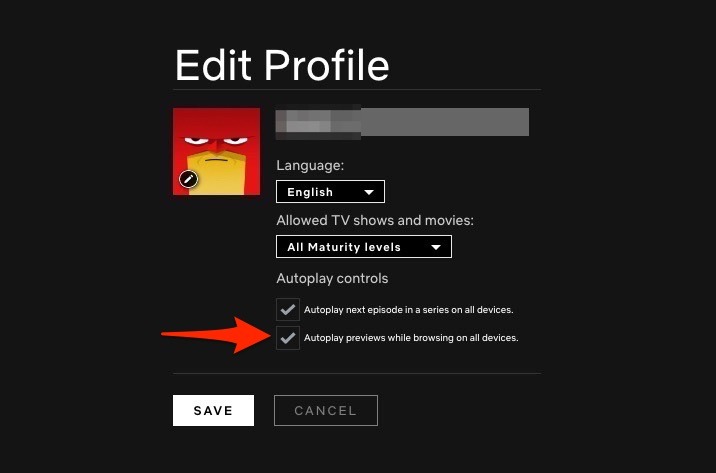
4. Click on “Save,” and you are free of this video preview injustice.
It’s worth noting that some users have seen a delay in this setting taking effect so give yourself a little bit of time before trying the process again. If it does not work after a while, log out of Netflix, log back in and try again.
How to Disable Autoplay Previews Under Your Account
Wouldn’t you know it that Netflix would give us not one but two ways to disable this “feature?” Like the method above, make sure you are logged into your Netflix account.
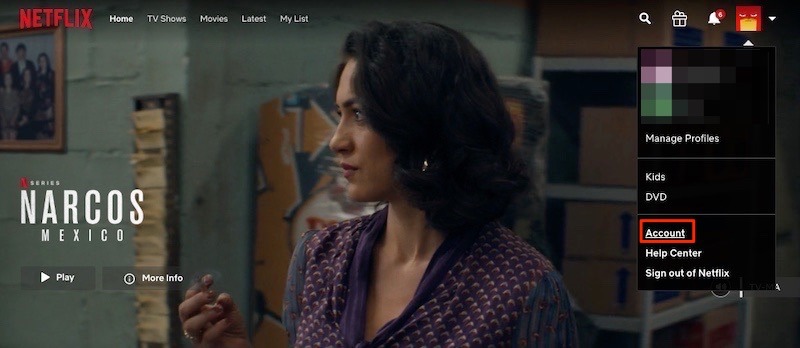
1. Hover your mouse cursor over your profile picture so the menu drop-down is enabled and click “Account.”
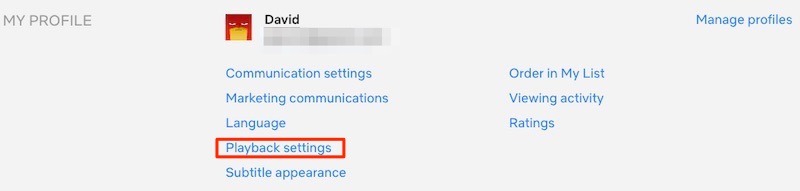
2. Under your account profile, scroll or look down until you see an option underneath “My Profile” labeled “Playback settings.”
3. Uncheck the box that says “Autoplay previews while browsing on all devices.” Again, this is similar to the step above. We are just navigating to this option in a slightly different way.
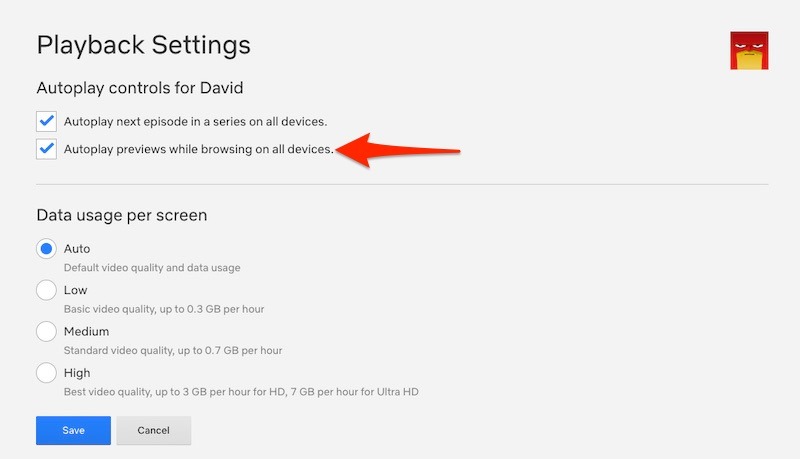
4. Press “Save” to make sure your changes are saved.
That’s all there is to it. Now go forth and enjoy a little peace and quiet.
Conclusion
For all the good entertainment value Netflix has brought into our lives, autoplay video previews has definitely been one of the least appreciated features. However long it took, Netflix users were overjoyed to see that the company has finally listened and made this optional. While we would love to see the company proactively let their users know, it is likely still counting on these previews to help at least some of its existing user base find new content. Will you be disabling this feature in the near future? We’d love to hear from you in the comments below.
Related: