


One of the best way to navigate Gmail’s interface is via keyboard shortcuts, and Google provides you with plenty of keyboard shortcuts in Gmail. The next best thing is that you can also customize the keyboard shortcuts to your preferences. Here we show how you can customize keyboard shortcuts in Gmail.
Also read: Gmail Keyboard Shortcuts Cheatsheet
Enable Custom Keyboard Shortcuts
Before you can customize the keyboard shortcuts in Gmail, you have to first enable them. The process is pretty simple.
1. Open Gmail on your browser and sign in with your credentials.
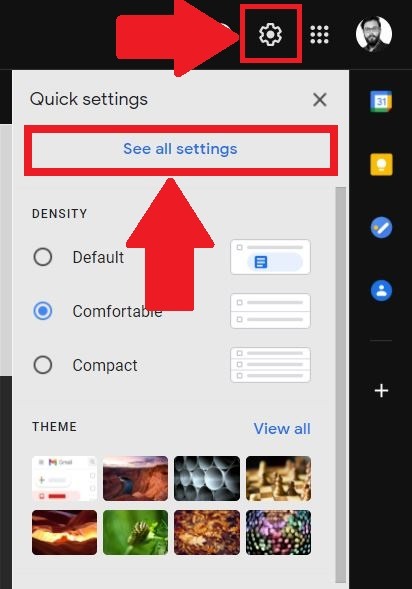
2. Click the “gear” or “Settings” icon on the top right of the interface. From the drop-down menu, select the “See all settings” option.
3. Head over to the “Advanced” tab. Here, find the “Custom keyboard shortcuts” option and select the “Enable” button.
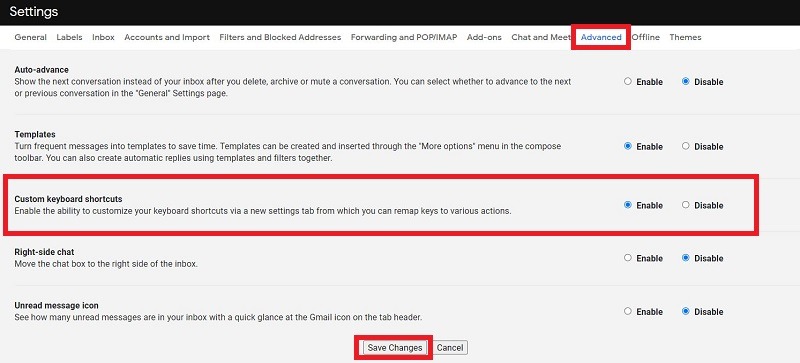
4. Click on “Save Changes.” Now you will see that “Keyboard Shortcuts” is enabled, and a new tab will show up under the “Settings” menu.
Customize Keyboard Shortcuts in Gmail
After enabling the keyboard shortcuts option in Gmail, you can now customize them to your preferences.
1. Go to the “Keyboard Shortcuts” option in the Settings. You will notice custom keyboard shortcuts next to the action, along with the option to set an alternative shortcut.
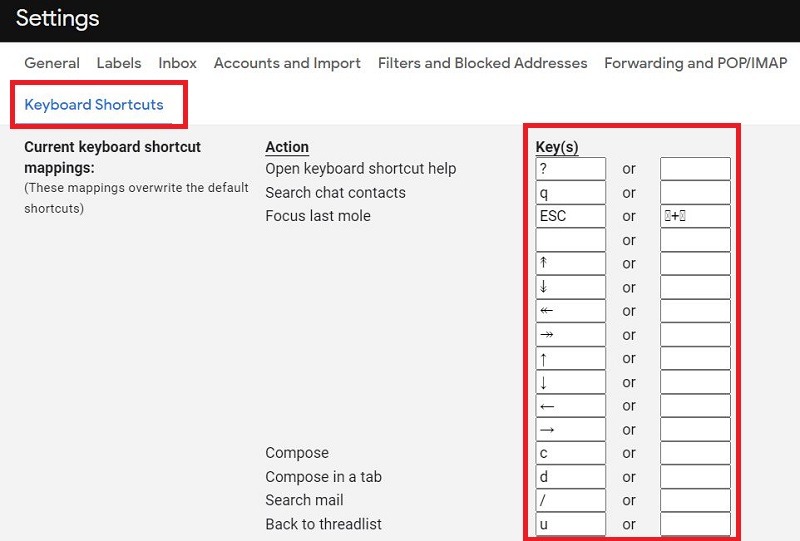
2. Enter your preferred keyboard shortcuts for each and every action.
Also read: 11 Useful Gmail Search Tips to Improve Your Productivity
3. Once you are done, scroll down and press the “Save Changes” button.
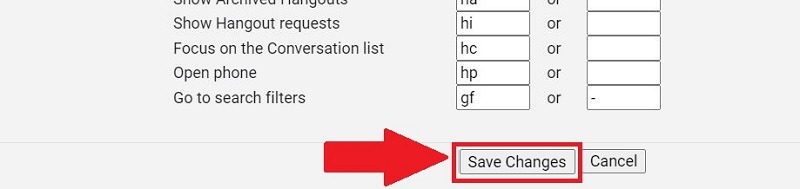
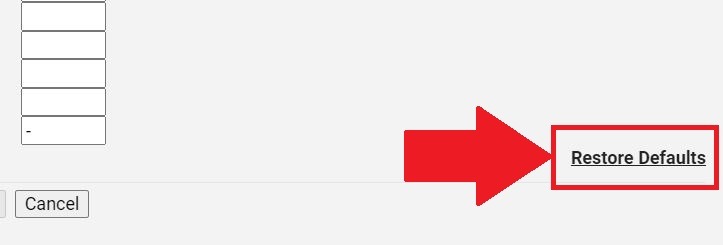
4. If you change your mind and want to restore all the keyboard shortcuts back to the defaults, press the “Restore Defaults” button and click “Save Changes” under the “Keyboard Shortcuts” tab in Settings.
That’s it! You have just chanbged the keyboard shortcuts for Gmail to your preferred keys.
Wrapping Up
It is very easy to customize the keyboard shortcuts for Gmail, and I am glad that Google provides such an option to do so. If you are having trouble using Gmail, you can find out how to fix the Gmail not working issue. You can also turn off smart reply and smart compose in Gmail if you find them disrupting to your user experience.