


A sitemap is a must for those who care about search engine optimization (SEO) because it helps search engines like Google crawl and index your website more efficiently. By following our guide and learning how to create a WordPress sitemap without a plugin, you’ll give search engines an easier way to understand your site’s structure, ultimately boosting your online visibility. Let’s get started!
[mte_toc]What Is an XML Sitemap?
Simply put, a sitemap is an XML file that serves as a roadmap of your website, listing all the important URLs along with some juicy details – like when a page was last updated or how often it changes. The good news? The structure of this XML file follows the Sitemap protocol, making it pretty straightforward to create one manually using PHP code.
Create a Sitemap in WordPress
First, you’ll need some PHP code to generate your sitemap. Specifically, you need to fetch all published posts and pages, add their URLs to your sitemap file, and, finally, save the sitemap file to your root directory.
Luckily for you, we have crafted a ready-to-use PHP snippet that does all of this for you, so you can simply copy it:
// Function to create a sitemap.xml file in the root directory of the site
// You can uncomment the following lines if you wish to trigger the sitemap generation upon publishing a post or page
// add_action("publish_post", "eg_create_sitemap");
// add_action("publish_page", "eg_create_sitemap");
// This action triggers the sitemap generation whenever you save a post
add_action("save_post", "eg_create_sitemap");
// The main function responsible for generating the sitemap
function eg_create_sitemap() {
// Handle time offset for the site
if (str_replace('-', '', get_option('gmt_offset')) -1,
'orderby' => 'modified',
'post_type' => array('post', 'page'),
'order' => 'DESC'
));
// Initialize the sitemap XML string
$sitemap = '';
$sitemap .= "\n" . '' . "\n";
// Add homepage to the sitemap
$sitemap .= "\t" . '' . "\n" .
"\t\t" . '' . esc_url(home_url('/')) . ' ' .
"\n\t\t" . '' . date("Y-m-d\TH:i:s", current_time('timestamp', 0)) . $tempo . ' ' .
"\n\t\t" . 'daily ' .
"\n\t\t" . '1.0 ' .
"\n\t" . ' ' . "\n";
// Loop through all posts and pages and add them to the sitemap
foreach ($postsForSitemap as $post) {
setup_postdata($post);
$postdate = explode(" ", $post->post_modified);
$sitemap .= "\t" . '' . "\n" .
"\t\t" . '' . get_permalink($post->ID) . ' ' .
"\n\t\t" . '' . $postdate[0] . 'T' . $postdate[1] . $tempo . ' ' .
"\n\t\t" . 'Weekly ' .
"\n\t\t" . '0.5 ' .
"\n\t" . ' ' . "\n";
}
// Close the XML string
$sitemap .= ' ';
// Write the XML to a custom-sitemap.xml file
$fp = fopen(ABSPATH . "custom-sitemap.xml", 'w');
fwrite($fp, $sitemap);
fclose($fp);
}
Tip: you can also use PHP code to create custom RSS feeds in WordPress.
Paste the Code Into the WordPress Theme Editor
With the sitemap-generating PHP code ready, you can paste it into the WordPress theme editor:
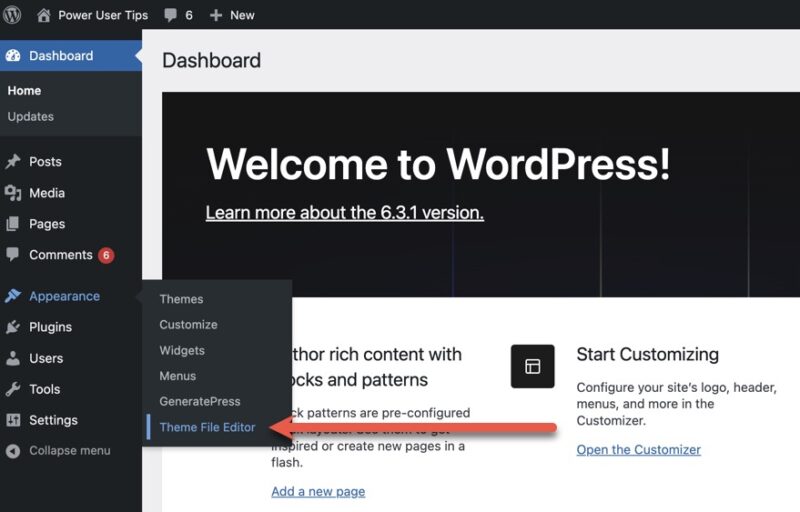
Log into your WordPress admin dashboard and navigate to Appearance -> Theme File Editor.
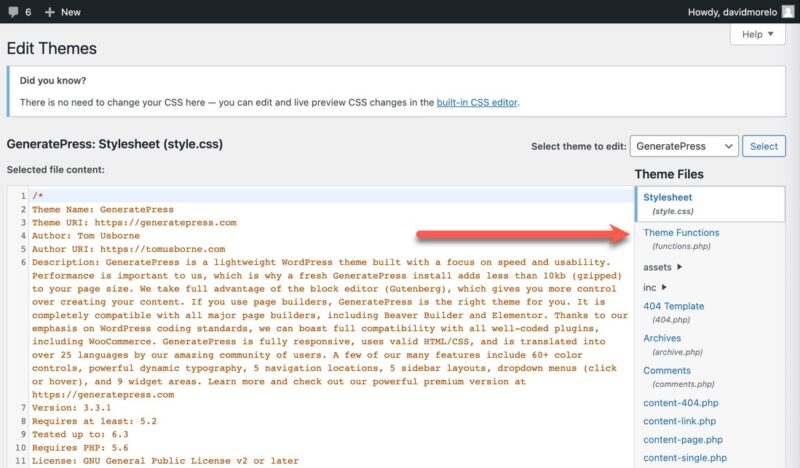
Select the Theme Functions (functions.php) file in the right sidebar.
Scroll to the bottom of this file and paste the code snippet we provided earlier. After pasting, hit the Update File button to save your changes.
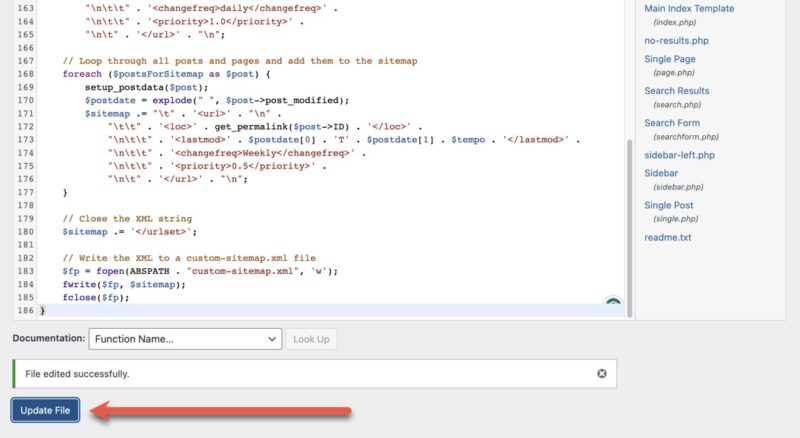
If everything goes smoothly, then you should see the “File edited successfully” confirmation message.
Note: If your WordPress installation doesn’t allow you to make edits to the theme files in the Admin Dashboard, then you have to download the functions.php file from your theme folder (in “wp-content -> themes -> your-theme-folder”), copy and paste the code in, save and then re-upload to your server again.
Submit Your WordPress Sitemap to Google
Alright, you’ve done the hard part – creating a WordPress sitemap without a plugin. Now it’s time to tell Google about it. By submitting your sitemap to Google, you help the search engine giant crawl and index your site more effectively. Here’s what you need to do:
1. Go to Google Search Console and then add and verify ownership of your site.
2. Select the Sitemaps category in the left pane.
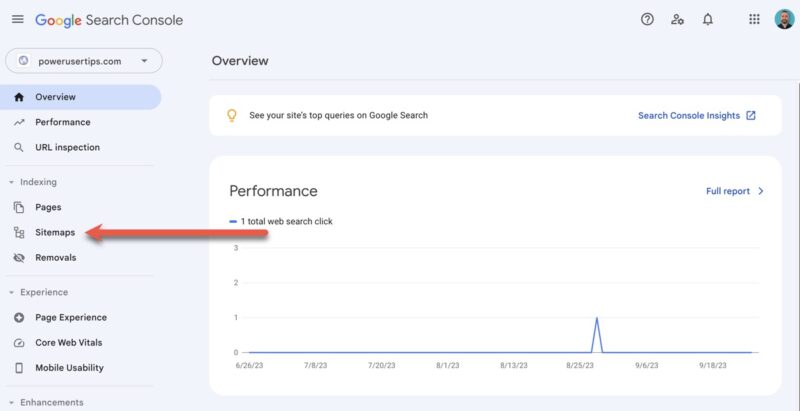
3. Type the URL of your sitemap (https://website.com/custom-sitemap.xml in our case) in the Add a new sitemap field and then click Submit.
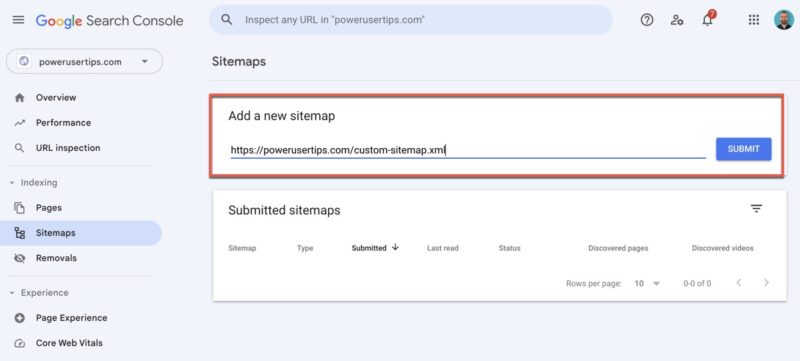
You should see a confirmation that your sitemap has been submitted and will soon be processed. Now you just need to wait for Google to crawl and index your website based on the sitemap. This can take anywhere from a few hours to a few days, depending on various factors like website size and crawl rate. You can monitor the status and any potential issues directly from your Google Search Console account. In the meantime, we recommend you learn how to set up Google Tag Manager (GTM) for WordPress.
Need an easy way for your readers to reach out to you? Here’s an easy way to set up a contact form in WordPress.
Frequently Asked Questions
Does WordPress have a built-in sitemap?
Yes, since the release of WordPress 5.5, the content management system automatically generates a basic sitemap at /wp-sitemap.xml. Depending on what your needs are, the default sitemap might just do the trick. However, if you’re looking to customize your sitemap, then you need to create it yourself.
Do I need a visual sitemap for my WordPress site if I already have an XML sitemap?
A visual sitemap is generally for human readers, while an XML is intended for search engines. While it’s not strictly necessary to have a visual sitemap if you already have an XML one, it can be helpful for larger sites for navigation purposes.
Which is the best free sitemap plugin for WordPress?
If you’d like to go the plugin route, options like Yoast SEO, XML Sitemap Generator for Google, and All in One SEO are highly recommended for their ease of use and robust features.
Image credit: Unsplash. All screenshots by David Morelo.