
How to Create an Image Gallery in WordPress 3.5

WordPress just released a new update version 3.5, which includes a huge UI change to the media manager – among many other things. Creating image galleries in WordPress 3.5 is now much easier than it was in previous versions.

Let’s take a look at the process:

1. Create a new blog post (or page) or edit an existing post (or page) and click on the “Add Media” button at the top of the blog editor.
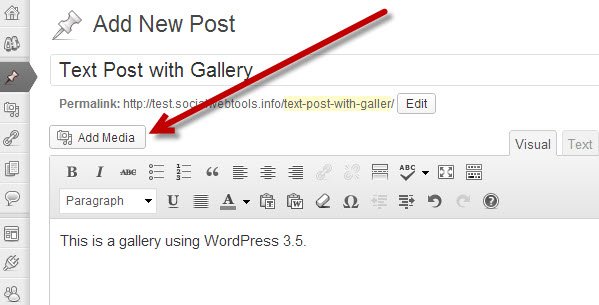
Click on the Add Media button in WordPress 3.5.

2. Click on “Create Gallery” in the left column. You’ll need to add the images that you want to use in your gallery.
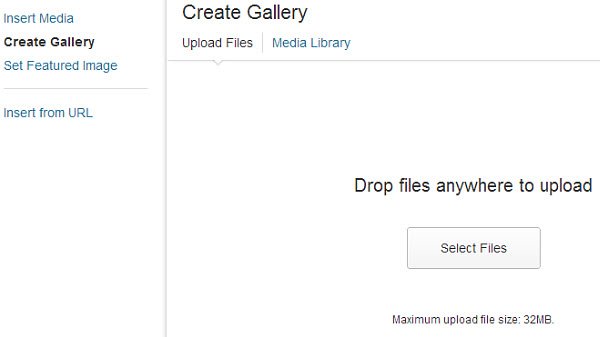
Add images to your WordPress gallery from your computer.

You can do this by dragging and dropping them to the media manager, or selecting the files from your computer. Remember that you can select more than one image at a time, by holding the “Ctrl” key on your keyboard while selecting your images.

3. Add a title, caption, alt text, and description to your images as needed.

4. If you want to remove an image from your gallery (maybe you changed your mind about it), just uncheck it (see screenshot below).
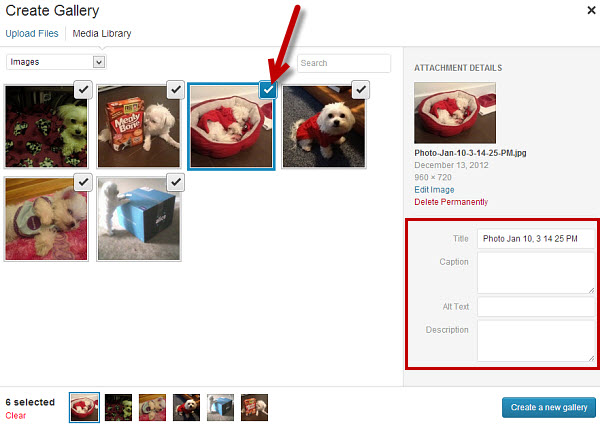
Add a title, caption, alt text and description to your images.

5. Click on the “Create a new gallery” button at the bottom of the media manager.

6. Next, you can add captions to your images if you haven’t already and rearrange the order of your images via drag-and-drop.
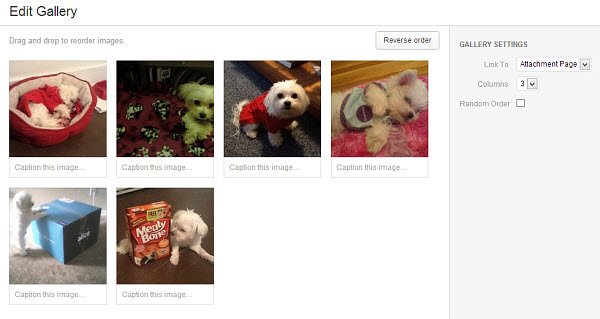
Rearrange the order of the images in your WordPress gallary via drag-and-drop.

7. Don’t forget to customize your gallery settings. You can choose what to link your images to, the number of columns to use, and enable random ordering of your images if you’d like.

8. Click on the “Insert Gallery” button.
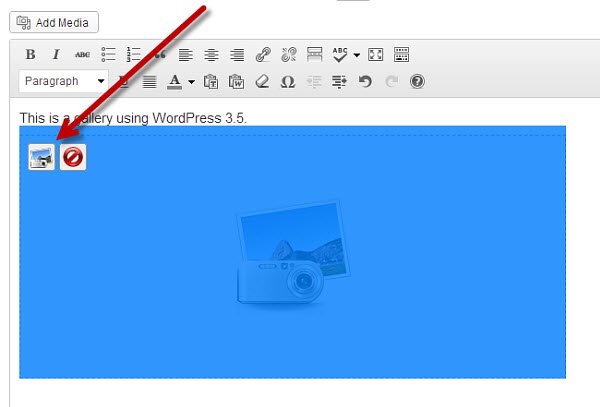
Edit your WordPress image gallery.

9. A placeholder will be inserted into your page or post. If you ever need to edit your gallery, just click on the placeholder and then click the “Insert Gallery” icon at the top left corner.
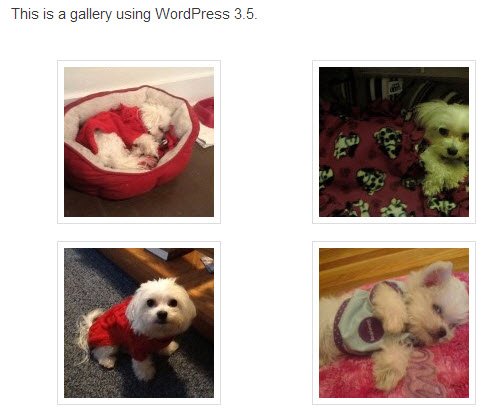
Image gallery using WordPress 3.5 final result.

That’s it. You may want to preview your gallery to make sure everything is the way you want it. As you can see, the process is pretty straight forward and user-friendly.

Subscribe to our newsletter!

Our latest tutorials delivered straight to your inbox

Charnita Fance Avatar

Read next

Suzanne Simard sealed paper birch and Douglas fir seedlings inside plastic bags, fed them carbon-14 and carbon-13 dioxide, and nine days later found carbon had crossed between species through fungal threads in the British Columbia soil beneath her boots
A species of jellyfish called Turritopsis dohrnii can revert its adult cells back to a juvenile polyp stage when injured or starving, effectively restarting its life cycle, and biologists have so far failed to identify any natural limit to how many times it can do this.
A Japanese man named Jiroemon Kimura, who lived to 116, was born in 1897 when Queen Victoria still ruled and died in 2013, meaning a single human life personally overlapped with the invention of the airplane, the atomic bomb, the internet, and Instagram
The Hollywood sign originally read HOLLYWOODLAND when it was built in 1923 as a real estate advertisement for a housing development, and it was only meant to stand for 18 months, but nobody ever got around to taking it down and the city eventually adopted it as a landmark
Almost all of the world’s internet traffic does not travel by satellite but through fibre-optic cables lying on the ocean floor, a hidden web of wires crossing the deepest parts of the sea to connect the continents.
People who flip their phone face down on every table aren’t being secretive. They figured out that staying interruptible meant handing their time to whoever rang first
Twitch vs. Facebook Gaming vs. YouTube Gaming: What’s the Best Live Game Streaming Platform?
Chrome Extensions Ownership Transfer is a Direct Threat to You: How to Stay Safe