

If you use Google Docs for the majority of your work, you may notice that you use the same document layout over and over again. Instead of copying formatting and styles from old documents, it’s much easier to create a template for that specific kind of document. That way, when you want to produce a new document of that type, you can load up the Google Docs template and have the mundane work already done for you.
At one time Google Docs used to have a feature where you could create a template and submit it to a template gallery. This made it very easy to set up a template to use repeatedly for new documents. However, Google has since stripped custom templates out of regular Google Docs and moved it to their GSuite service, which requires regular payment to use. Regular users can still use Google’s pre-made templates but not upload their own. For users who don’t want to pay just to make a template, let’s look at how to manually create a template on your own.
Setting Up the Template
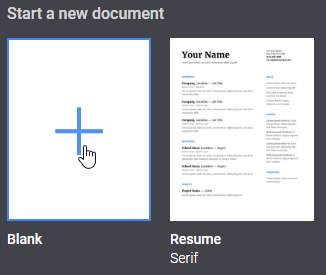
To achieve this, we’re going to make a document that acts as our template. If you want to build a template from scratch, create a blank document by clicking on the “new document” button on Google Docs’ main page.
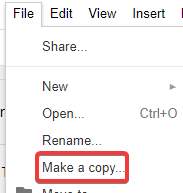
If you already have a document that uses the layout you want to use, feel free to use that instead. Of course, you’ll want to remove all the data from it so you can use it for future documents. To avoid losing any work, you can make a copy of a document by opening it, then clicking “File,” followed by “Make a copy…” This will create a duplicate file that you can freely edit for your template.
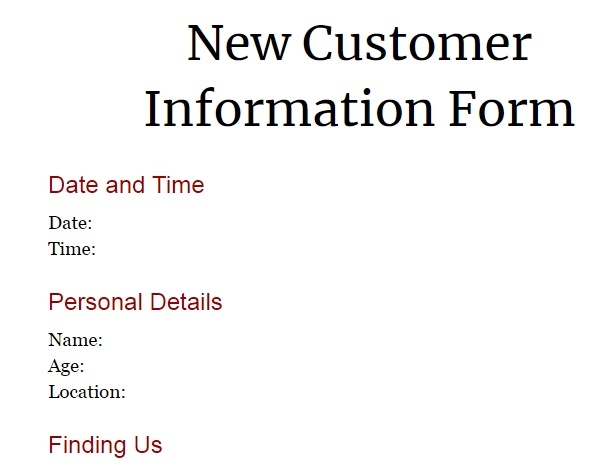
Now we’ll build up this document as a template. To do this, set up the document so that all the basic formatting is done, but there’s no data in the fields. That way, when we use the template in the future, all we have to do is enter the data as needed. For instance, in the below screenshot, we’re making a template for a document that needs your personal details. We set it up so all the fields are present but have no data in them, so we can fill them in each time we use the template.
If it makes things easier, feel free to leave placeholder text to remind you of what goes where. For instance, if you have a letter template, you may want to insert text such as “
Once you have your template set up the way you like, name the document something memorable. Now that it’s set up, you have a template to use for future documents.
Finding the Template
There’s a big problem, however: this document is virtually identical to every other document in your Google Drive! If you’re making a lot of documents, your template will likely get lost among them. It can be frustrating to have to search through your Google Docs every time you want to use your template. Let’s make it a little easier to find our template when we need it.
Making a Folder
One way to do it is to make a folder called “Templates” and put your document in it. First, navigate to Google Drive. Then, right-click on a space not occupied by a file or folder and click “New Folder.”
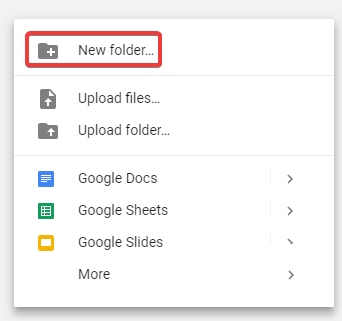
Call this folder “Templates,” then click “Create.”
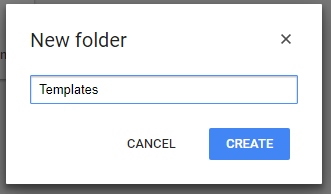
Now move the template into the folder. This can be done by clicking and dragging it into the folder or by right-clicking the file, selecting “Move to…”, and then selecting the template folder.
Because folders typically sit above documents, we’ll always have clear access to our templates no matter how many documents are created.
Starring the Template
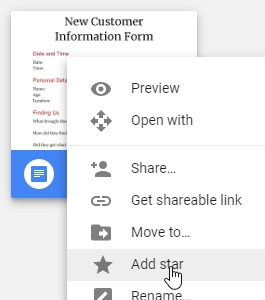
Alternatively, you can star the document for easier locating later. To star a document, right-click it in Google Drive and click “Add star.”
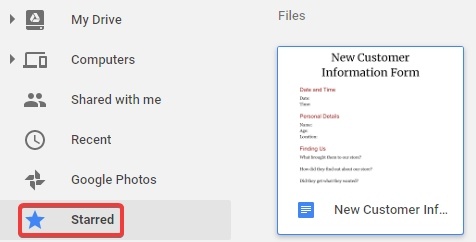
When you click the “Starred” category on the left of Google Drive, it only displays documents you have starred. This is a great way to get quick and easy access to crucial files.
Using the Template
Now that you have a template set up and in an easy location to find, you can use it to make document creation easier. To use it, simply right-click the file in Google Drive and click “Make a copy.” If you’re in Google Docs, you can make a copy of a document in the same way we did earlier in this article.
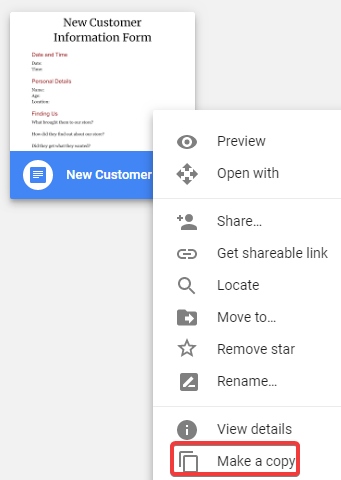
Give the copy a memorable name.
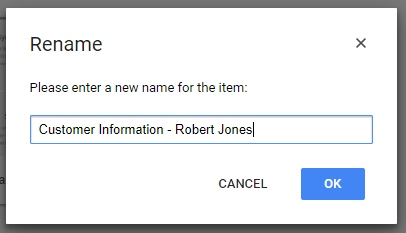
This will make a fresh copy of the template which you can fill out as you see fit. You can now fill in the fields you set up earlier while also keeping the original template intact for future documents.
Tricky Templates
With Google removing user-created templates from the base Google Docs, users now have to manually make and use their own templates. Now you know how to make one, how to make it easy to find, and how to use it to make document creation easier.
Are templates important for your workflow? Let us know below.