
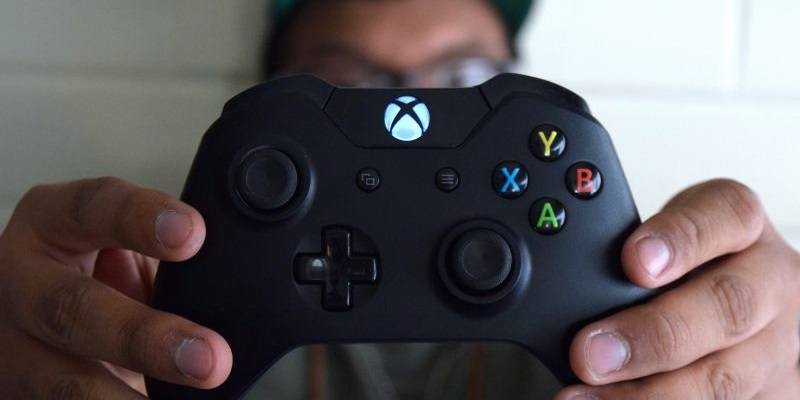

If you’re getting into PC gaming, chances are you’ll realize that some games are simply better played with a controller. While playing a PC first-person shooter with a controller is a crime against humanity in some jurisdictions, playing other games (especially platformers and third-person action games) with a controller is just fine.
As I’ve covered in a previous article, the Xbox One controller is a pretty solid option for PC gaming. Here’s how you can connect an Xbox One controller to a PC.
Also read: How to Connect a PS4 Controller to Windows 10
How to Connect an Xbox One Controller To a PC (Windows)
In December of 2005 two things happened: The Xbox 360 launched, and Microsoft introduced XInput to Windows XP SP1. In every version of Windows since then XInput has been integrated into the operating system to such an extent that any controllers supporting XInput are automatically recognized upon connection and don’t require the download of extra drivers in order to get working.
XInput controllers, as you may have guessed, include the Xbox One controller and the Xbox 360 controller. There’s also a variety of gamepads from other manufacturers that support XInput like Logitech’s F710 and SteelSeries’ Stratus XL. (Buying through this link may earn us a commission, at no extra cost to you.)
Because of XInput, all you really need to worry about when it comes to connecting an Xbox pad on Windows is getting it connected. Here’s how to connect an Xbox One controller to a PC.
Wireless
Wireless controllers are a bit more tricky than wired, though this probably isn’t very surprising. In order to get a Wireless Xbox One controller connected to your PC, you’ll need to have an Xbox Wireless Adapter for Windows or a Bluetooth adapter.
With an Xbox Wireless Adapter
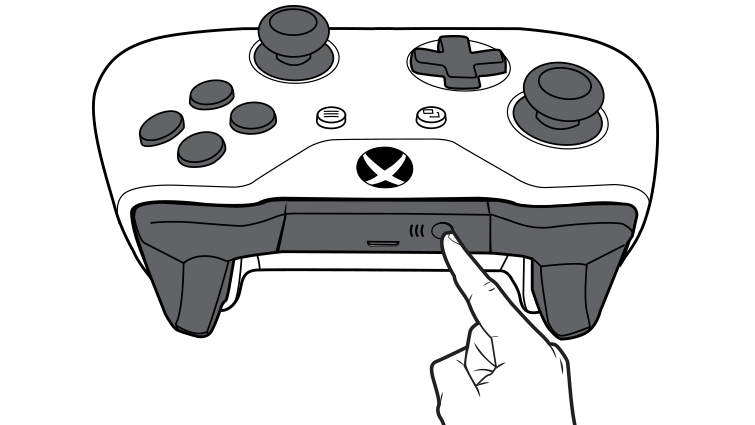
Fortunately, you shouldn’t need to do much work with this one. Simply plug the Xbox Wireless Adapter into a USB port on your PC, then hold down the Sync button on both the controller and the adapter until your controller syncs up.
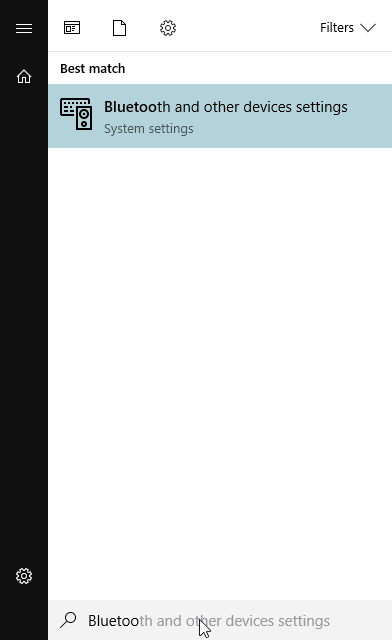
If this doesn’t work, you’ll need to dive into your settings. Open your Start Menu, then type “Bluetooth” and select “Bluetooth and Other Devices Settings.”
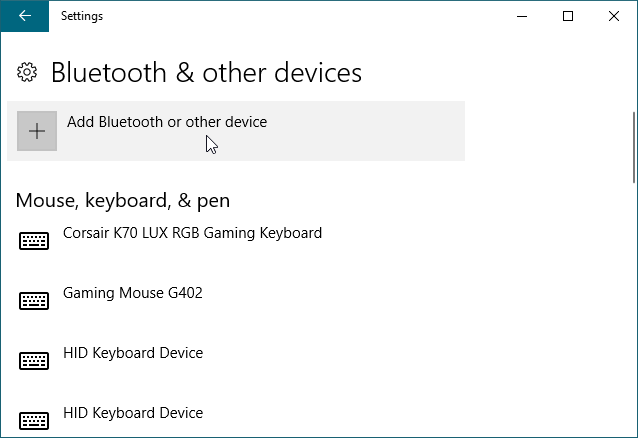
Click “Add Bluetooth or other device.”
Now, click “Everything else”.
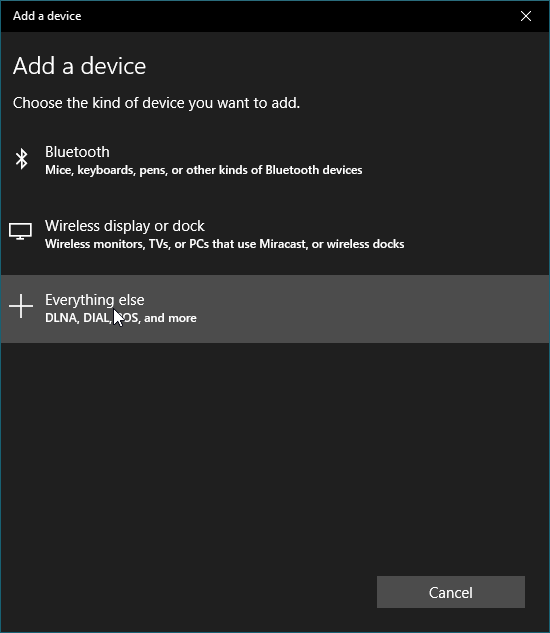
Select your controller, and you’re all good.
With a Bluetooth Adapter
To connect an Xbox One controller to Windows via Bluetooth, you’ll need to have updated to Windows 10 Anniversary Update. If you haven’t updated Windows 10 or are on an older version of Windows, you’ll need to buy an Xbox Wireless Adapter or a compatible USB cable to connect with a wired connection.
If you are on the Windows 10 Anniversary Update, feel free to continue.
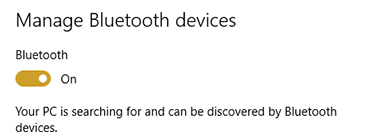
Similar to how we started with the other method, you’ll want to start, type “Bluetooth” and select “Bluetooth and other devices settings.”
Make sure you have Bluetooth switched to On.
Hold the Sync button on your Xbox One controller for three seconds, then release it.
Select Xbox Wireless Controller, then Pair.
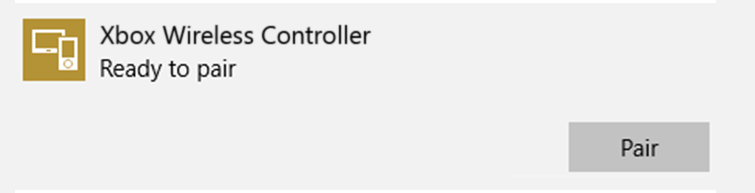
Congrats! You got your Xbox One Controller working on your PC.
Wired
On Windows 7 and up? Just plug it in! Try other USB ports or install this software if that doesn’t work.
How to Connect an Xbox One Controller To a PC (Linux)
In order to connect an Xbox One Controller to a Linux PC, you’ll need to take some extra steps. Namely, you’ll need to be using an Ubuntu or Ubuntu-based distribution. If this sounds like you, check out Derrik’s article on setting up an Xbox One Controller in Ubuntu!
Conclusion
And that’s it! Unless something is seriously wrong with your PC, its components or your Xbox One Controller, you should be able to connect to your PC just fine.
Comment below if any problems do arise, and we’ll do our best to help you. Otherwise, let us know: what’re you playing?
Image Credit: Microsoft/Xbox.com (For Bluetooth segment/Xbox Controller illustration)