

Are you an email hoarder? Do you keep almost all your emails in case you need them? It can be overwhelming without a visual reminder. Gmail has a way to add colored tags to your incoming email, so you know right away what needs to happen with those messages. When you color code Gmail, the color draws your eyes and helps you quickly identify items by their category. The colors give you cues and prompt you to stay on top of things. Let’s take a look at how you can color code Gmail.
Also read: How to Use Google Tasks Effectively in Gmail
Adding Labels
1. To get started, you need to add labels to your Gmail account. Look under the “Compose” button on the left side of the screen and scroll down until you find the “More” button.
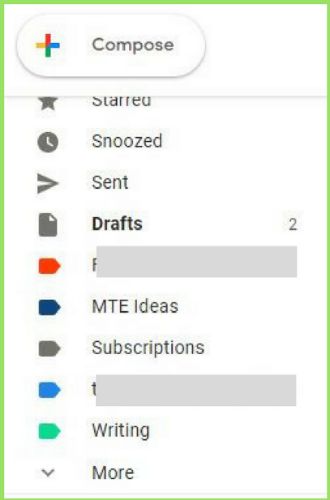
2. Click on that button and keep scrolling if necessary to find “Create New Label.”
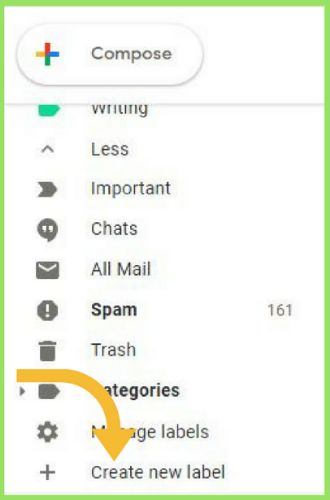
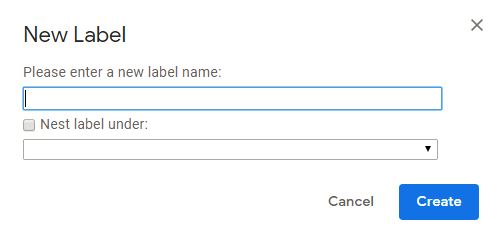
3. Type a name for your category. Think of things that are a regular part of your life or work that need your attention. Click “Create.”
4. You’ll want to create most of them that you can think of now because the labels must exist before you apply the filters.
Adding Filters
5. After you’ve created your categories and their labels, you can apply the labels to particular emails by clicking on the dropdown arrow at the end of the search bar.
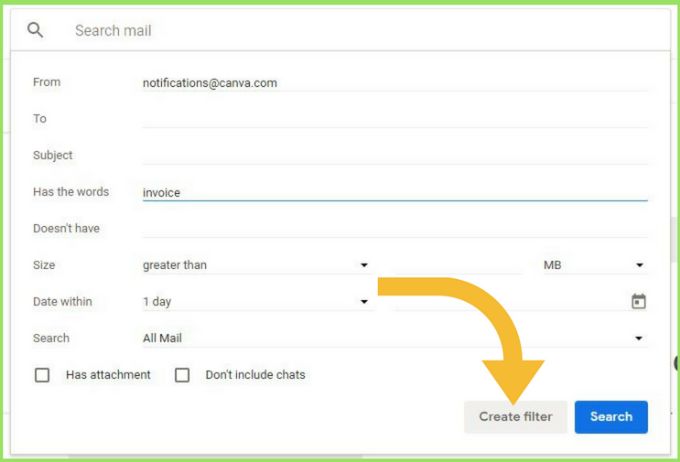
Type in the address or copy and paste it into the “From” field. You can add other criteria that an email coming from this sender should contain to require the filter. For instance, I included the word invoice so that every email I receive from this company will not get the label, only the ones that are receipts for items I purchased.
6. When you finish that, click to create the filter.
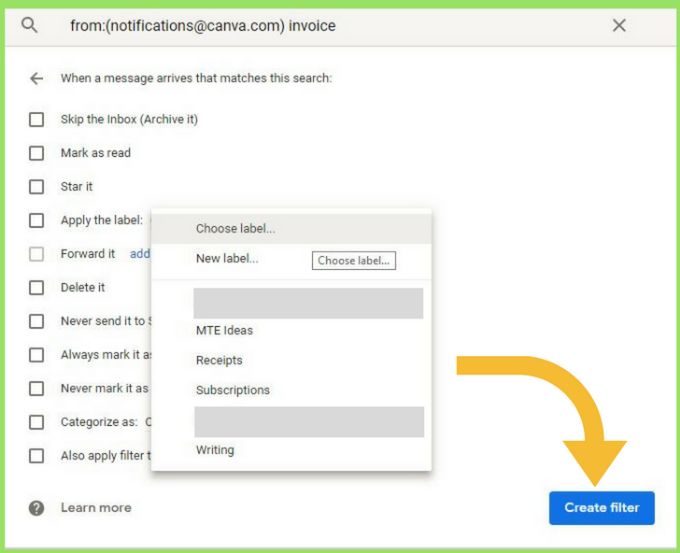
7. Another box will pop up to finish the creation of the filter. Click next to “Apply the Label,” and all of the categories you created will pop up. Choose the one you want and click “Create Filter.”
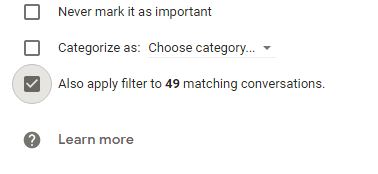
8. If you want the same filter applied to emails you have already received, click the checkbox that will tell Gmail to attach it to all the matching conversations.
Adding Color
9. To color code Gmail, click on the three dots next to the category and hover over the arrow next to “Label color.”
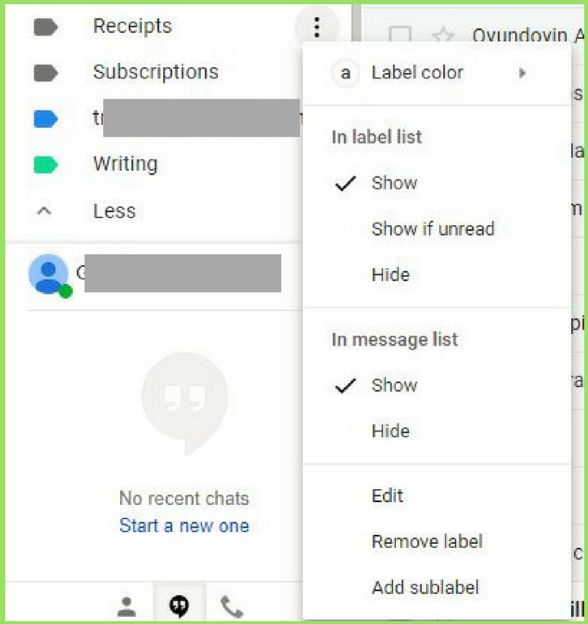
10. Choose the color for your label.
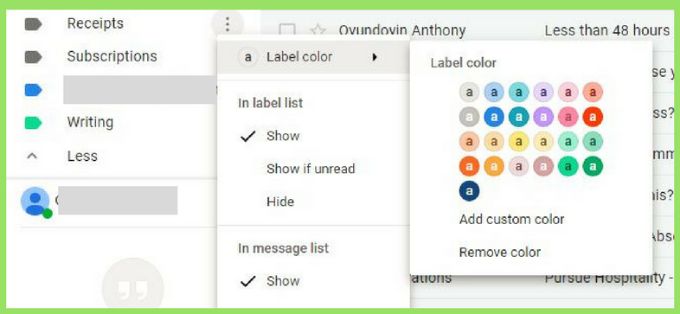
11. You can also use a limited amount of other custom colors. There is no way to add RGB or hex color codes. Creating different color combinations is possible, though. For example, the color dot at the bottom of the picture above is dark blue with yellow text.
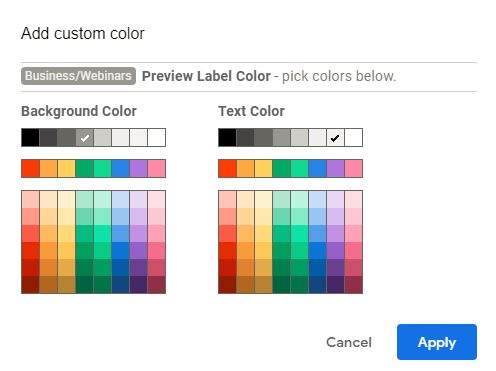
12. The picture below shows what it looks like in your inbox after you add the color.

13. These categories can also be organized into folders by nesting the label under a different one. Now the email will have two tags.
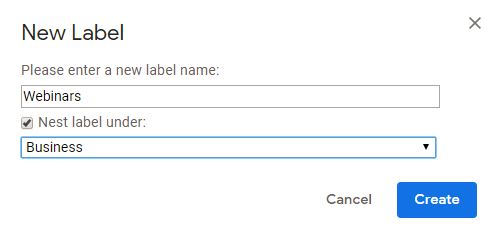
14. You can see how that looks in the image of the inbox below.
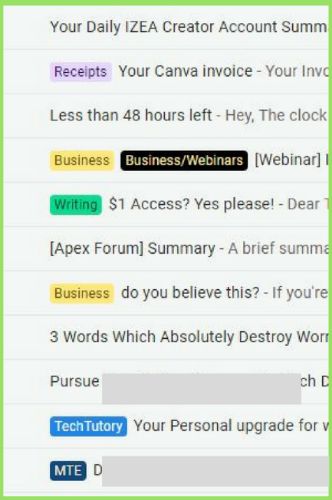
Gmail will now automatically apply those filters to all of your incoming messages. It may take time to tweak to get the most out of it. For example, if you purchase something from a new vendor, you would have to add the “Receipts” filter to the sender’s email address.
You may not want to label every email. If you mark every single one, that’s just a new, more colorful version of email clutter. Adding color-coded labels will also help you catch emails going to your promotions box instead of the primary inbox where they may belong. The colored labels will help them stand out.
Image credit: Last of the color coding