
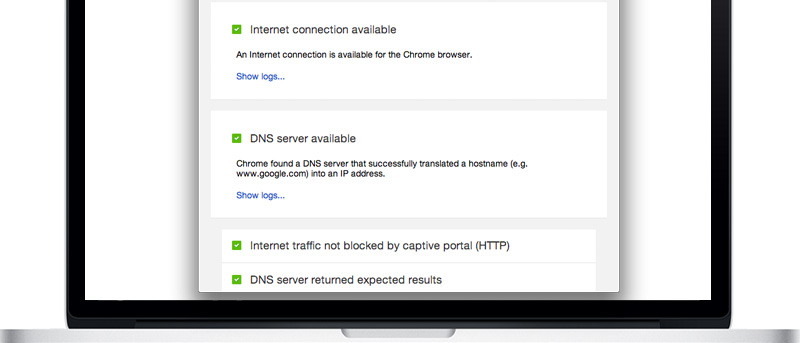
How to Check Your Network Connection With Chrome Connectivity Diagnostics

A lot of you out there could be regularly facing various network issues, and you might not be able to connect to the Internet. And most of the time isolating the specific network issues isn’t the easiest task. Most computers/Macs have built-in tools and utilities that let you figure out the issue. For example, tools like ping, traceroute, nslookup, and netstat are all proven utilities that help identify network problems.

If you’re not a technical guy, and are not really with the terms listed above, you might feel the need to use a simpler tool, one that you can understand. For guys like you, Google has created a Chrome app called Chrome Connectivity Diagnostics. Chrome Connectivity Diagnostics contains various tools that run different networking tests to check your network connection. Once it’s finished, it displays the results in an easy-to-read format.

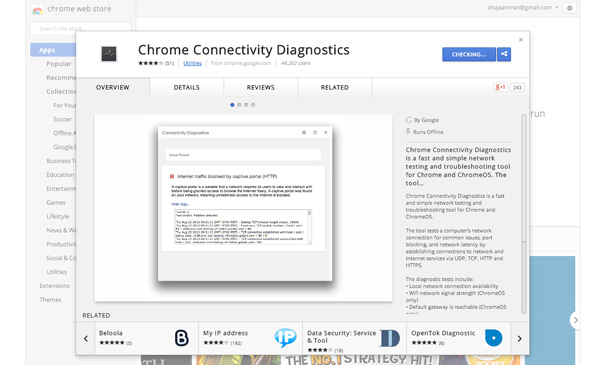
You can install Chrome Connectivity Diagnostics from the Chrome Web Store. Keep in mind: To download it, you’ll need a Google account. Once the app is downloaded and installed, run it from the Chrome App Launcher to begin running the tests. (The Chrome App Launcher can be found in the Dock if you’re using a Mac, Apps Screen in Windows 8/8.1)
Chrome-Connectivity-Diagnostics-App-Store

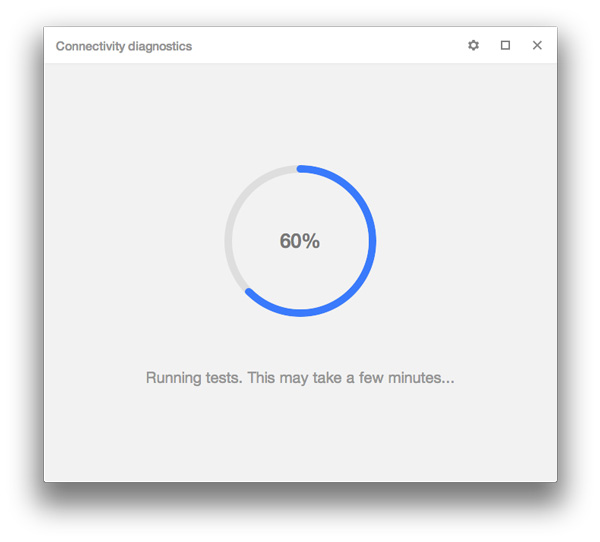
Once you start the app, the tests will automatically start running with a progress bar like the one shown below appearing:
Chrome-Connectivity-Diagnostics-Progress-Bar

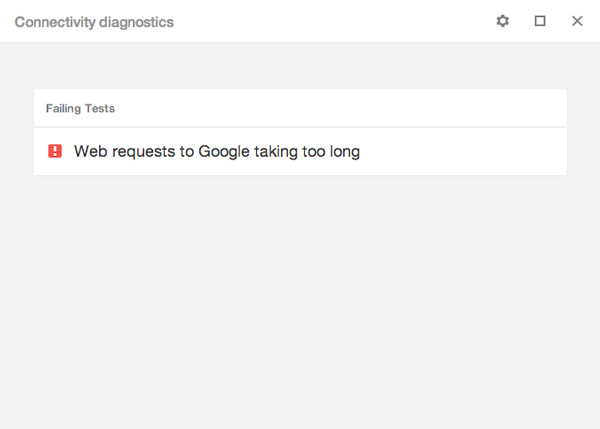
When the tests complete, a message should show up:
Chrome-Connectivity-Diagnostics-primary-result

For more detailed information, select the Gear icon in the upper-right corner, and click on “Show Passing Tests.”
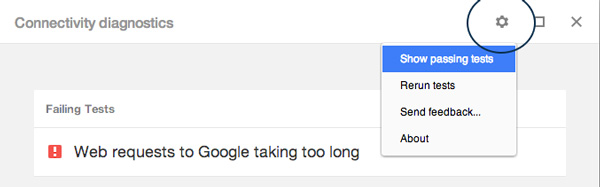
Chrome-Connectivity-Diagnostics-gear-icon

Doing this will show you different test results. Clicking on the individual tests will provide a brief description of the test and a link to the logs.
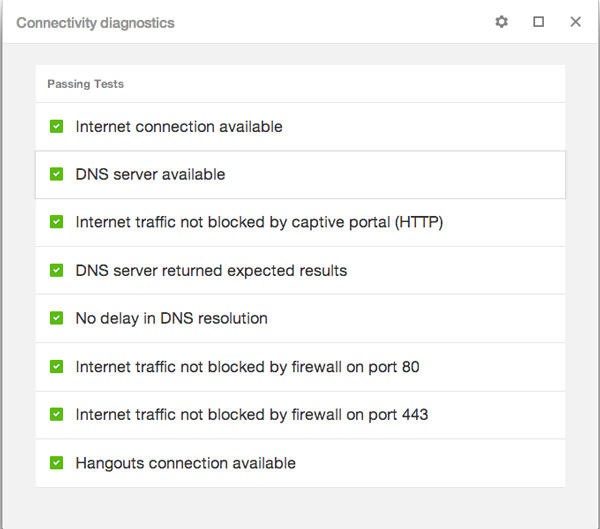
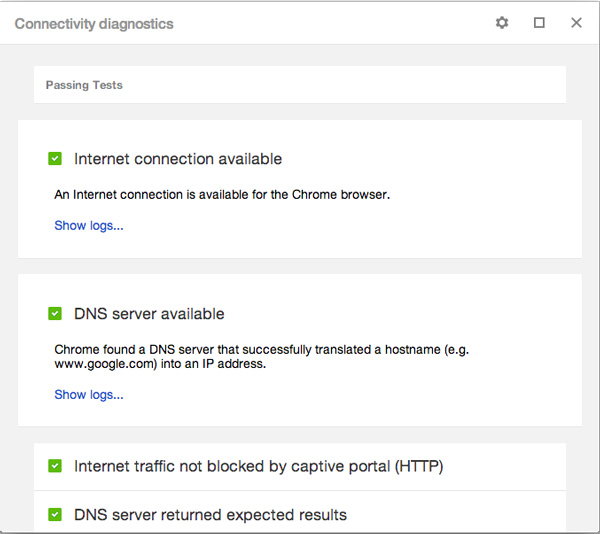
Chrome-Connectivity-Diagnostics-results-list

Chrome-Connectivity-Diagnostics-Details-results

And that’s all. There are two additional options for Chrome OS device users: Wi-Fi signal strength and default gateway is reachable.

Chrome Connectivity Diagnostics is useful if you’re not familiar with that much technical know-how or just want a simple review of your network connection.

Have any other useful tips for checking network connections? Don’t hesitate to tell us about them in the comments below.

Subscribe to our newsletter!

Our latest tutorials delivered straight to your inbox

Shujaa Imran Avatar

Read next

Suzanne Simard sealed paper birch and Douglas fir seedlings inside plastic bags, fed them carbon-14 and carbon-13 dioxide, and nine days later found carbon had crossed between species through fungal threads in the British Columbia soil beneath her boots
A species of jellyfish called Turritopsis dohrnii can revert its adult cells back to a juvenile polyp stage when injured or starving, effectively restarting its life cycle, and biologists have so far failed to identify any natural limit to how many times it can do this.
A Japanese man named Jiroemon Kimura, who lived to 116, was born in 1897 when Queen Victoria still ruled and died in 2013, meaning a single human life personally overlapped with the invention of the airplane, the atomic bomb, the internet, and Instagram
The Hollywood sign originally read HOLLYWOODLAND when it was built in 1923 as a real estate advertisement for a housing development, and it was only meant to stand for 18 months, but nobody ever got around to taking it down and the city eventually adopted it as a landmark
Almost all of the world’s internet traffic does not travel by satellite but through fibre-optic cables lying on the ocean floor, a hidden web of wires crossing the deepest parts of the sea to connect the continents.
People who flip their phone face down on every table aren’t being secretive. They figured out that staying interruptible meant handing their time to whoever rang first
Twitch vs. Facebook Gaming vs. YouTube Gaming: What’s the Best Live Game Streaming Platform?
Chrome Extensions Ownership Transfer is a Direct Threat to You: How to Stay Safe