

By default, Google Chrome automatically saves all the downloads to a dedicated “downloads” folder. On Windows 10, this folder is located at “C:\Users\[USERNAME]\Downloads.” While it may seem easier to navigate to this directory, there are times you may want to designate your downloads to a different location or folder.
For example, let’s say your hard drive is full and you want Chrome to save that large file to an external hard drive. Or maybe you have different location preferences for different types of downloads. In such cases, you’ll want to choose a different download location. The good news is you can easily tweak Chrome’s download settings to designate a different download folder. Better still, you can even configure Chrome to always ask for a download location before saving a file.
How to Change the Default Downloads Folder
To tweak your Chrome download settings, follow the steps below:
1. Open your Google Chrome browser.
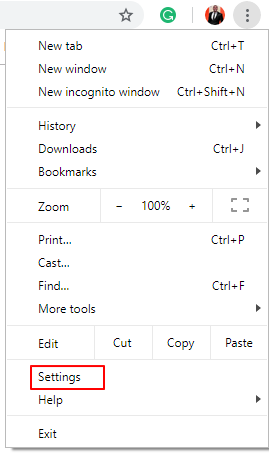
2. Click the three vertical dots (aka hamburger menu) located in the top-right corner of Chrome’s window.

3. Scroll down and click on “Settings” from the list of options.
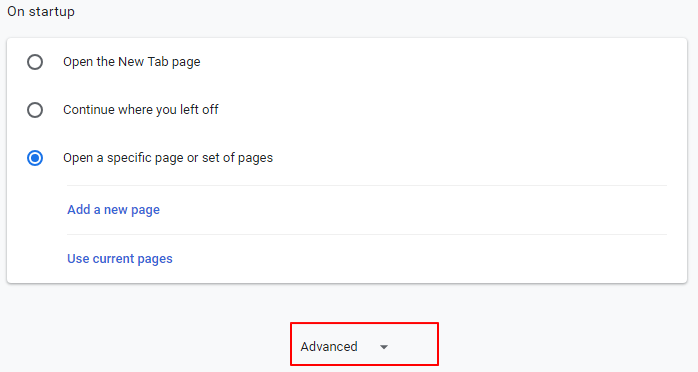
3. This will expand the Settings menu. Now scroll all the way down until you reach the “Advanced” drop-down and click on it.
4. This will further expand the settings menu into different sections. Scroll down until you reach the “Downloads” section.
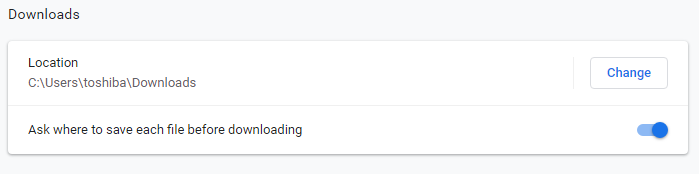
5. Click the “Change” button towards the right side to change the default download location and choose the download folder of your choice.
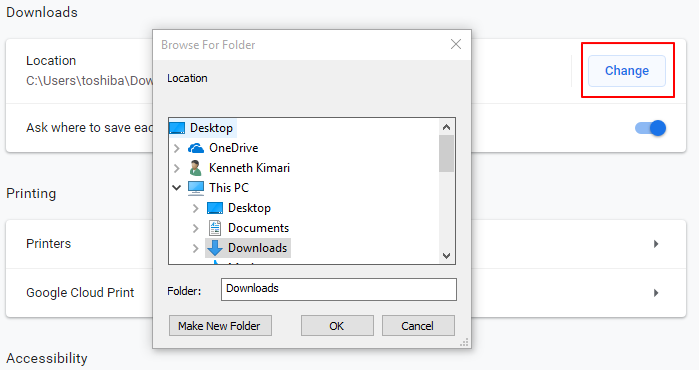
6. Click “OK.” That’s it! You’ve just designated a new download location.
As mentioned earlier, you can also enable Chrome to always ask where you want individual files to be saved – and that’s my preferred setup. The best part is that both of these settings are found in the same place, which makes it super easy to tweak them in the way you deem fit.
To do so, just toggle the “Ask where to save each file before downloading” button to “On,” and you’re good to go.
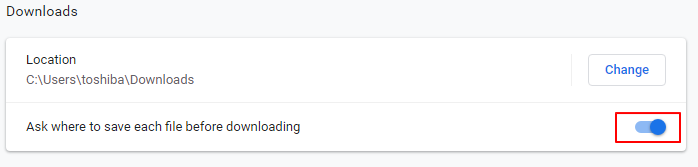
When this button is toggled to ON, Chrome will bypass all the other download settings and ask where to save files before downloading.
Also read: How to Clear the Google Chrome DNS Cache
How to Find Your Recent Downloads in Chrome
When you have multiple downloads each saved in different folders/locations, it’s easier to forget where some of your earlier or even recent downloads were saved. Fortunately, Chrome does provide an easy way to locate all your downloaded files. Here’s how to go about it:
1. Launch Google Chrome.
2. Press keyboard shortcuts Ctrl + J simultaneously, and Chrome will open a list of all your downloaded files in chronological order.
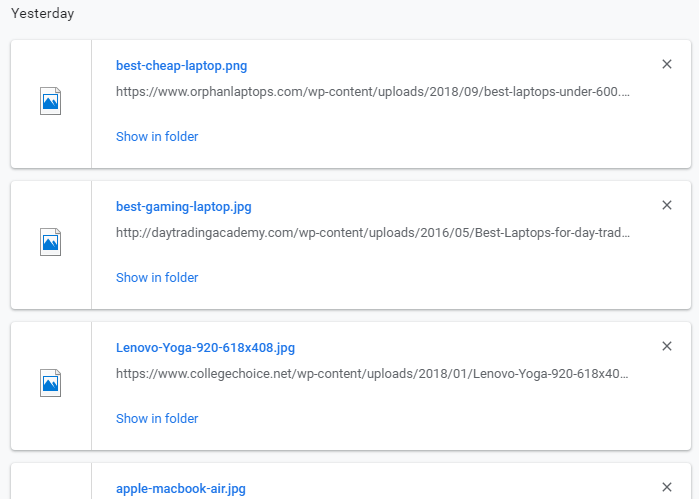
3. Click the “show in folder” option.
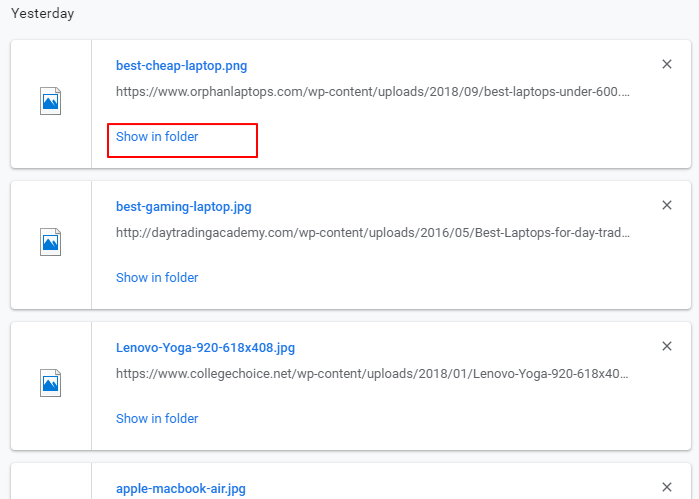
Now you’ll be able to see the download path, including the folder where the file was saved.
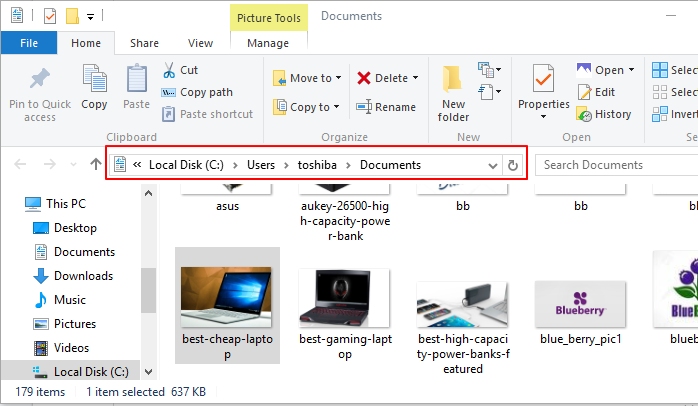
Tip: While still at the downloaded items list, you can click on the file name and drag the file to a new folder of your choice. This will automatically copy the file from the original folder to the one you’re dragging it to. Note that this action does not remove the file from the original location.
Wrapping Up
While Google Chrome is undeniably one of the best browsers, there are certain tweaks you should know to get the best out of this robust browser. And knowing how to tweak Chrome download settings to your preferences is one of them.
We hope this guide will help you get the best out of this fast and secure browser. Feel free to comment and share.