

How do you find important email messages in your Gmail account? You probably use a filter/label combo or maybe you simply use the Gmail search bar. However, you may also want to browse Gmail messages by icon, since pictures are so much more appealing.
PhilterIt is a visual Inbox and Chrome extension that lets you add icons to the Gmail sidebar, making it easy to access and prioritize email messages from people and brands. From the sidebar you’ll be able to see how many unread messages you have from each sender; the unread count is displayed at the top right corner of each icon.
PhilterIt makes it very easy to browse Gmail messages by icon. This impressive visual interface can also be filtered. The following are instructions for setting up and using PhilterIt.
1. You’ll need to add the PhilterIt for Gmail extension to Chrome. Unfortunately, it’s not available for any other browsers, but they do have a great Web interface that you may want to try out on your computer or mobile device.
2. Go to your Gmail or Google Apps account, and you’ll immediately see the PhilterIt sidebar on the right side of the page. Click on the blue “Get Started” button in the sidebar.
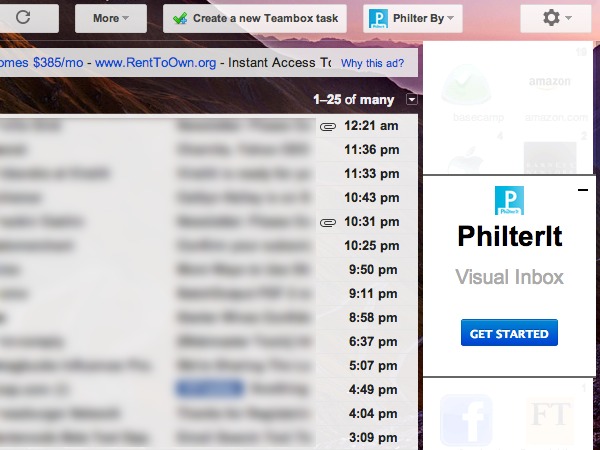
3. You’ll be directed to a new tab where you’ll need to give PhilterIt permission to access your Google account. This will direct you back to your email.
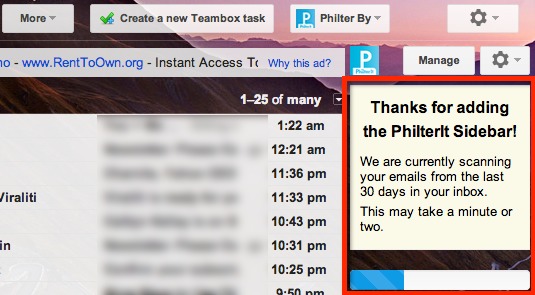
4. Next, PhilterIt will begin to scan your emails from the last thirty days. If you have a large number of email messages, this can take a couple of minutes.
5. When the scan is completed, you can choose the people and brands that you want to appear in the PhilterIt sidebar, just click on the icons that you want to keep. You’ll also see the number of messages that you have from that brand, which may make it easier for you to choose which ones to keep.
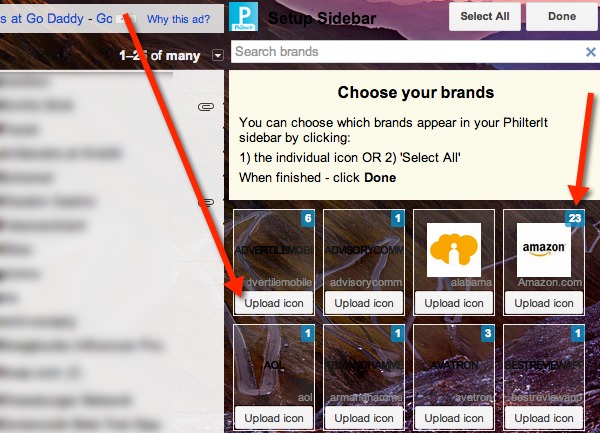
If there are some people or brands that don’t have icons or you just want to use a different image for the ones that do have icons, you can upload icons to use from your computer (click on the “upload icon” button).
Alternatively, you can just click on the “Select All” button at the top of the sidebar (to include everyone) and then click on the “Done” button.
6. When you’re done, the sidebar will be displayed in its maximized view (two columns). At any time, you can click on the “PhilterIt” icon (right above it) to minimize the sidebar and display mini icons in a single column.
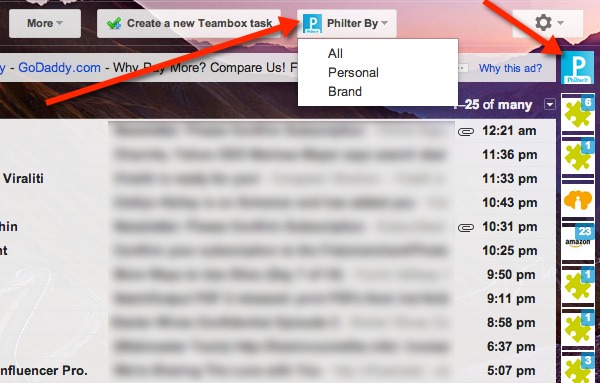
You can also click on the “Manage” button to manage your icons – remove people and brands, add icons, etc. Note: If you don’t add icons to the brands then it will be hard to tell what they are. Also, since the icons are transparent, you may want to switch to a solid color background so that they’re easier to see.
7. Lastly, when browsing through the icons, you can also use the “Philter By” menu to filter them by personal or brand. You can also use the search bar to search through the icons if you know exactly what you’re looking for.
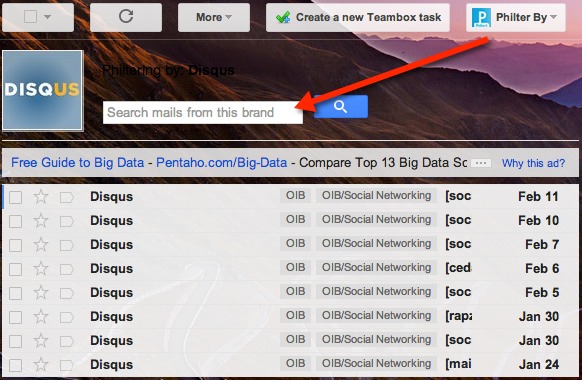
When you click on an icon, emails from that brand will appear along with its icon and a search bar (you can search through emails from that brand).
Using PhilterIt to browse Gmail messages by icon definitely makes finding email messages easy and fun. Let us know if you have a different method for browsing your gmail messages visually.