

Did you know that as we browse the Web all sorts of services request information from us? Maybe it’s to show us an advertisement, to put a “Share” button on the article you’re reading, or to tell the webmaster information about the pages you visited. This results in a lot of “hidden away” requests as we load webpages over the course of a day.
If you’re interested in blocking these requests or you want to simply see who’s tracking you when you load a website, Disconnect for Google Chrome can show you the requests that occur when you load a website and block them accordingly.
How It Works
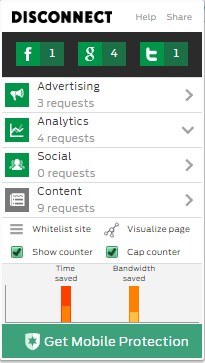
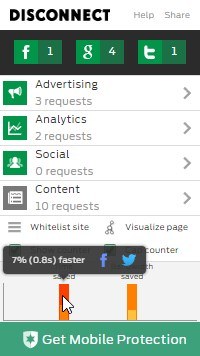
Once installed from the Google Web store, it’ll sit on your Chrome addon bar with an icon that looks like a stylised “D.” If you click it, a small menu appears. Unfortunately, it’s not very self-explanatory, so let’s take a look at each element in turn.
The Big Three
At the very top you’ll see three buttons corresponding to each of the online giants: Facebook, Twitter, and Google. When you load a webpage, you might also end up loading little share buttons that correspond to social media websites. Disconnect allows you to see how many times each of these providers makes a request and blocks them if you’re not a fan of them gleaning information from you.
The Categories
Below those three buttons are other websites that have requested information. They’re divided into three categories:
Advertising is for when a website makes a request in order to supply you with adverts on the webpage.
Analytics are services that gather data in order to give the webmaster statistics about people visiting their website. This can include software that tallies the amount of visitors to the site, article read counts, and the general geographical locations of readers.
Social is for services based around sharing information and articles on social media. If they’re under this list, it’s usually a service that isn’t supplied by the main three above but may still use them in some way or another.
Content is reserved for the website’s actual content. You’ll notice that this is the only icon that’s grey, while the others are green. This is because Disconnect marks elements it is blocking as green and unblocked elements as grey. Because blocking the website content can cause it to fail to load, it doesn’t automatically block content requests.
When one of these categories reports a result, you can click on it to expand the list and see all the requests. You can then click on each individual entry to look at the service’s main website and see what they do.
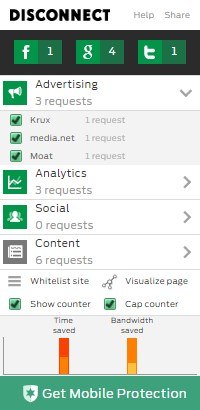
For each of the above elements, you can click the icon to block or unblock them. Remember that green icons mean Disconnect is actively blocking that category, and grey means it’s not.
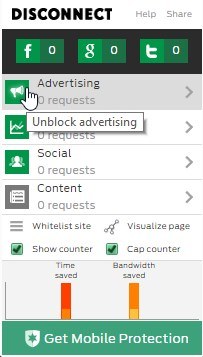
The “Show counter” option will keep count of the websites that have been blocked and present it as a small number on the addon’s icon on your Chrome bar. “Cap counter” will stop the counter going above 99 to keep things a little tidier.
Resources Saved
Near the bottom are two graphs: “time saved” and “bandwidth saved.” These calculate both the time and the data you’ve saved due to blocking the website’s requests. If you want to see the exact impact of the elements being blocked, mouse over these bars to see how much you managed to save with your blocking filters.
The Visualisation Tool
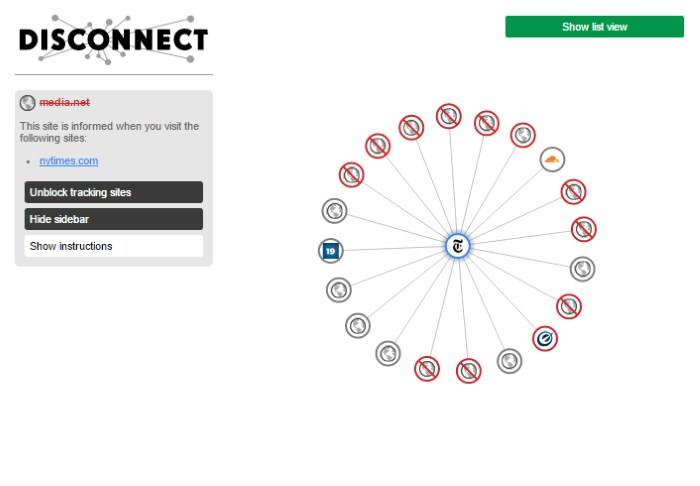
One of the best features in Disconnect is the “Visualise page” button. This brings up a graph that shows you a clear view of who’s tracking you from the website you’re connected to. Websites with a blue halo around them are ones you’ve physically visited, while ones without are websites you haven’t visited. The websites that are crossed out have been confirmed to be a tracking service.
Keeping Track
As we browse the ‘Net, we’re contacted several times by “hidden” services that request information from us. By using Disconnect, you can see and even block these requests so you can keep track of who’s tracking you on the Internet.
Are you concerned about websites tracking your data? Let us know below in the comments.