


Once in awhile, people who visit your house might need to use your computer’s browser for a bit. This gets especially annoying for two reasons: It feels a little invasive when people take control of your computer, and their browsing history and other details get mixed in with yours. Your guest might also have reservations about logging into a website, creating a session on your browser. If you’re using Chrome, there are a few ways around this – some that may take some effort, and others that are nearly effortless. Each method is ideal for its own uses. Let’s explore them!
1: Set Up a New User Account
This one’s practically a no-brainer. If you’re going to have another user, you might as well give them an account. Of course, this isn’t exactly the kind of effort you should put in for someone who’s just using your computer this one time. A new user account is ideal for when you have someone living with you who uses your computer regularly.
To add a new user, first go to Chrome’s settings, then scroll down to “Users.” Once you’re there, click on “Add new user.”
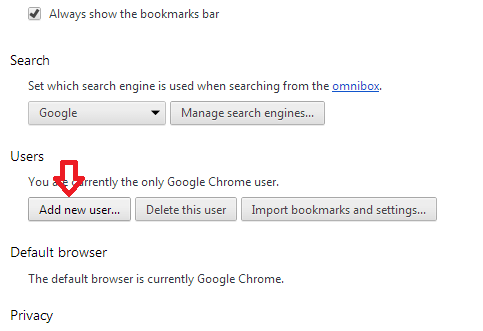
Once you’re in the dialog, you’ll get to name the user and even create a desktop shortcut for this person. This new user will have their own browsing history, cache, cookies, download history, and all the other goodies you have. Nothing says “I care about you enough to give you your own environment on my computer” like setting up a new Chrome just for that special someone.
2: Enter Kiosk Mode
Maybe you’re not intent of letting people use the rest of the computer. Instead, you’d like to restrict access only to the browser. Chrome includes a feature that allows you to do exactly this, displaying the browser in full screen. To start up Chrome in kiosk mode, right-click the shortcut you normally use to launch the application and click “Properties.” Once you’re in the dialog, add “--kiosk” to the end of the path within the “Target” field and click “OK.”
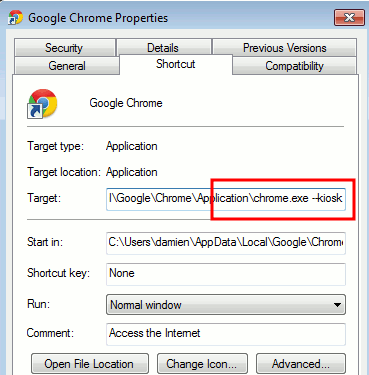
To add to this, you can also put a URL right after the “--kiosk” string. It will open Chrome with whatever URL you have there loaded. This is especially ideal for small businesses that give the public access to some of their computers.
Unfortunately, using kiosk mode doesn’t create a separate set of data. It’ll be using the browser’s cumulative history, cookies, and cache. To get around this, use what you learned in the first section (creating a new user) and modify the desktop shortcut for that user to start up in kiosk mode. Also, to exit Chrome, press “Alt+F4.”
3: Incognito Mode
You might already be aware of this, but I’m still going to talk about it: Chrome has a mode that doesn’t save any history, any cookies, or any other related data within the active window. Known as “incognito” mode, this allows you to quickly set up the browser for someone who doesn’t want to save any login sessions or history of what they were doing on your computer. Let’s say a friend comes to visit but he’s afraid to leave his Facebook account logged in after he’s done. Incognito mode is awesome for these situations.
To set up incognito mode, all you have to do is press “Ctrl+Shift+N” while Chrome is open. It will automatically open a new incognito window. To open Chrome in incognito mode, you need to pin its shortcut to your taskbar. This works only in Windows 7 and above. Right-click the pinned shortcut and click “New incognito window.”
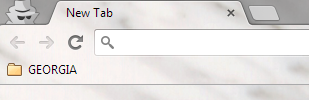
You’ll know you’re in incognito mode when you see a shady looking guy on the top left-hand corner of the window, like this:
Happy Browsing!
Once you’ve figured out what you’re going to do, make sure you teach these techniques to your friends. It’s a sign of respect to give each person a unique private browsing experience as much as it is important to keep your own data private. Have a question about this? Post a comment!